How to Set Up a Secondary Task Area for Standing-Only Activities
Pick a compact, height-adjustable desk with a dual-motor frame-test it for at least 15,000升降 cycles to guarantee durability-and set it on hard flooring to maximize stability. Pair it with a 3/4-inch anti-fatigue mat featuring a textured, beveled edge to encourage movement and reduce strain. Position a flicker-free LED task light (CRI 90+, 2700K–5000K) to the side of your screen, and keep wireless tools and supplies within elbow reach. Avoid plush carpets-they undermine mat support and wobble the frame. Your ideal standing zone hits at 42 inches, with power and controls close; six-leg bases add stability but need more space. A programmable desk preset makes shifts smooth, while a standing stool offers relief when fatigue hits. Balance function and comfort, and you’ll find a rhythm that fits your workflow.
Notable Insights
- Choose a dedicated, unobstructed space near natural light with stable flooring to support standing tasks.
- Use an adjustable standing desk or countertop mounted at elbow height for ergonomic alignment.
- Equip the area with an anti-fatigue mat featuring textured, closed-cell foam for comfort and durability.
- Install task lighting with adjustable arms and flicker-free LEDs to reduce eye strain and shadows.
- Organize essentials with wall-mounted shelves and cable management to maintain clutter-free workflow.
Choose an Adjustable Standing Desk for Your Task Area
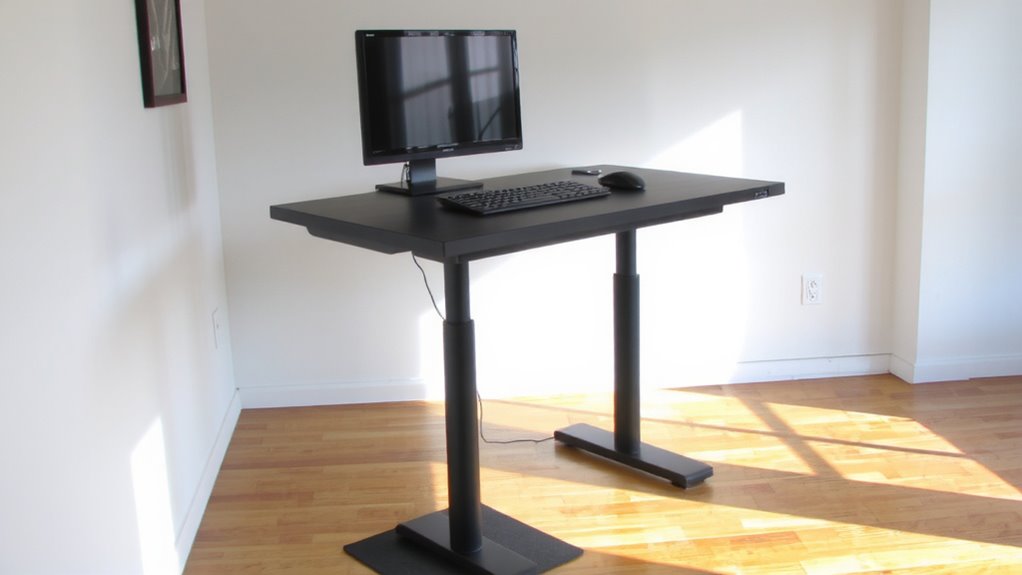
An adjustable standing desk is the backbone of a functional standing task area, so picking the right one matters. You’ll want a stable frame and a reliable electric mechanism that adjusts smoothly without noise or wobble. Desk height should range from about 25 to 50 inches to fit most users comfortably, whether you’re 5’2″ or 6’4″. Look for desks tested to at least 15,000升降 cycles-this signals durability. Dual-motor systems lift faster and handle heavier loads, typically up to 200 lbs, compared to single motors. Frame geometry matters too: six-legged designs add stability but take up more floor space. Some models include programmable presets, letting you switch between sitting and standing with one button. But don’t assume higher price means better performance-some budget options pass lab tests just as well. Check warranty length; 5-year coverage is standard, but 7+ years suggest stronger confidence in longevity. For a curated list of high-performing models, explore the best standing desks based on stability, motor type, and user testing.
Set up Your Workspace With Standing-Friendly Tech
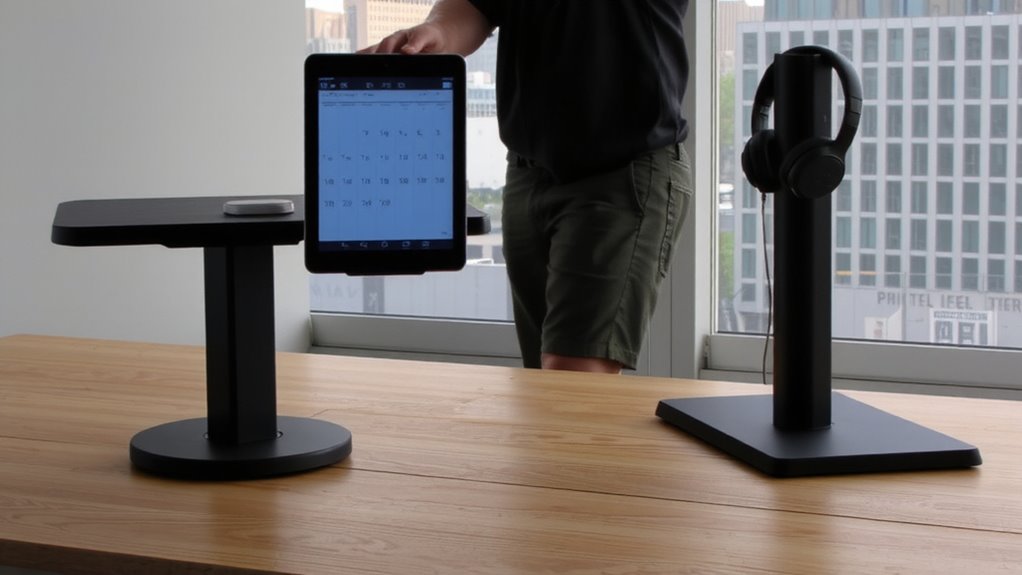
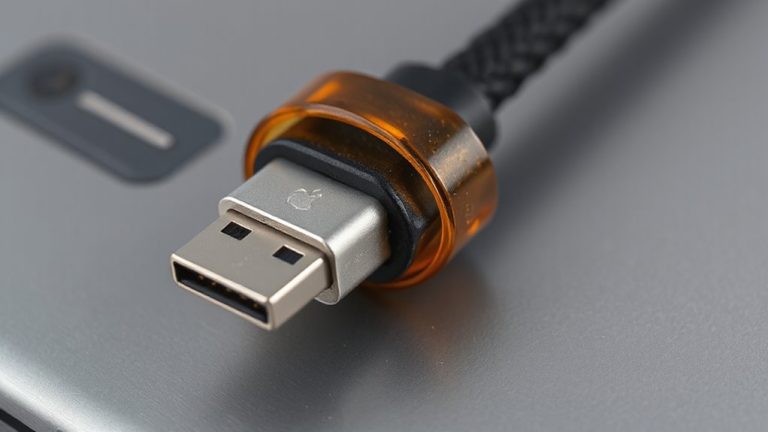
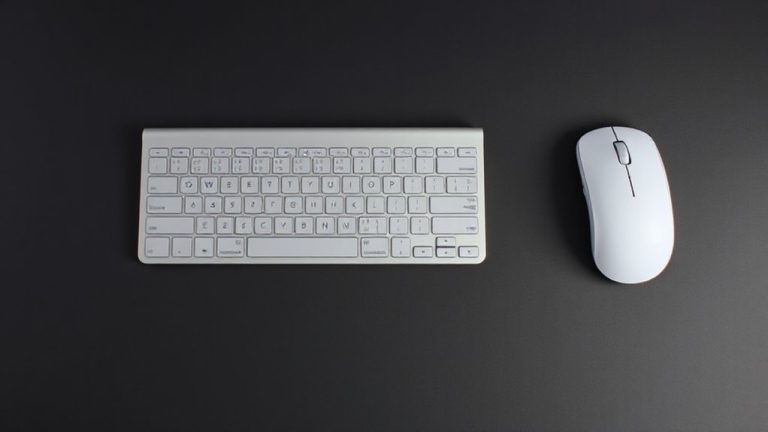
You’ll want to pick tech that keeps you moving without sacrificing comfort or efficiency, so start by positioning your monitor at eye level, about an arm’s length away-this prevents neck strain when standing. Maintain ergonomic posture by using a compact keyboard and vertical mouse to reduce wrist extension. Good cable management isn’t optional; use braided sleeves or adhesive clips to keep cords tidy and out of the way, minimizing tripping hazards and distraction. A well-designed standing desk stool can further enhance posture and comfort during prolonged standing tasks.
| Gear | Why It Matters |
|---|---|
| Monitor riser | Elevates screen for proper viewing height |
| Wireless peripherals | Reduce clutter and improve cable management |
| Anti-fatigue mat | Supports posture and encourages micro-movements |
| USB hub | Centralizes connections, streamlining setup |
Stability and adjustability matter, but even the best gear fails without proper positioning. Test configurations for at least 20 minutes to assess real-world comfort.
Brighten With Task Lighting to Prevent Eye Strain
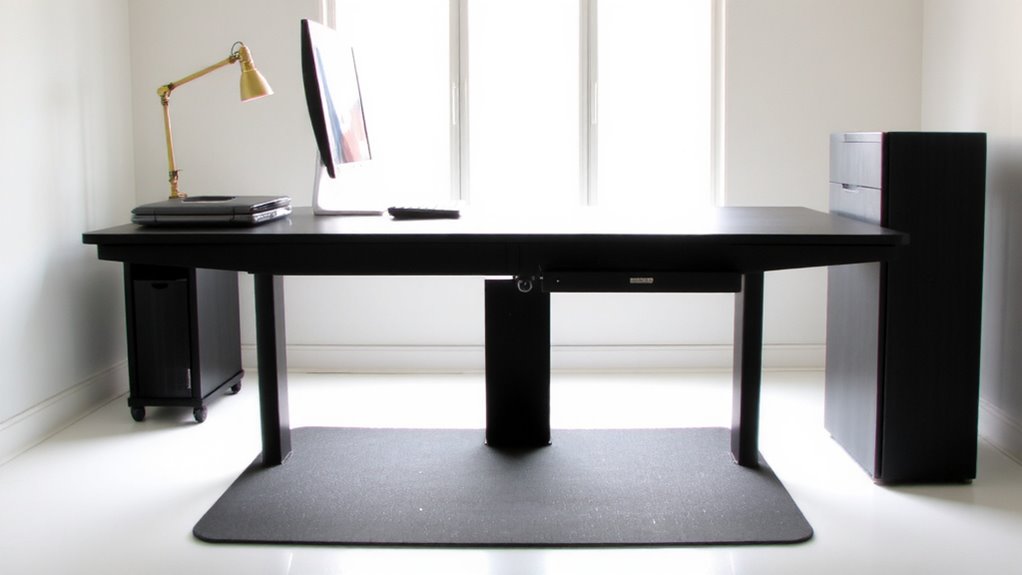
Proper task lighting makes a noticeable difference in reducing eye strain during long standing work sessions, especially when your monitor setup already supports good posture. Adding focused task lighting improves eye comfort by balancing ambient light and reducing screen glare. Choose a gooseneck or articulated lamp with adjustable brightness and color temperature-ideally 2700K to 5000K-to match your environment. Position it to the side of your screen, aiming light at your work surface without casting shadows. Look for LEDs with flicker-free operation and a high CRI (90+) for accurate color rendering. While many affordable models work well, check for solid build quality and at least a two-year warranty. Poor placement or overly bright lighting can worsen eye comfort, so test settings throughout the day. Don’t rely solely on overhead lighting-it’s rarely sufficient or well-distributed for detailed tasks. Best desk lamps for streaming often feature the adjustability and lighting quality ideal for precise task lighting.
Stand Comfortably Using an Anti-Fatigue Mat
Your feet carry the load when you’re on them for hours, and an anti-fatigue mat can make a real difference in reducing lower back pain, leg fatigue, and discomfort from prolonged standing. A quality mat encourages subtle muscle movement, improving circulation and supporting better foot posture. Look for a textured surface-mat texture matters because it provides gentle stimulation without feeling harsh, helping prevent foot numbness. Most effective models are 3/4 to 1 inch thick with beveled edges to reduce tripping hazards. Choose closed-cell foam or rubber to resist moisture and wear. While these mats aren’t a substitute for movement, they’re a practical addition when standing for 30+ minutes at a time. Not all mats deliver equal support-avoid thin, overly soft versions that collapse underfoot. Test one with your shoes; comfort should balance firmness and cushioning. Warranties of 1–3 years signal durability, but real-world testing shows performance often peaks within 12 months.
Keep Supplies Handy to Avoid Distractions
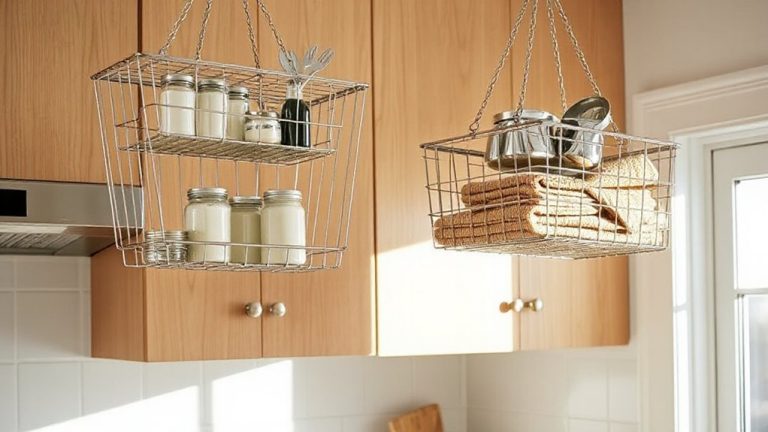
A well-organized standing task area keeps frequently used tools within easy reach, cutting down unnecessary movement that breaks focus and slows workflow. Smart storage solutions-like wall-mounted shelves, rolling carts, or compact caddies-help maintain consistent supply organization without cluttering your space. You’ll save time and stay engaged when pens, notebooks, chargers, and small tech are staged just where you need them. Clear bins or labeled drawers let you see contents fast, reducing the urge to wander off mid-task. However, overstocking the area can create visual noise and actually hinder efficiency. Stick to essentials you use daily. Most tested units with modular designs offer better adaptability but cost more-check return policies before buying. Durable plastic or powder-coated metal lasts longer than wood in high-traffic zones. Good setup cuts distractions, but only if you maintain it weekly.
Pick the Perfect Spot for Your Standing Task Area
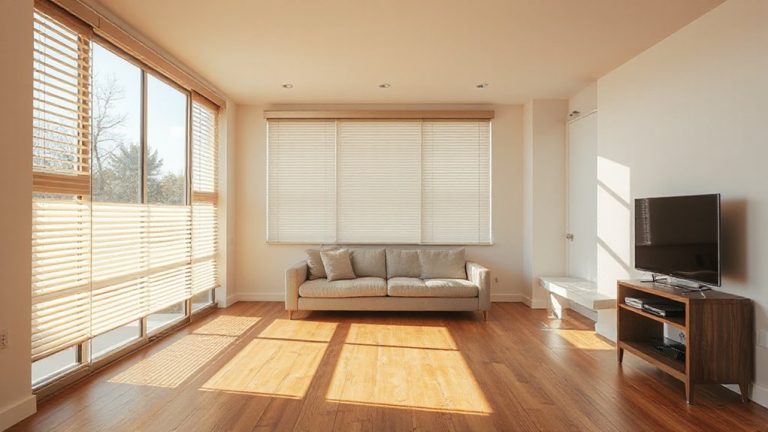
Where should you set up your standing task area? Choose a spot that balances function and comfort without disrupting your main workspace. Ideally, it’s near natural light to support room aesthetics and reduce eye strain, but avoid direct glare on screens. You’ll want stable flooring-avoid plush carpets that make anti-fatigue mats ineffective. Pay close attention to noise levels; placing the area near a quiet corner or away from high-traffic zones improves focus. Make sure power outlets and device storage are within reach, but don’t sacrifice ergonomics for convenience. Your standing surface should hit around elbow height (about 42” for most people) when you’re upright. Be honest about space limits-compact setups work, but they restrict movement. Finally, consider how the spot fits long-term; temporary fixes often fail after two weeks of real use.
On a final note
You’ll get the most from a standing-only task area if you use an adjustable desk and anti-fatigue mat-both proven to reduce lower back strain in long-term use. Pair them with LED task lighting (300–500 lumens) to cut glare. Keep essentials within arm’s reach using wall organizers. Just remember: even the best setup won’t replace movement. Alternate standing with walking or sitting every 30 minutes to avoid leg fatigue.