How to Reset Your Cable System After a Power Surge or Outage
Unplug your modem, router, and cable boxes after a power surge to reset the system and clear residual power-wait at least 30 seconds. Reconnect the modem first and wait 2–3 minutes for steady lights, indicating proper sync. Then power up the router and check for stable internet with a speed test. Turn on TV boxes and allow up to 20 minutes for full channel restoration. Poor signal strength or persistent issues could point to service problems, not faulty gear. There’s more to optimizing recovery based on your equipment setup.
Notable Insights
- Unplug all devices, including modem, router, and cable boxes, to reset the system after a power surge or outage.
- Wait at least 30 seconds to allow residual power to discharge and ensure a complete reset of internal components.
- Reconnect the modem first and wait two to three minutes for indicator lights to stabilize and signal syncing with the provider.
- Power on the router after the modem is fully synced and wait for Wi-Fi and status lights to normalize before testing internet access.
- Restore TV service by powering on cable boxes, allowing automatic channel scanning, and refreshing the guide if necessary.
Unplug Your Modem, Router, and Cable Boxes
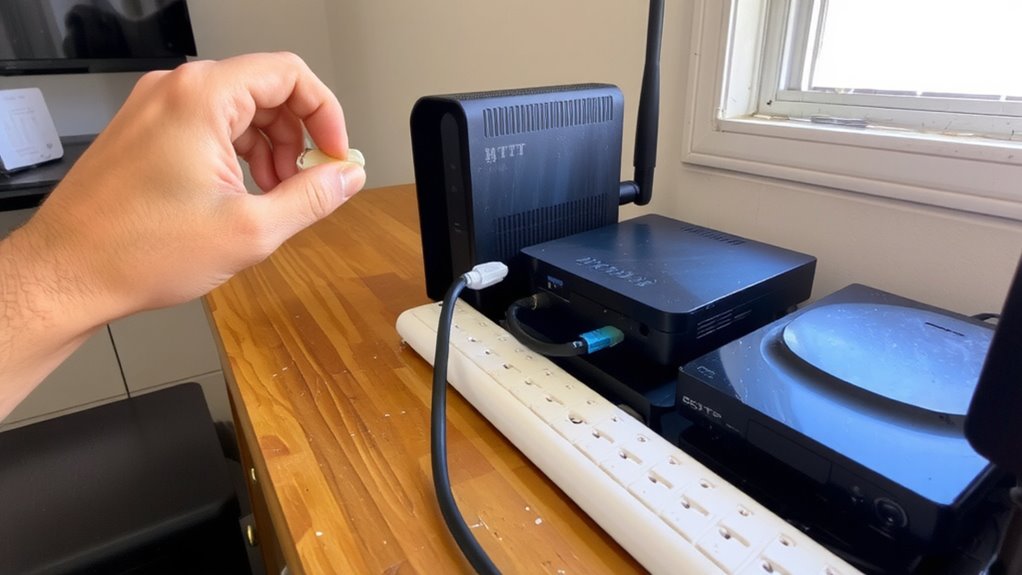
Start by unplugging your modem, router, and any cable boxes from power to fully reset the system after a surge or outage. This step clears glitches and helps restore stable connectivity. Damaged cable insulation can worsen interference or signal loss, especially after electrical stress, so inspect cords for fraying or brittleness before reconnecting. Proper electrical grounding is essential-it protects your devices from future surges and guarantees consistent performance. Without it, even a minor spike might fry sensitive components. While most modern equipment has built-in safeguards, they’re not foolproof. Reconnecting without verifying these factors risks repeated issues. Though inconvenient, this reset process improves long-term reliability. Make sure outlets are grounded and avoid power strips without surge protection. If problems persist, the issue might be service-related, not device failure. Always prioritize safety and signal integrity over speed of setup.
Wait 30 Seconds to Clear Residual Power
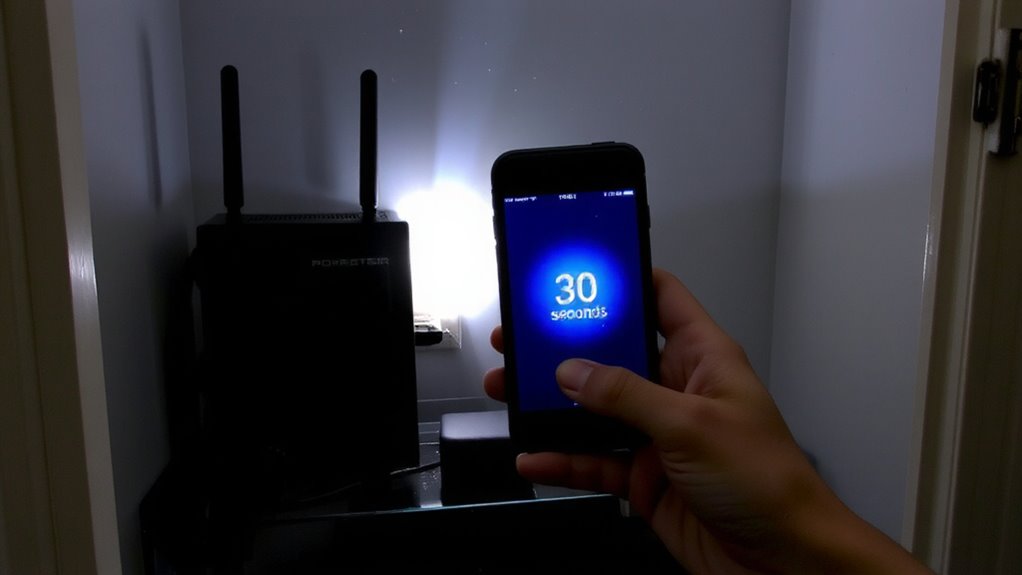
Give it at least 30 seconds-this brief pause matters more than you might think. This delay helps clear residual power from your modem, router, and cable boxes, which is key for both electrical safety and equipment longevity. Without it, leftover current can cause unstable restarts or internal stress. Think of it like giving your devices a quick reset at the circuit level. While 30 seconds might seem arbitrary, tests show it’s enough time to discharge capacitors in most consumer networking hardware. Skipping this step could lead to inconsistent performance or even shorten component life over time. It’s a small action, but it’s backed by real engineering principles. Just don’t obsess over perfect timing-25 seconds helps, 40 is fine. The goal isn’t precision but allowing a full power cycle. This isn’t about magic fixes; it’s basic care that supports reliable operation after outages.
Plug in Your Modem and Wait for Steady Lights
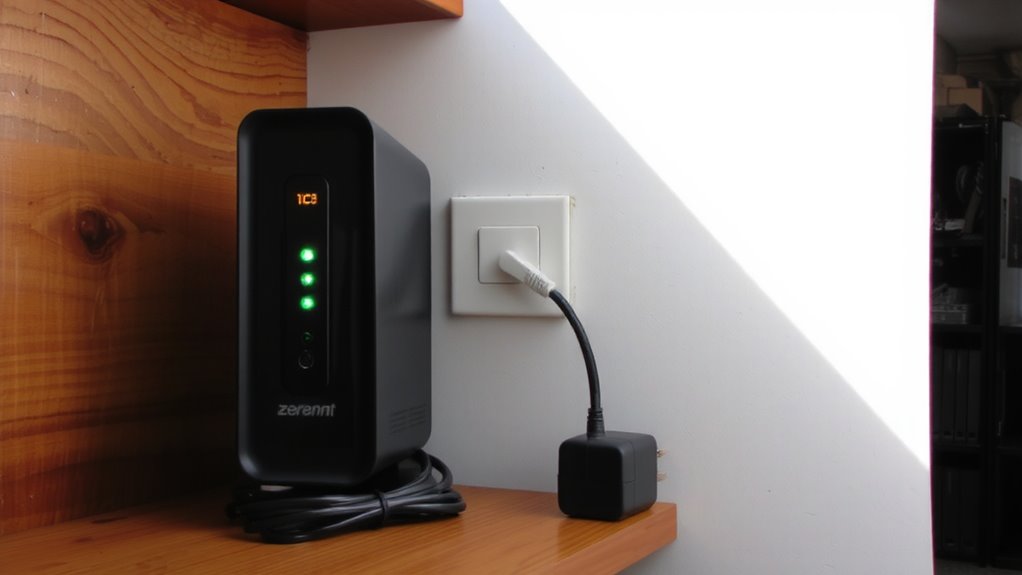
You’ve given your gear that short break to reset internally, so now it’s time to power things back up starting with your modem. Plug it in and wait-it usually takes two to three minutes to fully boot. Watch the indicator lights: steady ones mean it’s online and syncing with your provider. Blinking or red lights could indicate issues with modem diagnostics or poor signal strength. Good downstream signal strength should be between -10 dBmV and +10 dBmV; upstream should stay under 50 dBmV. If levels fall outside this range, your connection may struggle. Don’t panic if lights take a minute to stabilize-cable modems need time to reacquire network lock. Avoid pressing buttons or unplugging during this phase. Steady lights confirm the modem is communicating properly with your ISP and ready for the next step.
Restart Your Router and Confirm Internet Access
Once your modem has fully synced-indicated by steady power, downstream, and upstream lights-you’re ready to bring your router online. Plug it in and wait for all status lights to stabilize, which usually takes two to three minutes. Then, check your devices for internet access. Open a browser and load a few sites to test connectivity. Use a speed test tool to evaluate Wi-Fi strength and network latency; you should expect strong signal bars and latency under 50 ms on a functioning network. If Wi-Fi strength is weak in certain rooms, consider repositioning the router to a central, elevated spot-away from walls or electronics that cause interference. High latency or spotty connections might suggest outdated firmware, so log into your router’s interface and confirm it’s up to date. Avoid cheap extenders-they often reduce speeds. A dual-band router typically offers better performance, but it won’t fix poor line quality. For optimal performance in a business environment, consider investing in one of the best office routers designed for reliable connectivity.
Turn On TV Boxes and Wait for Signal Sync
Now that your internet is up and running, it’s time to get your TV service back on track. Turn on each cable box using the remote or power button, and let it boot fully-this usually takes a few minutes. During startup, the device checks signal strength from the cable line, which must be stable for clear reception. If the signal’s too weak or fluctuates, you might see errors or freezing later. Most boxes automatically run a channel scanning process once powered up, detecting available channels based on your package. Don’t skip waiting through this scan, even if the screen seems stuck. Interrupting it can cause missing channels. Signal strength issues may require a technician, especially if problems persist across multiple boxes. While the process is mostly hands-off, patience here prevents headaches later.
Check for Channel and Guide Availability
Why isn’t your channel guide loading or some channels missing after the restart? After a power surge or outage, your cable box may need time to complete channel mapping and system synchronization. Channels might not appear immediately, and the guide can take up to 15 minutes to fully restore. You’ll want to trigger a guide refresh-either automatically through system reboot or manually via your remote’s menu-to guarantee you’re seeing updated programming data. Don’t assume a hardware fault if everything doesn’t load instantly; delays are common. However, if some channels remain absent past 20 minutes, it could signal incomplete signal lock or outdated channel mapping tables. Avoid unnecessary service calls by waiting through the full refresh cycle. While rare, persistent issues may require technician intervention, but most cases resolve with patient observation and proper rebooting sequence.
Understand Why Power Outages Disrupt Cable Service
Although your cable system might seem like it should work the moment power returns, outages often disrupt service because both your cable box and the provider’s network equipment rely on synchronized signals that take time to restore. Signal interference can occur as systems reboot, corrupting data flow until stable connections reestablish. Equipment degradation in older modems or splitters worsens recovery time, making your setup more prone to dropouts or slow handshakes with the network. Even if your internet comes back quickly, guide data and channel lineups need full signal lock, which may take several minutes. Don’t assume a reset failure if service doesn’t return instantly-wait 10 to 15 minutes. If problems persist, check for physical damage to cables or outlets, especially after a surge. Replacing outdated gear can reduce future downtime, but guarantee new equipment matches your provider’s specs to avoid compatibility issues.
On a final note
Resetting your cable system after a power surge usually restores service quickly, but success depends on your equipment’s condition and surge protection. Always unplug devices immediately after an outage to prevent damage. Most modems and routers reboot fully within five minutes. If lights stay unstable or connections drop, check for firmware updates or hardware faults. A quality surge protector with a warranty adds safety, but it’s no guarantee. Test speeds afterward to confirm performance.