Steps to Resolve No Sound Output on Bluetooth Earpieces in Virtual Classrooms
First, confirm your Bluetooth earpiece is selected as the default audio output in both system and classroom app settings-many sound issues stem from incorrect selection, not hardware. Re-pair the earpieces by restarting both device and earbuds, then pairing fresh. Test on another device with >50% battery to rule out source problems. Update firmware via the manufacturer’s app or website for better app compatibility. If audio still cuts out, check app-specific audio settings to guarantee the earpiece handles both mic and speaker roles. Latency under 100ms is ideal; persistent dropouts suggest connection interference. Most issues resolve with proper pairing and settings, though older earbuds may struggle with real-time apps despite updates-some deeper troubleshooting could help clarify why.
Notable Insights
- Verify Bluetooth earpiece is selected as default audio output in both system and classroom app settings.
- Re-pair the earpiece by unpairing, restarting devices, and establishing a fresh Bluetooth connection.
- Test the earpieces on another device with sufficient battery to isolate hardware from software issues.
- Update earpiece firmware via the manufacturer’s app or website to ensure compatibility and stability.
- Manually set the earpiece as input and output device in the classroom app to override default settings.
Check Device Audio & Bluetooth Output
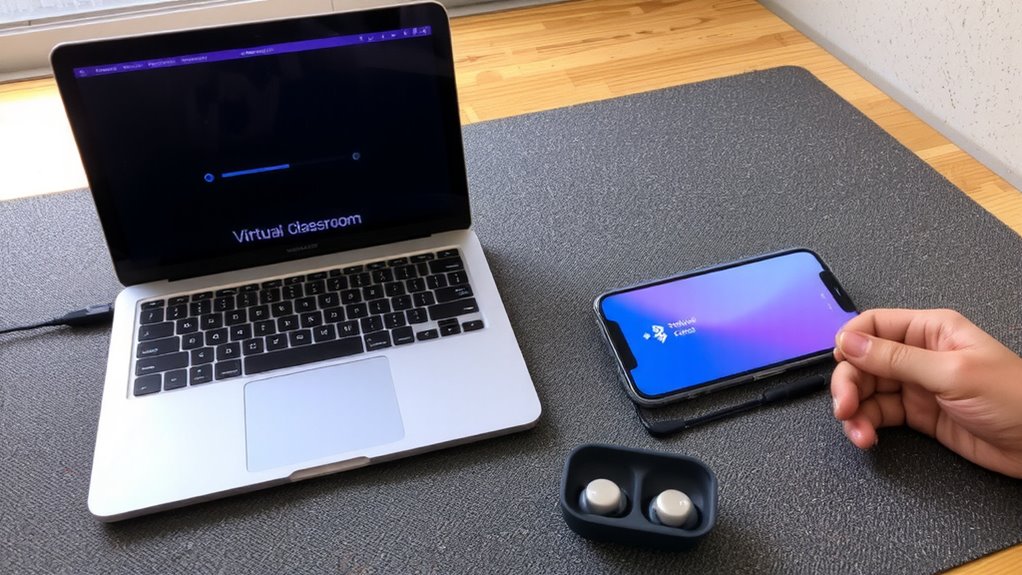
A silent Bluetooth earpiece during class isn’t just annoying-it’s a real disruption. You need sound reliability, and it starts with checking your device’s audio output settings. Make sure your Bluetooth earpiece is selected as the default audio device in your classroom app and system settings. Poor audio latency or weak connection stability often stems from overlooked output choices, not hardware flaws. Even premium earpieces struggle if paired but not actively chosen as the output. Test audio before class using a short clip or self-mic check. Keep in mind: some devices show a connection yet route sound elsewhere. Audio latency under 100ms is ideal for sync, while frequent dropouts signal connection stability issues. Don’t assume pairing equals readiness. Verify in real time. These steps take seconds but prevent interruptions. Still, no earpiece fixes sloppy software settings-your attention to detail does.
Re-Pair Your Bluetooth Earpieces
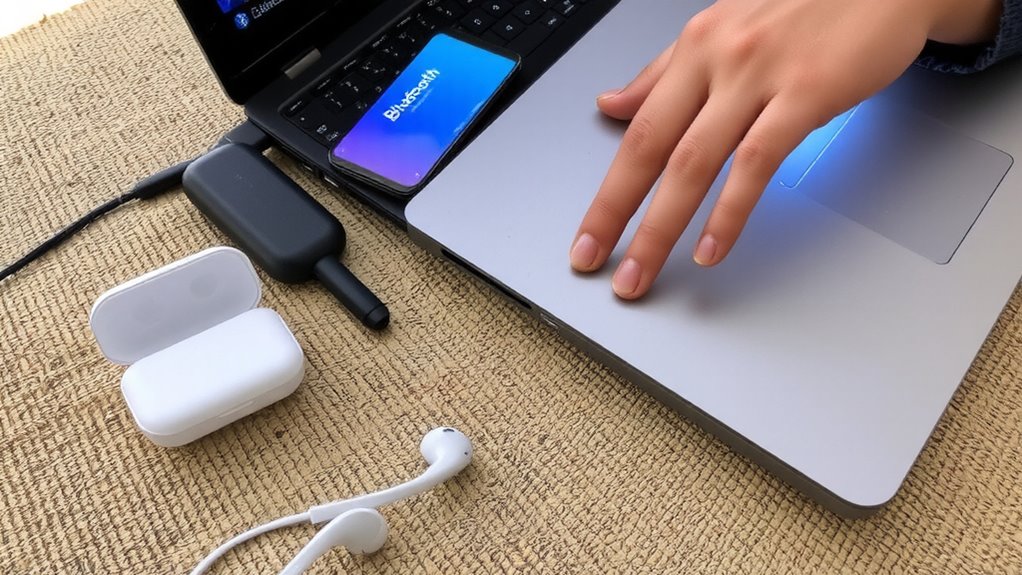
Why isn’t your earpiece working even after it shows as connected? Sometimes, pairing interference or a connection timeout can block audio, even if your device says it’s linked. To fix this, unpair your earpieces completely from the device, then restart both the earpieces and your computer or tablet. Turn Bluetooth off and back on to refresh the connection. Now, re-pair them as if they were new. This clears old signals and resets the link. Most modern earpieces enter pairing mode with a 5-second hold on the power button-check your model’s exact steps. Re-pairing often resolves silent outputs in virtual classrooms. Just remember, doing this too often might wear down battery cycles slightly over time. It’s effective but best used when needed, not as a daily fix.
Test Bluetooth Earpieces on Another Device
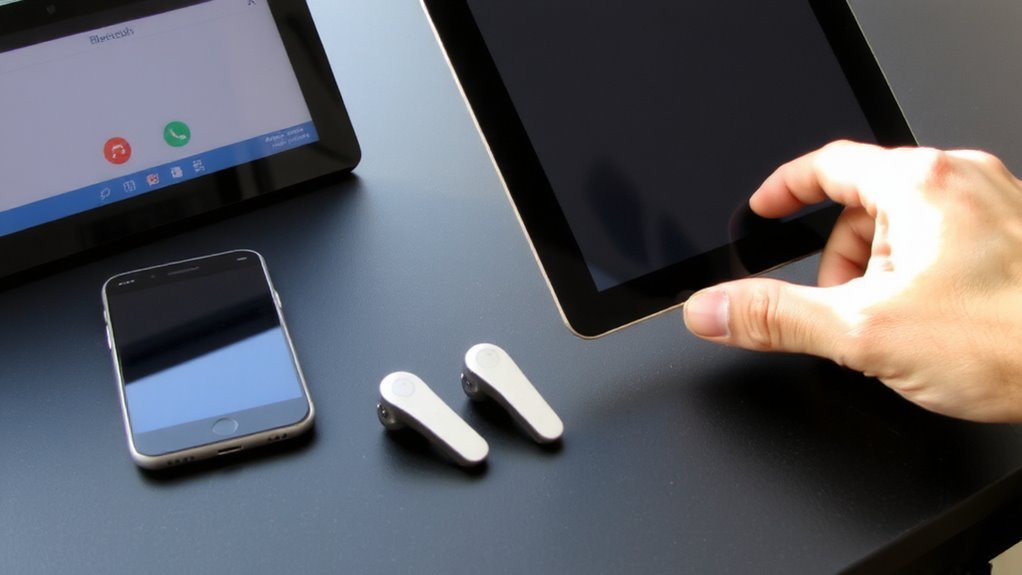
Could your silent earpieces actually be working fine-just misunderstood by your main device? Testing them on another device helps rule out audio interference or software glitches unique to your primary system. Grab your smartphone, tablet, or a friend’s laptop and pair your earpieces there. Play a short audio clip to check sound output. This step quickly reveals whether the issue lies with your earpieces or your main device’s settings. Make sure battery levels are above 50%-low power can cause inconsistent performance. If they work elsewhere, the problem likely stems from driver conflicts or app permissions on your original device. While this test doesn’t fix firmware flaws, it saves time and narrows troubleshooting. Don’t assume failure; sometimes, the gear’s fine-it’s the ecosystem that’s off.
Update Bluetooth Earpiece Firmware
Though it might seem technical, updating your Bluetooth earpiece firmware is often the quickest way to resolve silent or glitchy audio in virtual classrooms, especially if older software is miscommunicating with your conferencing app. Manufacturers regularly release updates to improve firmware compatibility with common platforms like Zoom or Teams, fixing bugs that disrupt audio clarity. Check your earpiece’s companion app or the brand’s support site for available updates-many now automate this process. Keep in mind the update frequency varies by brand; flagship models may get patches every few months, while budget models lag. Not all earpieces receive frequent updates, and some can’t be updated at all. Always back up settings before starting, as the process may reset preferences. A successful update can restore crisp audio, but incorrect flashing could disable the device. Proceed only if the fix outweighs the risk.
Fix Bluetooth Audio in Classroom Apps
How well your Bluetooth earpiece performs in a virtual classroom often comes down to how you configure the audio settings in your conferencing app-because even with a rock-solid connection, the wrong input or output selection can leave you stranded without sound. You must manually set your earpiece as both the speaker and microphone within apps like Zoom or Google Meet, since default settings may ignore Bluetooth profiles for voice recognition. Poorly optimized apps can worsen audio latency, making speech overlap or stutter during discussions. While most modern earpieces support low-latency modes, they only work if the app allows direct audio routing. Test your setup before class: speak clearly and check if others hear you without delay. Some apps prioritize built-in mics, undermining your earpiece’s noise isolation. Adjustments take minutes but greatly improve reliability-just remember that firmware alone won’t fix misconfigured app settings.
On a final note
You’ll likely restore sound by updating firmware and re-pairing your earbuds, as these fix most Bluetooth audio issues in virtual classrooms. Performance improves with codecs like AAC or SBC, but latency may still affect real-time feedback. Test across apps-Zoom and Teams handle Bluetooth differently. While most earbuds recover, older models under two-year warranties may lack critical updates. Results vary; newer hardware with multipoint support offers more reliability, but isn’t foolproof.