Selecting a Monitor Arm With 360-Degree Rotation for Portrait and Landscape Use
You should get a 360-degree monitor arm if you regularly switch between portrait and landscape modes for coding, editing, or browsing. Look for one that supports your monitor’s size (17–32 inches) and weight (up to 17.6 lbs), with VESA 75×75 or 100×100 compatibility-verify this in your monitor’s specs. Opt for clamp mounts if you need flexibility; choose grommet for permanent, wobble-free stability. Smooth swiveling relies on balanced tension and quality bearings, so check for adjustable resistance and at least a 3-year warranty. Built-in cable routing keeps power and HDMI cables tidy through hundreds of rotations. There’s more to examine about long-term performance and fit.
Notable Insights
- Ensure your monitor supports VESA 75×75 mm or 100×100 mm mounting for compatibility with 360-degree rotating arms.
- Choose an arm that supports your monitor’s size and weight to prevent sagging and ensure smooth rotation.
- Opt for a clamp mount if you need quick setup and mobility; use grommet mount for permanent, stable dual-monitor installations.
- Look for built-in cable management with removable covers to maintain a clean workspace through frequent orientation changes.
- Prioritize arms with adjustable rotation tension and durable internal bearings for reliable, wobble-free 360-degree swiveling.
Who Needs a 360-Degree Monitor Arm?
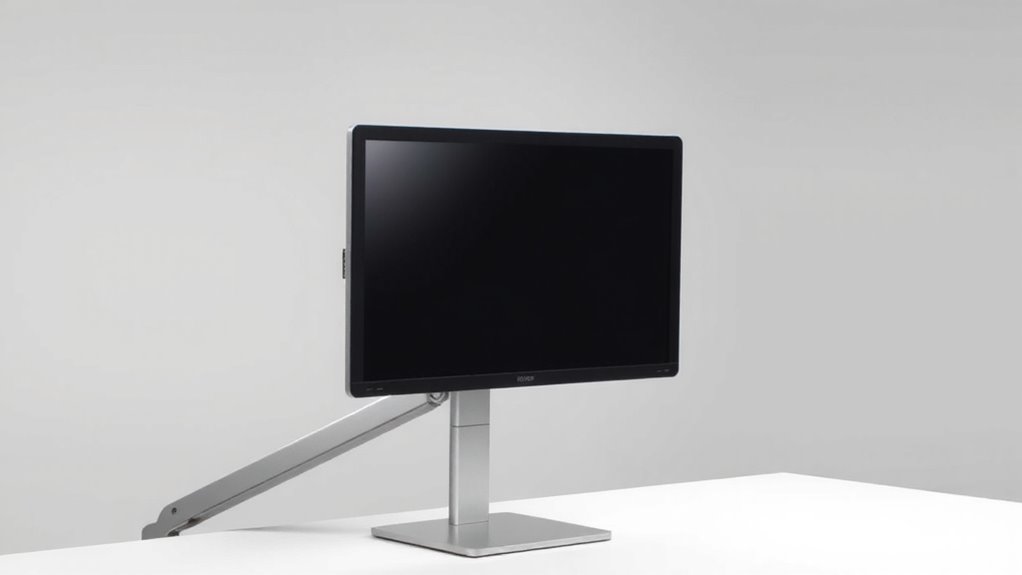
Ever wonder if a 360-degree monitor arm is actually worth the desk space and setup effort? You might need one if your work shifts between tasks requiring different screen orientations. The ergonomic benefits are clear-tilting, swiveling, and raising your display reduces neck strain and improves posture over long hours. A 360-degree arm lets you switch smoothly from landscape to portrait mode, ideal for coding, editing, or reading documents. It also supports space optimization by keeping your desk clutter-free and maximizing usable area. Most models hold 17–32-inch screens and support VESA 75×75 or 100×100 mounts. They typically include cable management and offer gas-spring tension control. But setup requires careful balancing, and not all desks accommodate the clamp or grommet base. Warranties usually last 3–5 years. Weigh your workflow needs-constant repositioning justifies the effort; static setups may not. For those seeking top-performing options, explore the best monitor arms that combine flexibility, durability, and clean aesthetics.
Why 360-Degree Rotation Beats Fixed Arms
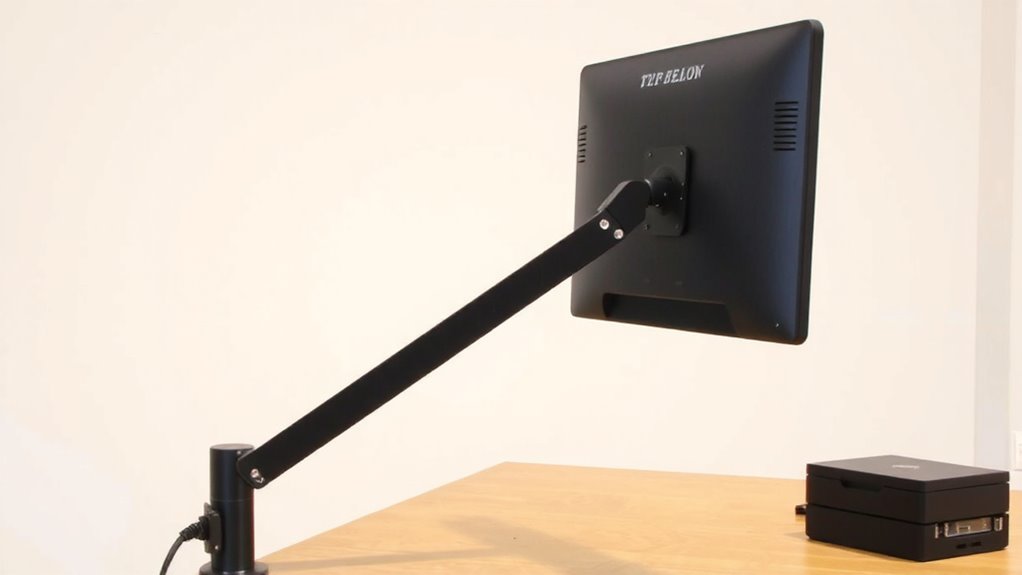
While fixed monitor arms keep your screen stable in one position, a 360-degree rotating arm gives you far more flexibility if your work demands frequent screen adjustments. You gain real ergonomic flexibility-shifting smoothly between landscape and portrait modes supports better posture during long tasks like coding or editing. This adaptability also improves space efficiency, letting you rotate the monitor out of the way during video calls or when reaching for items behind the screen. Unlike fixed arms, 360-degree models make full use of desk real estate without requiring repositioning hardware. However, this convenience comes with trade-offs: rotation mechanisms may require tighter tolerances and more frequent calibration to maintain tension. Some arms lose stability over time, especially with heavier displays. Check for solid counterbalance systems and at least a 3-year warranty to protect your investment. Test tilt and pan resistance in person if possible. For optimal performance, choose a model from the best monitor mounts list that balances durability with smooth rotational control.
Match Your Monitor: Size, Weight, and VESA Compatibility
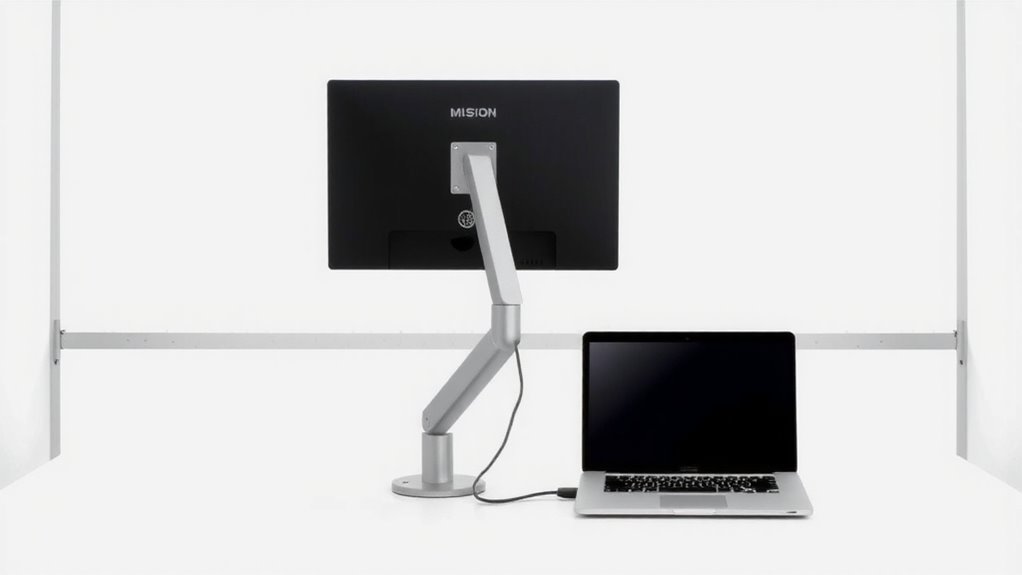
A good match between your monitor and arm starts with checking three key specs: size, weight, and VESA compatibility. Your monitor dimensions matter-most arms support screens from 17 to 32 inches, but always confirm the range. If your display’s too big or heavy, the arm may sag or fail to balance. Check the weight limit carefully; exceeding it risks damage and poor motion control. VESA standards are non-negotiable: nearly all arms require a 75×75 mm or 100×100 mm mounting pattern on the back of your monitor. Even if sizes match, an incompatible VESA pattern means it won’t attach securely. Don’t assume flat backs support VESA-some ultra-slim or curved monitors don’t. Verify your monitor’s VESA compliance in its manual or specs sheet. Getting this right guarantees smooth 360-degree rotation and long-term stability without risking your equipment.
Clamp vs. Grommet: Picking the Right Desk Mount
Your desk’s mounting setup makes or breaks the stability and flexibility of your monitor arm. For most, a clamp offers superior clamp stability without permanent changes to your desk. It grips the edge securely, supports quick setup, and works with 1.5–3.1 inch thick desktops. Just verify your desk has a solid edge-laminated or hollow surfaces risk slippage. If your desk has a grommet hole or you want a cleaner look, go for grommet installation. It bolts directly through the desktop, delivering rock-solid support ideal for dual-arm setups or heavy monitors. However, it requires drilling, limits future repositioning, and isn’t ideal for shared workspaces. Clamp mounts are easier to move and adjust; grommets deliver unmatched rigidity. Choose based on your desk’s build and how often you rearrange. Both work well when matched to your setup-just verify weight limits and desk compatibility first. A top-performing triple monitor arm ensures smooth 360-degree rotation for seamless transitions between best triple monitor arms and portrait orientations.
Permanent or Shared? Choosing Stable Mounting for Any Space
Choosing between permanent and shared workspace setups directly impacts how securely your monitor arm stays in place over time. If you’re the only user, permanent mounting-like a grommet or bolted base-ensures maximum stability for consistent ergonomic positioning and long-term space optimization. These mounts resist wobble during adjustments, maintaining tension over years. But if multiple people use the desk, a heavy-duty clamp offers secure attachment without drilling, allowing repositioning when needed. Look for models with reinforced joints and steel construction to support 360-degree use without sagging. Keep in mind that permanent setups limit flexibility if you rearrange your office later. Clamp mounts, while easier to remove, may shift under frequent rotation unless tightened regularly. Warranties of five years or more often reflect confidence in durability.
Smooth Rotation: What Makes Swiveling Effortless
While it might seem like a small detail, getting smooth 360-degree swiveling right makes a big difference in how easily you can pivot between tasks or collaborate with others. You want fluid motion without wobble, and that comes from precision-engineered internal bearings and balanced arm tension. Look for models tested to deliver consistent rotational ease across thousands of cycles-reputable brands often publish durability data. A well-tuned joint lets you switch from landscape to portrait with minimal effort, maintaining stability once positioned. But don’t assume higher price guarantees performance; some mid-tier arms match premium models in blind tests. Check for adjustable rotation resistance-too loose, and your monitor drifts; too tight, and fluid motion suffers. Real-world feedback shows that even slight friction imbalances reduce long-term comfort. Pair build quality with proper setup, and you’ll get seamless, reliable movement day after day.
Built-In Cable Management: Keep Cords Clean and Out of Sight
A monitor arm that rotates smoothly means little if tangled cables snap you out of the flow every time you move your screen. Built-in cable routing solves this by guiding cords through the arm’s body, keeping them secure during rotation. You’ll get clean cord concealment from desk to display, reducing clutter and accidental yanks. Most models use internal channels with removable covers for easy setup and cable swaps. This design works best with standard-length power and HDMI cables-overly thick or rigid ones might not fit. While effective, routing can limit quick peripheral changes, so plan your setup ahead. Units tested with nylon-jacketed cables showed no strain after 100+ rotations. Look for arms with at least a 3-year warranty to back the mechanism. Cable management isn’t flawless, but when well-designed, it’s a quiet win for daily efficiency.
On a final note
You should get a 360-degree monitor arm if you switch between landscape and portrait modes often-artists, coders, and researchers benefit most. Look for one with smooth swivel mechanics, at least 400mm reach, and full VESA 75/100 support. Verify your monitor weighs less than the arm’s max load-usually 17–22 lbs. Clamp mounts work for most desks; grommet kits add stability. Built-in cable trays help, but check arm clearance-some hide thick power cords poorly.