Verifying Firmware Compatibility Between PTZ Cameras and Control Software
You should always check your PTZ camera’s firmware version through its admin interface and confirm your control software version in the app’s “About” section-don’t rely on installer names. Match both against the manufacturer’s compatibility matrix to avoid sync issues or lost features. Even if devices connect, untested combinations can cause command delays or preset failures. Always update using official firmware, and test pan, tilt, and zoom response after setup-you’ll see how real-world performance reveals hidden mismatches.
Notable Insights
- Check the manufacturer’s compatibility matrix to confirm supported firmware and software versions.
- Verify both camera firmware and control software versions using device settings and app “About” sections.
- Ensure firmware authentication and pairing protocols match for stable system communication.
- Avoid updates or downgrades without confirming hardware revision and version locking policies.
- Test core PTZ functions after setup to detect hidden incompatibilities despite successful connectivity.
Check Your PTZ Camera’s Firmware Version
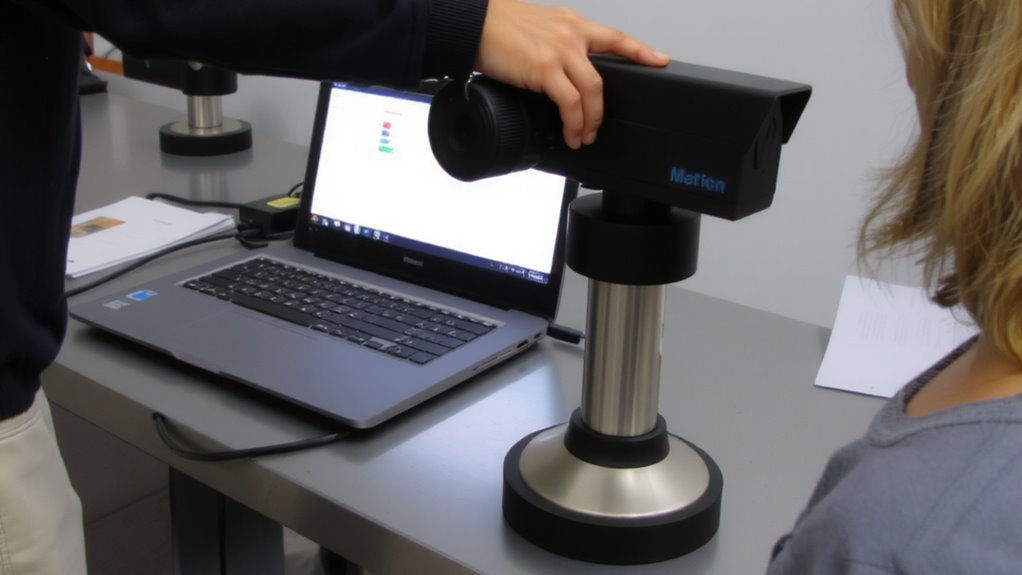
Firmware version matters-knowing yours keeps your PTZ camera running smoothly and securely. You’ll want to check your camera’s firmware history to make sure you’re not stuck with outdated features or known bugs. Access the admin interface through the camera’s IP address, then navigate to system settings where the current version is displayed. If available, compare it with the manufacturer’s release notes online. Version locking might be in place on some models, preventing downgrades or limiting updates-this protects stability but reduces flexibility. While updating often improves performance, it’s not risk-free; an interrupted process could brick the device. Always back up settings first. Firmware history logs help track changes and troubleshoot issues. Knowing your version doesn’t guarantee compatibility, but it’s the baseline. Ignore it, and you’re flying blind.
Identify Your Control Software Version
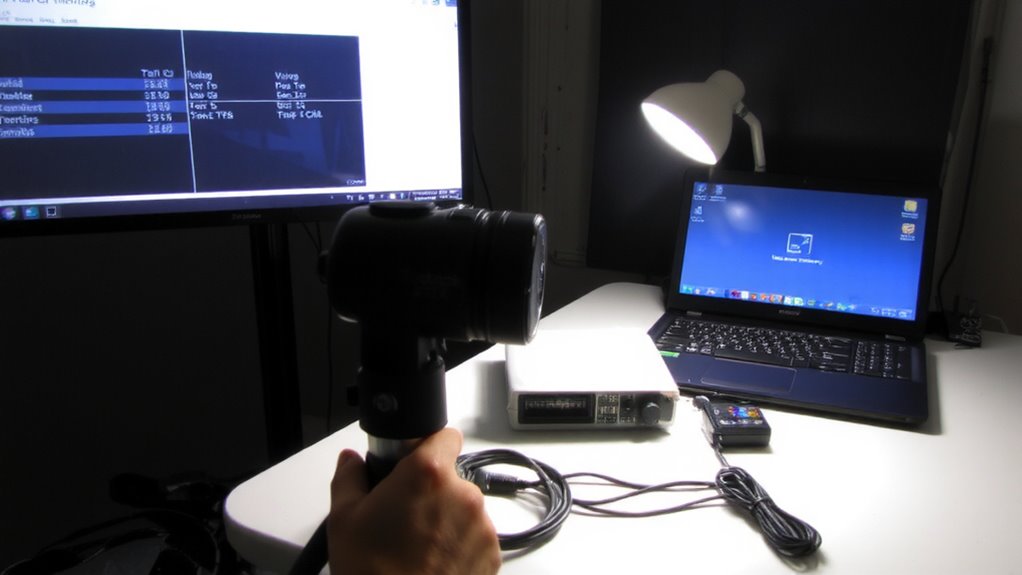
How confident are you that your PTZ camera and control software are speaking the same language? Identifying your control software version is critical for meeting software requirements and ensuring smooth operation. Without accurate version tracking, you risk miscommunication, lost features, or outright failure during setup. Most manufacturers release detailed compatibility matrices, so knowing your exact version helps you cross-reference requirements with confidence.
| Software Name | Version | Release Date |
|---|---|---|
| Camera Control Pro | 2.7.1 | Jan 2023 |
| PTZ Manager X | 4.3.0 | Aug 2022 |
| ViewStation Hub | 1.9.5 | Nov 2023 |
Always verify the version through the app’s “About” section, not just the installer name. Some updates include backend changes that aren’t obvious in the interface. Skipping this step could mean missing essential fixes or introducing instability, even if the system seems to work at first.
Verify PTZ Firmware and Software Compatibility
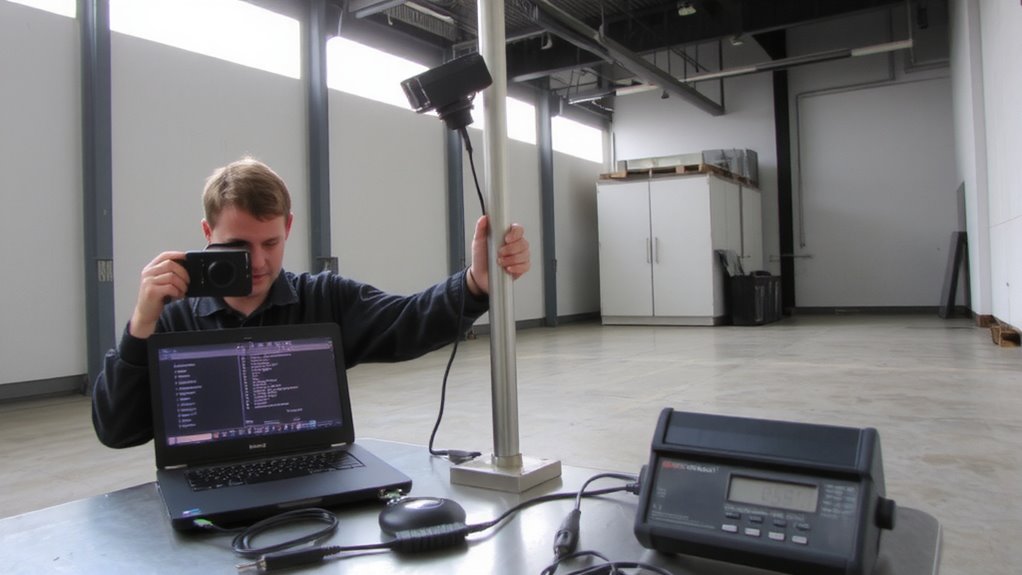
While you’ve confirmed your control software version, don’t assume it automatically works with your camera’s firmware-compatibility isn’t guaranteed just because the names match. You need to verify firmware authentication between the PTZ camera and your control system to guarantee stable software integration. Check the manufacturer’s compatibility matrix for tested combinations, as even minor version mismatches can cause command delays or lost connections. Some systems require explicit pairing or token-based authentication to access full features. Without proper verification, you risk unreliable pan, tilt, and zoom performance, especially during critical operations. Always test core functions after setup-even if the devices appear to connect, subtle issues may go unnoticed. Keep logs of your configuration, since rollback options may be limited. This step isn’t just about making things work-it’s about guaranteeing they work consistently under real conditions.
Update Your PTZ Camera Firmware
You’ve confirmed your control software plays well with your PTZ camera, but outdated firmware can still undermine performance no matter how good the match looks on paper. Updating guarantees bug fixes, security patches, and better communication with your system. Always check your camera’s hardware revision first-some firmware versions only support specific revisions, and flashing the wrong one can brick your device. Download updates only from the manufacturer’s official site to avoid corrupted files. Use a stable power source and wired connection during the update to prevent interruptions. Be aware of firmware rollback risks: downgrading can erase settings or permanently damage functionality. Some models don’t support rollbacks at all. Test the camera thoroughly after updating-verify pan, tilt, zoom, and network responsiveness. While updates often boost reliability, they’re not guaranteed fixes. Weigh the benefits against potential downtime.
Install the Correct Control Software Version
Since your PTZ camera’s firmware is up to date, installing the right version of control software becomes the next critical step in enabling reliable operation. You need to match the software version recommended by the manufacturer for your specific camera model-mismatches can cause unresponsiveness or erratic behavior. Always check release notes to confirm compatibility and security fixes. Run the installer with admin user permissions to avoid blocked processes or incomplete setup. After installation, verify functionality by reviewing system logs; they’ll show connection attempts, errors, or communication delays between software and camera. These logs are essential for diagnosing hidden issues before full deployment. While newer software versions often improve stability, they might drop support for older hardware, so double-check compatibility. Don’t assume automatic updates are safe-test manually in a controlled environment first.
Test Camera Movement and Zoom
Start with direct control-use your software’s pan, tilt, and zoom (PTZ) functions to verify smooth, responsive motion across the full range. You’ll want minimal camera latency; any delay longer than 300ms disrupts real-time tracking. Watch for consistent zoom accuracy, especially in high-magnification modes-look for crisp focus without digital creep or overshoot. Test both gradual and rapid movements to confirm motor responsiveness and software synchronization. If your firmware’s outdated, even compatible software can misfire commands, so guarantee both camera and app run updated versions. While most modern PTZs perform well in controlled tests, lighting changes or network congestion may expose hidden lag. Don’t rely solely on lab-like conditions-assess movement in your actual environment. Smooth operation today doesn’t guarantee long-term stability, so revisit testing after firmware updates. Real-world use often reveals subtle hiccups specs won’t show.
Troubleshoot Common PTZ Sync Issues
Why does your PTZ camera sometimes drift out of position or ignore commands mid-stream? Sync issues often stem from firmware mismatches or environmental factors like signal interference. A quick power cycle can reset communication and resolve temporary glitches. Always check that both the camera and control software are on compatible firmware versions-outdated code breaks synchronization. Below are common causes and fixes:
| Issue | Likely Cause | Solution |
|---|---|---|
| Camera drift | Calibration loss | Recalibrate motor presets |
| No response | Signal interference | Relocate router or use shielded cables |
| Jerky movement | Bandwidth spikes | Limit background network usage |
Signal interference from nearby electronics often degrades command accuracy, especially on wireless models. Power cycling clears the cache and reestablishes stable links. While these steps restore function in most cases, persistent problems may require firmware downgrades or hardware inspection. Results vary by model-test changes in real-world conditions before full deployment.
On a final note
You’ve likely resolved sync issues if both your PTZ camera’s firmware and control software match the manufacturer’s compatibility list. Always confirm versions before updating-mismatched firmware can disable functions. Updates often fix bugs but carry small risks if interrupted. Test pan, tilt, and zoom thoroughly afterward. Some features may still lag on older hardware. Keep cables and connections secure; signal loss often mimics software failure.