Identifying Computer and Fan Noise Sources and Implementing Silent Cooling Solutions
Your loud PC fans likely stem from overheating due to dust, aging thermal paste, or poor airflow-start by cleaning components and reapplying thermal paste to lower temps by 5–10°C. Replace noisy fans with quiet models like Noctua NF-A12x25 or Arctic P12, rated under 20 dBA and built with fluid dynamic bearings for 5–6 year reliability. For persistent noise, consider water cooling or passive heatsinks, provided your case supports airflow or low-power hardware. There’s more to optimizing silence without sacrificing performance.
Notable Insights
- Identify noise sources by isolating components, such as pausing fans or checking for high-pitched coil whine from VRMs.
- Clean dust from fans, heatsinks, and vents regularly to maintain optimal airflow and cooling efficiency.
- Install low-noise fans under 20 dBA with fluid dynamic bearings for quiet and reliable operation.
- Improve airflow with proper cable management and strategic fan placement for intake and exhaust.
- Consider passive cooling or AIO water cooling to reduce fan dependency and lower overall system noise.
Why Is Your PC Fan So Loud?
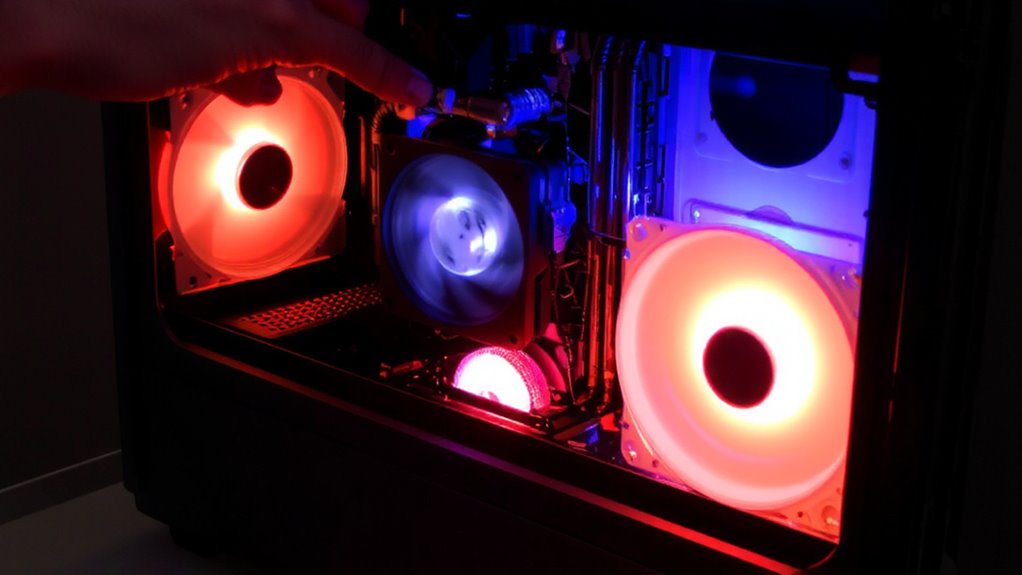
What’s making your PC fan scream like it’s under pressure? You’re likely dealing with thermal stress, often from GPU overheating or power supply noise. When your graphics card works hard-like during gaming or rendering-it generates heat, forcing fans to spin faster. If airflow is blocked or dust clogs the heatsinks, cooling becomes inefficient. The same goes for the power supply; if its fan detects high internal temps, it ramps up, adding to the racket. You might confuse power supply noise with fan issues, but both point to ventilation problems. While boosting fan curves can help, they also raise noise levels. Consider cleaning internal components and checking case airflow. Avoid cheap aftermarket coolers-some lack durability or proper mounting. Real-world testing shows that even high-CFM fans don’t help if thermal paste is aged. Warranties matter, too; ten-year fan lifespans are common with quality builds. But remember: quieter parts often cost more and may not fit every budget or case. Top-performing coolers often come from models highlighted in the best CPU fans roundup, which balances noise, performance, and reliability.
Pinpoint the Noisy Component in Your PC
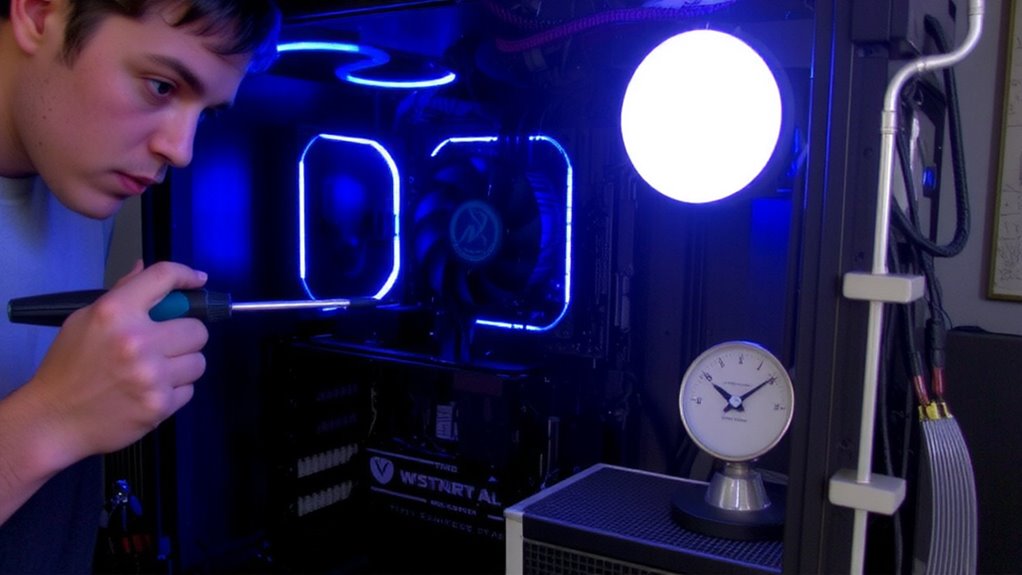
How do you know which part of your PC is actually causing that noise? Start by isolating components-boot the system without peripherals and listen closely. If the noise persists, it’s likely internal. High-pitched whines often trace back to voltage regulation modules on the motherboard, especially under load. Grinding or humming usually points to failing fans or spinning drives. Carefully open the case and briefly halt individual fans with a non-conductive tool to identify the culprit. If a component feels unusually hot, dried-out thermal paste could be impairing heat transfer. Reapplying it may reduce temperatures-and fan speed demands. Remember, not all noise comes from airflow; coil whine or power delivery issues can mimic fan noise. Diagnose thoroughly before replacing parts. This method saves time, guarantees accurate fixes, and avoids unnecessary spending on new cooling gear or case upgrades. Upgrading to a high-quality best CPU coolers can significantly reduce both noise and thermal output.
Install Quiet Case Fans to Reduce Noise
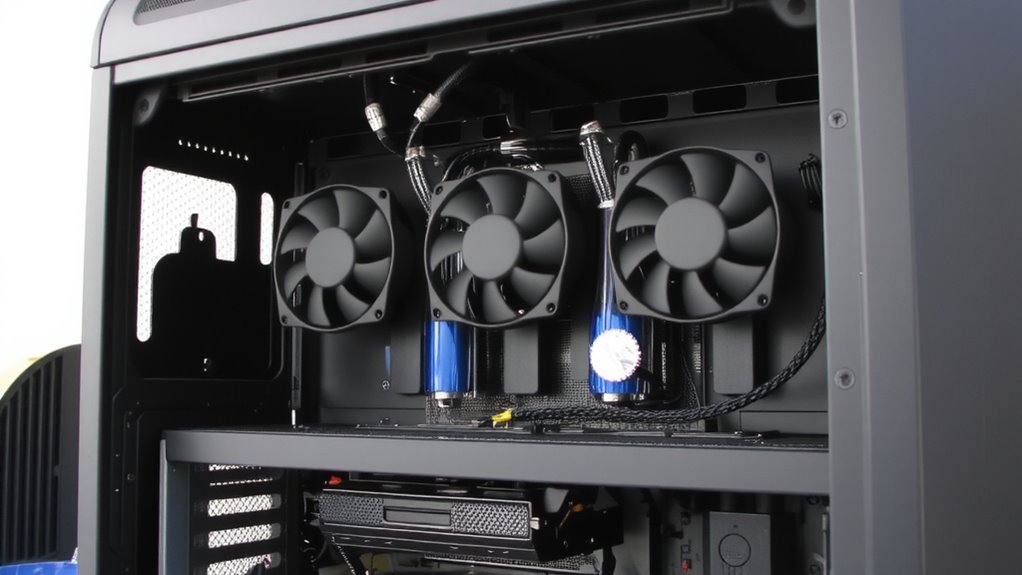
Replacing noisy fans with quiet case fans is one of the most effective ways to reduce your PC’s overall noise output-especially if you’ve already ruled out coil whine or failing drives. You’ll want fans rated under 20 dBA, like the Noctua NF-A12x25 or Arctic P12, known for low noise and solid static pressure. Proper fan placement-intakes at the front, exhausts at the rear and top-ensures efficient airflow without turbulence. Poor cable management can obstruct airflow and force fans to spin faster, increasing noise. Use zip ties or Velcro to route cables behind the motherboard tray. While quieter fans often spin slower, they may compromise cooling under heavy loads-so balance noise goals with thermal performance. Most quality models come with 5–6-year warranties and fluid dynamic bearings for longevity. Test your setup under load to confirm both silence and stability. For optimal performance in restricted spaces, consider fans with high static pressure.
Clean Dust and Improve Airflow
A thorough cleaning of dust buildup can considerably cut down on fan noise and improve system cooling-especially in PCs that haven’t been maintained in months. You’ll want to power down, open the case, and use compressed air to clear dust from fans, heatsinks, and vents. Good cable management isn’t just neat-it prevents airflow blockage and makes cleaning easier. Tied-down cables let air move freely, reducing hotspots that make fans spin louder. While you’re in there, check if thermal paste on the CPU is dried or cracked; reapplying a quality paste can lower temps by 5–10°C. But don’t overdo it-too much paste worsens conductivity. Cleaning helps, but it’s not a fix for poor cooling design. Results vary by case layout and component density.
Use Large Heat Sinks for Fanless Cooling
You’re not stuck with fan noise even after cleaning and optimizing airflow-passive cooling with large heat sinks is a solid option for low- to moderate-power systems. Passive cooling relies on massive aluminum or copper fins to dissipate heat without moving parts, making it silent and reliable. These heat sinks work best on components with low thermal output, like low-wattage CPUs or GPUs in compact or home office setups. For ideal heat transfer, apply thermal paste evenly between the component and the sink-it bridges microscopic gaps for better conductivity. High-quality paste lasts years, but replacing it every two to three maintenance cycles guarantees peak performance. Keep in mind: large heat sinks need space and can block nearby RAM or expansion slots. They’re ineffective for high-TDP processors under sustained load. Test thermals under real-world workloads to confirm stability. Passive cooling isn’t universal, but when matched to the right system, it delivers lasting silence.
Use Water Cooling to Eliminate Fan Noise
While it won’t make your system completely silent, water cooling can drastically cut fan noise by moving heat away from the CPU more efficiently than air coolers. You’ll rely less on high-RPM fans, especially under load, thanks to superior thermal transfer. All-in-one (AIO) liquid coolers are easy to install and widely compatible, but keep in mind two trade-offs: pump vibration and liquid leakage. Even quiet pumps can transmit faint hums through mounting hardware, so decouple them with rubber grommets when possible. While modern units have strong warranties and low failure rates, leaks-though rare-can damage components. Look for units with at least a five-year warranty and positive long-term user reviews. Radiators need space; guarantee your case fits 240mm or larger. Use fan curves to keep airflow smooth and noise minimal. Water cooling isn’t magic, but done right, it’s a major step toward a quieter workstation.
On a final note
Your PC doesn’t need to be loud, but fixing it requires smart trade-offs. Quiet case fans (120mm+, 25 dBA or less) and dust management cut noise fast. Large heat sinks work well for low-power builds, while water cooling suits high-performance systems-but adds cost and complexity. Real-world tests show noise drops 50% with proper airflow and thermal paste. Check warranty terms on coolers; some brands cover leaks. Measure temperatures after changes-silence shouldn’t sacrifice stability.