How to Quickly Recover From Technical Failures During Live Video Presentations
You’ll recover faster by securing a stable internet connection first-ensure at least 5 Mbps upload and use Ethernet over Wi-Fi. If issues persist, switch to a pretested backup device within one minute to limit downtime. Play a polished, loopable clip under 60 seconds to keep viewers engaged while you fix audio or video glitches, like reconnecting a USB mic or checking OBS feeds. Stay calm, speak into the mic during buffer delays, and briefly tell your audience what’s happening to maintain trust. You’re not done yet-there’s more to get right.
Notable Insights
- Restart your router and use a wired Ethernet connection to stabilize internet connectivity during live streams.
- Switch immediately to a preconfigured backup device to minimize downtime caused by hardware or software failure.
- Play a short, loopable backup clip to maintain audience engagement during technical interruptions.
- Reconnect or troubleshoot audio and video hardware quickly using real-time monitoring tools like OBS.
- Communicate clearly and calmly with your audience to maintain trust during unexpected technical issues.
Check Your Internet Connection First
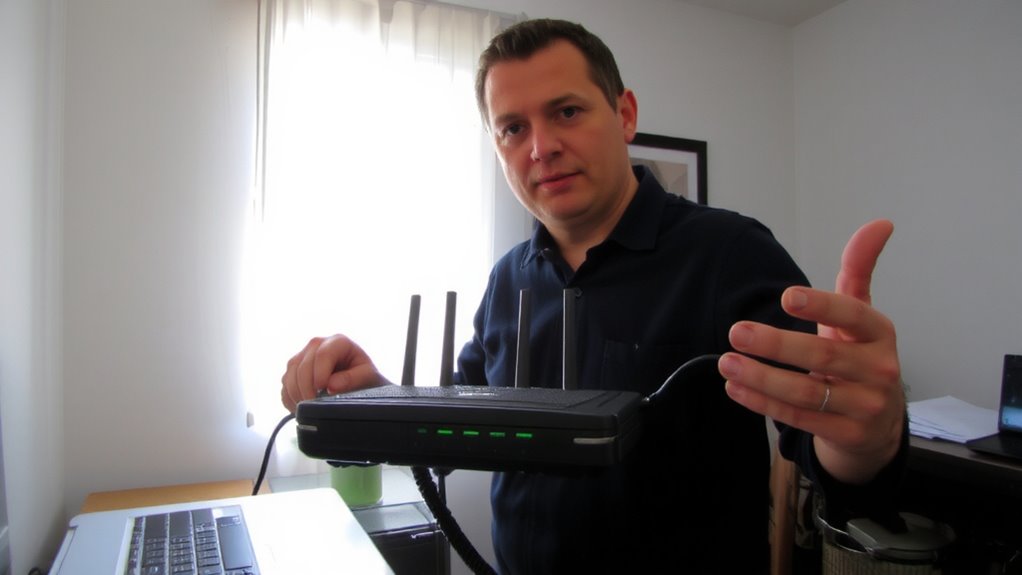
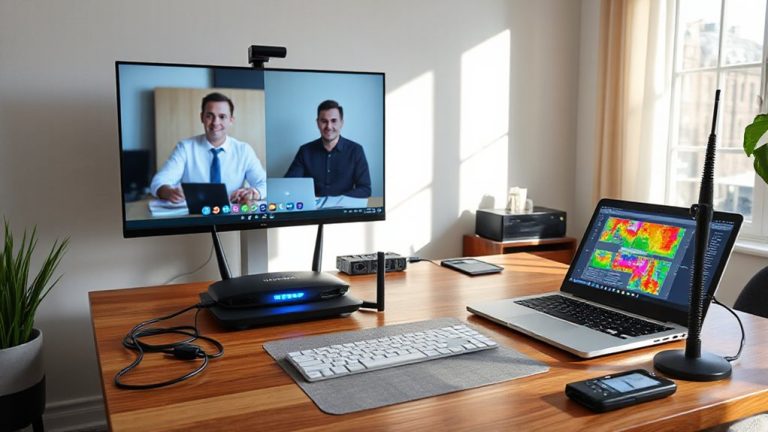
Even if you’ve tested everything beforehand, a shaky internet connection is usually the first culprit when live video fails mid-stream. You need consistent network stability to maintain video quality and audio sync. Start by restarting your router-simple, but often effective. Check if other devices are using bandwidth; streaming or large downloads can disrupt your stream due to poor bandwidth allocation. Use a wired Ethernet connection instead of Wi-Fi when possible-it’s more reliable. If you must use Wi-Fi, position yourself close to the router and avoid physical obstructions. Tools like speed tests can confirm your upload speed; aim for at least 5 Mbps for HD streaming. Public networks or shared connections often limit individual bandwidth, hurting performance. While mesh systems improve coverage, they don’t guarantee stability under load. Prioritize your streaming device in router settings if your network allows QoS controls. Don’t assume gear fixes everything-real-world results vary.
Switch to a Backup Device Immediately

When your internet holds up but the stream still crashes, the problem likely lies with your device-so it’s time to switch to a backup right away. A sudden device failure could stem from overheating, software glitches, or failing components, and waiting too long risks losing your audience. Having a secondary device prepped with your streaming software and settings allows a smooth hardware switch in under a minute. Test both devices regularly to guarantee compatibility and driver updates. While this adds cost and space demands, the reliability boost is worth it for critical presentations. Just don’t assume the backup is flawless-check battery levels, audio input, and camera alignment before going live. A hardware switch won’t fix user error, so stay calm and verify connections. This isn’t about fancy gear; it’s about minimizing downtime with practical redundancy.
Play a Backup Clip If Needed
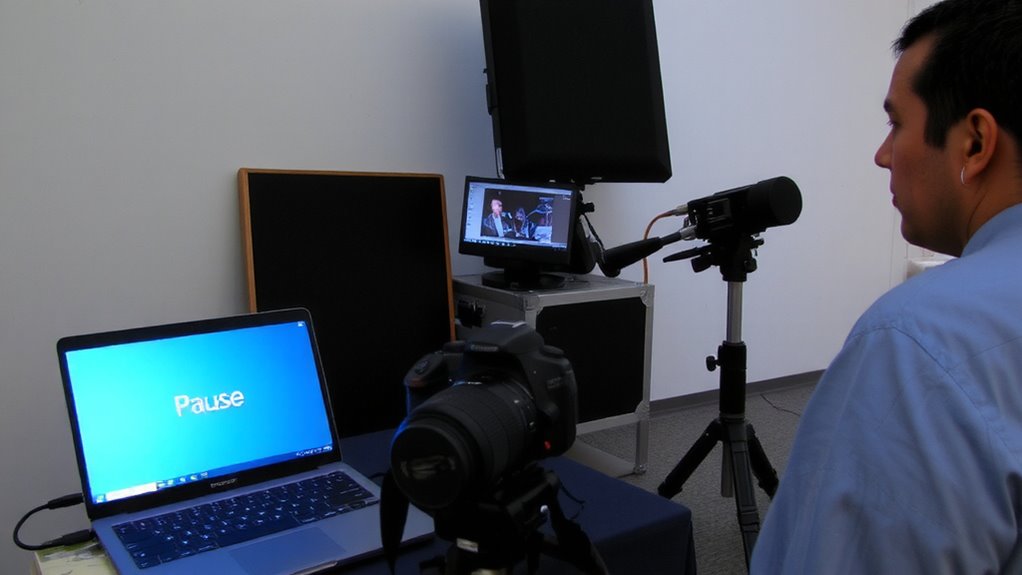
If your stream cuts out and switching devices won’t help, playing a backup clip keeps your audience engaged while you fix the problem. You should have backup footage ready-like a short, polished segment-that loops seamlessly. This silent failover guarantees no dead air, maintaining professionalism even during glitches. Use streaming software with scene presets so you can trigger the clip instantly, not manually. Most mid-tier encoders and apps support this, but test it first under real conditions. Keep the clip under 60 seconds to avoid repetition. While this doesn’t fix the root issue, it buys time without losing viewers. Just remember: over-relying on backup footage can reduce interaction. It’s a tactical pause, not a long-term fix. Plan for it, but don’t treat it like a permanent workaround.
Fix Audio or Video in Seconds
Though technical hiccups are inevitable, you can often fix audio or video issues in seconds if you’ve set up your gear with quick recovery in mind. If you notice audio sync problems or video lag, first check your internet speed-aim for at least 10 Mbps upload for HD streams. Restart your router or switch to a wired Ethernet connection to stabilize signal. Close unused apps to free bandwidth and reduce latency. Most modern USB microphones and webcams have plug-and-play drivers, so unplugging and reconnecting them often resolves glitches instantly. Use software like OBS to monitor audio levels and video feed in real time, enabling quick adjustments. Built-in diagnostics on cameras like the Logitech Brio 4K can flag sync issues before viewers notice. While hardware fixes work fast, they’re not foolproof-always test your setup under real streaming conditions, not just in ideal environments. For reliable performance, consider using a Logitech C920 webcam known for its consistent HD video and easy integration with streaming platforms.
Keep Viewers Calm During the Glitch
Why let a technical glitch turn your audience off when a little transparency can actually strengthen trust? You need to maintain composure the moment something goes wrong-your calm demeanor sets the tone. When audio cuts or video stutters, pause briefly, then smile and take a breath; it reassures audience members that you’re in control. Avoid frantic gestures or showing visible frustration, as that can amplify viewer anxiety. Most live platforms have latency between 10–30 seconds, so even if you fix the issue quickly, some viewers may still see errors. Use that buffer wisely: stay present, keep speaking if possible, and avoid dead air. A brief, genuine acknowledgment of the hiccup-without over-explaining-builds credibility. Viewers value confidence and honesty over perfection. Even high-end streaming gear fails sometimes, so focus on response, not just equipment.
Tell Your Audience What’s Happening
What happens when your camera feed drops or your mic cuts out mid-sentence? You don’t have to panic-just tell your audience what’s going on. Transparency matters, especially when live. Pausing to say, “My mic just cut out, give me a sec,” keeps viewers informed and reduces confusion. Honesty builds trust faster than silence ever will. People appreciate knowing it’s a technical issue, not disinterest. Use your chat or captions if audio fails-type a quick update. This direct approach works across platforms, whether you’re using OBS, Zoom, or YouTube Live. Just be clear, brief, and calm. Avoid over-explaining; a short notice is enough. While built-in alerts in stream software help, they’re no substitute for your voice. Real viewers stay when they feel acknowledged.
Prevent Glitches With Pre-Stream Checks
You can avoid most technical hiccups before they happen by doing a full system check 10 to 15 minutes before going live. Run an equipment test on your mic, camera, and lighting-ensure audio levels aren’t peaking and video is clear at normal viewing distance. Confirm your internet upload speed is at least 5 Mbps for HD streaming. Apply any pending software update on your OS and streaming platform to prevent compatibility issues. Use the table below to prioritize checks:
| Check | Purpose |
|---|---|
| Camera feed | Verify focus and framing |
| Audio levels | Prevent distortion or low volume |
| Internet speed | Reduce buffering or disconnects |
| Software update | Fix bugs affecting performance |
| Backup device | Enable quick switch if primary fails |
These steps won’t eliminate all risks, but they reduce common failure points with minimal time investment. Some tools may vary based on setup, so adapt the checklist to your device specs. For optimal video quality, consider using one of the best webcams recommended for reliable performance and clear imaging.
On a final note
You’ve got this-stay calm and act fast. Switching to a backup device like a laptop with Ethernet or a mobile hotspot often restores stream stability in under 30 seconds. Playing a short pre-loaded clip buys time without dead air. Built-in webcams or USB mics fail, so test gear beforehand. Most glitches stem from Wi-Fi, so use wired connections when possible. No setup is flawless, but preparation cuts recovery time dramatically.