Converting Handwritten Notes From Digital Whiteboards Into Editable Text Documents
You can convert whiteboard notes to editable text using OCR tools like Microsoft Lens or Google Keep, which work well if your handwriting is clear and the image is well-lit. These apps capture and process your notes, turning them into searchable, shareable text that syncs across devices. Results improve with even lighting and a straight-on camera angle. While fixes are sometimes needed, clean input boosts accuracy-especially with printed characters over cursive. For best results, review output before using it in Docs or Notion. You’ll get the most from these tools when you understand their limits and ideal conditions.
Notable Insights
- Capture clear, well-lit images of whiteboard notes to ensure optimal OCR accuracy.
- Use OCR tools like Microsoft Lens or Google Keep to convert handwritten content into editable text.
- Improve recognition by writing neatly in print with consistent spacing and minimal slant.
- Apply image preprocessing to enhance contrast, reduce glare, and remove shadows before OCR processing.
- Always manually review converted text to correct errors and ensure accuracy.
Why Convert Whiteboard Notes to Editable Text
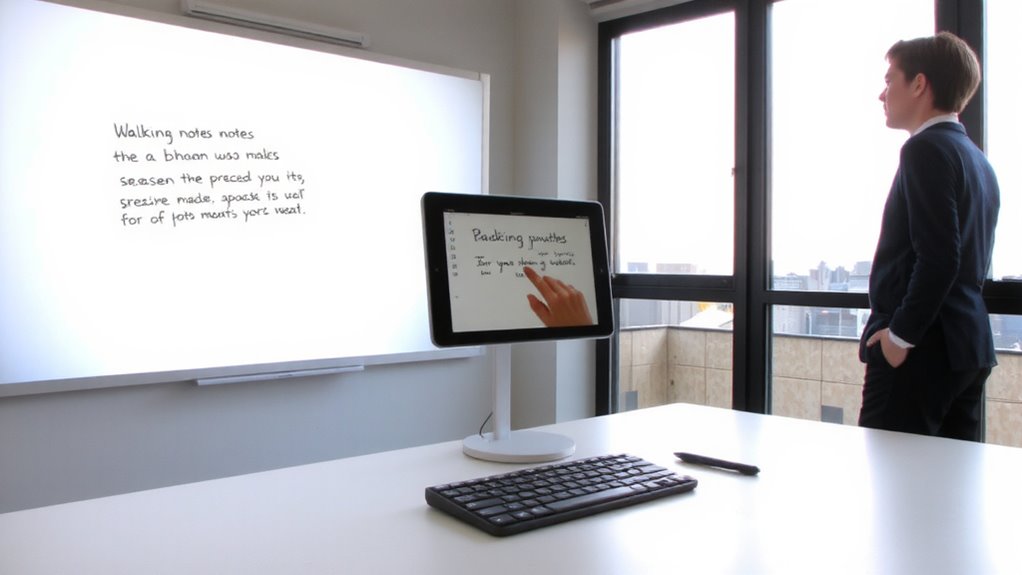
While capturing whiteboard notes with your phone might seem sufficient, converting them into editable text often makes a bigger difference than you’d expect-especially when pulling action items from meetings or organizing project ideas. You boost knowledge retention by turning fleeting images into searchable, reviewable content you can revisit weeks later without guessing your own handwriting. Editable files support better idea organization, letting you sort concepts, link related notes, and integrate them into task managers or documentation. Tools like digital notebooks or OCR software handle the conversion, though results depend on writing clarity and lighting. You’ll need consistent penmanship and a steady photo to avoid errors. Don’t expect perfect accuracy with潦草 script or low-light shots-test your setup first. Some apps offer cloud sync and export to DOCX or PDF, but check file compatibility with your workflow. This step isn’t about fancy gear; it’s about making collaborative thinking stick.
How OCR Reads Your Handwritten Notes
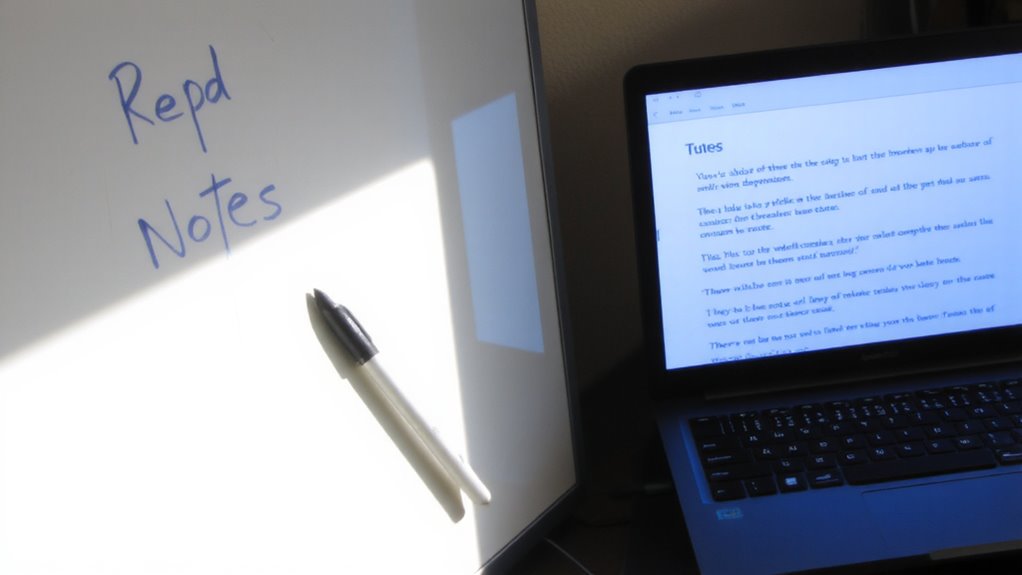
Optical Character Recognition (OCR) treats your handwritten notes like a puzzle it’s been trained to solve-not by reading words the way you do, but by mapping shapes and patterns. It uses text segmentation to isolate lines, words, or individual strokes before applying character recognition to match them with known letters. Accuracy depends on your handwriting clarity and spacing-neat print works best, while cursive can confuse the system.
| Feature | Benefit | Limitation |
|---|---|---|
| Text segmentation | Separates handwriting into readable chunks | Struggles with overlapping symbols |
| Character recognition | Converts shapes into digital text | Less accurate with slanted or rushed writing |
| Digital processing | Fast conversion from board to file | Requires consistent stroke width |
OCR isn’t perfect, but with practice and legible writing, it reliably turns whiteboard content into editable documents.
Step-By-Step: Turn Whiteboard Writing Into Text
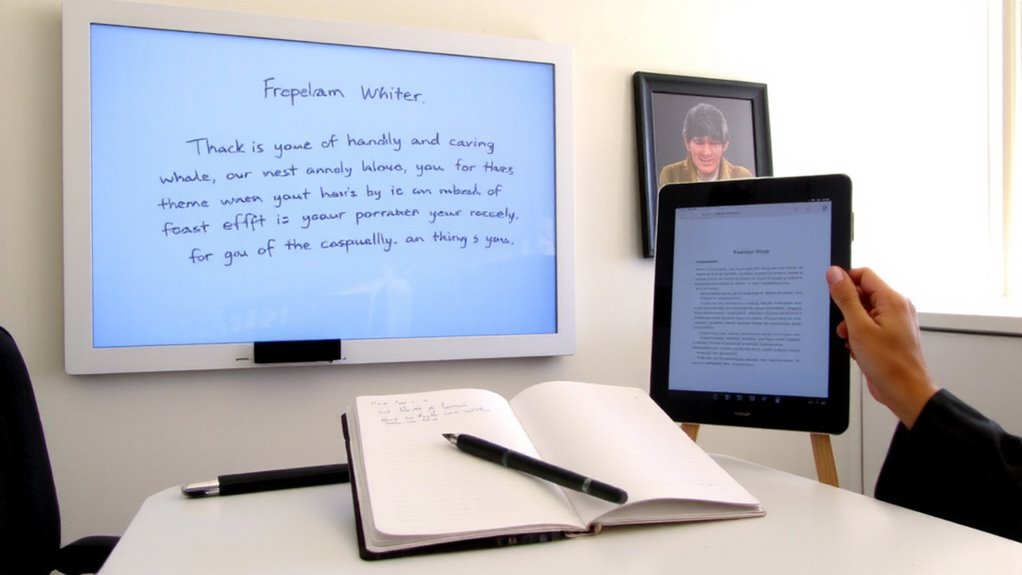
How do you get those whiteboard ideas into a format you can actually edit and share? Start by capturing a clear, well-lit photo or digital scan of your whiteboard. You’ll then apply image preprocessing-this sharpens edges, removes shadows, and boosts contrast so the text stands out cleanly. Next, handwriting normalization adjusts slants, sizes, and spacing to standardize your writing, making it easier for OCR engines to interpret. These steps dramatically improve accuracy, especially with messy or uneven script. Most systems handle printed-style handwriting better than cursive, so writing clearly matters. Success depends on image quality and consistent letter forms. Even with ideal prep, expect minor errors-manual review is still needed. This workflow works reliably across common tools, but results vary based on lighting, camera angle, and marker contrast. No solution is perfect, but careful execution gets you close.
Top Tools That Convert Whiteboard Notes Automatically
You’ve got the photo of your whiteboard and cleaned it up with preprocessing-now the real work begins with picking the right tool to turn those scribbles into editable text. Google Keep and Microsoft Lens lead for quick, reliable handwriting recognition, especially after solid image preprocessing. Both handle casual whiteboard shots well, sync across devices, and export to editable formats. Google Keep’s free and simple, but struggles with dense notes. Microsoft Lens handles complex layouts better and integrates smoothly with Office-ideal if you already use 365. Apple Notes works seamlessly on iOS but locks you into the ecosystem. Adobe Scan delivers precision, especially with high-res images, though its handwriting conversion lags behind. Most tools require clear handwriting and decent lighting. While accuracy has improved, expect edits even with strong preprocessing. None are perfect, but they save time over manual retyping when image preprocessing is done right.
How to Improve OCR Accuracy From Whiteboard Images
A clean image is your best bet for accurate OCR from whiteboard notes-garbage in, garbage out still holds true. You’ll get better results if you shoot under even lighting conditions, avoiding glare or shadows that obscure text. Poor lighting can create contrasts that fool OCR engines into missing characters. Always position your camera straight-on; a skewed camera angle distorts lines and letters, making them harder to decode. Use a tripod if you can, so you don’t rely on hand stability. Natural light or balanced LEDs work better than fluorescent overheads, which often cast harsh highlights. Make certain the entire board is in focus and fills most of the frame. Zoom in slightly if needed, but avoid digital zoom-it reduces quality. Remember, no OCR software fixes a blurry or tilted shot. Test different setups, but keep adjustments practical. Real improvement comes from consistency, not expensive gear.
Use Converted Notes in Slack, Notion, and Google Docs
Once your handwritten notes are converted into editable text, getting them into tools like Slack, Notion, and Google Docs saves time and keeps your workflow moving-just don’t expect perfect results on the first try. You can paste directly into Google Docs for quick collaboration or use Slack integrations to share updates without switching apps. Notion workflows benefit especially, letting you turn meeting sketches into organized pages with linked databases and templates. Most tools accept plain text cleanly, but formatting might need a quick cleanup. Slack integrations handle short notes well, though long documents can clutter channels. Notion workflows give you structure, but manual adjustments may still be needed. Always review content before sharing. The real value comes not from flawless automation, but from cutting down repetitive typing while staying in control of how and where your notes land.
Fix Common Handwriting-to-Text OCR Errors
Even with clean handwriting and good lighting, OCR tools don’t always get everything right-expect some errors when converting your notes, especially with similar-looking characters like “o” and “e” or numbers that blend into letterforms. You can minimize mistakes by adjusting handwriting smoothing and improving character alignment before conversion. These settings help the OCR engine distinguish individual letters more accurately.
| Issue | Cause | Fix |
|---|---|---|
| Misread “c” as “e” | Poor loop closure | Increase handwriting smoothing |
| “1” read as “l” or “I” | Vertical stroke overlap | Improve character alignment |
| Numbers mistaken for letters | Slanted writing | Write digits upright and spaced |
Always review converted text manually-especially in technical or important documents. While tools have improved, full accuracy isn’t guaranteed, and small writing quirks can still trip up even the best OCR software.
On a final note
You’ll get clean text fast using tools like Adobe Scan or Microsoft Lens, especially with neat handwriting and high-contrast whiteboard photos. These apps handle basic editing and export straight to Notion or Google Docs. But messy script, glare, or marker bleed lowers accuracy, so always review output. Most apps are free with in-app purchases; paid tiers enable batch processing. For consistent results, pair solid lighting with a 12-megapixel phone camera and clean whiteboard surfaces.