How to Identify and Remove Hidden Data Residues Before Recycling Old Monitors
Your old monitor might keep hidden data in firmware caches or internal storage, especially if it’s a smart or USB-C model. Always do a factory reset to wipe settings like brightness and input preferences. Manually unlink Wi-Fi networks and accounts-reset alone won’t clear them. Use tools like Samsung’s Magic Eraser or LG’s Privacy Guard for deeper cleanup. Still, traces can remain due to firmware limits. Check erasure with verification features if available. There’s more to think about for full data security.
Notable Insights
- Check for built-in storage by identifying smart features like USB-C, Wi-Fi, or on-screen menu settings that save preferences.
- Inspect firmware update support, as models with downloadable updates likely retain data in non-volatile memory.
- Perform a factory reset via the on-screen menu to clear user settings and reduce residual data exposure.
- Manually unpair Wi-Fi networks and cloud accounts before resetting, as factory resets may not remove all login data.
- Use brand-specific tools like Samsung Magic Eraser or LG Privacy Guard for more thorough data wiping and verification.
Understand How Monitors Store Hidden Data
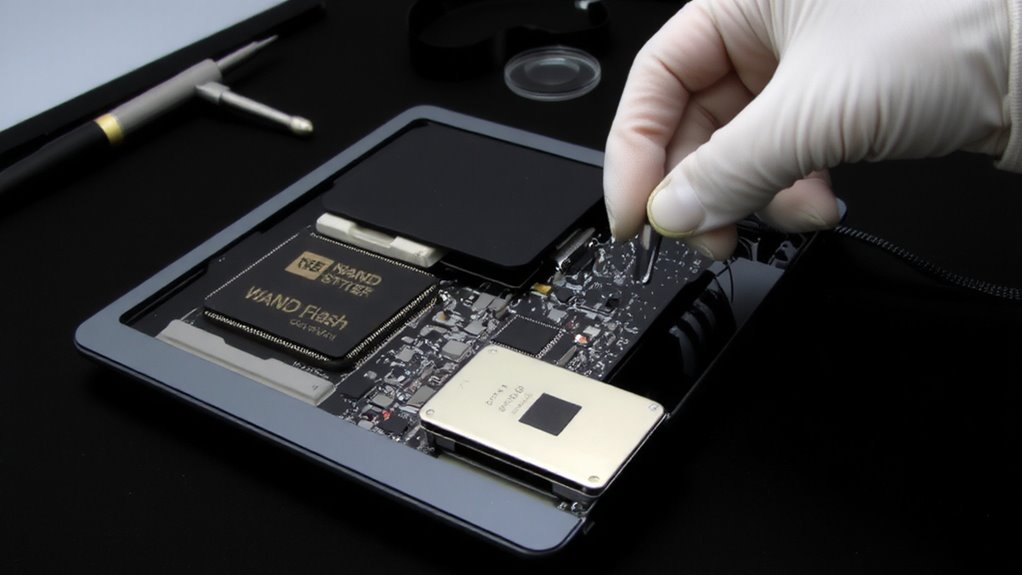
Hidden data on old monitors isn’t stored like files on a hard drive, but it can still linger in ways you might not expect. You’re dealing with data remnants embedded in firmware caches, not user-accessible storage. These caches hold temporary settings-like brightness, input preferences, or EDID configurations-and while they don’t store images or documents directly, they can reveal usage patterns or connected devices. Modern LCDs with digital interfaces (HDMI, DisplayPort) are more prone to this than older analog CRTs. Though the risk isn’t as high as with hard drives, firmware caches may retain traces after reset. A factory reset clears most user settings, but it doesn’t guarantee complete erasure of data remnants. For true security, especially in sensitive environments, rely on manufacturer-approved decommissioning steps. Always assume some residual data persists-even if not recoverable with common tools.
Check If Your Monitor Has Built-In Storage
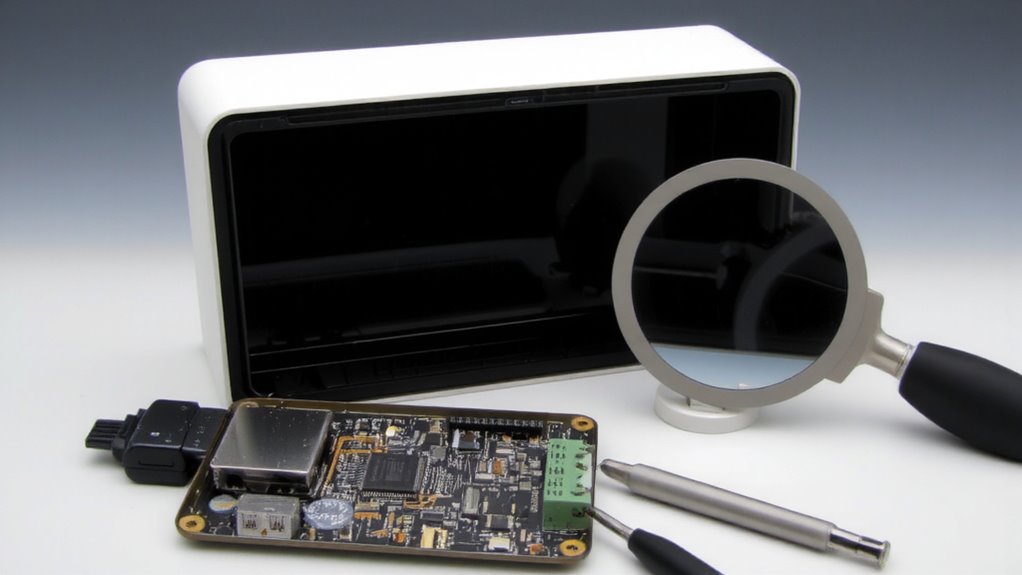
You’re more likely to find built-in storage on modern monitors than you might think, especially with smart displays and USB-C-enabled models entering the market. Some monitors include internal memory to support features like firmware updates, input preferences, or USB hub functionality. While they don’t store files like a computer, they can retain firmware logs and cache remnants from connected devices. Check your monitor’s specs online-look for models with OSD settings saved to internal memory or those advertising multimedia functions. If it supports firmware updates via a downloadable file, it likely has non-volatile storage. You won’t access this storage directly, but knowing it exists is key. Not all monitors have it-basic models rarely do-so confirm before assuming. Built-in storage increases data residue risks slightly, but built-in reset functions usually address this in the next step.
Reset Your Monitor to Remove Personal Data
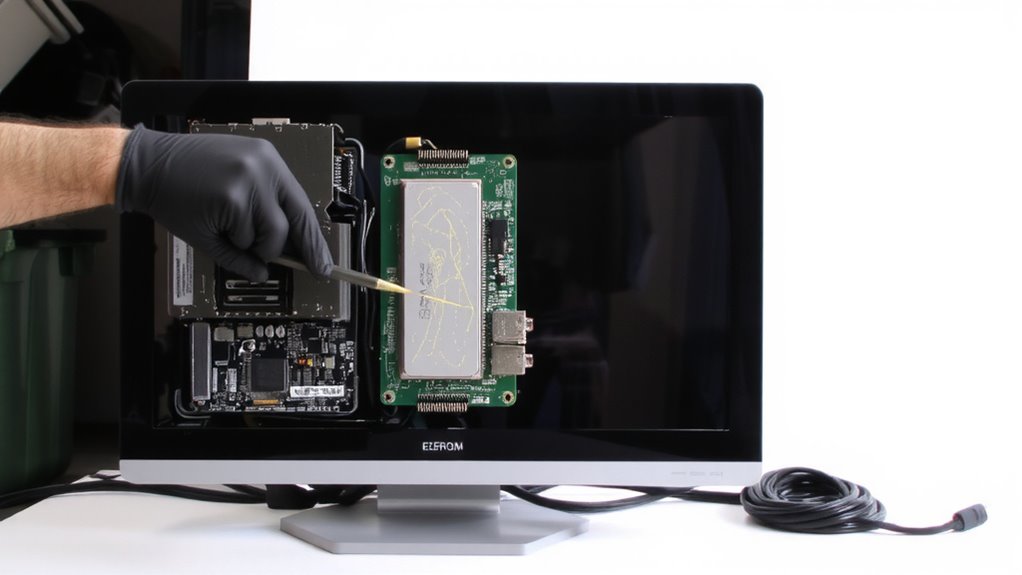
Why risk leaving traces behind when a factory reset could wipe the slate clean? Performing a factory reset clears saved settings, including any hidden personal data tied to your usage. This step is essential even if your monitor lacks built-in storage, as firmware may retain display calibration preferences or usage patterns. While a reset won’t remove data from connected devices, it does restore the monitor’s internal settings to default, minimizing privacy risks.
| Step | Action |
|---|---|
| 1 | Access the monitor’s on-screen menu |
| 2 | Navigate to System or Setup options |
| 3 | Select Factory Reset |
| 4 | Confirm and reboot |
After the reset, you’ll need to redo display calibration for color accuracy and brightness. Keep in mind that this process varies by model and brand-consult your manual. A factory reset isn’t foolproof, but it’s a smart, simple safeguard before recycling.
Delete Saved Wi-Fi and Account Logins
How much digital clutter are you unknowingly leaving behind when you pass on an old monitor? If your display had smart features or built-in Wi-Fi, you might still have Wi Fi credentials saved-network names and passwords hackers could exploit. Don’t assume a factory reset removes everything; some models retain login data due to account syncing with cloud services like Google or Microsoft. You’ve got to manually unpair those accounts before wiping the system. Check the settings menu for connected accounts and disable syncing options first. Otherwise, someone else might inherit access to your network or personal content. It’s rare, but possible-and the risk isn’t worth it. Always verify removal through on-screen prompts and, if available, use audit logs to confirm sync history is cleared. Not all monitors store this data, but if yours does, skip this step at your own risk.
Use Your Brand’s Data Wipe Tool
Some monitors, especially smart models from Samsung, LG, or Dell, come with proprietary data wiping tools designed to clear stored network settings, paired devices, and usage logs more thoroughly than a standard factory reset. These built-in utilities offer enhanced data wiping and secure erasure, but they vary by model and firmware. Always consult your user manual or support site to confirm availability.
| Brand | Tool Name | Erasure Standard |
|---|---|---|
| Samsung | Magic Eraser | Custom secure wipe |
| LG | Privacy Guard | IEEE 2883 compliant |
| Dell | Data Defense | DoD 5220.22-M |
While these tools improve privacy, they’re not foolproof-older monitors may lack full secure erasure capabilities. Firmware bugs or incomplete overwrites can leave traces. Use your brand’s tool as a first step, not your only one. It’s effective, but not a replacement for verified third-party wiping when maximum security matters.
Confirm All Data Is Erased Before Recycling
What if your old monitor still holds traces of sensitive data after a reset? You need to confirm all data is truly erased before recycling. Even after a factory reset, firmware vulnerabilities can leave data remnants accessible to skilled tappers. Use verification software to scan for residual files, especially if the monitor stored sensitive work or personal content. If your model supports data encryption, make certain it was enabled-this adds a layer of protection during wipe processes. Some brands include built-in self-tests to validate erasure; check your manual. However, not all tools catch hidden partitions or cached display data. For peace of mind, opt for third-party auditing tools with certificate outputs. Keep in mind: physical destruction guarantees security but voids resale. Balancing cost, effort, and privacy matters-especially when discarding monitors from home offices where personal and professional use overlap.
On a final note
You should reset your monitor before recycling, especially if it has built-in storage like some smart models with Wi-Fi or USB drives. While most standard LCDs don’t store data, smart monitors can retain logins or network info. Use the factory reset and delete saved connections. If available, use the brand’s official wipe tool for full clearance. Always verify erasure manually-don’t assume it’s done. Recycling safely protects your privacy.