Optimizing Home Office Layout for Enhanced Ergonomics and Efficiency
Set your desk and chair to support a neutral posture, with eyes level to the top of the monitor and feet flat on the floor. Position the screen an arm’s length away, directly ahead, to reduce neck and eye strain. Use adjustable monitor arms and diffused task lighting to fine-tune your setup. Define your workspace with soft boundaries and keep essentials close. Tidy cables with clips or grommets for safety and focus. Small tweaks can make long hours easier-but balance cost and comfort when upgrading. Smart changes now lead to better results over time.
Notable Insights
- Position your monitor at eye level and an arm’s length away to reduce neck and eye strain.
- Adjust your chair so feet rest flat on the floor with knees at 90 degrees for optimal spine alignment.
- Arrange your desk perpendicular to windows to maximize natural light without screen glare.
- Use cable organizers and modular power strips to minimize clutter and improve workspace efficiency.
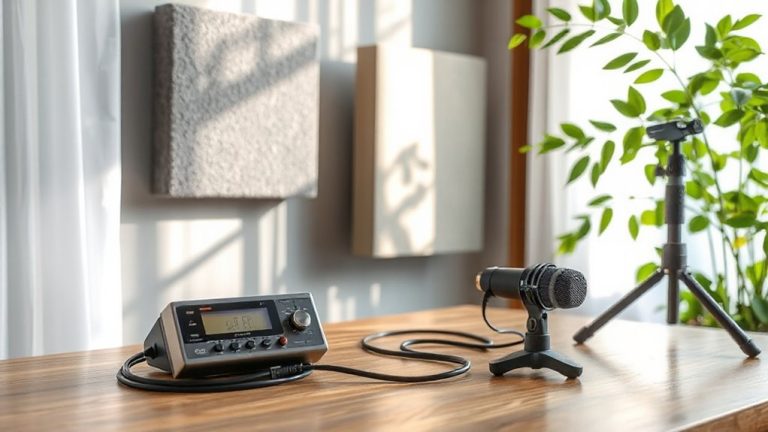
- Designate a dedicated, acoustically balanced workspace using dividers and soft materials for focus and comfort.
Set Your Desk at Eye Level
If you’re aiming to reduce neck strain and improve posture during long work sessions, setting your desk at eye level is one of the most effective changes you can make-just make certain your setup allows for flexibility. Proper monitor height guarantees the top of the screen aligns with your eye level, so you’re not tilting your head up or down. This reduces cervical stress and supports neutral spine alignment. Your desk elevation should accommodate this without forcing awkward arm angles. Use adjustable monitor arms or risers to fine-tune positioning. Fixed-height desks may require trade-offs, especially if you alternate sitting and standing. While many sit-stand desks offer smooth shifts and solid warranties, cheaper models can wobble under heavier monitors. Test stability under real use. A well-positioned setup enhances comfort, but only if it adapts to your body’s changing needs throughout the day. Top-rated models in the standing desk converters category combine stability, adjustability, and ease of use for seamless transitions.
Adjust Your Chair So Feet Rest Flat
A well-adjusted chair makes a real difference in reducing lower back strain and boosting comfort during long workdays-start by setting your seat height so your feet rest flat on the floor with knees bent at about 90 degrees. Proper foot support and posture alignment go hand in hand, helping you stay alert without fatigue. If your feet don’t reach the floor, use a footrest to maintain ideal positioning. Avoid tucking your legs or perching, as these disrupt spine alignment.
| Seat Height | Foot Position | Support Needed |
|---|---|---|
| Too High | Feet dangling | Footrest recommended |
| Just Right | Flat on floor | None needed |
| Too Low | Knees above hips | Raise chair or adjust |
| Variable | Uneven contact | Use adjustable foot support |
Don’t ignore small gaps-consistent posture alignment prevents long-term strain.
Define Your Workspace Boundaries
Your home office’s effectiveness starts with clearly defined boundaries-both physical and psychological. You’ll boost focus and reduce distractions by marking off a dedicated zone, even if it’s just a corner. A room divider or tall bookshelf can offer personal privacy and improve acoustic comfort by blocking sound from family areas. Noise-canceling doesn’t replace good layout-soft materials like rugs and curtains help dampen sound, enhancing concentration. But be honest about space limits: small rooms may not fit large desks or full walls, so prioritize function. Overdoing visual barriers risks making the space feel cluttered. There’s no one-size-fits-all product; tested room dividers with fabric panels outperform plastic, but warranties vary. Defining boundaries isn’t about perfect isolation-it’s about managing interaction and sound so you can work efficiently without cutting yourself off completely. A well-chosen best office cubicles model can integrate seamlessly into compact areas while offering structured separation.
Position Monitors and Lighting to Reduce Strain
Ergonomics start at eye level-position your monitor directly in front of you, about an arm’s length away, with the top of the screen at or slightly below eye height to prevent neck strain. Proper screen positioning reduces glare and supports alignment, especially during long work sessions. Angle the display to avoid reflections from overhead or window light, and tilt it slightly upward if needed. Place your desk perpendicular to windows to maximize natural illumination without direct screen glare. Avoid backlighting, which creates contrast strain. While natural illumination boosts alertness, uneven lighting demands task lamps-use adjustable, diffused LED fixtures to balance brightness. Don’t rely solely on daylight; levels fluctuate, affecting visual comfort. Pair monitor arms with swivel mounts for flexible positioning, but verify weight compatibility and clamp stability. Even high-end mounts fail if poorly installed. Consistency matters more than gear: small daily adjustments prevent long-term strain. For enhanced circadian support during winter months, consider incorporating a best light therapy lamp into your workspace setup.
Keep Essentials Within Easy Reach
While it might seem minor, keeping frequently used items within arm’s reach can substantially cut down on fatigue and interruptions during deep work. You’ll stay focused and move less when supplies like notebooks, pens, and chargers are organized just a hand’s width away. Efficient supply storage-like drawers or desktop trays-keeps clutter low without sacrificing access. Poor cable management leads to tangles and distraction, so use clips or sleeves to route cords neatly along your desk’s edge. That said, don’t prioritize compactness over function; some organizers limit space or restrict device placement. Test layouts before finalizing-what works for one setup might hinder another. Also, materials matter: metal trays last longer than plastic, but can scratch surfaces without padding. Balance accessibility with stability, and make sure adjustments don’t compromise your posture or device ventilation. Thoughtful placement pays off, but only if it suits your actual workflow.
Organize Cables and Supplies for a Clean Desk
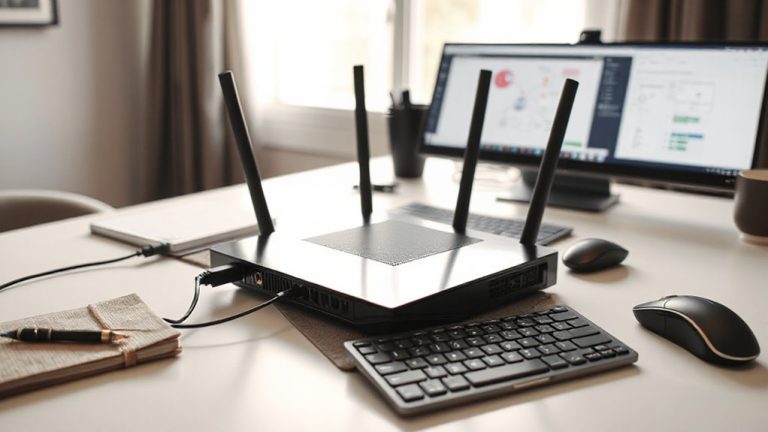
Keeping your desk free of cable clutter and scattered supplies isn’t just about looks-it directly affects focus and efficiency, so investing in simple, tested solutions pays off. Good cable management, like using adhesive clips or braided sleeves, keeps power and data cords aligned and tangle-free, reducing tripping hazards and device wear. For supply storage, opt for low-profile trays or drawer organizers that fit under your desk surface without sacrificing legroom. Desk grommets help route cables neatly through the desktop, but only if your desk has pre-drilled holes. Modular power strips with USB ports minimize adapter bulk, but check voltage ratings to avoid overloading circuits. Drawer organizers work well for pens and notepads, though shallow ones prevent items from getting lost. These fixes take minutes but deliver lasting improvements-just don’t overbuy; start with one or two solutions that match your setup’s size and usage.
On a final note
You’ll work better and feel more comfortable by setting your desk at eye level and using an adjustable chair so your feet stay flat. Position monitors 20–30 inches away, just below eye level, and pair LED task lighting with natural light to cut glare. Keep keyboards, mice, and notebooks close. Use cable sleeves or clips to organize cords. A standing desk converter or ergonomic chair helps, but even small changes deliver real benefits-just make sure your setup fits your routine, not the other way around.