From Desk to Screen: Ergonomic Monitor Placement Tips for Optimal Vision
Set your monitor so the top is at or slightly below eye level, keeping your gaze 10–20 degrees down to avoid neck strain. Sit 20–30 inches away-about arm’s length-for sharp focus without eye fatigue. Tilt the screen 10–20 degrees back to cut glare from lights or windows, especially with matte finishes. Use VESA mounts for dual setups to center screens and reduce twisting. With laptops, a stable stand raises the display, but always pair it with an external keyboard. You’ll find better ways to fine-tune your workspace just ahead.
Notable Insights
- Position the top of the screen at or slightly below eye level to maintain a natural downward gaze.
- Sit 20 to 30 inches from the screen to reduce eye strain and ensure clear visibility.
- Tilt the monitor 10 to 20 degrees backward to minimize glare from lighting and windows.
- Center the primary monitor directly in front and angle the secondary inward for balanced viewing.
- Use a laptop stand to align the screen’s top third with eye level and pair with an external keyboard.
Position Your Monitor at Eye Level to Prevent Neck Pain
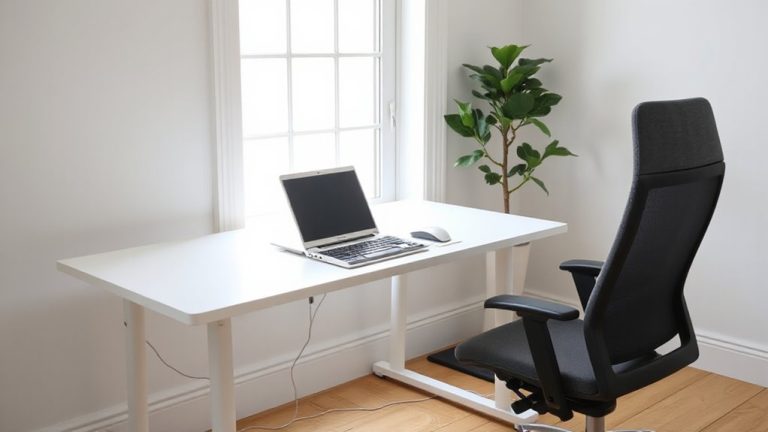
You’ll want your monitor positioned so the top of the screen is at or slightly below eye level to reduce strain on your neck and upper back. Proper monitor height supports natural eye alignment, keeping your gaze slightly downward-about 10 to 20 degrees-minimizing tension. If your screen’s too high, you’ll crane your neck, inviting discomfort over time. Too low, and you’ll hunch, straining your spine. Adjustable arms or risers help fine-tune height, especially with dual setups. Laptops often sit too low; use a stand and external keyboard. Eye alignment matters most when seated with relaxed shoulders and a neutral spine. Small tweaks make a difference, but don’t obsess over perfection-your posture shifts. Long-term comfort depends on consistency, not exact angles. Test adjustments over hours, not minutes. There’s no universal setting; your ideal height depends on chair, desk, and body dimensions. Prioritize change gradually. For versatile setups, consider a standing desk converter to easily transition between sitting and standing while maintaining proper screen alignment.
Set the Right Distance to Reduce Eye Strain and Blur
Monitor distance plays a key role in minimizing eye strain and maintaining visual clarity during long work sessions, just as important as the height you’ve already adjusted. You should sit about an arm’s length from your screen-roughly 20 to 30 inches away. This distance supports a comfortable viewing angle, reducing blur and helping your eyes stay focused longer. If you’re too close, screen brightness may feel harsh, increasing fatigue. Too far, and you’ll squint, straining your vision. A proper distance also lets you take in the full screen without moving your head much. Keep in mind that screen size matters: larger displays may need a bit more space. Lighting conditions affect this balance too-bright rooms might require slight adjustments. While ideal distance varies slightly by individual eyesight and monitor resolution, sticking to this range works well for most people in typical home office setups.
Tilt the Screen to Eliminate Glare and Improve Focus
Why does your screen seem harder to read in the afternoon? Light reflection from windows or overhead lights often worsens as the sun shifts, creating glare that strains your eyes. Tilting your monitor adjusts the screen angle to reduce this glare, making content clearer and improving focus. Aim to tilt the top of the screen slightly back-about 10 to 20 degrees-for ideal viewing when seated upright. This angle helps align the display perpendicular to your line of sight while minimizing light reflection from above. Use a matte screen if you can, since it scatters light better than glossy finishes. Keep in mind that too much tilt may cause distortion or color shift on some panels, especially with cheaper IPS or VA displays. Test different angles during peak light hours to find what works in your space. It’s a small change that can make a real difference. Consider adding a monitor light bar to maintain consistent illumination and further reduce eye strain.
Arrange Dual Monitors for Balanced Posture and Flow
A well-arranged dual-monitor setup can substantially improve your posture and workflow, but only if positioned with purpose. For ideal workflow symmetry, align both screens at eye level and within arm’s reach, forming a curved plane that reduces neck strain. Place your primary monitor directly in front of you and the secondary to the side, angled slightly inward. This layout promotes balanced posture and minimizes unnecessary twisting. Smart cable management keeps cords secured and out of the way, reducing clutter and tripping hazards. Use adhesive clips or sleeves to bundle wires neatly along the desk or mount. Choosing the right VESA arm mount can enhance flexibility and save desk space.
Adapt Ergonomic Placement for Laptops and Stands
You’re likely using a laptop as your main work device, and while it’s portable and convenient, it rarely supports healthy posture without adjustments. To fix laptop height, use a sturdy stand that lifts the screen so your eyes align with the top third of the display. This reduces neck strain and mimics a desktop setup. Stand stability is key-wobbly arms or flimsy risers can shift during typing, undoing any benefit. Look for stands with non-slip pads, wide bases, or clamp-on designs that hold firm under daily use. Adjustable models let you fine-tune angles for different tasks, though they often cost more and need desk space. Fixed stands are cheaper but less flexible. Avoid stacking books or cases-they lack stability and precise height control. With the right setup, your laptop can support better posture, but only if the stand keeps your screen at eye level and stays put.
On a final note
You’ll work sharper and feel better with your monitor at eye level and about 20–30 inches away. Tilt the screen slightly upward to cut glare, especially near windows. Dual monitors should align edge-to-edge, centered on your keyboard. Laptop stands help, but add an external keyboard. These fixes cost little, yet studies show they reduce neck strain in two weeks. Still, comfort varies-adjust gradually, and don’t skip breaks.