How to Optimize Monitor Distance for Both Postures Without Reconfiguration
Set your monitor 20–30 inches away once and leave it-you won’t need to reposition between sitting and standing. Keep the top at or slightly below eye level, using an adjustable arm with a gas spring for smooth, stable shifts. Tilt it 5°–15° down depending on posture to reduce glare and neck strain. Match brightness to ambient light and avoid direct reflections. A durable mount with cable management and a 5–10 year warranty handles long-term use well. There’s more to get right once distance is set.
Notable Insights
- Set monitor distance at 20–30 inches from eyes to suit both sitting and standing postures comfortably.
- Keep the monitor centered directly in front to maintain consistent ergonomic alignment across postures.
- Position the top of the screen at or slightly below eye level for optimal viewing in both positions.
- Use an adjustable monitor arm to enable smooth posture transitions without distance reconfiguration.
- Match screen brightness to ambient lighting and reduce glare to minimize eye strain.
Pick One Monitor Distance for Sitting and Standing
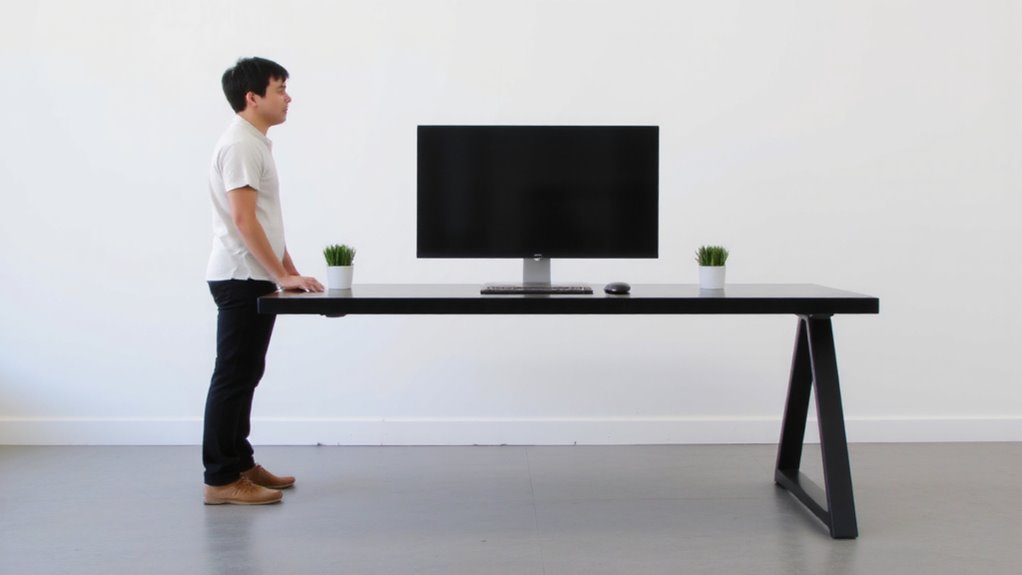
Most people should pick a single monitor distance that works well for both sitting and standing-around 20 to 30 inches from your eyes-because switching distances between postures isn’t practical and can disrupt focus. This setup supports consistent ergonomic alignment, reducing neck and shoulder strain whether you’re upright or seated. You’ll also maintain better visual comfort, since your eyes won’t need constant refocusing as you shift positions. A fixed distance simplifies your workspace, eliminating the need for motorized arms that adjust depth-most aren’t precise enough anyway. Just center the screen directly in front of you. Keep in mind, though, compromise is inevitable: if you’re unusually tall or short, standard ranges might not fit perfectly. Still, for most, staying within 20–30 inches balances posture and clarity without overcomplicating your gear choices or relying on unreliable mechanics. A well-chosen fixed distance pairs perfectly with the versatility of the best standing desks for your workspace.
Adjust Height for Both Sitting and Standing
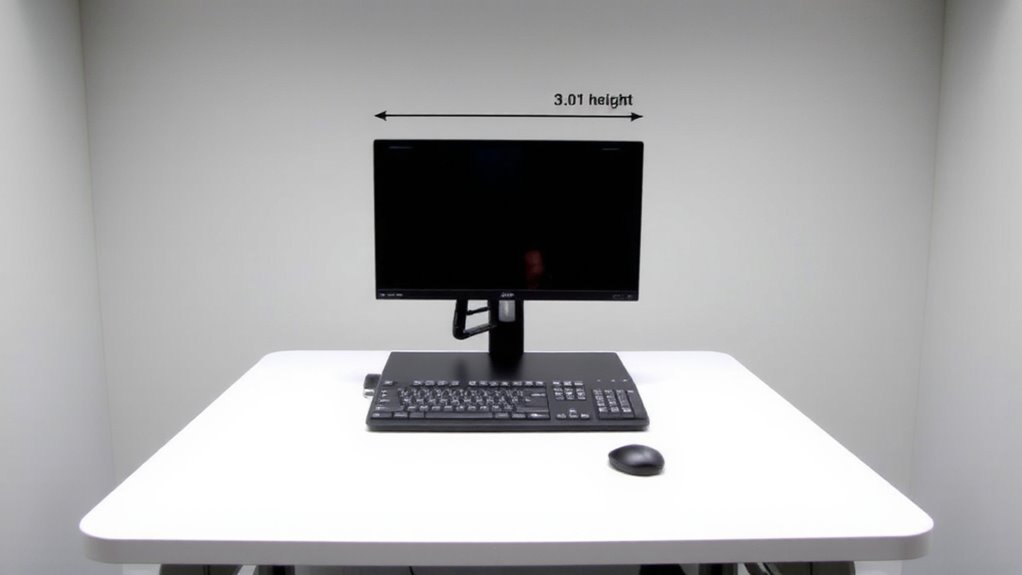
Monitor height makes or breaks your posture-set it right for both sitting and standing to avoid neck strain and maintain focus. The top of your screen should be at or slightly below eye level in both postures, ensuring your neck stays neutral. Use an adjustable monitor arm for seamless shifts, as fixed stands often can’t accommodate both positions safely. Good cable management keeps wires tidy and prevents snagging during height adjustments, while proper ambient lighting reduces glare and eye fatigue. Stability matters-some arms wobble, especially with larger screens, so check weight ratings. Here’s what to evaluate:
| Posture | Eye Level | Screen Tilt |
|---|---|---|
| Sitting | 0–2 in below | 0–10° recline |
| Standing | At eye level | 5–15° recline |
| Adjustment | Smooth arm motion | Secure lock |
| Extras | Integrated cable management | Ambient lighting compatibility |
Test arm stability with your setup before committing.
Set a Distance That Reduces Eye Strain
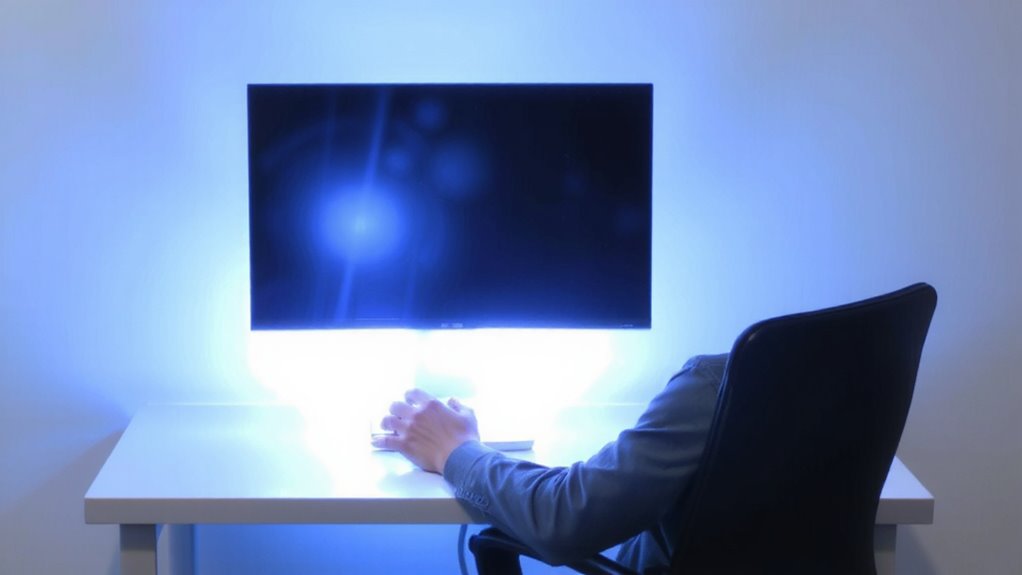
Eye strain doesn’t have to be the price of a long workday-setting the right monitor distance is your first line of defense. Sit about 20 to 30 inches from your screen, roughly an arm’s length, to reduce visual fatigue. At this range, text stays sharp without forcing your eyes to strain. Pair that distance with balanced screen brightness-set it to match your ambient lighting so it doesn’t glare or fade against room light. Too much contrast between a bright display and a dark room worsens eye strain over time. Natural light is ideal, but if you’re using overhead lights, aim for soft, indirect fixtures. Avoid placing the monitor directly in front of or behind a window to minimize reflections. This setup works across sitting and standing postures without adjustments. Keep in mind: individual vision differences mean some fine-tuning may help, but the 20–30 inch rule fits most people reliably.
Tilt the Screen for a Clear View
Why does your screen seem harder to read over time, even when the distance is right? The issue might be your screen angle. Tilting the monitor improves viewing clarity by aligning the display with your eye level, reducing glare and neck strain.
| Screen Angle | Viewing Clarity |
|---|---|
| 0° (flat) | Moderate glare, uneven contrast |
| 5°–10° tilted up | Best for seated, reduces chin tuck |
| 10°–15° tilted up | Ideal for standing, matches elevated gaze |
| 15°+ tilted up | Risk of wobble, diminished brightness |
| Backward tilt | Increases glare, not recommended |
A slight forward tilt boosts clarity in both postures. But avoid over-tilting-most stands stabilize only up to 15°. Check manufacturer specs for tilt range and durability. You’ll gain comfort without reconfiguring your setup each time. Using an adjustable monitor arm ensures optimal screen positioning for both sitting and standing postures.
Use an Adjustable Mount to Keep It in Place
A reliable setup stays put when you need it to, and that’s where an adjustable mount comes in-especially if you’ve already fine-tuned your tilt for seated or standing use. With a sturdy arm, you lock in perfect screen alignment and avoid constant readjusting. Look for mounts with gas-spring mechanisms; they support smooth height and angle changes while holding position without drift. Most quality models handle 17–27-inch displays and include built-in cable management to keep wires tidy and out of sight. That helps reduce clutter and improves focus on your workspace. Just make sure the clamp or grommet fits your desk thickness-some mounts only work with surfaces up to 3.2 inches. Also, check the warranty; top brands offer 5–10 years, which is a good sign of durability. Mounts aren’t cheap, but they pay off in long-term comfort and stability. For those using multiple screens, consider a triple monitor arm to maintain alignment and balance across all displays.
On a final note
You’ll get the best results by picking one monitor distance that works for both sitting and standing-around 20–30 inches from your eyes. Tilt the screen slightly upward when standing, downward when sitting, using an adjustable gas-spring or counterbalance arm mount. These support fine height and angle tweaks, but guarantee it locks securely to avoid drift. Results improve with matte anti-glare screens tested under real lighting. Trade-offs include minor focus shifts but avoid constant repositioning.