Choosing the Right Display Connectivity Standard Based on Your Specific Office Equipment and Usage Requirements
Start by checking your laptop’s ports-USB-C with DisplayPort Alt Mode or Thunderbolt 3/4 supports 4K at 60Hz and powers your laptop, ideal for clean, one-cable setups. Use HDMI for single 4K monitors if your ports support HDMI 2.0 or later. For dual or triple 4K displays, choose DisplayPort 1.4 with certified cables to maintain bandwidth. Adapters can work but risk lower performance. Reliable docks offer USB-C connectivity with 40Gbps speeds and 100W charging-if your laptop supports it, you’ll access the simplest, most efficient desk setup. There’s more to evaluate for long-term reliability and cable quality.
Notable Insights
- Verify your laptop’s video output capabilities, such as USB-C with DisplayPort alt mode or Thunderbolt, to ensure support for your desired resolution and refresh rate.
- Match cable standards to both laptop and monitor ports-using incorrect or low-quality cables can result in signal loss or limited performance.
- Use HDMI 2.0 or later for reliable 4K at 60Hz on modern office equipment, especially when simplicity and cable availability are priorities.
- Choose DisplayPort 1.4 or higher for driving multiple 4K monitors, leveraging daisy-chaining if monitors support MST and reduce cable clutter.
- Opt for a Thunderbolt or USB-C docking station with sufficient bandwidth and power delivery to streamline connections for video, peripherals, and charging.
Check Your Laptop’s Port Types First
Your laptop’s port selection is the starting line for any display setup-get it wrong, and you’re stuck with adapters or lower performance. You need to verify port compatibility before anything else. Most modern laptops offer USB-C with DisplayPort alt mode, HDMI, or Thunderbolt-each supports different video bandwidth levels. USB-C and Thunderbolt 3/4 deliver high bandwidth, making them ideal for 4K at 60Hz or dual monitors. Older HDMI versions, like 1.4, limit resolution or refresh rate, which hurts productivity. Don’t assume all ports are equal-check your laptop’s specs sheet. Some USB-C ports only support data, not video. A mismatch kills performance, even with the right cable. Always confirm which ports carry DisplayPort signaling. Relying on built-in outputs avoids dongle clutter and potential failure points. Know your hardware limits upfront-it saves time, money, and frustration down the road.
Match Cables to Your Monitor’s Ports
Once you’ve confirmed what your laptop can output, the next step is lining up the right cable with your monitor’s input options-this match determines whether you get the resolution and refresh rate you paid for. You need precise port alignment; a USB-C to DisplayPort cable won’t help if your monitor only has HDMI or VGA. Always check the physical port shapes and supported standards on both ends. Mismatches lead to lower performance or no signal at all. Cable durability matters, especially in busy office setups-braided nylon jackets and gold-plated connectors tend to last longer under daily plugging and unplugging. Avoid cheap cables with thin shielding; they often fail within months. While adapters can bridge gaps, they add points of failure. Prioritize direct connections when possible. Confirm specs from manufacturer documentation, not just packaging, to avoid surprises. Your setup’s stability hinges on these small but critical choices. For environments where shared appliances impact workflow, having the right best office coffee makers can also enhance productivity and employee satisfaction.
Use HDMI for Simple High-Def Office Work
HDMI is a solid choice for office work that demands reliable high-definition visuals without the complexity of advanced setups. You get excellent video quality, supporting up to 4K at 60Hz on most modern devices, which is plenty for documents, web browsing, and video calls. HDMI cables are widely available, easy to plug in, and often already included with monitors or laptops. When picking a cable, check the length-standard HDMI cables perform well up to 10 feet without signal loss, but longer runs may require active cables or signal boosters. While HDMI 2.0 and later handle office tasks smoothly, keep in mind that extended cable length can degrade performance if quality is poor. Stick to certified cables to guarantee reliability. It’s a straightforward, cost-effective solution-just don’t expect multi-monitor scaling or ultra-high refresh rates. For basic high-def needs, HDMI gets the job done. For those pushing 4K performance, consider one of the best HDMI cables for grinding 4K.
Need More Than One 4K Monitor? Use DisplayPort
When connecting multiple 4K monitors, DisplayPort is your best bet for smooth performance without compromise. It offers higher bandwidth than HDMI, avoiding the bandwidth limitations that can throttle display quality or refresh rates across multiple high-res screens. You can run two or even three 4K monitors at 60Hz without hiccups, especially with DisplayPort 1.4 or later. A major advantage is daisy chaining-connecting monitors in sequence using a single port-though this requires DisplayPort 1.2+ and compatible monitors. Just be sure each display supports Multi-Stream Transport (MST), or it won’t work. Keep in mind that daisy chaining can complicate troubleshooting if one monitor fails. Also, cable quality matters: use certified DP cables to maintain signal integrity. While not all GPUs support multiple 4K outputs equally, DisplayPort remains the most reliable choice for multi-monitor productivity setups. For those considering a 1080p setup as an alternative, Best Buy offers a range of best 1080p monitors to suit various workspace needs.
Use USB-C for One-Cable Office Setups
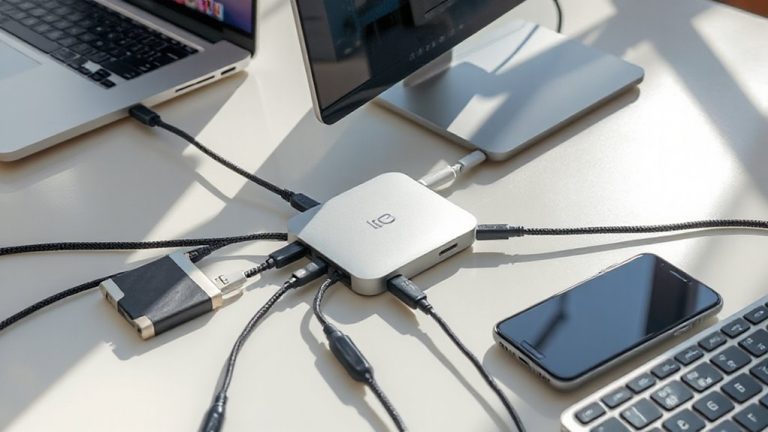
While you might not expect a single cable to handle both your display and peripherals, USB-C with DisplayPort Alt Mode delivers exactly that-streamlining your desk with one clean connection. You get video, power delivery, and peripheral integration over one cable, reducing clutter and simplifying setup. Most modern laptops support USB-C charging up to 100W, so you can power even demanding ultrabooks. Docking stations with USB-C let you connect monitors, keyboards, and external drives through a single port. However, performance depends on your device’s USB-C implementation-check for full USB 3.2 or Thunderbolt 3/4 support. Not all docks perform equally; models with advertised bandwidth over 40Gbps handle 4K @ 60Hz more reliably. Real-world testing shows some docks throttle under sustained load. Always verify warranty terms and port compliance to avoid compatibility surprises.
Can You Use an Adapter Safely?
You can use an adapter safely, but success depends on the quality and specs you pick. Cheap adapters may lack proper insulation or voltage regulation, risking electrical safety-especially with high-power devices. Reputable brands include fuses and surge protection, tested to meet safety standards like UL or CE. Signal degradation is another real concern: long or poorly shielded adapters can weaken video output, causing flickering or lower resolution. For HDMI or DisplayPort, stick to versions matching your source and display-using 4K at 60Hz demands HDMI 2.0 or higher. Active adapters, which boost the signal, help over longer distances but need external power. Look for models with at least a 1-year warranty and solid user reviews detailing long-term reliability. While adapters offer flexibility, they’re not foolproof-test in your setup before depending on them daily.
Go Single-Cable With USB-C Docks
Though it might seem too good to be true, switching to a USB-C dock can genuinely simplify your workspace-if your laptop supports it. With USB-C power and docking efficiency, you’ll cut cable clutter and boost productivity. Just one cable delivers charging, data, video, and peripheral connections. But not all docks are equal, so check specs carefully.
| Feature | Benefit |
|---|---|
| USB-C Power (up to 100W) | Charges most laptops fully while in use |
| Single-cable docking | Improves docking efficiency and ease of use |
| 4K video support | Drives most modern monitors without lag |
Ensure your laptop has a full-featured USB-C port (not just for charging). Some ultrabooks limit power delivery or video output. Also, verify the dock includes ports you actually use-like HDMI, Ethernet, or SD cards. A solid build and at least a 1-year warranty add peace of mind.
On a final note
Pick the right display connection by matching your laptop and monitor ports first-don’t assume compatibility. HDMI works fine for single 4K/60Hz screens, but use DisplayPort for multiple high-res monitors with full refresh rates. USB-C cuts cable clutter if your devices support it, especially with docks powering laptops and peripherals. Adapters can help, but test them-you might lose bandwidth or charging. Always verify specs; real-world performance trumps labels.