Maximizing Data Transfer Speeds Through Efficient Utilization of USB Protocol Standards in a Home Office Setting
You’re probably wasting transfer speed by mismatching USB ports, cables, or devices-plug a USB 3.2 drive into a USB 2.0 port and you’ll cap at 480 Mbps, not 5 Gbps. Use certified USB 3.2 or USB4 cables matched to your port and drive, or you’ll face drops and throttling, especially with 4K files. Update drivers and firmware to avoid failures. USB4 hits 40 Gbps but only if your whole setup supports it. There’s a smarter way to build your system-one that balances speed, cost, and real-world needs.
Notable Insights
- Use USB 3.2 Gen 2 or USB4 ports and cables to achieve transfer speeds up to 10 Gbps or 40 Gbps, respectively.
- Ensure all components-drive, cable, and port-match in USB standard to avoid being limited by the slowest element.
- Invest in certified high-quality cables to maintain full bandwidth, especially for 4K video or large file transfers.
- Update device drivers and firmware regularly to maintain optimal communication between USB peripherals and the operating system.
- Select USB4 SSDs with certified 40Gbps cables and monitor for thermal throttling during sustained transfer workloads.
Fix Slow Transfers: Know USB 2.0, 3.0, and USB-C Speeds
Wondering why your USB drive takes forever to transfer files? The answer often lies in USB version differences. USB 2.0 caps out at 480 Mbps, so copying a 10GB file can take over 30 minutes. USB 3.0 (also called USB 3.2 Gen 1) boosts that to 5 Gbps-real-world speeds around 300–400 Mbps-cutting transfer times dramatically. USB 3.2 Gen 2 hits 10 Gbps, while some USB-C drives support even higher rates. Meeting transfer rate expectations means checking both your drive and host device. A USB 3.0 drive won’t help if your laptop only has USB 2.0 ports. Even with compatible gear, actual speeds depend on controller quality, file size, and drive endurance. Most brands don’t offer long warranties on budget drives, so reliability varies. Always verify specs, not just logos-misleading labels are common. For reliable high-speed options, consider checking out the Top USB 3.0 Picks at Best Buy.
Pair the Right USB Cable and Port to Avoid Bottlenecks
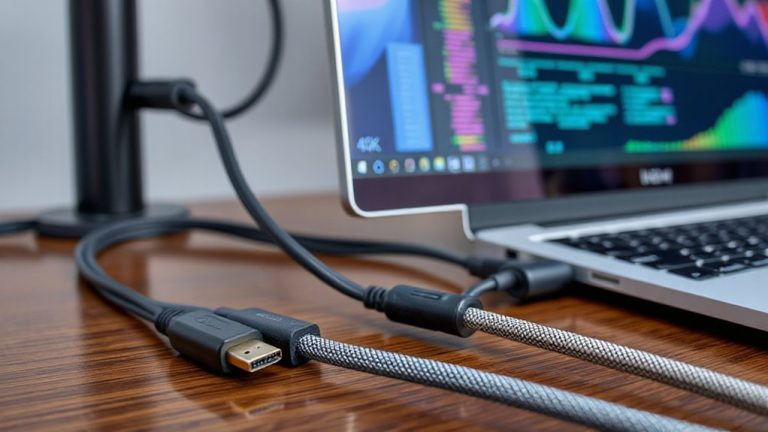
Using the right USB cable and port makes a real difference in transfer speeds, especially if you’re relying on older gear that’s holding back your newer devices. You need proper port matching-plugging a USB 3.2 device into a USB 2.0 port cuts speeds from 10 Gbps to just 480 Mbps. Even with correct ports, cable quality matters: cheap or worn cables can’t handle high-bandwidth data, leading to dropped connections or slower performance. Look for cables labeled with the same standard as your devices, like USB 3.1 or USB4, and check for reinforced connectors and shielding. Real-world tests show premium cables maintain full speed over 2-meter runs, while budget versions fail at half that. But don’t overspend-match cable specs to your actual needs. If you’re only transferring documents, USB 2.0 may suffice. For 4K video or large backups, invest in certified cables and verify port matching across all devices. You can find reliable options among the Best USB-C Cables at Best Buy.
Update Drivers to Prevent USB Transfer Failures
Even when you’ve paired the right USB cable and port, outdated or corrupted drivers can still sabotage transfer speeds and cause intermittent failures-so don’t overlook updating them. You need proper driver compatibility to guarantee your devices communicate efficiently with your OS. Outdated drivers may not support current USB protocols, leading to dropped connections or reduced throughput. Regularly check manufacturer websites for firmware updates, especially after system upgrades. These updates often include performance fixes and expanded hardware support. While most modern systems auto-update drivers, manual checks add a layer of reliability. Be cautious, though-installing incorrect drivers can cause conflicts or instability. Stick to verified sources and match versions to your exact hardware model. Firmware updates might require a few minutes, but they’re worth it if you rely on stable transfers. This small step can reduce errors and keep your home office workflow consistent, without the frustration of failed backups or stalled file syncs.
Upgrade to USB4 for Faster Home Office Transfers
If your home office relies on moving large files quickly, upgrading to USB4 can make a noticeable difference in transfer speeds-up to 40 Gbps with compatible devices, which is twice as fast as USB 3.2 and on par with Thunderbolt 3. You’ll see the best results when both your computer and peripheral support USB4 compatibility, such as newer docks, SSDs, or monitors. Don’t worry about older gear-USB4 offers full backward support, so your USB-A flash drives and USB 3.2 devices still work, though at their original speeds. Keep in mind, reaching top speeds requires certified USB4 cables; cheaper ones may limit performance. Also, not all laptops or desktops support USB4 yet, so check your ports before buying. While the upgrade boosts throughput, the real benefit depends on your workflow. If you regularly transfer 4K video or large datasets, USB4 is worth it-but for everyday use, the jump may be overkill.
Speed up Your Workflow With the Right USB Setup
While raw speed matters, getting the most from your USB setup means matching the right components to your daily tasks-because even a USB4 connection won’t help if your drive can’t keep up or your cable doesn’t meet spec. You need data prioritization to guarantee critical transfers, like client videos or backups, finish first without clogging your bus. Use USB hubs with QoS support to manage traffic intelligently. For sensitive work, transfer encryption is non-negotiable-opt for drives with AES-256 built in, so files stay secure even if lost. Pair USB4 SSDs with certified 40Gbps cables for maximum throughput, but verify real-world speeds; some drives only sustain peak rates briefly before throttling. Don’t overlook power delivery-PD 3.0 guarantees your laptop charges while transferring. Test setups weekly: a drive rated for 3500MB/s might drop to 1800MB/s under heat. Reliable performance beats peak specs when deadlines loom.
On a final note
You’ll get faster transfers by matching devices to their full USB specs-like using USB 3.0 or better for external SSDs. Real-world speeds often fall short of theoretical peaks, so don’t expect 5 Gbps on USB 3.0 unless conditions are ideal. Upgrade to USB4 for major gains, but only if your gear supports it; otherwise, you’re paying for unused bandwidth. A good cable and updated drivers matter just as much as the port.