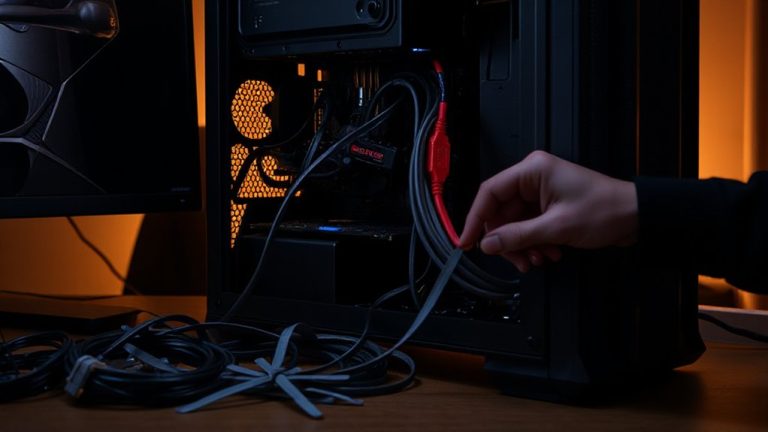
Developing a Disaster Recovery Plan for Your Home Office Network
You need a disaster recovery plan now-router failures, power surges, or fires can wipe out work fast. Automate daily cloud backups and use external SSDs locally for faster restores. Encrypt all devices and lock down firewalls to block breaches. Pair a 600VA+ UPS with a 4G hotspot to stay online during outages. Document every recovery step, then test it monthly. Real drills expose gaps no checklist catches.
Notable Insights
- Protect equipment from environmental risks by avoiding basements, windows, and using surge protectors with UPS units.
- Implement automated daily cloud backups and weekly local backups using NAS or external SSDs for redundancy.
- Enable full-disk encryption and maintain updated firewall rules on all devices to defend against cyberattacks.
- Use a UPS with AVR and a portable power station to maintain network connectivity during power outages.
- Document and test recovery steps monthly, including device restoration and internet failover procedures.
Map Your Home Office’s Top Threats
Your home office faces real risks every day, and knowing what they are is the first step to staying protected. Equipment failure-like a dead router or failing NAS drive-can halt your work without warning. Power surveys, outdated hardware, or simple wear and tear often cause these failures, especially with consumer-grade networking gear not built for 24/7 loads. Natural disasters, such as floods, fires, or storms, pose even larger threats, potentially destroying everything in minutes. While surge protectors and UPS units help, they won’t stop water damage or prolonged outages. You can’t prevent every issue, but identifying these risks lets you plan smarter. Consider where your devices sit-avoid basements or windows-and check local climate patterns. Relying solely on built-in device durability is risky; most lack extended warranties or water resistance. Planning now reduces long-term downtime, but remember, no setup is completely fail-safe. A reliable UPS backup power system can provide critical runtime during outages and protect sensitive equipment from surges.
Automate Backups for Quick Recovery
Even though you can’t prevent every hardware failure or power spike, you can guarantee your data survives them-by automating backups. Set up scheduled backups using reliable software and include both local drives and cloud storage for redundancy. Cloud storage offers off-site protection and easy access, while local drives give faster restores. Use version control to track file changes and recover older drafts without hassle. Automating the process reduces human error, but don’t assume it’s foolproof-test restores periodically.
| Backup Type | Frequency Recommendation |
|---|---|
| Cloud Storage | Daily |
| External SSD | Daily |
| NAS Device | Weekly |
| USB Flash Drive | Not recommended |
| Version Control Snapshots | Every major file edit |
Protect Your Work Devices From Cyberattacks
A strong defense against cyberattacks starts with treating every device in your home office as a potential entry point. You should enable device encryption on all work machines-this guarantees data stays protected even if hardware is lost or stolen. Most modern laptops and phones support full-disk encryption by default, but verify it’s turned on. Pair this with strict firewall configuration on your router and each device; firewalls block unauthorized access and filter malicious traffic before it reaches your system. Use the built-in OS firewall or install a trusted third-party version with clear logging and rule customization. While these tools add minor setup time and may slightly affect performance, the security boost outweighs the trade-off. Regularly update firewall rules and encryption protocols to match evolving threats. No system is 100% foolproof, but consistent use of device encryption and smart firewall configuration substantially reduces your risk.
Stay Online During Power Outages
If the power goes out, your ability to stay online depends on having the right backup power solutions in place. A Battery backup, like a UPS with AVR, keeps your router and modem running for 30–90 minutes-enough time to save work and maintain connectivity during short outages. For longer disruptions, pair it with a portable power station rated at least 300Wh to extend runtime. Consider internet failover using a 4G/5G hotspot; it automatically activates if your primary connection drops, ensuring continuous access. Most cellular hotspots offer 10–50GB/month on affordable plans, but check data limits. Avoid cheap UPS units under 600VA-they often lack surge protection or clean power output. Units like the APC Smart-UPS or CyberPower CP1500PFCLCD are tested for home office reliability. While setup adds cost and complexity, the uptime boost is worth it-just test your system quarterly.
Enable Remote Access for Fast Recovery
You’ve protected your connection during power failures, but staying online means little if you can’t reach your systems remotely when things go wrong. Setting up remote access lets you reboot servers, retrieve files, or restart services without being onsite. Use a secure tunnel-like a trusted VPN or zero-trust network-to encrypt all traffic between you and your home office. This keeps intruders out while allowing fast, reliable access. Pair it with strong access control: require multi-factor authentication and limit user permissions to only what’s necessary. Many routers support OpenVPN or WireGuard, both proven in real-world tests for speed and reliability. While these tools are effective, misconfigurations can expose your network, so verify settings regularly. Performance varies by internet upload speed and device capability. Always update firmware to patch security flaws. With proper setup, remote access becomes a resilient recovery tool-not a vulnerability.
Document Your Step-by-Step Recovery Plan
When disaster strikes, a clear recovery plan won’t just save time-it can prevent costly mistakes during high-pressure moments. You need a documented, step-by-step process that prioritizes data preservation and leverages system redundancy. Start by listing every device-router, NAS, UPS-with exact model numbers and firmware versions. Outline how to restore files from both local backups and cloud services, noting which drives support versioning and how long a full restore typically takes. Include failover steps if your primary router or internet connection dies. Be specific: use IP addresses, admin portal URLs, and account recovery paths. Remember, redundancy only helps if you know how to activate it. Update the document whenever you upgrade gear. Store it offline and in the cloud, but verify access works from alternate devices. Skipping documentation risks overlooking critical recovery steps when you’re stressed and racing the clock.
Test Recovery Steps Monthly
A recovery plan only proves its worth when you actually use it, so testing your documented steps every month is how you confirm everything works as expected. Run recovery drills to verify backups, restore files, and reconnect devices under controlled conditions. Treat these simulation exercises like fire drills-routine and timed. You’ll catch issues like corrupted backups or missing credentials before real disasters strike. Use real hardware, not just software estimates, since router resets or drive swaps often reveal hidden flaws. Schedule tests during low-usage hours to reduce disruption. Note how long each step takes; if restoration exceeds 30 minutes, refine the process. Keep logs to track progress and gaps. Monthly tests aren’t foolproof-some failures, like ISP outages, are hard to simulate-but they build confidence. Balance thoroughness with practicality; don’t over-test critical drives, as frequent writes may reduce SSD lifespan. Stay consistent, but adapt as gear or workflows change.
On a final note
You should build a disaster recovery plan-it keeps your home office running when issues hit. Use automated cloud backups and a UPS for power cuts, plus antivirus and remote access tools. Test monthly so fixes work fast. But remember, even the best setup fails if you skip updates or ignore weak spots. No gear replaces consistent habits, and warranties won’t cover human error.