How to Monitor Antivirus Performance Impact on Home Office Device Productivity
Your antivirus might be slowing your home office workflow without you realizing it. Check Task Manager or Activity Monitor during video calls or file transfers-if CPU or memory stays above 80%, your scanner’s likely interfering. Real-time protection is essential, but aggressive settings can delay apps or freeze uploads. Top tools like Bitdefender and Kaspersky add minimal lag, per AV-Comparatives tests. Adjust scan schedules, exclude trusted apps, or test a faster suite using a free trial to see if performance improves. There’s more to optimizing your setup than just tweaking settings.
Notable Insights
- Use Task Manager or Activity Monitor to check if antivirus CPU usage exceeds 80% during scans.
- Monitor system responsiveness during video calls to detect scan-induced lags or freezes.
- Review startup times and app launch delays that persist despite adequate hardware.
- Compare antivirus performance using benchmark data from AV-Comparatives or PCMag for real-world insights.
- Schedule full scans during off-hours and exclude trusted apps to reduce productivity impact.
Know How Antivirus Affects Your Workday
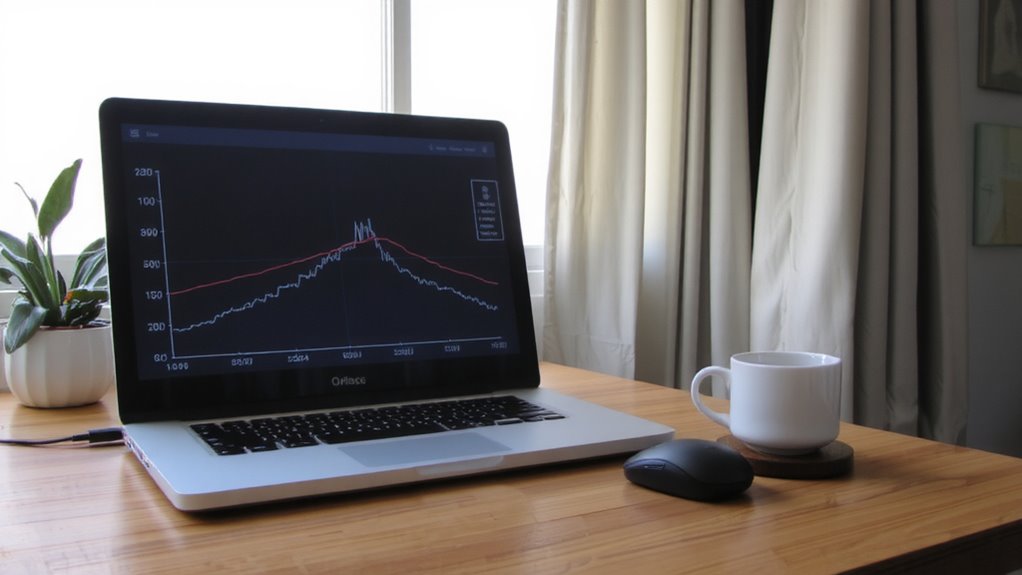
Why does your computer slow down every time that antivirus scan kicks off? Because real time protection and background updates are constantly working, even when you’re not. These features monitor file access, block threats, and download new virus definitions-often using CPU and disk resources that could go to your work. While essential for security, they can delay app launches or make multitasking feel sluggish. Most scans run on schedules or trigger during idle, but “idle” doesn’t always mean inactive. If you’re on a video call or editing a document, that background load adds up. High-end systems handle this well, but older or budget devices may struggle. You won’t eliminate the impact, but you can minimize it. Check your antivirus settings: can updates happen at night? Can real time protection exclude trusted apps? Smart tweaks help maintain protection without sacrificing productivity. Monitor performance over a week to see real effects.
Signs Your Antivirus Is Slowing You Down
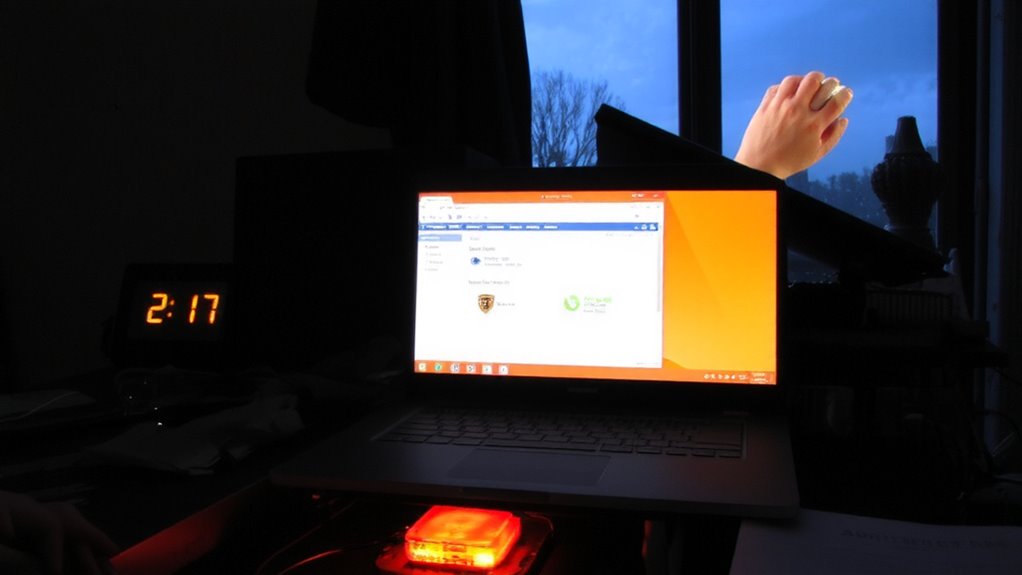
While you’re trying to meet deadlines or jump between apps, your antivirus might be working just as hard in the background-slowing things down without clear warning. If your system lags during video calls or file transfers, the antivirus could be overactive. Scan delays are another red flag-especially if routine checks freeze your browser or pause uploads. You might notice slow startup times or apps taking longer than usual to respond, even on capable hardware. These aren’t always faults of the antivirus itself, but rather how it’s configured. Real-time scanning is essential, but aggressive settings can hurt performance. Consider adjusting scan schedules to off-peak hours. Not all antivirus tools behave the same-some balance protection and speed better than others. Look for ones with customizable scanning and low-impact modes. Still, don’t disable protection entirely-security matters, even when speed suffers.
Check CPU and Memory During Scans
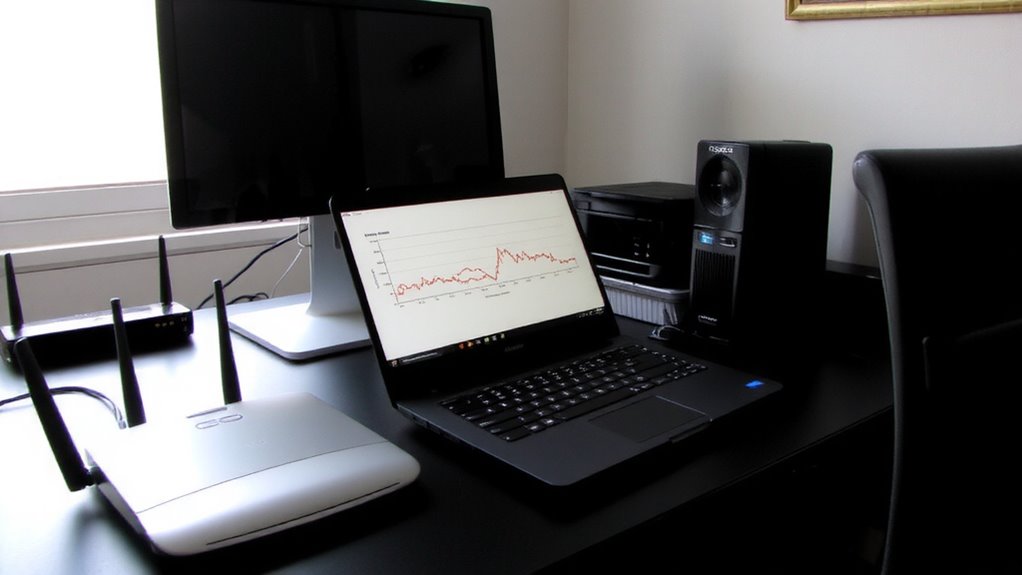
When your antivirus runs a scan, it’s normal for CPU and memory use to spike-but if performance tanks every time, you’ve got a problem worth investigating. You’ll want to monitor for excessive CPU spikes and sustained memory pressure, especially if you’re running video calls or large files simultaneously. Use Task Manager (Windows) or Activity Monitor (Mac) to check resource use during a full system scan. Brief spikes are expected; however, if CPU stays above 80% for minutes or available RAM drops critically low, your system may struggle with multitasking. That kind of strain can delay work and wear down hardware over time. Not all antivirus apps manage resources efficiently, so test during real work hours. You need protection without constant trade-offs in responsiveness. A good scan shouldn’t freeze your workflow-watch for balance between security and daily usability.
See Which Antivirus Runs Fastest
You’re not imagining it-if your antivirus slows down file transfers or drags out system boot times, some products really are faster than others. Independent lab tests show top performers like Bitdefender and Kaspersky add minimal delay during real time scanning, even on older home office hardware. These tools process files quickly without freezing your browser or halting productivity. Look for antivirus apps that handle background updates silently-pushing patches overnight or during low usage maintains speed without nagging restarts. Faster antivirus suites often use lightweight engines, reducing CPU drag during video calls or large downloads. But beware: speed isn’t everything. Some fast scanners trade deep analysis for low impact, potentially missing complex threats. Always verify performance claims with trusted sources like AV-Comparatives or PCMag’s benchmark suites, which measure real-world delays across boot, copy, and install tasks. Choose a balance-strong protection with proven low lag.
Tweak Your Antivirus for Better Speed
If your antivirus is dragging down your home office workflow, fine-tuning its settings can reclaim speed without ditching protection. You don’t need to disable real time scanning completely-just adjust which files it checks. Exclude trusted apps and folders like your work documents or design software libraries to reduce CPU dips during critical tasks. Set scan scheduling to run full system scans during off-hours, like evenings or lunch breaks, so they don’t clash with video calls or tight deadlines. Most tools allow custom scan times and low-priority mode, minimizing interference. Keep real time scanning active for downloads and external drives to catch threats early. These tweaks boost responsiveness, but remember: loosening settings too much raises risk. Balance speed and safety based on your workflow. Test changes over a few workdays to confirm performance gains without gaps in coverage.
When to Switch Antivirus for Performance
Though tweaking settings can ease performance hits, you’ll likely need to switch antivirus tools if your system still lags during daily tasks despite optimizations. Persistent slowdowns during video calls, file syncing, or browser use suggest your current software may lack solid system compatibility with your hardware or OS version. Newer CPUs and SSDs can be bogged down by outdated scanning engines. Look for antivirus suites verified to run efficiently on your device’s specs, especially if you’re on older or low-RAM systems. Subscription flexibility matters too-opt for plans that allow switching between devices or downgrading without penalty. That way, you can adapt if performance demands change. Always test new antivirus software during a free trial period under real workloads. Confirm it doesn’t spike CPU use or delay app launches. Remember, maximum security shouldn’t mean crippled productivity. Balance protection with performance.
On a final note
You should keep your antivirus-it’s essential for security-but choose one that balances protection and speed. Look for models tested under 10% CPU load during scans, with under 5% impact on boot time. Fast ones like Bitdefender or Kaspersky often score high in real-world tests. Still, no antivirus is zero-cost on performance. Always adjust scan schedules and exclude trusted work folders to minimize slowdowns.