How to Calibrate Monitor Brightness to Match Ambient Room Lighting
Set your monitor brightness to 100–120 cd/m² in average lighting-it’s bright enough to stay clear but won’t wash out blacks. In dim rooms, lower it to reduce eye strain; in bright spaces, boost it slightly for contrast. Use a phone light meter app for a quick check, but know they’re less accurate than dedicated tools. Avoid max brightness at night, especially without adjusting blue light. You’ll want to fine-tune based on time of day and task-there’s more to getting it just right than most realize.
Notable Insights
- Adjust monitor brightness to 100–120 cd/m² for average indoor lighting, lowering it in dim rooms to reduce eye strain.
- Use a smartphone light meter app to measure ambient light and aim for 100–150 lux to match screen brightness appropriately.
- Position room lighting to the side of the monitor to minimize glare and avoid washing out screen contrast.
- Lower brightness and enable blue light reduction at night to prevent eye fatigue and support natural sleep cycles.
- Calibrate brightness based on task: use neutral, stable settings for photo editing and softer levels for reading.
Adjust Monitor Brightness for Your Room’s Lighting
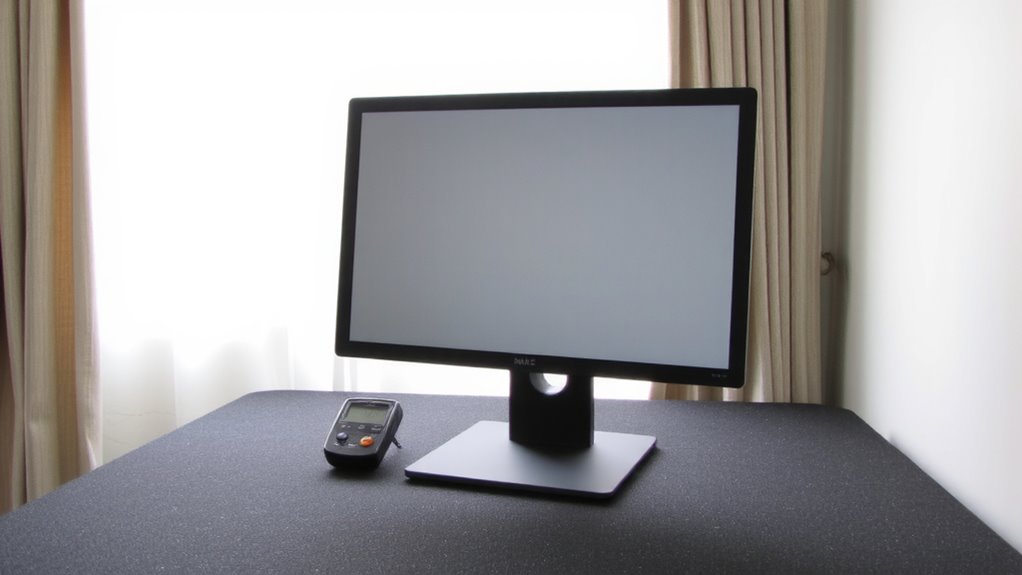
While your monitor’s default brightness might seem fine at first glance, tweaking it to match your room’s lighting can make a noticeable difference in both eye comfort and image quality. You’ll want to lower brightness in dim rooms to reduce strain and avoid washed-out blacks, while slightly increasing it in well-lit spaces helps maintain contrast balance. Too much brightness kills warm tones, making skin tones look bleached and darks lose detail. Aim for around 100–120 cd/m² in average lighting-it’s a sweet spot for most IPS panels. Keep in mind, oversaturating brightness distorts grayscale accuracy. Manual calibration using built-in settings is effective, but consistency matters more than perfection. Don’t rely solely on presets; they often overcompensate. Test with real content, not just color bars, and revisit adjustments if lighting changes.
How Ambient Light Affects Screen Comfort and Color
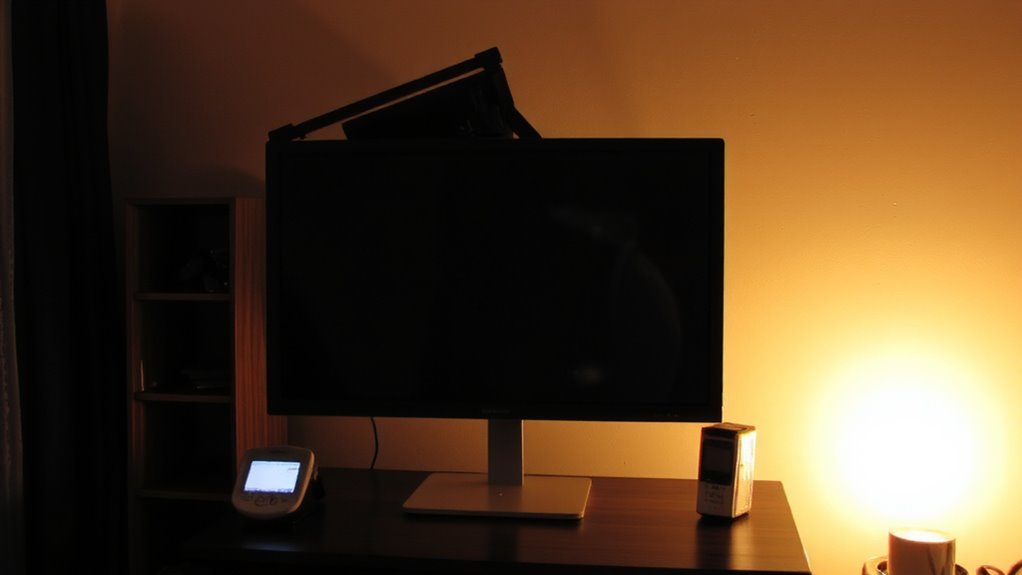
Most people overlook how much ambient light shapes both screen comfort and color accuracy, but getting it right can make a real difference in your daily work. Too much light causes screen glare, forcing your eyes to strain as they fight contrast imbalances, which increases eye fatigue over time. If your room is too dark, your monitor appears overly bright, washing out blacks and distorting color tones. On the flip side, bright ambient light can bleach out shadows and crush detail in lighter areas. For consistent color editing or long reading sessions, aim for around 100–150 lux of ambient light-similar to soft office lighting. Position lights to the side of your screen to reduce reflections. Matching brightness to surroundings isn’t just about comfort; it preserves detail in images and video. But remember, no setup eliminates eye fatigue entirely-regular breaks still matter.
Use Phone Apps or Meters to Calibrate Brightness Accurately
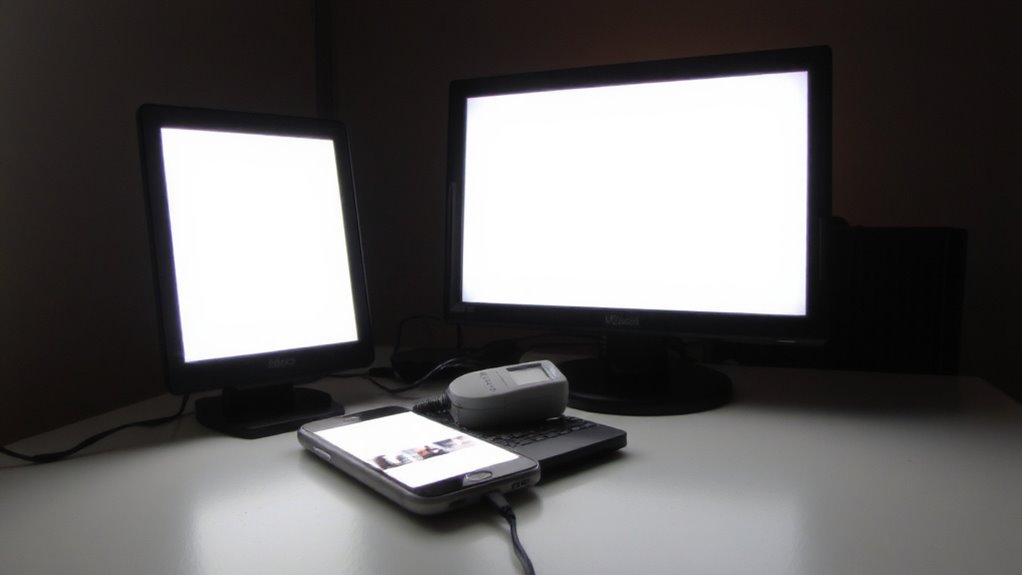
A few reliable tools can get you surprisingly close to accurate screen brightness without breaking the bank, though results depend heavily on your device and setup. For decent color accuracy and contrast ratio tuning, smartphone light meter apps like Luxi or Lumu offer accessible entry points. They’re not lab-grade, but they’re useful for relative measurements. Dedicated handheld meters like the Gossen Digisix or Calibrite Meter deliver far better consistency and calibration support.
| Tool Type | Accuracy Level | Best For |
|---|---|---|
| Phone Apps | Moderate | Quick checks |
| Entry Meters | High | Home office tweaking |
| Pro Devices | Very High | Critical color accuracy |
Phone tools work in a pinch, but if you need repeatable results-especially in variable ambient light-a real meter’s worth the investment. Just remember: no tool compensates for poor display hardware or incorrect white point settings.
Fine-Tune Settings for Day, Night, and Different Tasks
Why settle for the same harsh brightness all day when your eyes and work quality depend on it? You can boost comfort and focus by adjusting brightness for time of day and task. During daylight, increase brightness to match ambient light and reduce glare, but don’t crank it so high that screen flicker or blown-out contrasts hurt readability. At night, lower brightness and enable built-in modes that reduce blue light without oversaturating colors, which helps maintain circadian rhythm. For precision work like photo editing, use consistent, neutral settings calibrated with tools-not just presets. Office tasks, like reading or writing, often benefit from softer light to reduce eye strain. While many monitors claim adaptive brightness, test them yourself-some overcompensate or introduce flicker. Always verify performance in your actual lighting. These tweaks aren’t foolproof, but they offer real gains in comfort and clarity when applied thoughtfully.
Don’t Over-Brighten at Night: Common Calibration Mistakes
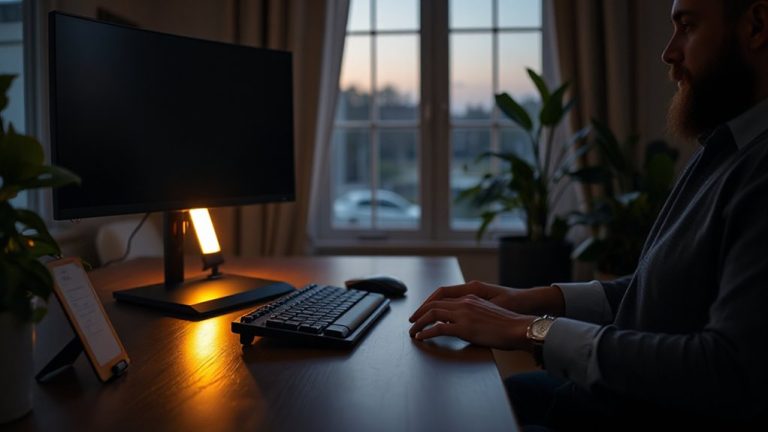
Turning down your monitor at night isn’t just about comfort-it’s a smart move for your eyes and sleep cycle, and skipping this step is one of the most common calibration errors people make. You’re likely straining your eyes if your screen glows brighter than the room. High brightness in dim settings causes eye strain, making focus harder over time. Worse, excessive blue light at night can lead to sleep disruption by suppressing melatonin. Most modern monitors offer night modes or color temperature adjustments-use them. Set brightness between 100 and 120 cd/m² after dark, roughly matching ambient light. Don’t rely on presets alone; tweak manually. Auto-brightness often overcompensates, especially under artificial lighting. While lower brightness helps, going too dim risks legibility and may slow your work. Balance is key. There’s no one-size-fits-all setting-test different levels over a few evenings to find your sweet spot without sacrificing comfort or productivity.
On a final note
You should calibrate your monitor brightness to match ambient light for comfort and accuracy. Set brightness between 100–120 cd/m² for day use, 50–60 cd/m² at night. Use a light meter app or built-in sensor for precision. Avoid overly bright screens in dark rooms-they cause eye strain. Auto-brightness helps but often overcompensates. Manual tweaks by time of day or task yield better results. This balance improves clarity and reduces fatigue, but requires active adjustment. No monitor fixes lighting alone-pair with room adjustments.