How to Position a Monitor to Avoid Light Reflections From Overhead and Task Lights
Position your monitor perpendicular to windows and avoid direct light from overhead or task lamps. Place task lighting to the side, opposite your dominant hand, using 40–60 watt bulbs at 4000K to reduce shadows and glare. Tilt the screen 10–20 degrees downward and use a matte screen protector for up to 70% glare reduction, though expect slight softening of image quality. Match monitor brightness to ambient light-aim for 100–150 cd/m². Adjust over time as lighting changes throughout the day. You’ll find better setups build on these adjustments with small, tested tweaks.
Notable Insights
- Position the monitor perpendicular to windows and avoid direct alignment with light sources to minimize glare.
- Tilt the monitor 10 to 20 degrees downward to reduce reflections from overhead or recessed lighting.
- Place task lights to the side of the monitor, opposite your dominant hand, to prevent shadows and glare.
- Use a matte screen protector to diffuse reflections and reduce glare from ambient and task lighting.
- Adjust monitor brightness to 100–150 cd/m² to match ambient light and minimize contrast-induced reflections.
Position Your Monitor to Avoid Window Glare
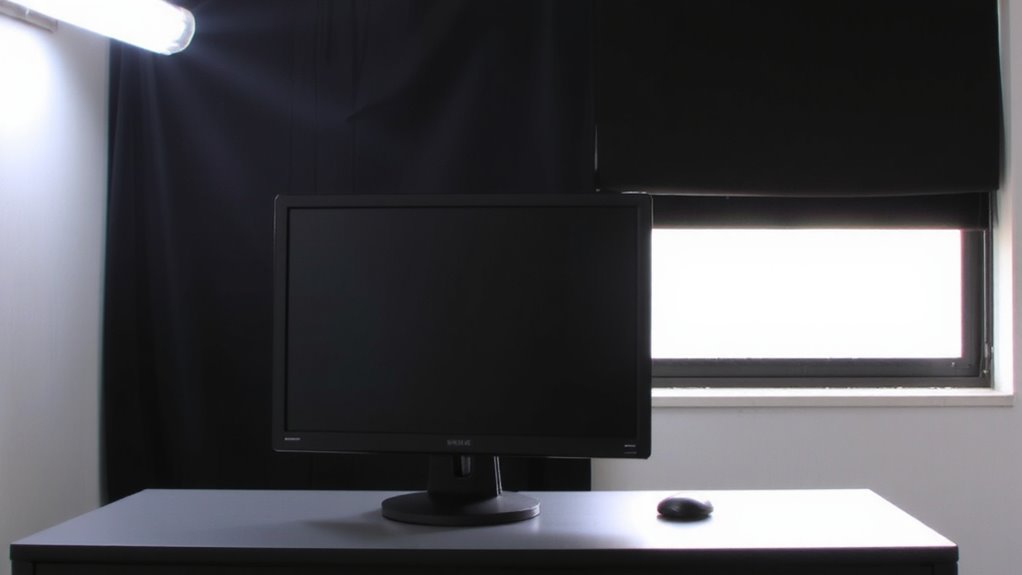
While natural light can boost your mood and focus, placing your monitor directly across from a window often leads to harsh glare that washes out text and strains your eyes. For ideal window alignment, position your desk so the window is to your side rather than in front or behind you-this reduces glare by minimizing direct light hitting the screen. Your monitor orientation should be perpendicular to the window to prevent reflections. If that’s not possible, angle the monitor slightly away from the brightest area. Keep in mind that sheer curtains or blinds help, but they’re not a fix for poor positioning. Avoid rotating the monitor too far, as extreme angles can cause viewing discomfort over time. Test the setup during different times of day, since sunlight changes intensity and direction. Proper alignment balances light control with ergonomic comfort.
Place Task Lights to the Side, Not Behind or Front
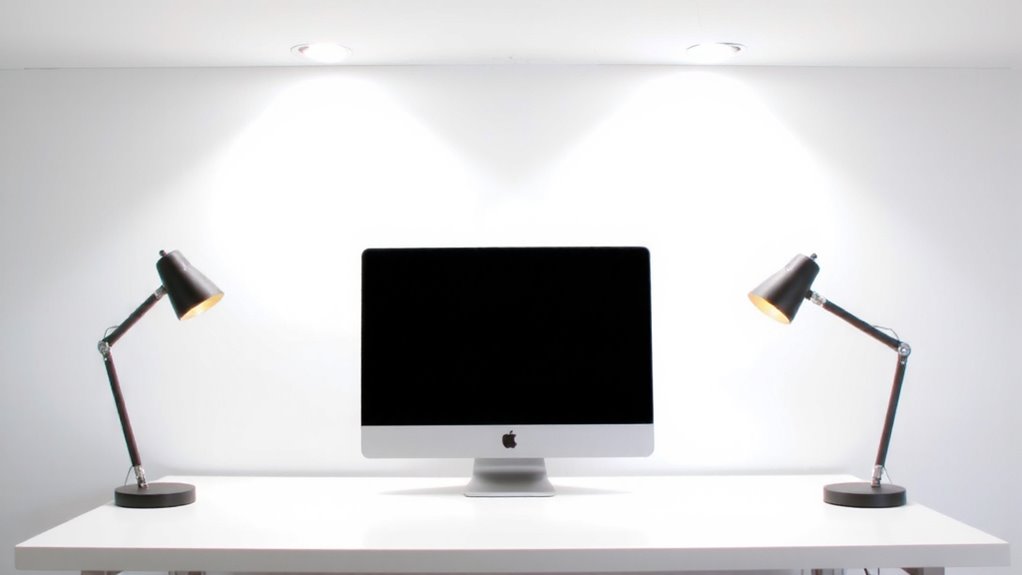
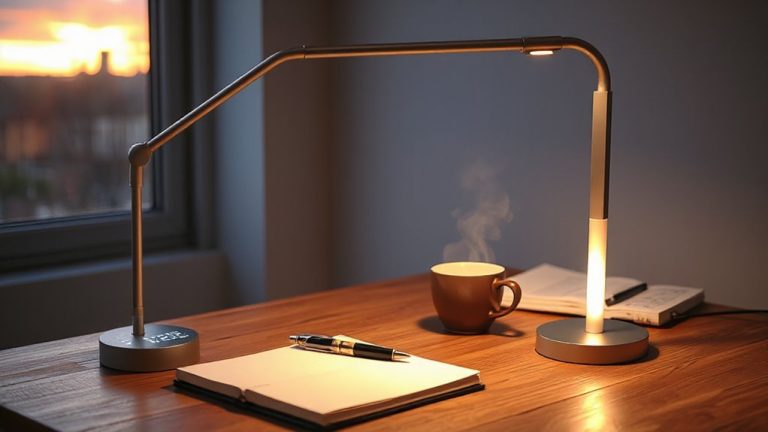
You’ve sorted out window glare by positioning your monitor to the side of a window, but artificial light matters just as much. For best lamp placement, position task lights to the side of your monitor, not behind or in front. Placing a lamp behind you can create harsh backlighting, while front placement often causes glare and hotspots on the screen. Side lighting reduces reflections and maintains better ambient contrast, helping your eyes shift focus more comfortably between screen and paper. Use a shaded or adjustable-arm lamp to direct light onto your workspace without spilling onto the monitor. Opt for bulbs around 40–60 watts (or 450–800 lumens) with a color temperature near 4000K to avoid eye strain. Keep in mind that symmetry matters-right-handed users benefit from left-side lamps, and vice versa, to minimize shadows.
Tilt Your Monitor to Minimize Reflections
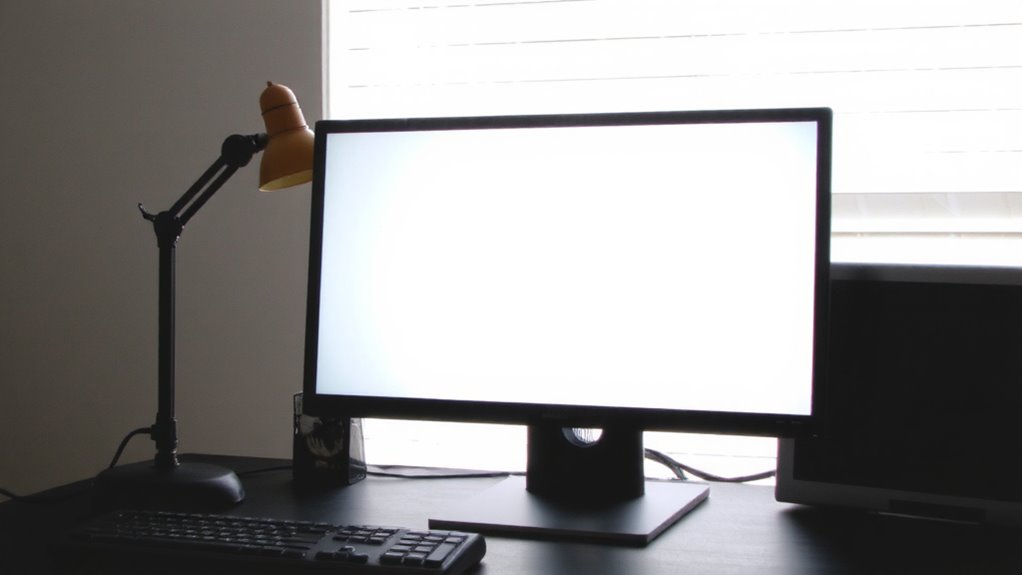
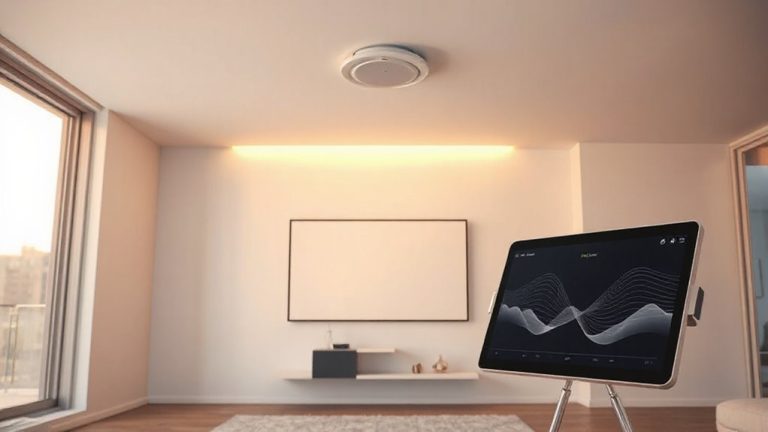
Tilting your monitor slightly downward can effectively reduce overhead light reflections, especially in rooms with bright ceiling fixtures or recessed lighting. Adjusting the monitor angle changes how light hits the screen, redirecting glare away from your eyes. A screen tilt of 10 to 20 degrees is usually ideal-enough to minimize shine without distorting text or straining your neck. Most modern stands or arms allow this adjustment, so you don’t need extra gear. But be careful: tilting too far can cause uneven brightness or make the image look washed out from certain positions. Also, if your chair height or desk is too high or low, the appropriate tilt may worsen posture. Test small changes and sit in your normal position to check. While screen tilt helps, it’s not a fix-all-room lighting and seating still matter. For more tailored advice, check the best monitor stands to find models with flexible tilt and height adjustments.
Apply a Matte Screen Protector for Instant Relief
A good matte screen protector can considerably cut down on glare in bright environments-many users report up to a 60–70% reduction in reflections from windows or overhead lights. You get immediate glare reduction by diffusing incoming light, thanks to the screen texture that scatters reflections instead of reflecting them cleanly. This makes viewing easier in well-lit rooms, especially when you can’t fully control ambient light. However, that textured surface slightly reduces image sharpness and can feel gritty under fingertips. Most users adapt quickly, but if you do detailed photo or video work, test one first. Look for protectors with anti-static coatings and 9H hardness ratings-they resist smudges and scratches. Some brands offer trial periods or warranties, so check return policies. While not a fix-all, a matte protector is a low-cost, reversible solution that complements smart monitor positioning. For reliable options, consider checking out Best Buy’s screen protector kits.
Match Room Lighting to Monitor Brightness
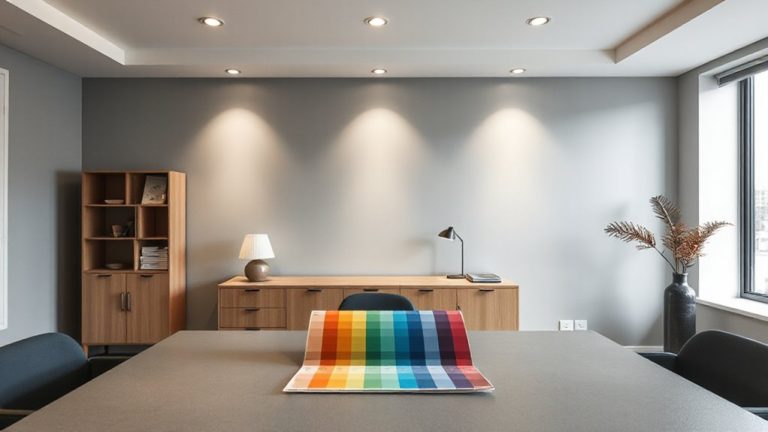
Balancing your room’s lighting with your monitor’s brightness cuts glare and eases eye strain without relying solely on accessories like matte protectors. You’ll want to match ambient light levels to your screen’s output to maintain proper luminance balance-ideally, your monitor should be close in brightness to surrounding surfaces. High ambient contrast, where the screen is much brighter than the room, forces your eyes to constantly adjust, leading to fatigue. Aim for soft, diffuse lighting that complements your display, not competes with it. Use dimmable overheads or adjustable task lights to fine-tune. If your screen glows in a dark room, you’ve got too much contrast. Adjust brightness to around 100–150 cd/m² in typical office lighting. While monitors with automatic brightness sensors help, they’re inconsistent. Manual tweaking delivers more reliable results, especially under mixed lighting.
Test for Glare and Eye Comfort During Use
How well is your monitor treating your eyes after an hour of steady use? Check for glare and assess eye comfort by observing reflections and screen clarity under your actual lighting. Adjust based on light direction and screen texture to reduce strain.
| Condition | Light Source | Result |
|---|---|---|
| Overhead light on | Directly above monitor | Harsh glare, especially on glossy screens |
| Task light from side | Angled toward screen | Reflections vary with screen texture |
| Light behind you | Opposite monitor | Minimal glare, ideal light direction |
Matte screens scatter light better; glossy ones offer richer colors but worsen reflections. Test in real work conditions-what looks good at first may cause fatigue. Even subtle glare forces eye strain over time. Don’t assume positioning fixes all-some screen textures just don’t suit bright rooms. Verify comfort hourly. Consider using a best desk lamp for drafting to optimize task lighting without causing screen reflections.
On a final note
Position your monitor perpendicular to windows and use matte screen protectors to cut glare. Place task lights to the side to prevent reflections, and tilt the screen slightly upward if needed. Match ambient light to screen brightness-bright rooms need brighter displays. While these fixes work well, some trade-offs exist: dim lighting can cause eye strain, and matte protectors may soften image clarity. Test adjustments during actual use to balance comfort and performance.