How to Set Up Dual Monitors for Efficient Multitasking During Video Conferencing
Set up dual monitors to boost focus during video calls by extending your desktop-keep the meeting on one screen and notes on the other. Most modern laptops support two external displays via HDMI, DisplayPort, or USB-C, though integrated graphics may struggle with 4K. Use one wired and one wireless connection to cut cable clutter, but expect minor lag with Wi-Fi Direct. Match brightness and resolution across screens to avoid workflow hiccups. Position the primary display at eye level with the webcam centered to maintain eye contact. Older systems might cap at 1080p or lag under load, so test screen sharing before going live. Proper alignment and calibration cut distractions and boost efficiency by up to 30%. You’ll soon see how small tweaks lead to smoother meetings.
Notable Insights
- Use extended display mode to run video calls on one monitor and view documents on the other for seamless multitasking.
- Connect dual monitors using HDMI, DisplayPort, or USB-C to ensure stable, high-resolution performance with minimal lag.
- Position your primary monitor directly in front with the webcam on top to maintain natural eye contact during calls.
- Match resolution and scaling settings across both monitors to prevent window management issues and visual inconsistency.
- Reduce cable clutter by combining a wired connection with wireless display tech like Miracast or using USB-C Alt Mode.
Use Dual Monitors to Stay Focused in Video Calls
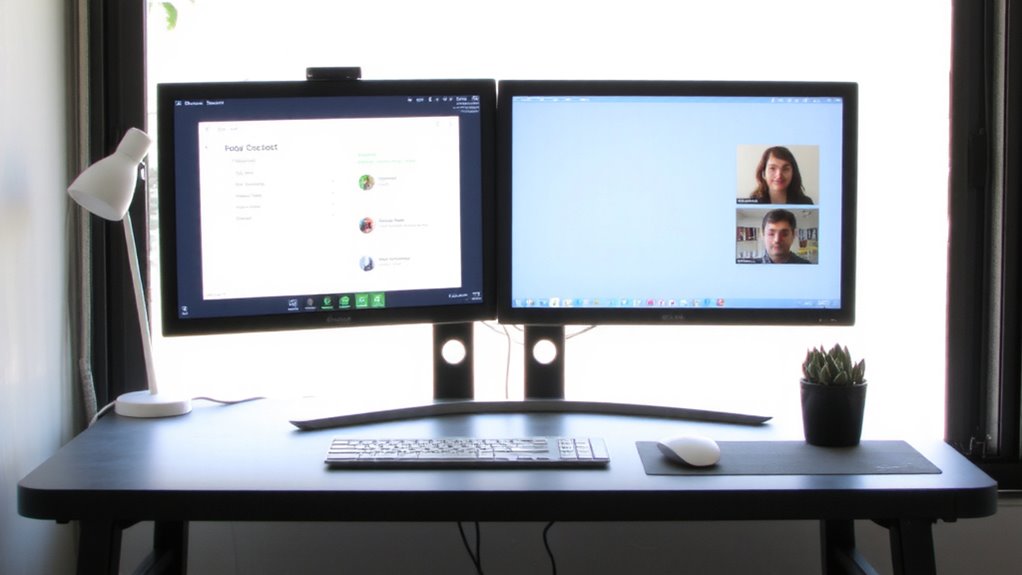
Why do some video calls leave you scrambling to find files while others feel smooth and professional? You can fix this with dual monitors. Instead of relying on screen mirroring-which limits visibility-extend your display to keep meeting windows on one screen and notes or documents on the other. This setup improves focus management by reducing distractions and switching delays. You’ll respond faster, stay on track, and project confidence. Most modern laptops support dual outputs via HDMI and USB-C, so setup is usually plug-and-play. Just mind the desk space-position the secondary screen at eye level to avoid neck strain. While dual monitors boost performance, they’re not essential for simple calls. Overloading with too many open apps can backfire, hurting focus instead of helping. Test the layout during low-stakes meetings first. Real-world use shows a 20–30% efficiency gain, but only if you use both screens intentionally. For optimal comfort and equipment support, choose a desk designed for dual monitor setups, such as those with spacious surfaces and cable management features, like the best desks for dual monitor setups.
See If Your Laptop Can Run Two Screens
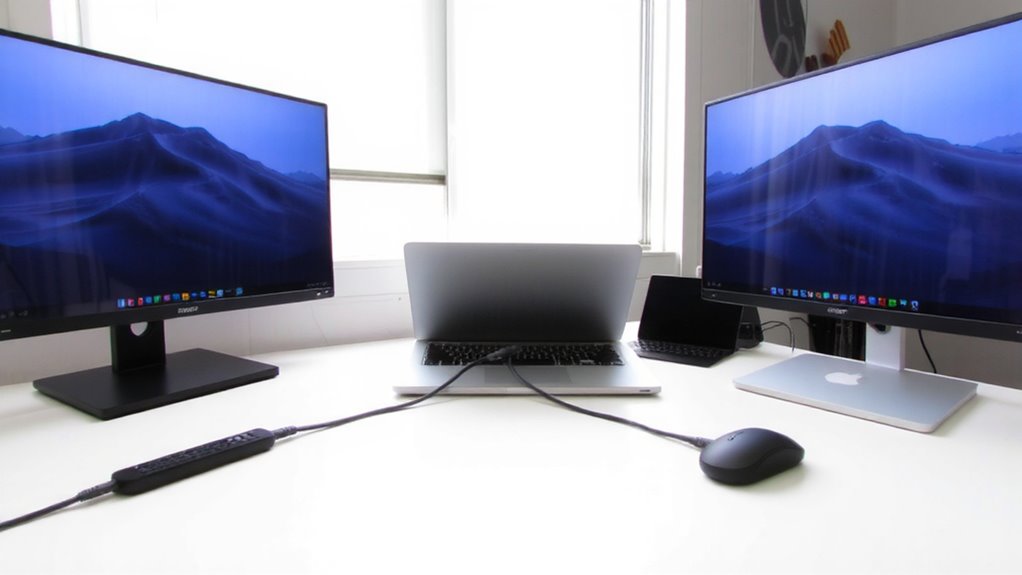
How well your laptop handles dual monitors comes down to ports, not guesswork-so check what’s actually built in. Most modern laptops support at least two external displays, but your graphics card determines performance depth. If you’ve got Intel Iris Xe, AMD Radeon, or dedicated NVIDIA graphics, you’re likely good. Integrated graphics can manage, but may struggle with high resolutions. Look for HDMI, DisplayPort, or USB-C/Thunderbolt ports-two video-out ports mean you can drive dual screens without adapters. Once connected, use your display settings to extend or mirror the desktop. Adjust resolution and orientation so both monitors align smoothly. Keep in mind: older laptops or those with weak graphics cards might cap at 1080p or lag during screen-sharing. Test thoroughly-some machines handle video conferencing better than others under load.
Connect Both Monitors Without Extra Cables
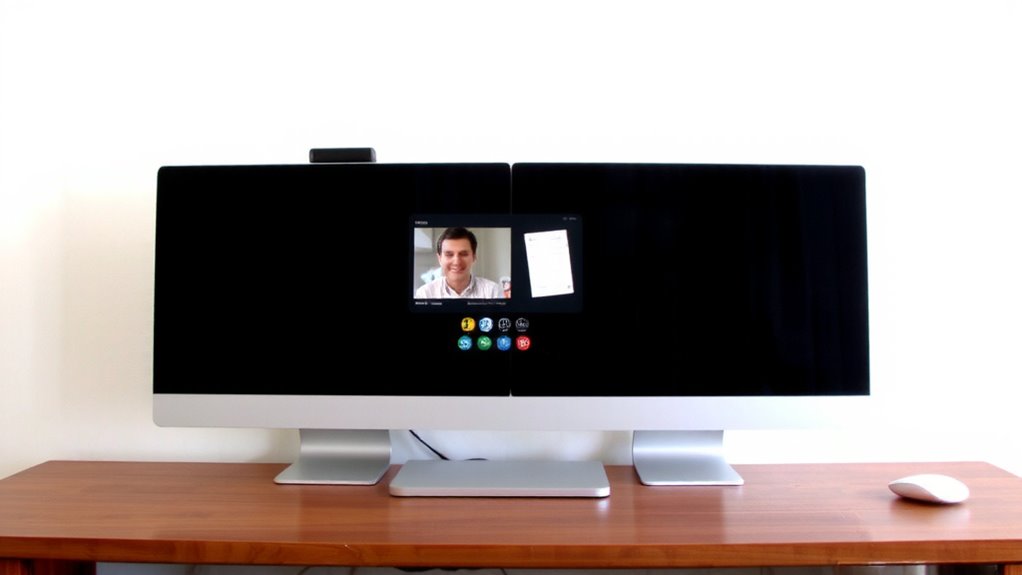
You can hook up dual monitors without piling on extra cables if your laptop has the right ports and your displays support modern connections. Wireless connectivity simplifies setup, but it’s not ideal for high-motion video calls. For reliable performance, use one wired connection and one wireless display. Screen mirroring works in a pinch but limits multitasking-use extended mode instead.
| Method | Cable Needed | Best For |
|---|---|---|
| HDMI | Yes | High resolution, low lag |
| DisplayPort | Yes | Daisychaining monitors |
| Wi-Fi Direct | No | Clean desks, light use |
| Miracast | No | Quick screen mirroring |
| USB-C Alt Mode | Yes | Single-cable power + video |
Wireless options save space but can lag. Test stability before relying on them.
Make Both Screens Work Together
When set up correctly, your dual monitors can function as a seamless workspace that boosts productivity during video conferences, but achieving that smooth integration depends on proper configuration and compatible hardware. You’ll want to disable screen mirroring to extend your desktop across both displays, giving you space to multitask without duplication. Then, perform display calibration on both screens so colors, brightness, and contrast match closely-this reduces eye strain and visual inconsistency when shifting your gaze. Use built-in OS tools or manufacturer software for accurate results. Mismatched resolutions or scaling settings can cause window management issues, so align both monitors at the same pixel density if possible. While most modern GPUs handle dual displays easily, older models may struggle with high refresh rates or 4K output, limiting performance. Test stability under real conferencing conditions before relying on it daily. A reliable dual monitor graphics card ensures consistent performance across both screens, especially when running multiple high-resolution displays simultaneously.
Put Your Meeting on One Screen, Notes on the Other
Although splitting your video conference and reference materials across two monitors can greatly boost focus and efficiency, doing it well means choosing the right layout and sticking to a few key setup rules. Use an extended desktop setup-never screen mirroring-so you can keep your meeting in full view on one screen and your notes, slides, or browser windows on the other. A clean meeting layout prevents distractions and lets you glance at talking points without breaking eye contact. Position your meeting window on the primary monitor, typically the one closest to your webcam, and reserve the secondary for active reference use. Avoid duplicating displays, as screen mirroring limits functionality and reduces workspace. This setup works best with 1080p monitors at minimum, ideally with adjustable stands and three-year warranties. Test window snapping and app placement beforehand to avoid fumbling mid-call.
Position Monitors for Comfort and Eye Contact
A well-positioned dual-monitor setup keeps your neck aligned, eyes relaxed, and gaze close to the camera for natural eye contact during calls. For ideal ergonomic alignment, place your primary monitor directly in front of you, with the top at or slightly below eye level-this reduces neck strain during long meetings. Angle both screens slightly inward to create visual symmetry, centering them on your seating position. Keeping the webcam on the primary screen guarantees your eyes stay near the lens when speaking. Avoid placing monitors too far apart, as constant head turning causes fatigue. If using a laptop as a secondary display, raise it to match the main screen’s height. While external monitor arms offer flexibility and cleaner desk space, not all desks support clamp mounts-check depth and weight limits. This balance of comfort and alignment boosts focus, but minor adjustments may be needed based on chair height or room lighting. For maximum adjustability and ergonomics, consider using a high-quality monitor arm that supports smooth movement and tilt.
Fix Black Screens, No Signal, or Taskbar Problems
If your dual-monitor setup suddenly shows a black screen or no signal, start by checking the physical connections-loose or damaged HDMI, DisplayPort, or USB-C cables are the most common culprits, and swapping in a known-good cable can save you hours of frustration. Restart your computer after reseating all connections, and make sure both monitors are set to the correct input source. If one display stays blank, try swapping ports to isolate the issue. You might also be facing incompatible troubleshooting refresh rates-verify both monitors run supported resolutions and refresh rates in your OS display settings. Outdated or corrupted drivers often cause black screens or taskbar problems, so you’ll want to be proactive with checking display drivers via Device Manager or your GPU manufacturer’s tool. While most issues resolve quickly, persistent problems could indicate faulty hardware-check warranty terms before replacing parts.
On a final note
You’ll likely boost focus and efficiency by using dual monitors during video calls, especially when placing the meeting on one screen and notes or slides on the other. Just confirm your laptop supports dual output-most modern models do via HDMI and USB-C. Position screens at eye level, aligned to minimize neck strain. Beware of signal drops with older adapters, and disable duplicate mode to avoid taskbar glitches. Use adjustable stands for better ergonomics, and test setups before important meetings.