How to Signal You Want to Speak Without Interrupting in a Virtual Meeting
Raise your hand using the built-in feature in your video app-it’s the clearest way to signal you want to speak without cutting someone off. Most platforms show a small icon near your video tile, but don’t leave it up too long or it clutters the screen. You can also type in the chat or use a quick wave if everyone’s camera is on. Just be aware that gestures or messages might get missed if others aren’t watching closely. Timing your unmute right after a pause works, but it’s riskier with lag. Using these methods together improves your chances of jumping in smoothly, and you’ll learn practical tips that help you stay heard.
Notable Insights
- Use the hand-raising feature in video conferencing platforms to signal speaking intent without interrupting.
- Type a brief message in the chat, such as “I’d like to add something,” to silently notify others.
- Use nonverbal cues like a virtual wave or nod if your camera is on and visibility is clear.
- Unmute yourself only during natural pauses to avoid overlapping with the current speaker.
- Follow structured speaking protocols, such as a moderator-managed queue, to take turns fairly.
Raise Your Hand to Speak

While many virtual meeting platforms include a hand-raising feature, using it consistently is still one of the most effective ways to signal you want to speak without interrupting others. It acts as a silent signal that respects the speaker’s flow while clearly marking your intent. Think of it as a virtual handshake-polite, predictable, and universally understood across teams. When you raise your hand, you give moderators or hosts a chance to call on you at a natural pause, reducing cross-talk. Most platforms display raised hands with a small icon near your video tile, making it visible without being intrusive. For best results, enable notifications so you don’t miss when someone acknowledges you. Be mindful, though-don’t leave your hand raised too long, or it can clutter the screen. It’s simple, built-in, and requires no extra gear, making it reliable for nearly every setup.
Type in Chat to Join the Conversation

What if you could jump into a virtual meeting without speaking over anyone? Typing a chat prompt is your best bet. It’s a silent cue that you’re ready to contribute, especially useful in noisy or fast-paced discussions. Just type “I’d like to add something” or use your platform’s raise-hand emoji. Most teams notice chat within seconds, letting you avoid awkward interruptions. This method works great when audio lag makes timing hard. But don’t overuse it-flooding chat distracts others. Keep messages brief and relevant. Some platforms notify hosts of chat activity, others don’t, so test this feature ahead of time. Relying only on chat can backfire if participants aren’t monitoring it. Pair it with other cues when needed. It’s not flashy tech-just smart communication.
Signal With a Wave or Nod
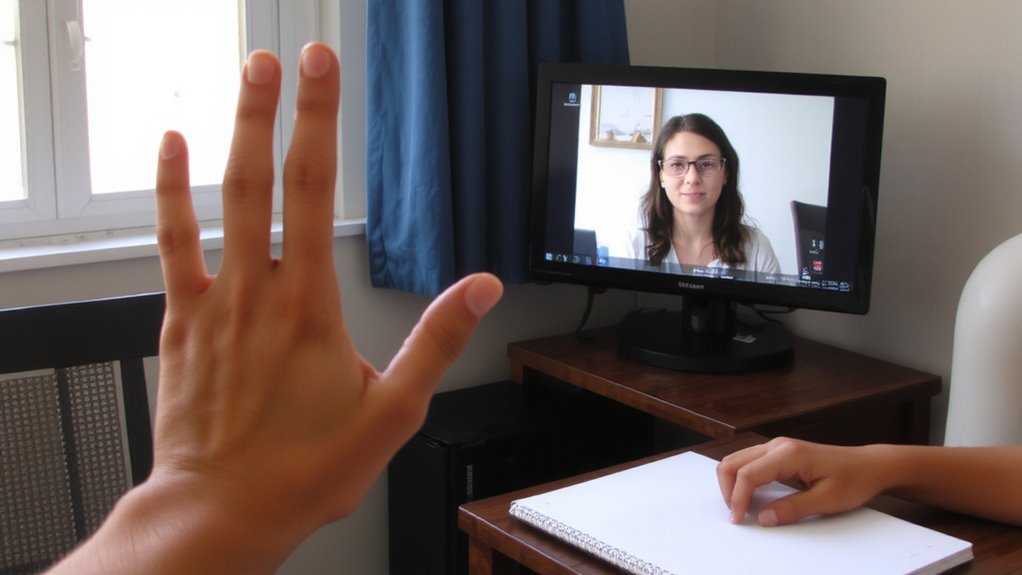
If you’re on camera, a simple wave or nod can effectively signal you want to speak without disrupting the flow. Using a virtual wave or silent nod keeps the conversation smooth while making your intent clear. These nonverbal cues work well in smaller meetings where participants watch video feeds closely.
| Cue Type | Best For |
|---|---|
| Virtual wave | Larger screens, active cameras |
| Silent nod | Quiet environments, HD webcams |
| Raised hand | Hybrid teams, uneven audio |
| Leaning in | Wide-angle lenses, good lighting |
A virtual wave is most visible with 1080p video, while a silent nod requires attentive viewing. Lighting and camera quality matter-cheap webcams may blur small motions. Overuse can distract, so reserve them for key moments. Test with teammates first.
Unmute During Lulls to Jump In
When you see the conversation pause, unmuting just after the lull gives you a clean opening to speak without cutting anyone off. This approach relies on active listening-you’re not just waiting to talk but truly hearing when others finish. Spotting timing cues, like a slight drop in volume or a pause mid-sentence, helps you act without hesitation. Jumping in too soon can feel abrupt; waiting too long might let someone else go first. With practice, this becomes natural and keeps the flow smooth. Use a reliable headset with a clear mute button-physical switches are better than software toggles-to avoid fumbling. Most mics take under a second to activate, so precise timing matters. It’s effective in smaller meetings but less so in large groups where multiple people may try the same tactic. Relying solely on lulls can backfire if the connection lags, so stay alert and adjust as needed. A high-quality microphone can significantly improve voice clarity and reduce background noise, making your contributions more professional and easier to understand-especially important if you’re relying on subtle vocal cues to time your entry. For voice-over quality in virtual settings, consider using best microphones for voice-over.
Ask the Moderator to Call on You
You’ve got another reliable option when timing the lull feels too risky-ask the moderator to call on you. This approach supports clear virtual etiquette and reinforces structured meeting protocols. When you have a comment, use the “raise hand” feature or send a quick chat message to the host so they can queue you fairly. It’s a respectful way to contribute without disrupting flow. Most video platforms display raised hands prominently, making it easy for moderators to track who’s waiting. Just remember, this method works best when the meeting has an active facilitator. If the moderator overlooks you, a gentle follow-up is fine-but don’t double-message and create clutter. While it adds order, relying on a moderator may slow down fast-paced discussions. Success depends on their awareness and the team’s commitment to fair speaking turns.
Agree on Speaking Order Ahead of Time
Why leave speaking turns to chance when a little planning can make the difference between chaos and clarity? You can set a clear speaking queue at the start, especially in smaller meetings. Try a round robin approach-each person speaks in a fixed order, which cuts down interruptions and guarantees everyone gets time. It’s simple to follow and works well when you’re discussing equal contributions or updates. Just agree on the sequence before diving in. While it adds structure, be aware it might slow things down if someone only has a quick point. A speaking queue also helps when topics shift, letting you adapt the order as needed. It’s not perfect for fast debates, but for steady discussion, it boosts fairness. No special tools are required-just clear communication. Use it when predictability matters more than speed.
Pause for Tech Glitches
Even though your mic works perfectly in testing, it’s smart to build in a brief pause after someone finishes speaking-just long enough to account for lag or dropped audio. That small buffer time prevents talk-over and keeps the conversation smooth. Most video platforms introduce 0.5 to 1.5 seconds of delay, especially with larger groups or weaker connections, so jumping in too fast can cause overlap. Use that pause to do a quick connection check: glance at the speaker’s video quality or chat for dropped words. Wired headsets like the Jabra Evolve2 65 reduce audio issues, but no gear eliminates network delays. While buffer time may feel awkward at first, it actually boosts clarity and gives others space to signal their turn. Just don’t overdo it-long silences confuse the group. The right balance makes meetings feel more inclusive and professional, even when internet speeds vary. It’s a low-effort fix with measurable gains in communication accuracy.
On a final note
You’ll handle speaking turns smoothly if you use hand raises or chat-tools built into Zoom and Teams. These work well, but only if everyone checks for signals. A mute button helps cut background noise, though timing your unmute takes practice. Headsets with mute lights make it easier. Just remember: even the best gear won’t fix poor meeting habits. Good flow needs clear rules and patience, not just tech.