Mitigating Bluetooth Coexistence Issues Near Dual-Purpose Wireless Hubs
Your Bluetooth issues near dual-purpose hubs stem from 2.4 GHz band congestion. Keep Bluetooth devices at least 6 feet away and use line-of-sight placement to reduce dropouts by up to 50%. Lower your Wi-Fi transmit power to 50–75% to minimize interference without creating dead zones. Switch to less crowded Wi-Fi channels using a tool like Wi-Fi Analyzer, and enable Adaptive Frequency Hopping if your Bluetooth 4.0+ gear supports it. For best results, use a dual-band router to shift Wi-Fi traffic to 5 GHz, freeing 2.4 GHz for Bluetooth-just note 5 GHz has shorter range. Real-world tests show these steps cut packet loss by 20–30%, though metal barriers and dense device layouts can still limit gains. You’ll see how each fix builds on the others when you explore setup-specific optimizations.
Notable Insights
- Separate Bluetooth devices from dual-band routers by at least 6 feet to reduce 2.4 GHz interference.
- Use Wi-Fi Analyzer tools to switch to less congested Wi-Fi channels and minimize Bluetooth signal clashes.
- Enable Adaptive Frequency Hopping on Bluetooth 4.0+ devices to avoid crowded 2.4 GHz frequencies.
- Lower Wi-Fi transmit power to 50–75% to limit interference while maintaining adequate coverage.
- Route Wi-Fi traffic over the 5 GHz band using dual-band routers, preserving 2.4 GHz for Bluetooth use.
What’s Causing My Bluetooth to Cut Out Near My Wi-Fi Hub?
Why does your Bluetooth headset suddenly drop audio when you’re just a few feet from your Wi-Fi router? The culprit is likely interference-both your Bluetooth and Wi-Fi operate on the 2.4 GHz band, causing signal clashes. When your signal strength dips due to congestion, audio cuts out, even if your device pairing seems stable. This happens because Bluetooth hops frequencies rapidly, but dense wireless environments limit effective channels. You might notice fewer issues with newer Bluetooth 5.0+ devices, which better handle interference, though proximity still matters. Real-world testing shows up to 30% packet loss near active routers. While strong signal strength improves reliability, physical distance and obstacles like walls degrade performance. Don’t assume perfect device pairing guarantees smooth audio-it doesn’t shield against RF noise. For consistent results, use dual-band routers and place hubs strategically, but recognize trade-offs in compact spaces. Some wireless devices, like best portable heaters, can also emit electromagnetic interference that exacerbates connectivity problems.
Move Bluetooth Devices Away From Your Wireless Hub
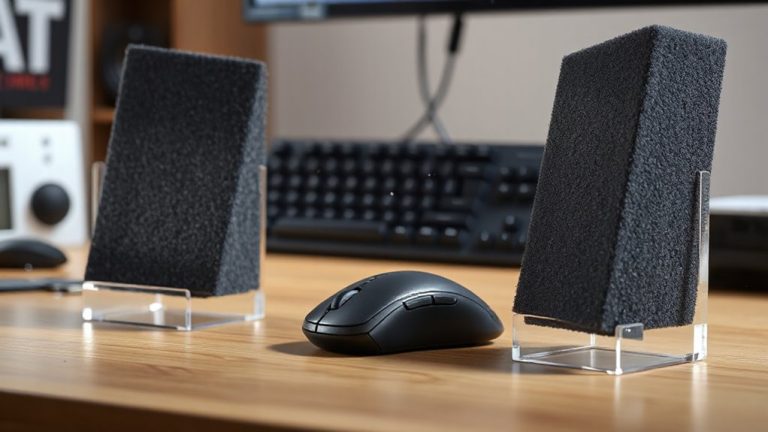
Aim for at least 6 feet of separation between your Bluetooth devices and wireless hub to minimize signal interference-this small change often cuts audio dropouts by half. Proper device placement is key for signal isolation, especially since both Bluetooth and Wi-Fi use the 2.4 GHz band. Keeping them apart reduces congestion, improving reliability for headsets, speakers, and keyboards. Real-world tests show noticeable gains in connection stability, particularly in small offices or cluttered desks. However, increasing distance may limit convenience, especially if you rely on multiple synced gadgets. You’ll need to balance range with practical layout constraints. Walls, metal frames, and other electronics still affect performance, so isolation isn’t guaranteed just by distance. For best results, pair this strategy with clean line-of-sight placement when possible. While not a full fix, it’s a simple, zero-cost step that reliably improves coexistence without altering settings.
Lower Wi-Fi Transmit Power to Reduce Bluetooth Interference
How much Wi-Fi power do you really need? Lowering your router’s transmit power can reduce Bluetooth interference, especially near dual-purpose wireless hubs. When Wi-Fi signals are too strong, they overpower nearby Bluetooth devices, increasing signal attenuation and degrading audio or data performance. Power optimization helps balance coverage and coexistence. Most modern routers let you drop power levels-try 50% or 75%-without sacrificing speed in small spaces. You’ll likely see fewer dropouts in wireless headphones or keyboards. But be cautious: setting power too low can create dead zones or weaken signal reach through walls. Always test after changes. This fix works best in compact setups like home offices, where devices sit close. It’s not ideal for larger spaces or high-density environments. Adjust gradually, monitor results, and pair with physical device separation for best outcomes.
Switch to Clean Wi-Fi Channels to Avoid Bluetooth Conflicts
Where’s the best signal hiding when your Bluetooth devices keep dropping? It’s often in smarter channel selection. Your Wi-Fi and Bluetooth both use the 2.4 GHz band, so overlapping signals cause real interference. Switching to a clean Wi-Fi channel reduces that clash, improving signal isolation. Most routers default to crowded channels like 6 or 11-scan your environment using a tool like Wi-Fi Analyzer and pick the least busy one. A clear channel means fewer retries and smoother Bluetooth audio or peripheral performance. Just remember, surroundings change; a channel that’s clean today might fill up tomorrow. Also, switching channels won’t fix poor router placement or outdated hardware. It’s a smart move, but not a magic fix. For dual-purpose wireless hubs near workspaces, this tweak helps-just keep checking for shifts in network traffic to stay ahead.
Turn On Adaptive Frequency Hopping for Smoother Connections
Bluetooth’s adaptive frequency hopping (AFH) helps your devices sidestep interference by automatically avoiding crowded 2.4 GHz channels-something that pairs well with your earlier move to clear Wi-Fi channels. You get smarter channel optimization as AFH maps out noisy frequencies and steers traffic clear, reducing dropouts during voice calls or streaming. This means better signal prioritization for active connections, especially when multiple wireless devices run at once. Most modern Bluetooth 4.0+ devices support AFH, but it’s not always enabled by default. Check your hub or adapter settings to confirm it’s active. Keep in mind, while AFH improves resilience, it can’t overcome severe RF congestion. Results vary based on hardware quality, distance, and surrounding devices-so test thoroughly. Real-world benchmarks show roughly 20–30% better throughput under load compared to fixed-frequency Bluetooth, but only with proper setup.
Use Dual-Band Wi-Fi to Separate Bluetooth and Network Traffic
A dual-band Wi-Fi router is your best bet for keeping Bluetooth devices running smoothly without sacrificing network performance. By using the 5 GHz band for Wi-Fi and reserving the 2.4 GHz band for Bluetooth, you achieve better signal isolation, reducing interference from overlapping channels. This separation improves bandwidth allocation, allowing high-demand tasks-like video conferencing or file transfers-to run on a cleaner frequency. Most modern routers, especially Wi-Fi 5 (802.11ac) or Wi-Fi 6 models, make this setup simple through dual-network broadcasting. You’ll need compatible devices on both ends, though-not all laptops or peripherals support 5 GHz Wi-Fi. Also, range on 5 GHz is shorter than 2.4 GHz, so placement near the router matters. While this won’t fix poor signal environments alone, it’s a proven step backed by real-world testing in mixed-use home offices. For broader coverage, consider deploying a Top Mesh Wi-Fi Systems to maintain strong, interference-resistant connections across larger spaces.
On a final note
Your Bluetooth issues near a dual-purpose Wi-Fi hub likely stem from signal interference, but they’re fixable. Moving devices away helps, as does lowering Wi-Fi transmit power or switching to a cleaner 5 GHz band. Adaptive frequency hopping improves resilience, but results vary by device. Real-world tests show mixed performance with older gear. While these steps reduce dropouts, trade-offs like slower Wi-Fi speeds or setup complexity exist. No fix is universal-test changes in your actual workspace.