Optimizing Monitor Angles for a Dual-Screen Setup on a Corner Desk
Align both monitors to your corner desk’s angle, keeping the setup within 90 degrees for smooth, strain-free movement. Center your primary screen in your line of sight to maintain neutral posture, and angle the secondary 30°–45° inward for natural glances. Tilt screens 10°–20° down to cut glare, and set the top of the primary display at eye level. Match heights and use swivel arms for precision. Keep symmetry but prioritize function if space is tight-your neck will thank you later when fine-tuning beyond basics.
Notable Insights
- Align both monitors to match the corner desk angle, ideally within 90 degrees, for smooth visual transitions.
- Position the primary monitor centered in your natural line of sight to maintain neutral head posture.
- Angle the secondary monitor 30° to 45° inward to reduce head movement and support a viewing arc.
- Tilt both screens 10° to 20° downward to minimize glare from overhead lighting and windows.
- Set monitor heights so the top third of each screen is at or slightly below eye level for optimal ergonomics.
Start With Your Corner: Align Monitors to the Desk Angle
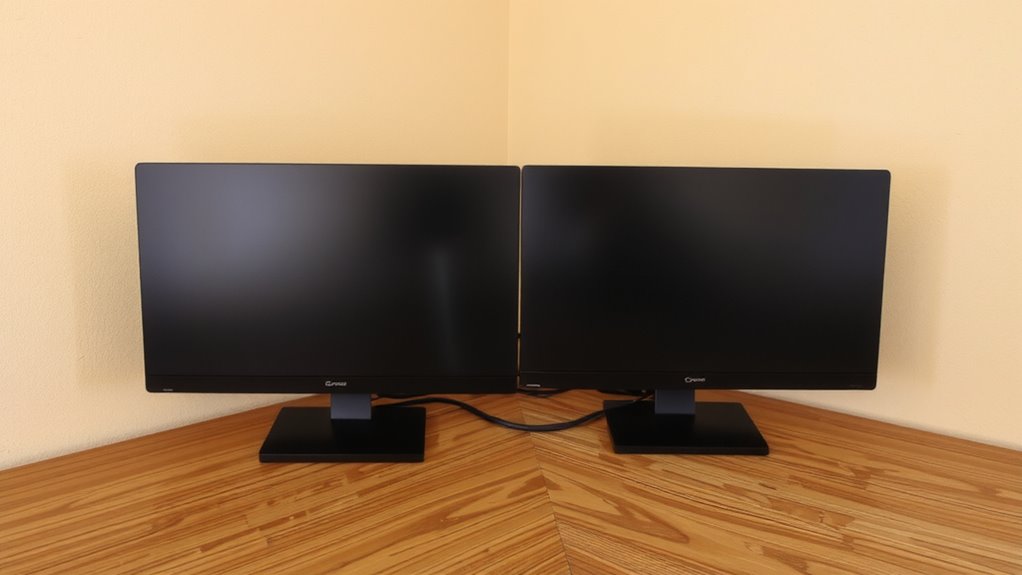
When setting up dual monitors, start by aligning both screens with the angle of your desk’s corner-this simple step guarantees a smoother shift between displays and reduces neck strain. Proper corner alignment secures your eyes and head move naturally, matching how you interact with the L-shaped workspace. You’ll want desk symmetry, so both monitors sit at equal distances from your seated position, forming a consistent viewing arc. Tilt each panel to minimize glare, especially if near a window. While curved monitors help with immersion, flat screens offer more flexibility in angles. Mounting arms can improve adjustability but may limit rotation range. Hardwiring connections keeps cables tidy but reduces adaptability if you rearrange later. This setup works best if your corner isn’t sharply angled-beyond 90 degrees, tracking across screens becomes awkward. Stick to monitors of matching size and resolution to avoid visual mismatch. Test viewing positions before finalizing mounts. For a clutter-free look that supports long-term comfort, consider implementing best cable management techniques tailored for clean desk aesthetics.
Center Your Primary Screen in Your Line of Sight
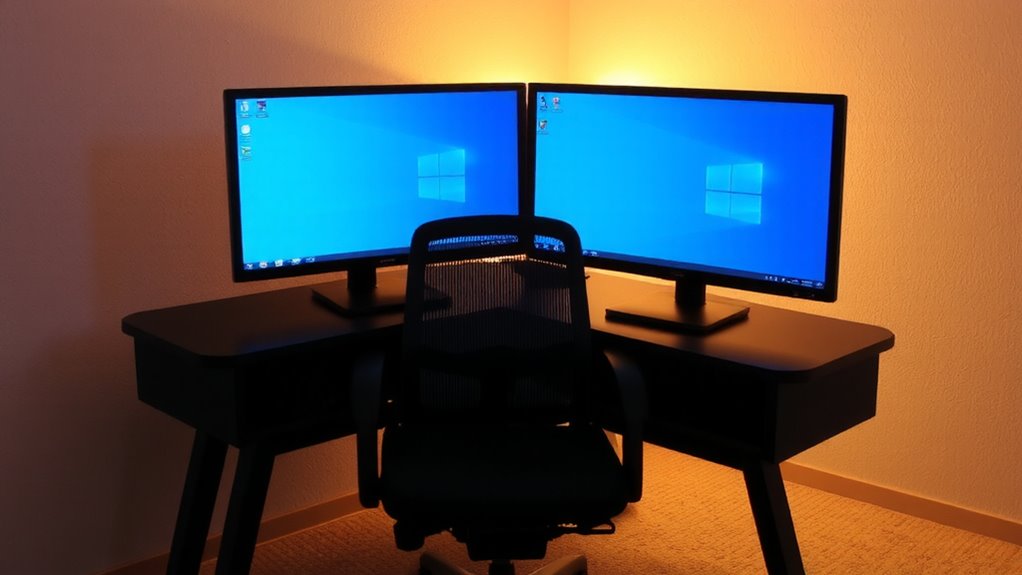
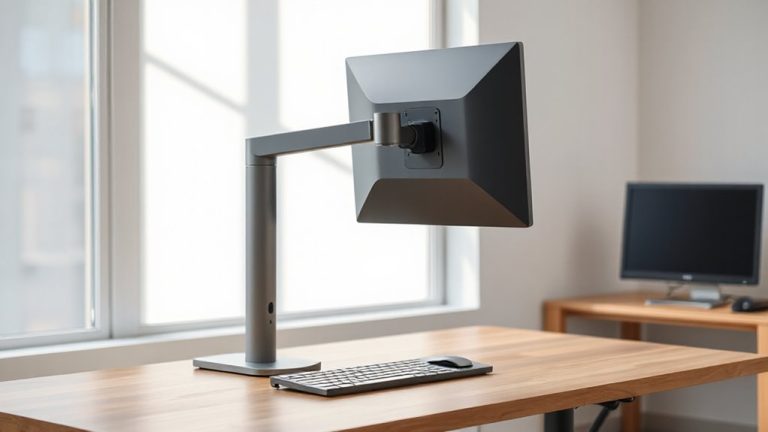
Position your primary monitor directly in front of you, centered with your natural line of sight to maintain neutral posture and reduce long-term strain. Proper screen positioning guarantees your head isn’t tilted or turned, which supports visual comfort during extended use. Your eyes should land naturally on the top third of the display, ideally at or slightly below eye level. A centered setup minimizes neck rotation and promotes consistent alignment with your torso. Most ergonomic guidelines recommend this arrangement because it reduces cumulative stress. However, centering your primary screen only works if your desk layout allows it-some corner setups may force compromises. Test different placements, noting changes in fatigue or eye strain over time. Use monitor arms with tilt and swivel adjustments to fine-tune positioning. While ideal in theory, real-world effectiveness depends on your chair, desk depth, and daily tasks. Always prioritize function over symmetry. For greater flexibility in achieving optimal alignment, consider using best monitor arms designed for ergonomic adjustability.
Angle the Secondary Monitor for Smooth Glance Transitions
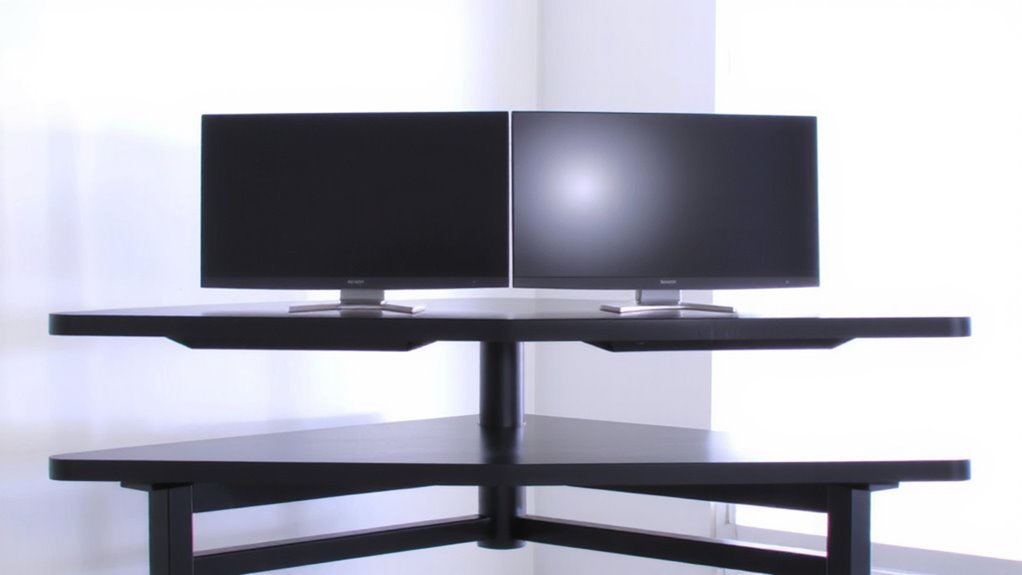
How do you keep your secondary screen useful without straining your neck? Rotate it slightly inward-between 30° and 45°-so your glance moves naturally from your primary to secondary display. This adjustment supports better ergonomic flow, reducing twisting while maintaining focus during shifts. Position the two monitors to form a gentle arc, centered on your seated position, to improve visual symmetry. It won’t feel as balanced as a single centered screen, but alignment cuts excessive head motion, especially during long sessions. Avoid pushing the angle beyond 45°-it distorts screen geometry and makes prolonged viewing awkward. Mounts with swivel arms make this setup easy to tweak. While curved monitors or ultra-wide second screens can enhance continuity, flat panels work fine if aligned properly. Some trial and error may be needed to match your desk depth and seating. For optimal adjustability, consider a monitor mount with articulating arms that supports smooth repositioning and fine-tuned alignment.
Tilt Both Screens 10–20° to Cut Glare and Eye Strain
Tilting both screens 10–20° downward from the top reduces glare and helps maintain a more natural eye line, especially under ceiling lighting or near windows. You’ll cut reflections caused by overhead ambient lighting, which otherwise strain your eyes over time. This tilt range works well with most screen curvature designs, particularly on modern flat or mildly curved panels, aligning the display surface more perpendicular to your gaze. Doing so improves readability and reduces the need to squint or adjust posture. Just don’t over-tilt-angles beyond 20° can distort visuals, especially on cheaper monitors with narrow viewing angles. Also, aggressive tilt may interfere with proper screen height positioning later. Test the sweet spot by adjusting slowly while viewing a bright white page. Most ergonomic arms and stands support this tilt range reliably, though budget mounts may lack stability. Final comfort depends on your seating position and room lighting setup.
Set Monitor Height So Top of Screen Matches Eye Level
Eye comfort starts with the right height-set the top edge of your primary screen at or just below eye level to maintain a neutral neck position. Proper screen positioning reduces strain during long work sessions and supports consistent monitor alignment between both displays. When both screens match in height, your eyes move smoothly across the workspace without tilting your head up or down. Use adjustable stands or monitor arms to fine-tune the elevation, especially if you’re switching between sitting and standing. Laptops or lower-resolution monitors may need risers for proper screen positioning. Keep in mind that exact eye level varies slightly based on seating posture and desk depth. Over-raising a monitor can create glare or imbalance in dual setups. Test adjustments over a full workday. While ideal height improves comfort, it won’t fix poor viewing distance or improper tilt.
On a final note
You’ll get the best results by aligning both monitors to your corner desk’s angle, keeping the primary screen centered and your eyes level with its top edge. Tilt screens 10–20° to reduce glare, and position the secondary display for quick, comfortable glances-avoid overextending your neck. While this setup boosts focus and reduces strain, it demands precise measurements and may limit flexibility if you share the space or use different devices.