How to Adjust Monitor Height When Switching Between Sitting and Standing
Set your monitor’s top edge at eye level whether sitting or standing to keep your neck neutral and reduce strain. Use an adjustable desk mount or a stable riser that lets you shift height quickly-most people need 20–28 inches when seated, slightly lower when standing. Watch for wobble with risers, and check clearance if you use a clamp mount. A sturdy, height-adjustable arm gives the smoothest movements and long-term comfort. Smart tweaks now pay off in better posture-see how each option fits your routine.
Notable Insights
- Position the top of the monitor at or slightly below eye level whether sitting or standing.
- Use an adjustable monitor arm or sit-stand desk mount for seamless height transitions.
- Maintain a viewing distance of about an arm’s length to reduce eye and neck strain.
- Choose a mount with sufficient range to accommodate both seated and standing heights.
- Test adjustments during full work sessions to ensure long-term comfort and posture support.
Set the Top of Your Screen at Eye Level
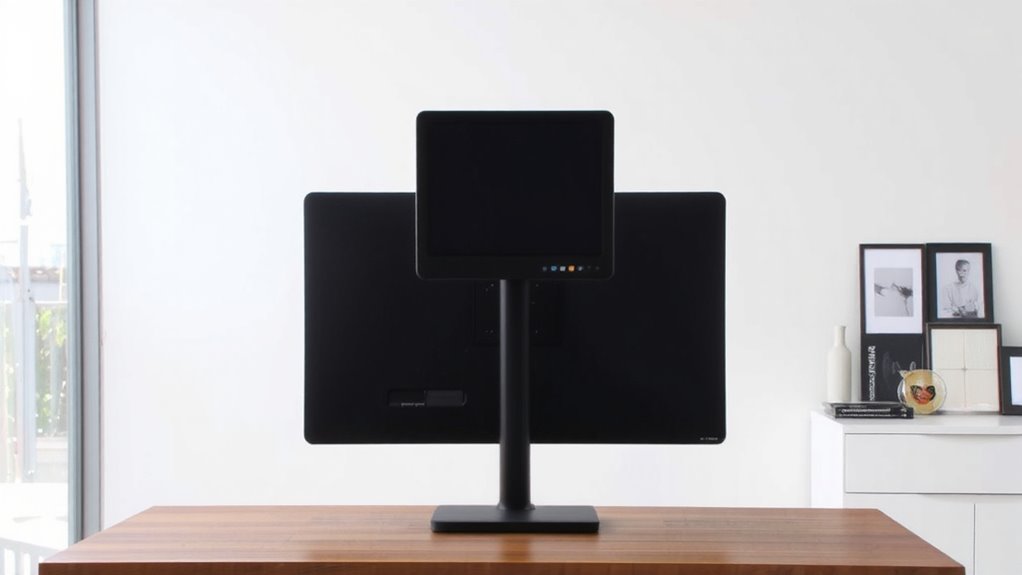
Your ideal viewing position starts with one key rule: align the top of your screen with your eye level. This guarantees proper ergonomic alignment, reducing neck strain and supporting long-term posture. When you look slightly downward at the screen’s upper edge, your eyes face less strain, boosting visual comfort during extended use. Most adults find this position when the monitor’s top is about 20 to 28 inches from the desk, depending on seating and screen size. You don’t need premium gear-a simple adjustable stand or stack of books works. However, fixed-height desks or rigid monitors limit flexibility, making adjustments harder. While arm-mounted displays offer precision, they cost more and require sturdier setups. Always test changes over a full work session; small misalignments add up. Proper height isn’t one-size-fits-all-your build, chair, and habits matter. Tweak steadily, measure results, and prioritize consistency over perfect gear. For those using sit-stand setups, consider a Top Desk Riser Pick to maintain optimal screen alignment across different working positions.
Adjust Monitor Height for Sitting Comfort
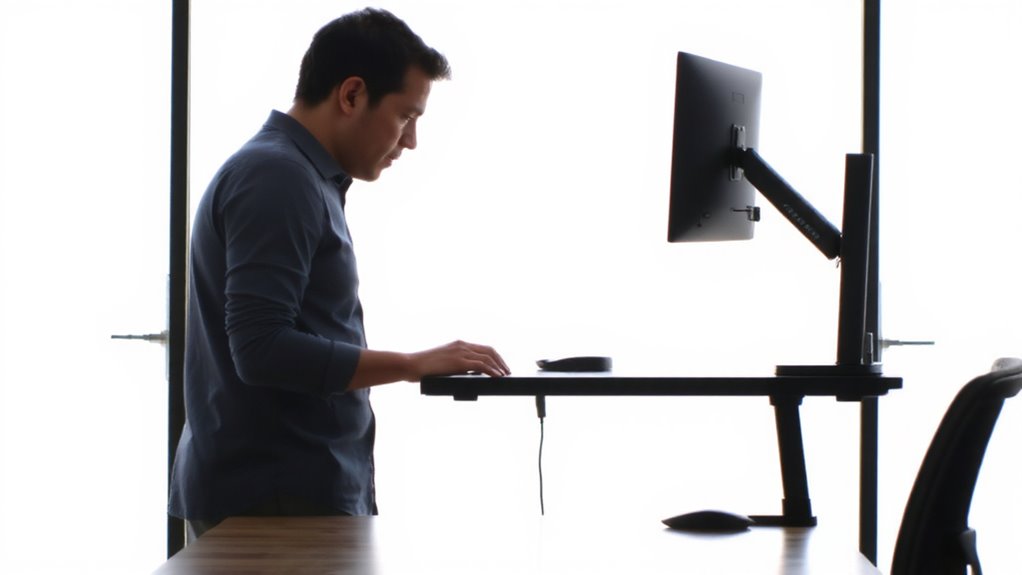
While sitting posture heavily influences your overall comfort, getting the monitor height right makes a measurable difference in reducing fatigue during long work sessions. For ideal ergonomic posture, set the top of your screen at or just below eye level. This alignment minimizes neck strain and keeps your gaze slightly downward, reducing visual strain. Adjust your setup based on your chair height and desk depth-small changes matter.
| Monitor Size | Ideal Viewing Distance | Recommended Height Range (inches) |
|---|---|---|
| 24″ | 20–30″ | 22–28 |
| 27″ | 24–36″ | 26–32 |
| 32″ | 30–42″ | 30–36 |
Even with correct height, prolonged sitting demands periodic movement. Not all desks allow easy adjustments-check lift range and stability. Use a monitor arm if fixed mounts limit flexibility. A well-chosen monitor stands can greatly enhance ergonomic flexibility and ease of adjustment.
Optimize Screen Position for Standing Work
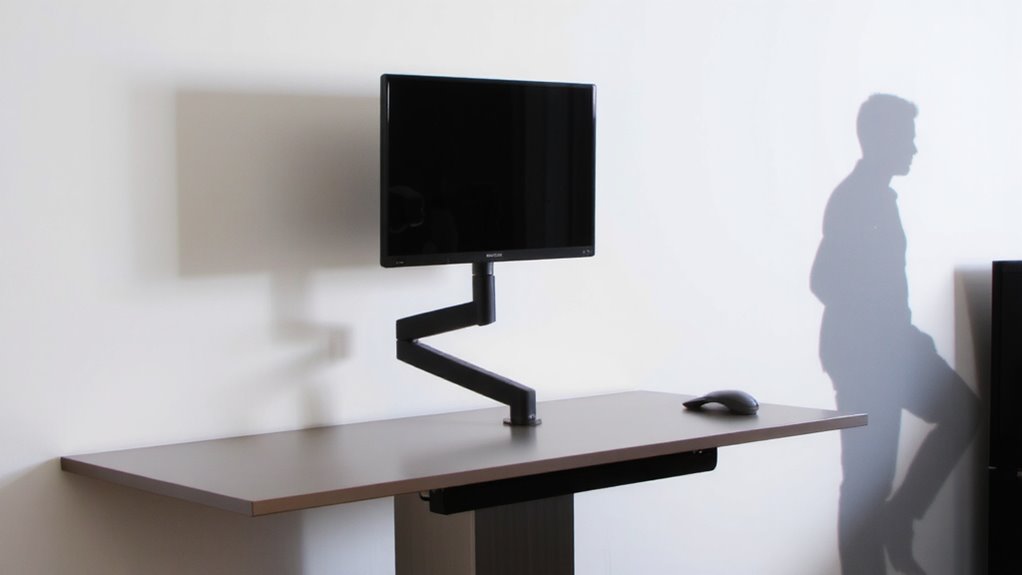
How do you maintain proper ergonomics when switching to standing mode? You’ll need to adjust your monitor so the top of the screen is at or slightly below eye level-this guarantees proper ergonomic alignment and reduces neck strain. Standing changes your seated posture, so keeping the display about an arm’s length away supports visual comfort throughout the day. If your monitor is too low, consider a riser or adjustable stand, but avoid unstable setups that wobble. Stability and fine-tuned height control matter, especially during long work sessions. Even a 2-inch difference can impact posture over time. Always test adjustments while standing to confirm the angle feels natural. Note that seamless shifts depend on how easily you can reposition your screen-manual adjustments work, but they require discipline. Consistency in setup height and depth pays off in reduced fatigue, even if the process isn’t fully automated. For those using budget-friendly setups, ensure your standing workstation includes reliable equipment like one of the best laptops in India under 40K, such as the Acer Aspire 3.
Pick a Stand or Mount That Fits Your Desk
A reliable stand or mount makes all the difference when setting up a comfortable, adjustable workstation. You need one that guarantees desk stability and simplifies cable management while fitting your desk’s size and material.
| Feature | Consideration |
|---|---|
| Clamp mount | Best for desks up to 3” thick; strong grip but may dent edges |
| Grommet mount | Secures through desk hole; improves stability, frees edge space |
| C-clamp | Requires clearance underneath; limits drawer use |
| Freestanding arm | Needs deep desk (24”+); excellent adjustability, minimal clamping |
Look for steel construction and at least a 15-pound weight capacity. Test tension adjustments-smooth motion without drift is key. Most top models include cable clips or covered channels for neat cable management. Avoid lightweight stands if you use dual monitors, as they can compromise desk stability. Check return policies; fit issues are common.
Raise Your Monitor With Books or a Tray
Most people can get their monitor to the right height with simple, low-cost solutions like stacked books or a dedicated riser tray. A book stack works in a pinch-just make sure it’s stable and tall enough to raise your screen to eye level, typically 20–28 inches from the desk. Hardcover books are sturdier and less likely to compress over time. For a cleaner look and better weight distribution, a tray lift, like those made from wood or aluminum, offers durability and a non-slip surface. These trays usually add 4–6 inches of lift and fit most monitor sizes. Just verify your desk can support the added height and weight. While both options save money, a book stack might shift if bumped, and cheap tray lifts can wobble. Test stability before long-term use.
Switch Seamlessly Between Sitting and Standing
If you’re alternating between sitting and standing during your workday, a height-adjustable desk or monitor arm is the most effective way to maintain proper ergonomics without straining your neck or back. These tools support ergonomic balance by keeping your screen at eye level in both positions-ideally, the top of the monitor should align with your horizontal gaze. Shift efficiency matters, too: desks with electric motors adjust faster and more smoothly than manual cranks, typically in 10–15 seconds. Dual-arm mounts offer better range than single arms, especially for wider monitors. But don’t overlook stability-cheaper models may wobble when raised. Look for steel frames, at least a 5-year warranty, and weight capacity matching your setup. Testing shows users adapt quicker when adjustments are intuitive and within reach. While costlier upfront, the long-term comfort and productivity gains are measurable-just guarantee your model fits your desk depth and usage pattern.
On a final note
Set your monitor so the top is at eye level whether sitting or standing-this prevents neck strain. Use an adjustable stand or mount that fits your desk and allows smooth height changes. Risers or trays work if you’re on a budget, but test stability. Dual monitors need equal alignment. Most quality arms last years, but check warranty limits. Switch positions slowly at first to adjust posture.