Practicing Mouse Discipline to Avoid Unintentional Navigation During App Shares
You’ll avoid accidental navigation during app shares by mastering mouse discipline-disable your laptop’s touchpad to stop cursor drift, use external mice for precision, and rely on keyboard shortcuts like F11 for full-screen mode. Keep your wrist flat and movements small to stay in control. Even with great gear, shaky technique causes mistakes. Test your setup ahead of time, especially display resolution and presentation mode. You’re better with practice, not just better tools. There’s more to fine-tuning your control under pressure.
Notable Insights
- Use an external mouse and disable the laptop touchpad to prevent accidental cursor movements during app shares.
- Practice deliberate, small hand motions to maintain cursor control and avoid unintended clicks or navigation.
- Keep your wrist flat on the desk with light contact to enhance stability and reduce shaky pointer movements.
- Leverage keyboard shortcuts to minimize mouse use and reduce the risk of accidental interface interactions.
- Run full-screen presentations and test your setup beforehand to eliminate distractions and prevent navigation errors.
Why Mouse Discipline Prevents Presentation Fails
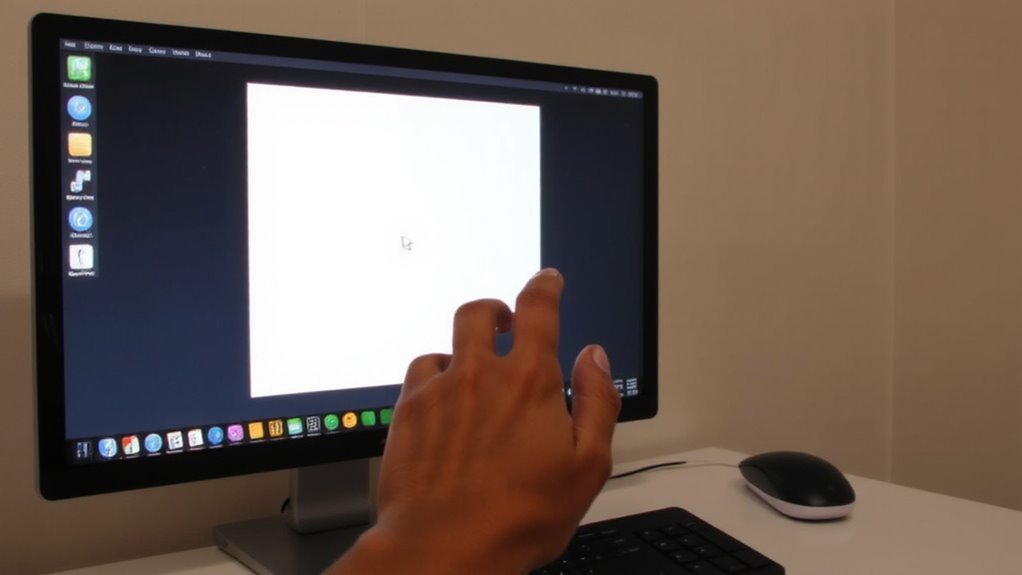
While it might seem minor, keeping your mouse under control during app shares can make or break your presentation. Poor cursor control leads to accidental clicks that derail focus-closing tabs, opening menus, or moving away entirely. You don’t need high-end gear to avoid this; you just need discipline. Keep your hand steady, movements small, and resist the urge to dart around the screen. Unintended actions can’t always be undone quickly, especially in live calls where every second counts. Even with reliable hardware, sloppy handling undermines professionalism. Practice moving deliberately, especially during shifts. Some presenters disable hotkeys or use presentation tools with built-in pointer locking, but those don’t replace mindful behavior. There’s no warranty against user error, and no software fix for inattention. Strong cursor control isn’t about equipment-it’s a skill you build.
Turn Off Your Laptop Touchpad
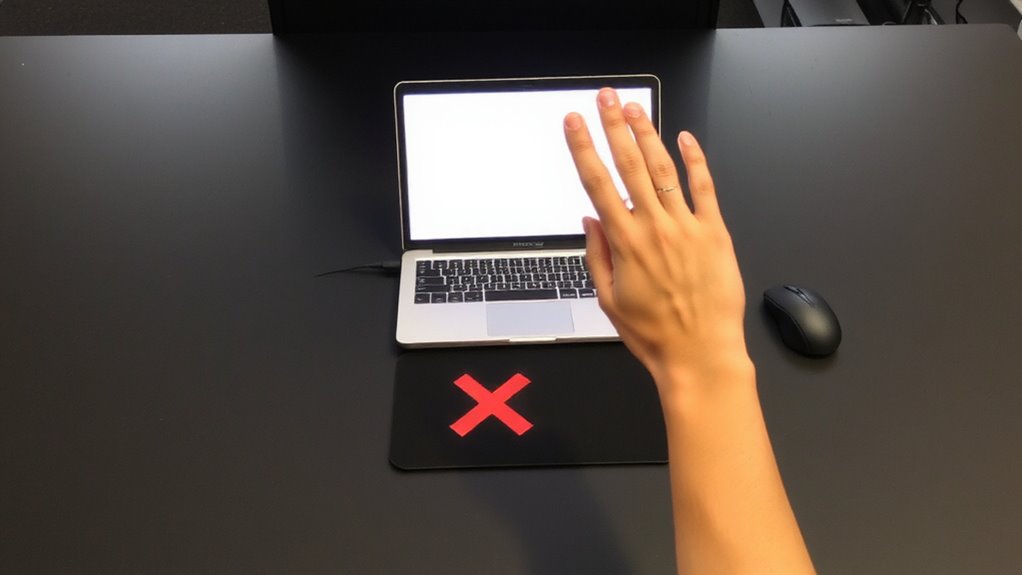
Turn off your laptop touchpad when presenting from an app share-it’s one of the simplest moves you can make to avoid accidental clicks and cursor drift. Unintended touchpad gestures, like swiping or tapping, can switch slides or open menus mid-presentation, undercutting your flow. Disabling the touchpad eliminates this risk entirely. Pair this with an external mouse for reliable control-its benefits include precision and consistent response without palm interference. Most laptops let you disable the touchpad in settings or via a function-key shortcut, usually labeled clearly. Some even support automatic disable when an external mouse is connected. But be aware: turning it off means you can’t use it as a backup. Test the setup beforehand to guarantee your external mouse works smoothly across apps. It’s a small step that prevents big distractions.
Use Keyboard Shortcuts Instead of Clicking
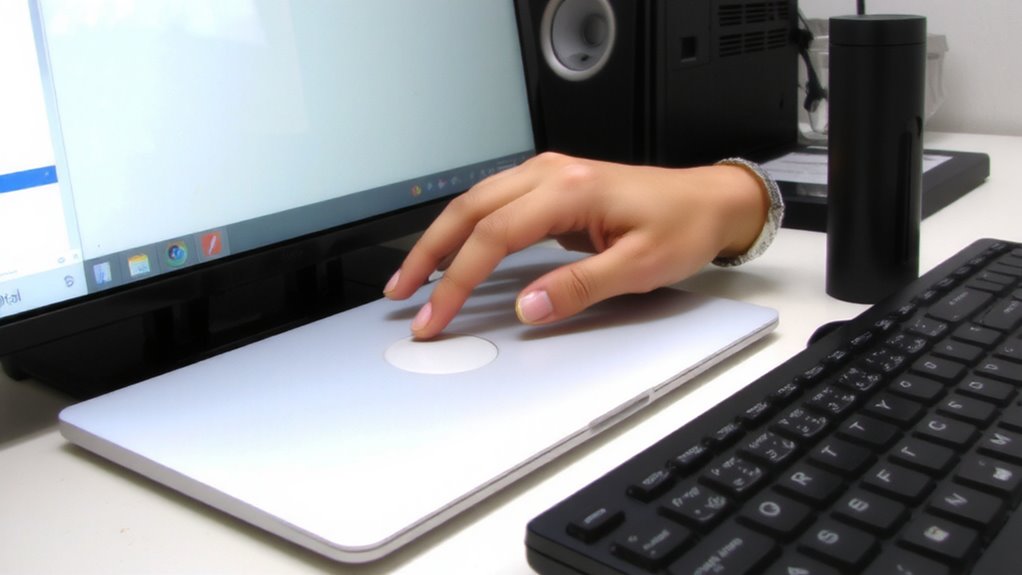
Since you’re already minimizing distractions by disabling your touchpad, taking it a step further with keyboard shortcuts makes total sense-they keep your hands off the mouse and your focus on the content. Keyboard efficiency isn’t just about speed; it’s about reducing movement that can disrupt your flow during app shares. Shortcut mastery helps you navigate tabs, menus, and commands without risking accidental clicks. You’ll find common actions-like switching windows, updating, or opening new tabs-an easy press away. Most apps support this, and built-in OS guides can help you learn fast. But be honest: it takes practice, and misfires happen until muscle memory kicks in. Use cheat sheets at first, then phase them out. Don’t expect perfection immediately-some workflows still need precision clicking. Still, the payoff in control and consistency is worth the learning curve. Just stay aware of your audience; fumbling keys can be as distracting as a rogue cursor.
Rest Your Hands to Steady the Mouse
You’ll want to keep your mouse movements clean and intentional during app shares, and one of the easiest ways to do that is by resting your hands properly. Good hand stability starts with flat contact between your palms and the desk, which reduces shaky cursor jumps. Resting your wrists lightly on the surface improves control, but avoid pressing down too hard-that leads to fatigue over time. Wrist support from a simple padded rest can help maintain alignment, especially during long sessions, though overly thick pads might elevate your hands too much and worsen strain. Aim for a neutral wrist angle-about 10 to 15 degrees-to balance comfort and precision. Test setups for at least 20 minutes to check for discomfort. While gear helps, posture and hand placement matter more. You don’t need expensive accessories; even a rolled cloth offers decent temporary support. Prioritize consistent contact and control over fancy features.
Present in Full Screen to Prevent Mistakes
Running your app share in full-screen mode cuts down on accidental clicks and keeps your audience focused on the content, not your desktop clutter. Going full screen eliminates distractions and reduces the risk of bumping into menus or icons outside the app. Most tools, like Zoom or Teams, have a dedicated presentation mode that optimizes display settings and locks navigation, giving you tighter control. It’s a simple switch, usually just a click or keyboard shortcut (F11 often works). But be careful-full screen can hide toolbars you might need, so test beforehand. Some apps don’t scale well in presentation mode, leading to cropped visuals or lag. Confirm your resolution settings match your screen’s native specs to avoid blurriness. While the feature boosts focus, it’s not foolproof. If your system runs low on memory, switching between apps might trigger glitches. Use full screen wisely-it’s helpful, but only if your setup supports it reliably.
Skip Hover-Activated Menus During Shares
Why risk a misclick when your audience is watching? Skip hover-activated menus during app shares to maintain smooth cursor control and avoid accidental navigation. These menus open with just a brush of the pointer, so even slight hand tremors or pad sensitivity can trigger them. That hurts click accuracy, especially in high-stakes demos or remote teaching. Instead, use apps or settings that require actual clicks to open menus. You’ll trade a bit of speed for much better precision. Some tools let you adjust hover response time or disable it entirely-worth enabling for presentations. While this may feel slower, the drop in errors is measurable. Just know, not all software allows these tweaks, so plan accordingly. You’re trading convenience for reliability, and in live shares, that’s usually the right call. Keep the focus on your content, not a stray menu.
Test Your Setup Before You Present
Even if you’re familiar with your equipment, doing a full walkthrough under presentation conditions can prevent avoidable glitches. You should test your audio settings to guarantee your microphone levels aren’t too high or low and that system sounds won’t broadcast accidentally. Check that your internet connection is stable-aim for at least 3 Mbps upload speed for smooth screen sharing. Run a trial with the same app layout and file sizes you’ll use live, as lag can shift navigation timing. Confirm your mouse behavior isn’t triggering tooltips or menus you didn’t intend. Wired peripherals often deliver more consistent response than wireless ones, though they limit mobility. Reboot your system beforehand to clear background clutter. Never rely solely on venue Wi-Fi without a backup, like a mobile hotspot. Small delays or audio dropouts can disrupt flow, so test early and often-especially if switching between devices.
On a final note
You should master mouse discipline-it prevents accidental navigation during app shares. Turn off your touchpad and use a wired mouse with a 1,000 Hz polling rate for precision. Stick to full-screen mode and keyboard shortcuts like Alt+Tab to avoid mis-clicks. Rest your hands to reduce jitter. Test your setup ahead of time. Just remember, even with good gear, focus matters most-distractions still cause errors, so practice helps.