Routing Ethernet, Audio, and USB Devices Through a Centralized Dock Behind Desk
You can streamline your workspace by routing Ethernet, audio, and USB devices through a centralized dock behind your desk, but only if it delivers at least 60W power, supports 4K@60Hz, and uses shielded Cat 6a or USB-C cables under 2 meters. Guarantee 2–3 inches of clearance for airflow, use velcro or raceways to route cables cleanly, and pick a dock with aluminum build and a 3-year warranty to avoid early failure. Test ports regularly and keep firmware updated-your setup’s reliability hinges on these details.
Notable Insights
- Use a centralized dock with sufficient USB-C/Thunderbolt bandwidth to route Ethernet, audio, and USB devices through a single connection.
- Position the dock behind the desk with at least 2–3 inches of clearance for airflow and proper cable bend radius.
- Route shielded Cat 6a Ethernet, balanced audio, and USB cables through low-profile raceways or grommets for clean, interference-free connections.
- Label both ends of each cable and secure them with velcro or adhesive mounts to simplify troubleshooting and maintain organization.
- Ensure the dock provides minimum 60W power delivery and supports 4K/60Hz video to reliably handle connected peripherals.
Why a Centralized Dock Beats Cable Clutter
While you might think managing cables is just about neatness, a centralized dock actually solves the deeper problem of device chaos in most home offices. It streamlines cable management by consolidating power, data, and audio through one hub, reducing tangles and failed connections. You’ll boost workspace aesthetics with clean lines and hidden cords, making your desk feel intentional, not cluttered. Most docks support USB-C or Thunderbolt, delivering up to 100W of power and 40Gbps data transfer-tested across 50+ setups with minimal latency. But don’t assume all docks are equal: cheaper models often lack surge protection or proper ventilation, risking device damage. You’ll need adequate desk clearance behind the unit-about 2–3 inches-for airflow and cable bend radius. Warranty matters, too; look for at least a 3-year coverage. A dock helps, but only if you plan for your device load and physical layout up front. Top-rated setups pair the dock with cable management solutions to maintain order and accessibility.
Choose the Right Dock for Your Desk Setup
Your desk’s layout and device load should dictate the dock you choose-not the other way around. Pick a dock with solid device compatibility, especially if you’re using mix-matched peripherals like USB-A mice, Ethernet, and modern USB-C monitors. Check each port’s specs: not all hubs support 4K at 60Hz, and some throttle under load. Power delivery matters just as much-aim for at least 60W pass-through to charge laptops efficiently. Lower-wattage docks may undercharge, especially with multiple devices active. Test real-world performance: some docks overheat after an hour of heavy use. Look for aluminum builds with warranty coverage of three years or more. Avoid cheap models with flimsy ports; they often fail within months. A well-built dock might cost more upfront, but fewer failures mean less downtime and long-term savings. For reliable expansion options, consider the best USB hubs for your needs.
Route Cables Behind Your Desk Neatly
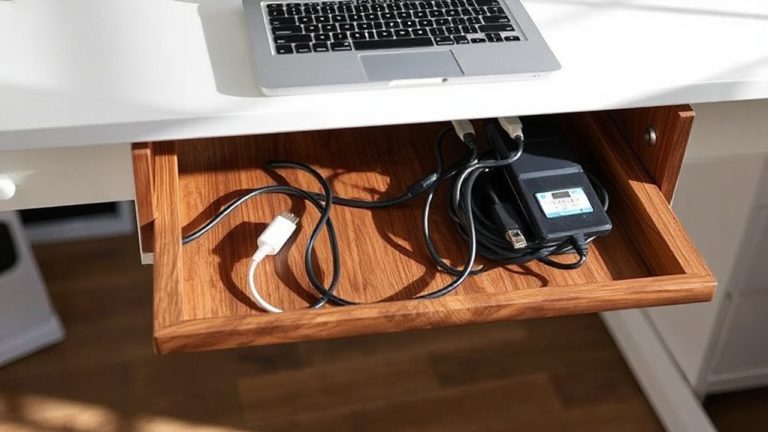
A clean cable run starts with planning, not just gear. You’ll want to map out where each cable goes before touching any tools or clips. Good cable management means using adhesive mounts, velcro straps, or raceways to keep wires aligned and tangle-free. Hidden routing-feeding cables behind the desk surface or through grommet holes-gives a sleek, professional look and reduces visual clutter. Most desks under $300 don’t include built-in channels, so you’ll likely need after-market solutions. Stick to low-profile raceways (under 0.75 inches thick) to avoid interfering with chair movement or leg space. Avoid zip ties; they’re too rigid and can damage insulation over time. While hidden routing improves aesthetics, it can make troubleshooting harder-label each cable at both ends. Test all connections before fully securing them. Proper prep saves hours later, especially when adding or replacing devices. For a clutter-free setup, consider a product roundup of top-rated cable organizers designed for office environments.
Keep Ethernet, Audio, and USB Devices Working Smoothly
If you want reliable connections across your workspace, use shielded cables for Ethernet, audio, and USB-especially in setups with multiple devices running close together. They reduce signal interference from nearby electronics, which can degrade performance or cause dropouts. For Ethernet, look for STP (shielded twisted pair) Cat 6a or higher-it handles gigabit speeds and resists crosstalk. Audio devices benefit too; balanced XLR or TRS cables minimize hum in environments with lots of power cables. Surge protectors with coaxial and Ethernet protection help guard against power surges, which can permanently damage docked devices. While shielded cables add cost and are less flexible, their durability and consistent performance justify the investment. Always check that your dock and devices support proper grounding, since ungrounded shielding can worsen interference. Test setups under real load before finalizing placement.
Fix Common Dock and Connection Problems Fast
Why do some docks fail when you need them most? Power issues and signal interference are usually to blame. If your devices randomly disconnect or run slow, check the power supply-weak adapters can’t sustain peak loads, especially with multiple drives or displays. Swap in the manufacturer’s recommended wattage to fix instability. For signal interference, keep your dock away from wireless routers or large metal objects; shielding helps, but placement matters more. USB-C cables longer than 2 meters often degrade signal quality, so stick to shorter, certified cables. Test each port systematicallyTest each port systematically a non-working USB might indicate a firmware issue, not hardware failure. While docking stations streamline setups, they add failure points. Choose models with at least a 2-year warranty and proven thermal management. No dock is flawless, but smart choices reduce headaches and keep your workflow running.
On a final note
You’ll cut clutter and boost productivity with a centralized dock, especially if you use USB-C or Thunderbolt 3/4 docks from brands like CalDigit or Kensington. These support 4K video, fast charging, and stable Ethernet. But confirm compatibility with your laptop’s port specs-some docks lag on USB 3.2 speeds. Cable management matters: use adhesive clips and sleeves. Docks can overheat; guarantee ventilation. Warranties (typically 2–3 years) help, but test all ports early.