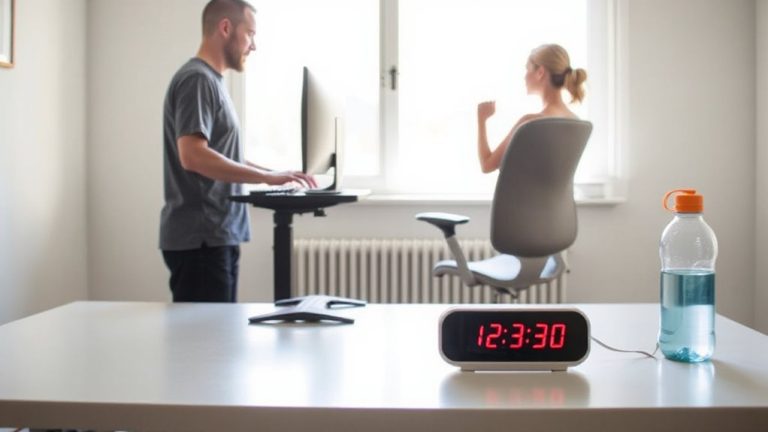
Setting Up Dual Monitors for Seamless Screen Sharing in Hybrid Work Environments
Choose matching 24- to 27-inch monitors for a seamless dual setup, positioning them at eye level with a slight inward tilt to reduce strain. Connect via HDMI or DisplayPort for reliable signal delivery during calls. Match resolutions-like 1920×1080-and use Zoom or Meet’s screen selection to share one display without exposing private content. Avoid mirroring unless fixing scaling issues. You’ll want to get the positioning and settings just right before your next meeting.
Notable Insights
- Choose matching 24–27 inch monitors for consistent visuals and seamless screen sharing in hybrid meetings.
- Position primary monitor centered with the keyboard and secondary screen angled inward for ergonomic efficiency.
- Connect both monitors using secure HDMI, DisplayPort, or USB-C cables to ensure stable signal transmission.
- Configure display settings to match resolutions and align virtual layout with physical monitor arrangement.
- Share specific application windows in Zoom, Teams, or Meet to protect privacy and optimize screen visibility.
Choose the Right Dual Monitor Setup for Your Workflow
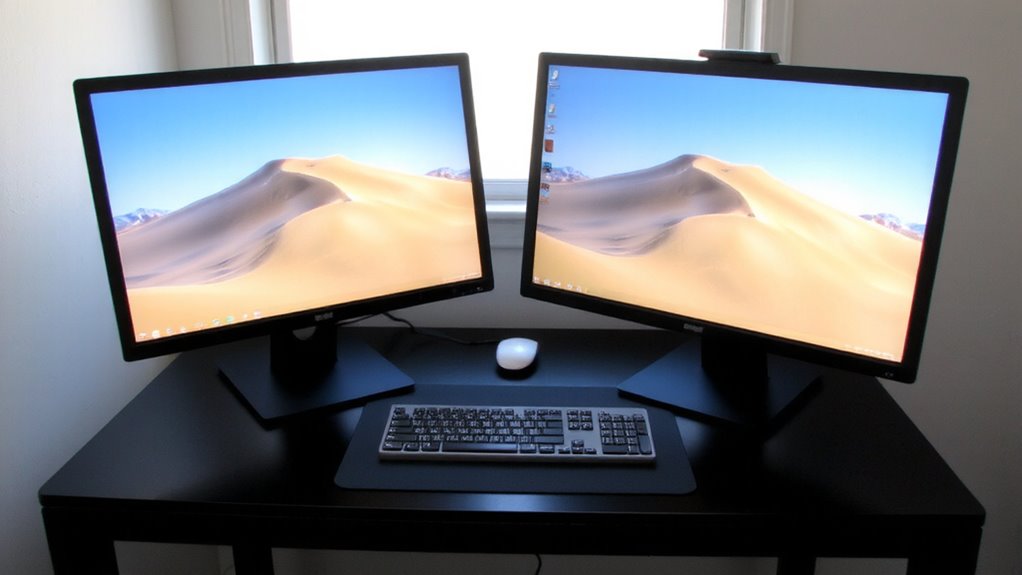
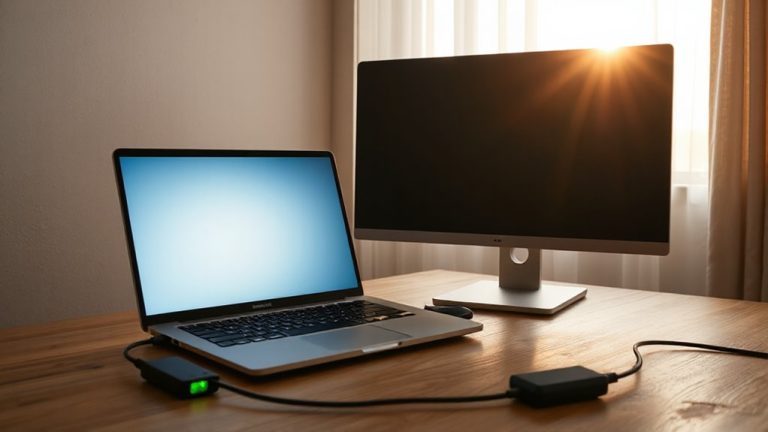
Why settle for one screen when two can transform how you work? You’ll boost productivity, but only if you choose the right setup. Match screen size-24 to 27 inches is ideal-and stick with the same model for consistency. Position monitors at eye level, about an arm’s length away, with a slight inward tilt to reduce strain; monitor positioning matters for long-term comfort. Use monitor arms to fine-tune height and angle, especially if you switch between sitting and standing. For cable management, pick a desk with built-in grommets or use adhesive clips to keep HDMI, power, and USB-C cords tidy and accessible. Avoid long cable runs under carpets-they create tripping hazards and signal loss. While dual monitors improve multitasking, they demand space and attention. Guarantee your laptop or GPU supports dual outputs before buying. Test setups in-store if possible-real-world fit matters more than specs alone. Consider pairing your dual monitors with one of the best notebooks for every need to optimize your hybrid workspace setup.
Connect and Configure Dual Displays in Minutes
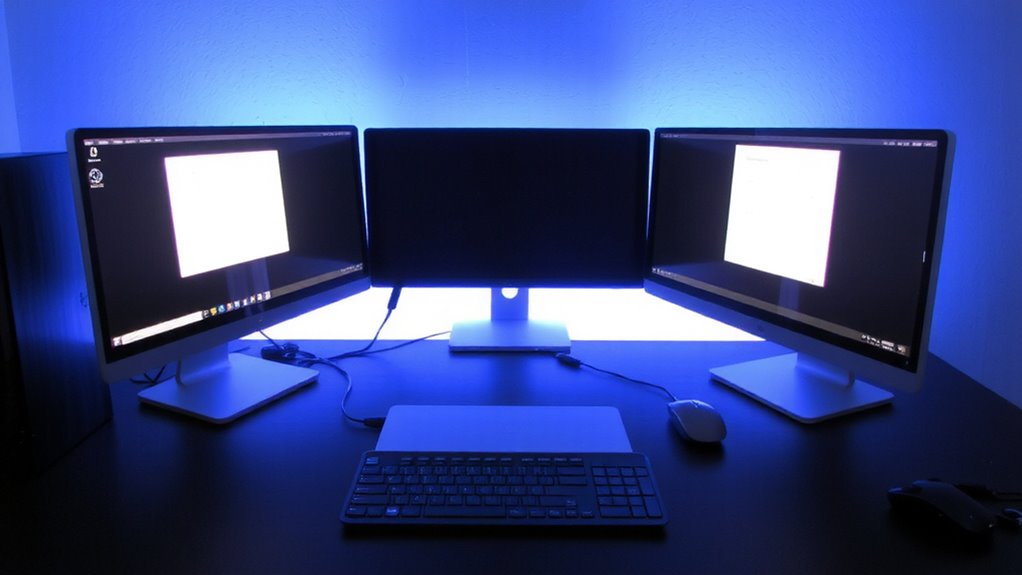
How do you get two screens up and running without the headache? Start by connecting each monitor to your laptop or desktop using compatible cables-HDMI, DisplayPort, or USB-C-depending on your ports. Secure connections snugly to avoid signal drops. Then, fix your display orientation in system settings: choose landscape for documents or portrait for coding and long web pages. Use monitor arms or stands with tilt and swivel options for better viewing angles. Tidy up with cable management solutions like sleeves or clips to reduce clutter and tripping hazards-especially important in shared workspaces. Most modern systems detect both screens instantly, but you might need to drag and arrange displays in settings to match your physical desk layout. It’s fast, but double-check alignment so your mouse doesn’t vanish off-screen. Setup usually takes under ten minutes, though compatibility issues can slow things down. For expanded setups, consider a triple monitor stand to maintain stability and ergonomics across multiple displays.
Test and Confirm Both Screens Work
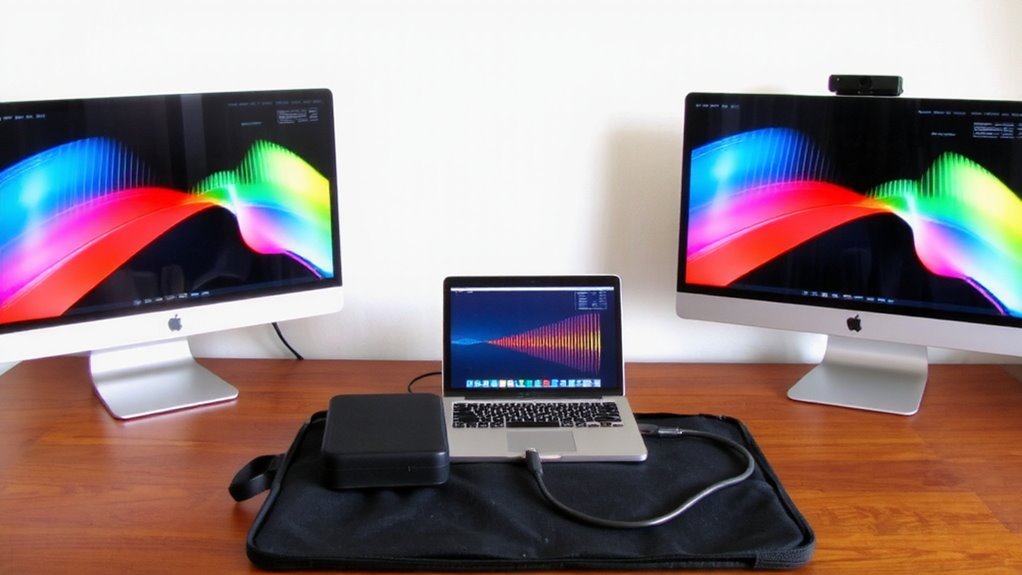
Once your monitors are connected and arranged to match your desk layout, it’s time to make certain both displays are fully operational. Check that each screen turns on and receives signal-look for input source errors or loose cables if one stays dark. Navigate to your display settings to confirm both monitors are detected. Use resolution matching to align both screens at the same pixel count, avoiding awkward scaling when dragging windows between them. Mismatched resolutions can distort text and images, so pick a common standard like 1920×1080. Then run display calibration tools-built into Windows and macOS-to balance brightness, color, and orientation. This step guarantees visual consistency, especially if the monitors are different models. While identical monitors simplify setup, mixing models works if you accept minor variances in color reproduction and bezel size. Test all adjustments by opening full-screen videos or spreadsheets across both screens. For optimal ergonomics and screen alignment, consider using an adjustable monitor stand that supports dual-display setups.
Optimize Screen Sharing in Zoom, Teams, and Meet
While sharing your screen during virtual meetings, you’ll want to make certain only the content you intend is visible-especially with dual monitors, where accidentally exposing private windows is a real risk. Use display mirroring sparingly; it duplicates content and limits workspace, but helps when resolution scaling differs between monitors. Instead, share a specific window or application to stay in control. Most platforms-Zoom, Teams, and Meet-let you select which monitor or screen to share, preventing unintended exposure. Proper resolution scaling makes certain text stays readable without distortion, particularly on high-DPI displays.
| App | Share Select Screen | Handles Scaling Well |
|---|---|---|
| Zoom | Yes | Yes |
| Teams | Yes | Moderate |
| Meet | Yes | Yes |
Arrange Your Dual Monitors to Cut Neck Strain
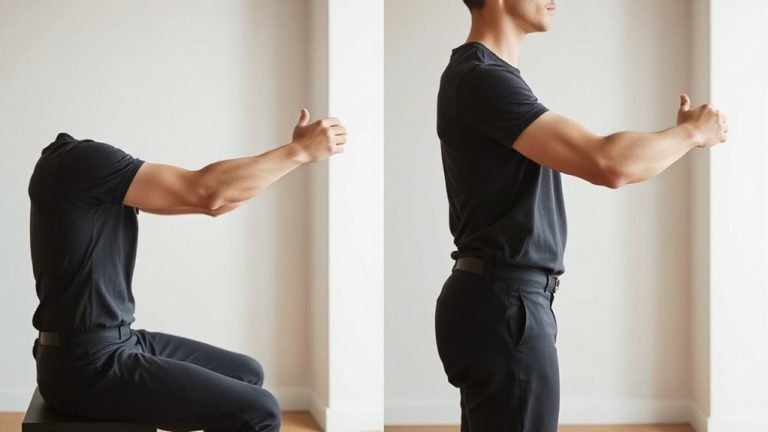
Positioning your dual monitors properly can greatly reduce neck strain, especially during long hybrid work sessions. For ideal ergonomic positioning, place the primary monitor directly in front of you, centered with your keyboard, and the secondary slightly to the side-angled inward to match natural head movement. Both screens should sit at eye level, with the top of the display at or slightly below eye height. Keep viewing distance between 20–30 inches. Swivel and tilt adjustments on monitor stands help fine-tune alignment but note: poorly secured arms can wobble. Tidy cable management reduces clutter and improves workspace efficiency-use sleeves or clips to bundle power and video cables. While desk grommet routing looks clean, it requires permanent modification most renters should avoid. Adjustable desks support better long-term ergonomics, yet quality varies-check load ratings and warranty length.
Fix Screen Sharing Glitches Before They Ruin Your Call
Why do your screens freeze when you’re sharing a presentation? Outdated drivers or mismatched display settings often cause lag, especially across dual monitors. You’ll want to confirm your GPU can handle extended desktop mode without throttling. Check cursor synchronization-misaligned movement across screens confuses video conferencing apps and increases load. Fix this by standardizing resolution and refresh rates on both monitors. Audio routing is another common pitfall: make certain your system directs sound through the correct output, especially if using an external speaker or headset with a separate display. Test screen sharing in your meeting app before going live. Close unused programs to free up bandwidth. While high-end docks and GPUs reduce glitches, even budget setups work well with correct configuration. Don’t assume plug-and-play works perfectly-it often doesn’t.
On a final note
You’ll boost productivity with dual monitors, especially in hybrid meetings, but only if set up right. Position screens at eye level, side by side, to reduce neck strain and keep focus. Use HDMI or DisplayPort cables for reliable connections, and test both displays before sharing. In Zoom or Teams, select the correct screen to share-wrong choices cause glitches. Calibration takes minutes, yet fixes prevent embarrassing hiccups. Balance cost and quality; not all docks or mounts are equal. Check warranty length, port availability, and adjust for actual desk space. Results vary based on software updates and PC performance, so test often.