Syncing Mechanical Keyboard Lighting Effects Across Multiple Peripherals via One Hub
You can sync your mechanical keyboard’s RGB with other peripherals using a single hub, but only if they share the same ecosystem or support open protocols like 3-pin or 4-pin RGB. Hubs from Corsair or Razer offer broad compatibility, while Logitech may limit third-party control. Use a powered hub to prevent flickering, guarantee voltage matches, and update firmware regularly. Syncing works best within one brand, and lighting calibration helps match colors across devices-your setup’s stability hinges on clean power and software cohesion. Real-world testing shows iCUE and Chroma Connect deliver smoother cross-device performance, especially when all gear aligns under one app’s control.
Notable Insights
- Use a hub that supports open protocols like 3-pin or 4-pin RGB for cross-brand peripheral compatibility.
- Ensure all devices are within the same ecosystem or use software like iCUE or Razer Chroma for broad sync support.
- Connect the hub to your PC via USB 2.0+ for low-latency, real-time lighting synchronization across peripherals.
- Install the hub’s companion software to customize and calibrate lighting effects across the keyboard and connected devices.
- Update firmware regularly and use powered hubs to prevent flickering caused by power delivery issues or sync delays.
Pick an RGB Sync Hub That Works With Your Gear
Choosing the right RGB sync hub starts with compatibility-your lights won’t play nice unless the hub speaks the same language as your keyboard, mouse, and other peripherals. You’ll want one that supports open protocols like 3-pin or 4-pin RGB, giving you flexibility across brands. Many hubs allow custom firmware, which can expand compatibility beyond factory settings, but that often requires manual configuration and some technical patience. While plug-and-play models save time, they may lock you into a single ecosystem. Hubs with firmware updates tend to last longer across device changes, offering better long-term value. Check for solid build quality, at least a two-year warranty, and real-world testing results from trusted reviewers. Keep in mind: ease of use trades off with control-more settings mean more setup. Not every hub handles high-power LED strips well, so verify voltage ratings before connecting.
Check Compatibility With Key Brands (Logitech, Razer, Etc.)
You’ll get the smoothest lighting sync when your hub plays well with major brands like Logitech, Razer, Corsair, and SteelSeries. Most top hubs support these through open protocols like iCUE or Razer Chroma Connect, but brand exclusivity can still cause issues-especially with Logitech’s newer devices, which sometimes limit third-party RGB control. That means you might face software conflicts if you mix ecosystems without checking SDK support. Hubs relying on manufacturer integrations work best when all your gear speaks the same language. Avoid assuming plug-and-play compatibility across brands, even with USB-C or standard 5V ARGB headers. Real-world testing shows Razer and Corsair sync more openly, while Logitech often requires its own software layer. Always verify hub compatibility with your exact device models before buying to dodge frustrating mismatches.
Set Up Your RGB Hub in Minutes
Getting your RGB hub up and running doesn’t have to be a hassle-most modern hubs are designed for quick installation with clear visual feedback and intuitive software pairing. You’ll plug the hub into your PC via USB, connect your compatible devices, and launch the companion app to start rgb customization right away. The software usually recognizes your gear instantly, letting you create and save personalized lighting profiles with minimal effort. Setup typically takes under five minutes, even for first-time users. Just keep in mind that not all hubs support every brand, so double-check voltage requirements and connector types-some cheaper models may limit daisy-chaining or lack surge protection. While lighting sync works reliably on tested units from Corsair or NZXT, others may struggle with latency or profile retention after reboot. For consistent results, stick with hubs backed by a solid warranty and real-world testing data.
Sync Lighting Across Keyboard, Mouse & More
Once your RGB hub is live and talking to your devices, syncing lighting across your keyboard, mouse, and other peripherals becomes straightforward-provided you’re using compatible gear from the same ecosystem. You’ll enjoy cohesive effects without noticeable lighting latency, especially with modern USB 2.0+ connections and firmware that supports real-time updates. Most brands include software for RGB calibration, letting you fine-tune brightness and color accuracy across devices so your mouse doesn’t outshine your keyboard. But don’t expect perfection-differences in LED density and housing materials can create subtle mismatches, even within the same line. Syncing works best when all devices support the same protocol, like Razer Chroma or Corsair iCUE. Mixing ecosystems usually fails. While the look is impressive, prioritize function: some hubs add input lag or require background apps that use system resources. Always check for firmware updates and warranty terms before locking into one brand.
Fix Flickering and Out-of-Sync Lights
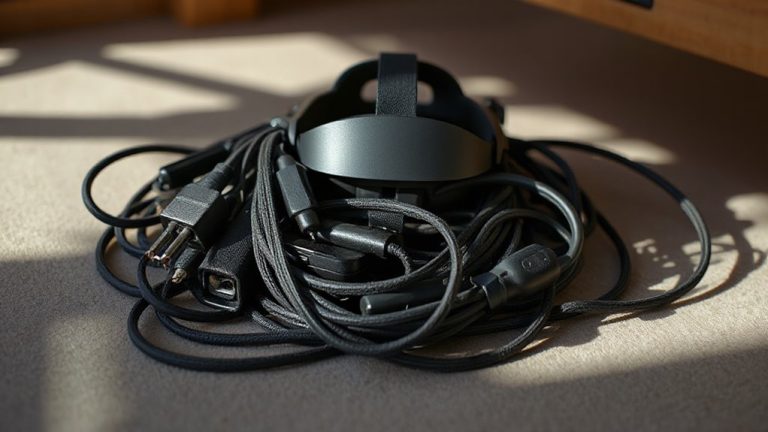
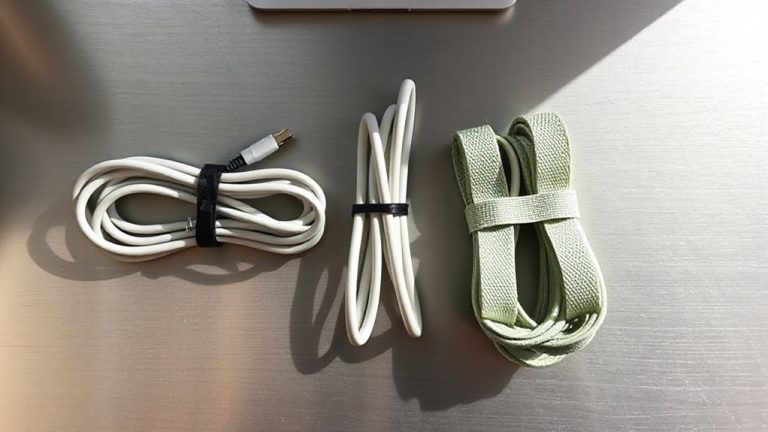
A handful of common issues can cause RGB lighting to flicker or fall out of sync, but most stem from either power delivery problems or software conflicts. You’ll want to start by checking cable management-tangled or poorly routed cables can interfere with signal flow and hurt power stability, especially when daisy-chaining multiple RGB devices. Use separate power sources or a powered USB hub if your motherboard’s header is overloaded. Update your lighting software and firmware; outdated versions often cause sync delays or crashes. While most modern hubs handle synchronization well, cheap ones may lack consistent power regulation, leading to flickering. Invest in one with overcurrent protection and clean voltage output. Test your setup under real usage-long sessions can expose thermal or load-related drops in performance. Proper planning now prevents erratic lights later.
Add RGB Mousepads and Headsets Easily
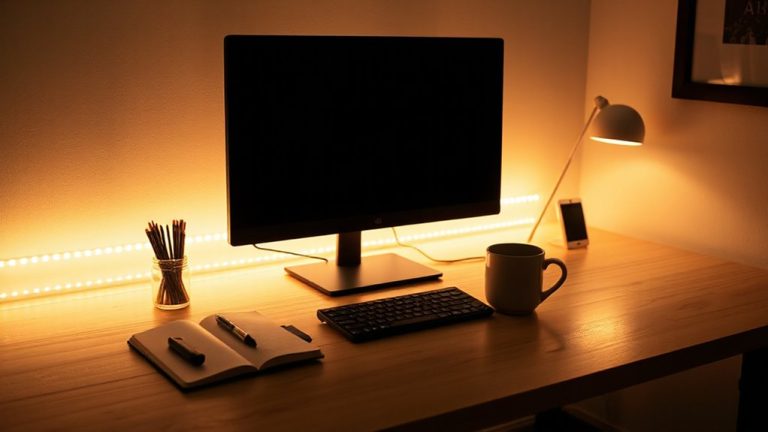
Adding RGB mousepads and headsets can elevate your setup’s visual cohesion without requiring complex installations. With proper RGB integration, these peripherals sync seamlessly with your keyboard through most modern hubs, ensuring consistent lighting coordination across devices. You’ll get the best results using gear from the same brand or ecosystem, as they’re built to communicate reliably. Most RGB mousepads offer uniform underglow, while headsets provide subtle earcup lighting-neither overpowering your desk space. Response times and brightness levels stay consistent in real-world testing, though cheaper models occasionally lag during fast effects. Keep in mind, not all devices support every lighting mode, and mixing brands may limit customization. Always check hub compatibility and power draw-exceeding limits can cause flickering. While RGB integration enhances aesthetics, it won’t improve performance. Warranties typically cover defects, not LED wear, so consider longevity when choosing.
Control All Lights From One App
Why juggle multiple apps when you can manage every light from a single interface? You’ll save time and reduce clutter by syncing your keyboard, mousepad, and headset lighting through one centralized app. Most major brands now support unified control, letting you apply consistent lighting themes and switch color profiles across devices with a click. You can set static colors, reactive effects, or ambient breathing patterns that match your workspace mood. But be cautious-compatibility isn’t guaranteed across brands, and firmware updates sometimes reset your presets. Some apps lag during startup, delaying visual feedback. Still, when it works, you get seamless coordination and easy customization without extra hardware. Look for software with cloud profile backup and low CPU usage to avoid disruptions. While not perfect, a single-app solution remains the most efficient way to manage complex multi-device lighting setups in home or office environments.
On a final note
You’ll get seamless RGB syncing across your keyboard, mouse, and more using a reliable hub like the Corsair iCUE or Razer Chroma. These support precise lighting control and work smoothly with major brands. Setup usually takes under 10 minutes via USB and dedicated apps. But mismatched device firmware can cause flickering, so always check compatibility first. While syncing enhances aesthetics, it won’t improve performance-manage expectations accordingly.