Repetitive Strain Injury Prevention Strategies for Remote Workers: A Comprehensive Guide to Staying Healthy at Work
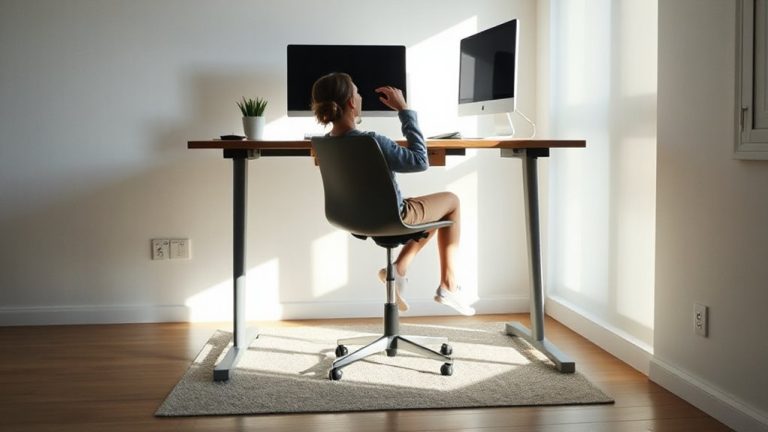
You can greatly reduce your risk of repetitive strain injury by setting up a proper workstation-position your monitor 20–30 inches away and at eye level, use a chair with lumbar support, and keep your feet flat. Pair a split keyboard and vertical mouse with short, frequent movement breaks every 30–60 minutes. While ergonomic gear helps, it only works with correct alignment and consistent habits-expect a 1–2 week adjustment period. Early discomfort is a warning; address it now before it becomes lasting damage.
Notable Insights
- Set up an ergonomic workspace with proper monitor height, lumbar support, and feet flat on the floor to reduce strain.
- Use split keyboards and vertical mice to maintain natural wrist and forearm alignment during prolonged typing.
- Take regular movement breaks every 30–60 minutes to stretch, reset posture, and prevent muscle fatigue.
- Position your monitor 20–30 inches away at eye level to minimize neck strain and eye fatigue.
- Recognize early RSI symptoms like wrist ache or morning stiffness and seek professional advice if they persist.
Why Remote Work Causes RSI
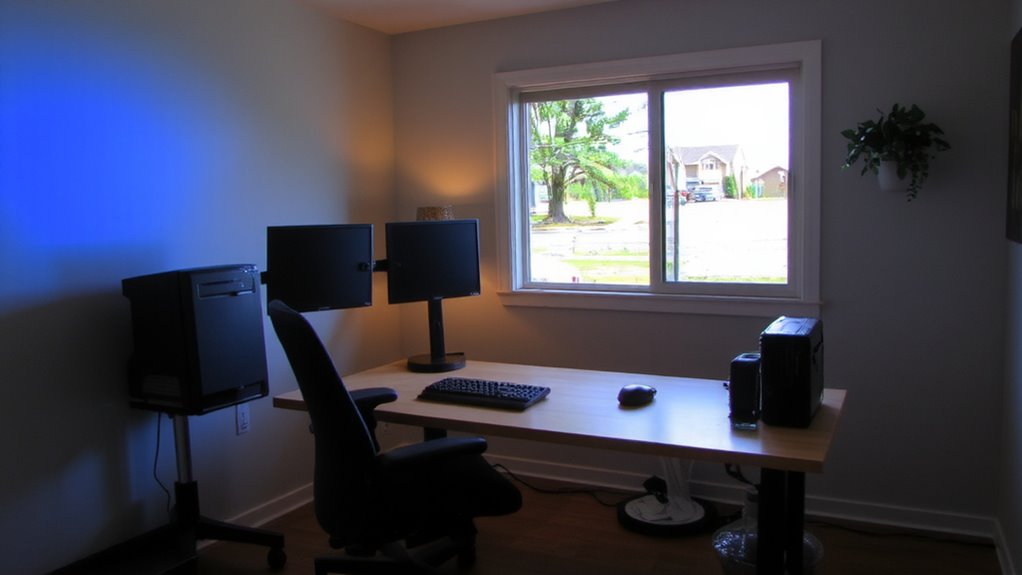
While remote work offers flexibility, it often leads to poor posture and awkward setups that increase your risk of repetitive strain injury (RSI). You might hunch over a laptop on the couch or use a dining table as a desk, both encouraging poor posture that strains your neck, shoulders, and wrists over time. Inadequate lighting forces you to lean closer or tilt screens, worsening alignment and eye fatigue. Without structured workspaces, you repeat motions in suboptimal positions, compounding micro-stress on tendons and muscles. Many makeshift stations lack adjustable chairs or monitor arms, limiting proper ergonomics. Even standing desks require correct height calibration-too high or low creates new strain. You don’t need expensive gear, but awareness matters: a pillow isn’t a lumbar support substitute, and dim lighting increases visual strain. Recognizing these risks helps you adjust habits before symptoms arise. Upgrading to an ergonomic office chair can significantly improve spinal alignment and reduce strain during long work sessions.
Build an Ergonomic Home Office in 5 Steps
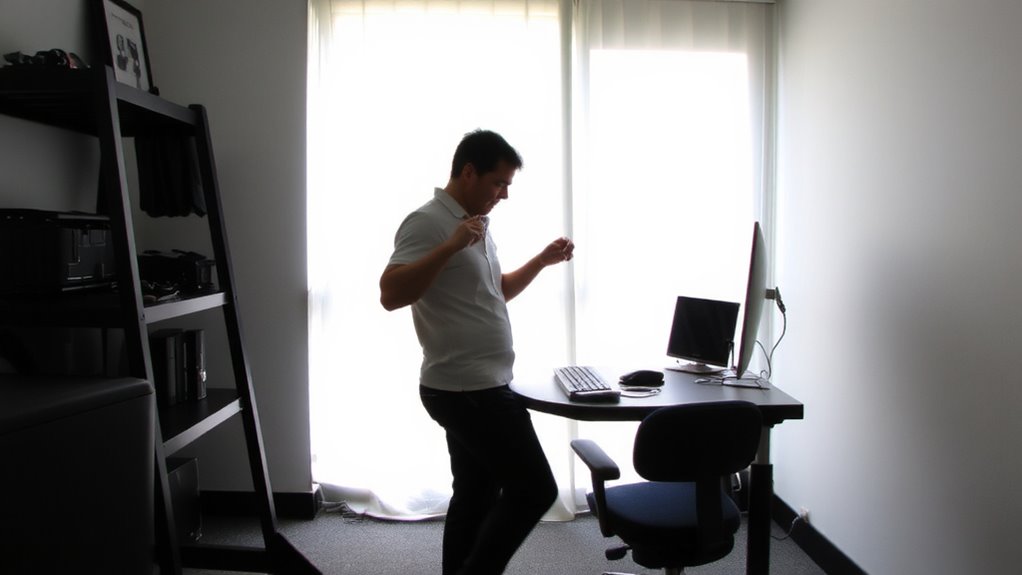
You can reduce your risk of repetitive strain injury by setting up a workspace that supports natural posture and movement, even if you’re starting from a couch or kitchen table. Start by placing your monitor at eye level, about 20–30 inches away, to avoid neck strain. Use a chair with lumbar support or add a cushion, keeping your feet flat on the floor. Position your keyboard and mouse close enough to prevent overreaching. Pay attention to cable management-tangled cords can disrupt workflow and create tripping hazards; use clips or sleeves to organize them neatly. A proper lighting setup reduces eye strain: combine ambient light with a directional lamp to avoid glare on your screen. While dedicated desks improve consistency, even small changes in setup yield measurable benefits-just guarantee adjustments fit your space and actual usage patterns. Choosing the right seating is critical, and investing in one of the top ergonomic office chairs can significantly enhance spinal support and comfort during long workdays.
Choose an Ergonomic Keyboard and Mouse for Wrist Health
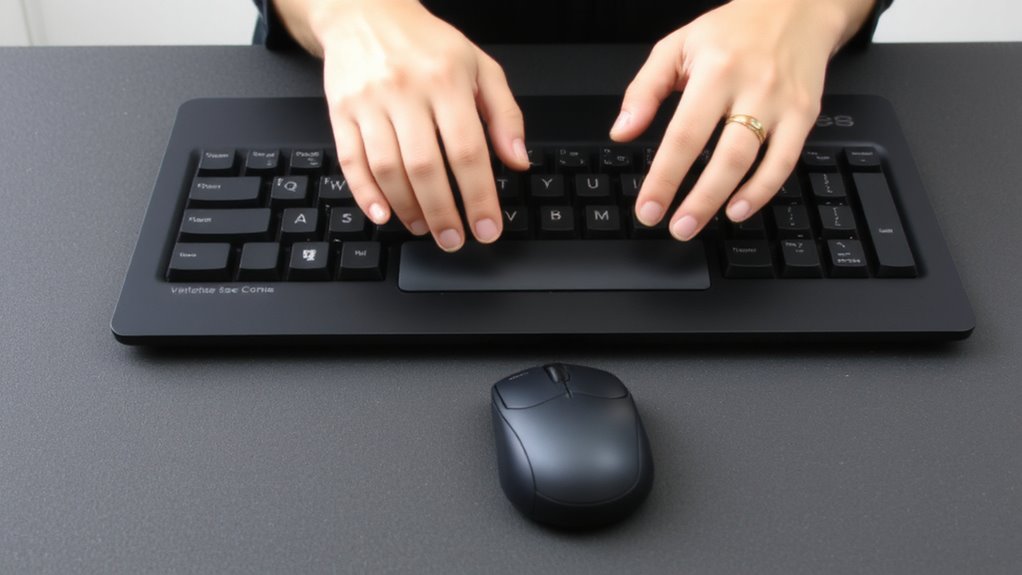
An ergonomic keyboard and mouse aren’t magic fixes, but they’re among the smartest upgrades you can make to protect your wrists during long workdays. A split design reduces ulnar deviation by letting your hands rest in a more natural, neutral position-studies show it can cut wrist strain by up to 20% over traditional layouts. Look for models with adjustable tenting and negative tilt for better alignment. Pair it with an ergonomic mouse that supports a vertical grip to minimize forearm twisting. Wireless connectivity eliminates cable drag, giving you cleaner desk management and more flexible positioning. Just remember: latency and battery life vary-check reviews and opt for reliable Bluetooth or USB-C dongles. Most quality models come with a 1–2-year warranty, and while they cost more upfront, the injury prevention payoff often justifies the price. Give yourself 1–2 weeks to adjust; comfort doesn’t happen overnight. For top-performing options, check out the best ergonomic keyboards.
Take Movement Breaks to Prevent Daily Strain
Sitting for hours with even the best ergonomic keyboard and mouse won’t prevent strain if you stay in one position all day-your body needs movement to stay resilient. Taking regular breaks to move reduces stiffness, supports circulation, and helps maintain focus. Pair movement with simple stretch routines and quick posture checks every 30–60 minutes to catch harmful habits early. Below are key movements to mix into your day:
| Activity | Benefit |
|---|---|
| Shoulder rolls | Relieves upper-back tension |
| Standing stretch | Counters spinal compression |
| Neck tilts | Reduces stiffness from screen focus |
| Posture check | Resets alignment after typing |
Set a timer or use a break reminder app-consistency matters more than duration. Even 60 seconds helps. Just don’t skip them. While stretch routines boost flexibility over time, posture checks prevent small misalignments from becoming chronic issues. Movement isn’t a luxury; it’s daily maintenance.
Break Work Habits That Lead to Repetitive Strain
Though small in the moment, everyday actions like cradling your phone between ear and shoulder or typing with bent wrists can quietly set the stage for repetitive strain over weeks or months. To prevent this, you need to rethink how you structure your day. Work pacing isn’t just about taking breaks-it’s about timing tasks to avoid overuse, like switching from typing to a phone call every 30 minutes. Pair that with task variety: mix in non-repetitive activities like filing, sketching, or standing discussions to distribute physical demand. These habits reduce continuous strain on the same muscles and tendons. While ergonomic tools can help, they won’t fix poor patterns-behavior change is key. There’s no one-size-fits-all setup, so test adjustments over a week and track discomfort. Real gains come from consistent pacing and variety, not expensive gear.
Spot Early RSI Signs and Know When to Get Help
How quickly can a nagging wrist ache turn into something worse? If you’re ignoring wrist pain or feeling early fatigue during tasks like typing or mousing, you’re already in risky territory. These aren’t minor quirks-they’re early RSI signals. You might notice stiffness in the morning or a dull ache that lingers after work. Don’t wait for sharp pain or swelling. Pushing through worsens damage and extends recovery. Yes, ergonomic gear like split keyboards or vertical mice can help, but they’re not magic fixes-setup matters, and results vary. The real key is acting fast: tweak your workstation, take real breaks, and stretch. If discomfort persists past a week despite changes, see a healthcare provider. Delaying care can mean longer downtime. Spotting signs early gives you leverage-use it before small issues reshape your work life.
On a final note
You can prevent RSI with smart habits and the right setup, but success depends on consistency, not gear alone. An adjustable chair, ergonomic keyboard, and monitor at eye level reduce strain markedly. Take a 5-minute break every hour to stretch and move. Even top equipment won’t help if you skip breaks or ignore early pain. Results require effort and daily attention-no product replaces good posture and movement.