Remote Worker’s Toolkit: Essential Equipment for an Effective Home Office
You need a Wi-Fi 6 router for reliable speeds with multiple devices, but place it centrally to avoid dead zones. Pick an ergonomic chair with lumbar support and a 5+ year warranty-adjust seat depth for your legs. Add a 24-inch 1080p IPS monitor to multitask efficiently. Use a noise-canceling headset with dual mics for clear calls, knowing ANC drains battery. Set up adjustable 4000K–5000K lighting to reduce eye strain. There’s more to fine-tuning each choice for your space.
Notable Insights
- Upgrade to a Wi-Fi 6 router and use mesh systems to ensure stable, low-latency connectivity across your home office.
- Choose an ergonomic chair with adjustable seat depth and lumbar support to maintain comfort during long work sessions.
- Add a 24-inch 1080p IPS monitor with an adjustable stand to reduce neck strain and boost multitasking efficiency.
- Use noise-canceling headsets with dual microphones to ensure clear communication in distracting home environments.
- Optimize lighting with adjustable, flicker-free desk lamps that provide natural-spectrum light to reduce eye fatigue.
Get Reliable Wi-Fi for Seamless Work
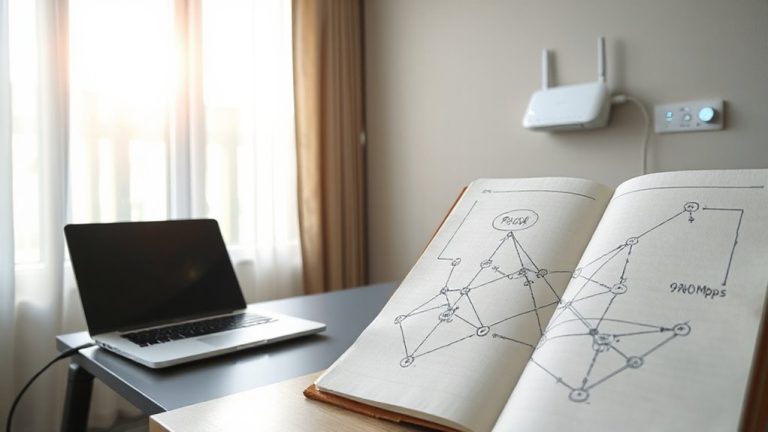
While a strong Wi-Fi signal might seem like a given, even remote workers in well-connected areas can face dropped calls or slow uploads if their setup isn’t optimized-so investing in reliable home Wi-Fi is non-negotiable for seamless work. Upgrade your Wi Fi routers to modern models supporting Wi-Fi 6, which handle multiple devices better and reduce lag during video calls. If dead zones persist, consider signal boosters or mesh systems for wider coverage-though they add cost and complexity. Position your router centrally, away from thick walls or interference from appliances. Real-world testing shows mid-tier routers ($100–$180) often match high-end performance for typical home offices. Most come with 2–3-year warranties and free firmware updates. Still, signal boosters can introduce latency if poorly placed. You’ll gain reliability, but only if the tech matches your space. Test placement before finalizing setup. A reliable setup also includes pairing your network with a high-quality USB keyboard for consistent productivity across all devices.
Choose an Ergonomic Chair for All-Day Comfort
How does your back feel after six hours of sitting? If it aches, your chair’s likely the culprit. For all-day comfort, choose an ergonomic chair with strong lumbar support that fits the curve of your lower spine-this reduces strain and helps maintain posture. Adjustable seat depth is critical too; your thighs should rest fully while leaving about an inch of space behind the knees. Look for models with 17–20 inch seat depths and at least a 3-inch adjustment range. Most experts recommend chairs with breathable fabric or mesh to prevent overheating. Expect to spend $250–$500 for a reliable, well-tested option from brands like Steelcase or Herman Miller. Even the best chairs won’t fix poor habits-pair yours with regular movement. Warranties of 5+ years are standard, so check coverage before buying. Top picks include models such as the Steelcase Leap, known for its dynamic support and customizable fit.
Add a Second Monitor to Improve Productivity
A second monitor can give your productivity a measurable boost, especially if you spend hours switching between documents, spreadsheets, or communication tools. You’ll gain valuable screen real estate and improve multitasking efficiency by keeping workflows visible without constant tabing. Here’s what to think about:
| Feature | Why It Matters |
|---|---|
| 24-inch size | Balances space and clarity |
| 1080p resolution | Sharp text, no scaling issues |
| IPS panel | Wider viewing angles, better colors |
| Adjustable stand | Reduces neck strain over long days |
| HDMI + DisplayPort | Guarantees compatibility with most devices |
Dual monitors aren’t for everyone-some find the setup distracting or physically awkward. Be certain your laptop or GPU supports extended display output. Test with your daily apps to confirm the upgrade actually streamlines your work.
Use a Noise-Canceling Headset for Clear Calls
If you’re joining back-to-back calls from a busy household or noisy café, a noise-canceling headset is almost a necessity-active noise cancellation (ANC) can cut through background hum from traffic, barking dogs, or loud roommates, letting you hear meetings clearly and be heard without shouting. Good ANC greatly reduces background noise, which directly improves call quality for you and your team. Most quality headsets, like the Sony WH-1000XM4 or Bose QuietComfort, use dual-mic systems and advanced algorithms to filter out distractions without flattening your voice. Just note: ANC uses extra battery, so you’ll need to recharge more often, and some models feel warmer during long sessions. Wired options, such as the Jabra Elite 85h, offer consistent connection and often include 3.5mm jacks for backup use. Look for models with 20+ hours of battery life and at least a one-year warranty-real-world testing shows these hold up best. For a full breakdown of top models and key features to compare, check out our noise-cancelling headphones buying guide.
Set Up Lighting That Reduces Eye Strain
Since poor lighting can lead to headaches and fatigue during long work sessions, investing in a quality desk lamp with adjustable brightness and color temperature is worth it-models like the BenQ e-Reading LED Desk Lamp or the Philips Hue Go deliver consistent, flicker-free light that reduces eye strain, especially when set between 4000K and 5000K (a neutral white that mimics midday sunlight). Prioritize natural light during the day by positioning your desk near a window, but avoid direct glare on your screen. Pair this with task lighting to maintain consistent illumination when clouds roll in or after sunset. Look for lamps with dimmable outputs and diffuse shades to prevent harsh shadows. While some models cost over $100, many offer long warranties and energy-efficient LEDs lasting 25,000+ hours. Just don’t rely solely on overhead lighting-it often creates contrast that strains your eyes.
Pick a Comfortable Keyboard and Mouse Combo
Ergonomics matter most when your hands spend eight or more hours a day tapping and scrolling. Your keyboard and mouse combo should offer solid wrist support and responsive key switch types to prevent strain and boost efficiency. Consider ergonomic designs that promote natural hand positioning, especially if you type heavily. Mechanical keyboards excel in durability and feedback, but choose key switch types wisely-linear for smooth presses, tactile for subtle bumps. Here’s what to visualize:
| Feature | Why It Matters |
|---|---|
| Contoured shape | Enhances wrist support |
| Low-resistance switches | Reduces finger fatigue |
| Wireless reliability | Keeps desk clutter-free |
While premium models often last longer, some budget options perform well in real-world testing. Always check warranty length and return policies. Comfort varies by user, so test if possible-your long-term health is worth it.
On a final note
You’ll work better with the right setup, but balance cost and comfort. A stable Wi-Fi 6 router cuts lag, while an ergonomic chair with lumbar support reduces strain-look for 30-day trial policies. Dual monitors boost efficiency, but 27-inch 1440p panels prevent overcrowding. Noise-canceling headsets like the AirPods Pro or Sony WH-1000XM4 clarify calls but need charging. Prioritize LED desk lamps with adjustable color temperature to ease eye fatigue.