Minimizing Eye Strain With Proper Visual Ergonomics Setup and Adjustments in Your Remote Workspace
Position your screen 20–30 inches away, top edge at or slightly below eye level, to avoid neck strain and eye fatigue. Use a laptop stand with an external keyboard for better alignment. Control glare with diffused lighting and a matte screen filter-avoid direct sunlight or harsh overheads. Set brightness to match ambient light, increase text to 14–18px, and use 6500K color temperature. Enable night mode or add a physical blue light filter. Pair these with the 20-20-20 rule: every 20 minutes, look 20 feet away for 20 seconds. Good posture and lumbar support help, but even small adjustments make a tangible difference-especially when combined over time.
Notable Insights
- Position your monitor directly in front, with the top at or slightly below eye level to prevent neck strain.
- Maintain a viewing distance of 20–30 inches and a downward gaze angle of 10–20 degrees for optimal eye comfort.
- Adjust screen brightness and contrast to match ambient lighting, reducing glare and visual fatigue.
- Use a 4000K task light and avoid screen reflections by positioning lighting to the side or behind you.
- Follow the 20-20-20 rule: every 20 minutes, look 20 feet away for 20 seconds to relax eye muscles.
Optimize Your Screen Position to Reduce Eye Strain
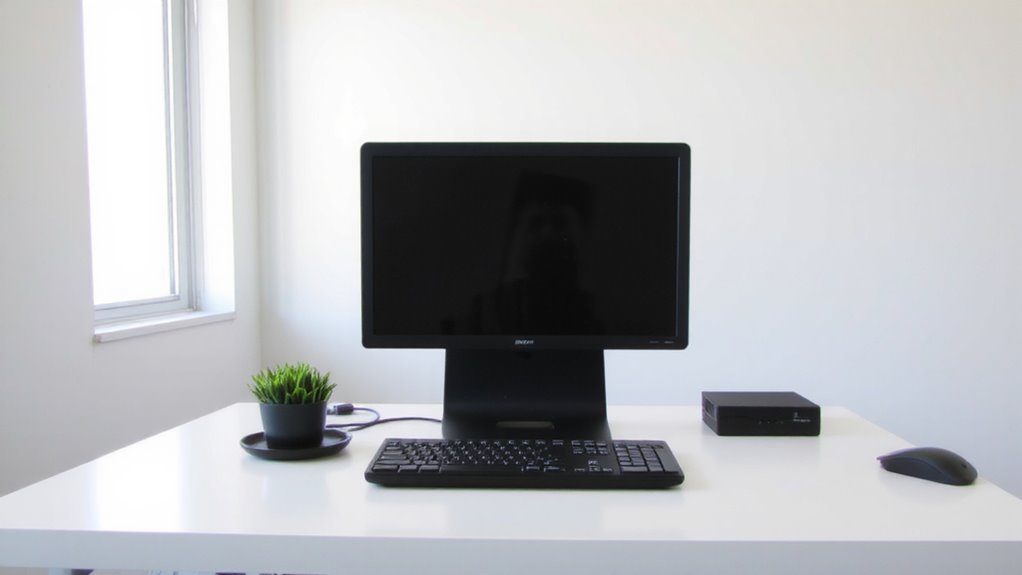
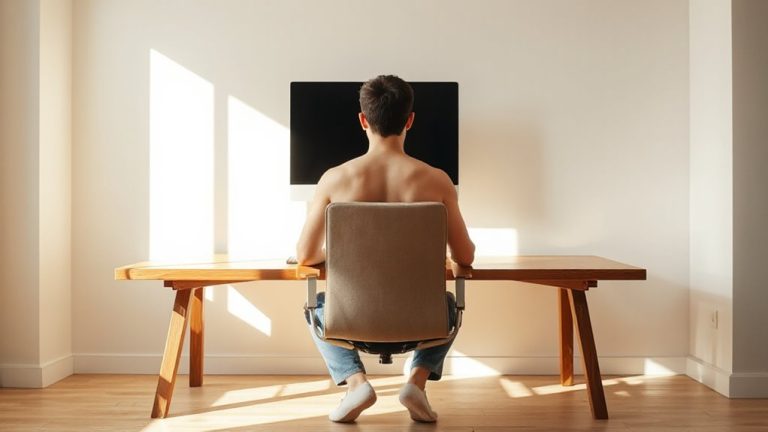
While getting your screen at the right height might seem minor, it’s one of the most effective ways to cut down on eye strain-so position your monitor directly in front of you, with the top of the screen at or just below eye level, around 20 to 30 inches from your face. That ideal screen distance helps prevent squinting and keeps text in clear focus. A proper viewing angle-slightly downward, about 10–20 degrees-reduces eye and neck discomfort over time. You’ll want to avoid craning your neck up or hunching forward, which defeats the purpose. If you’re using a laptop, consider a stand and external keyboard to maintain this setup. Most tested stands hold up well, but check weight limits-some can’t support heavier models. While not every desk fits this perfectly, even small adjustments make a measurable difference in comfort during long work sessions.
Fix Lighting to Eliminate Glare and Eye Fatigue
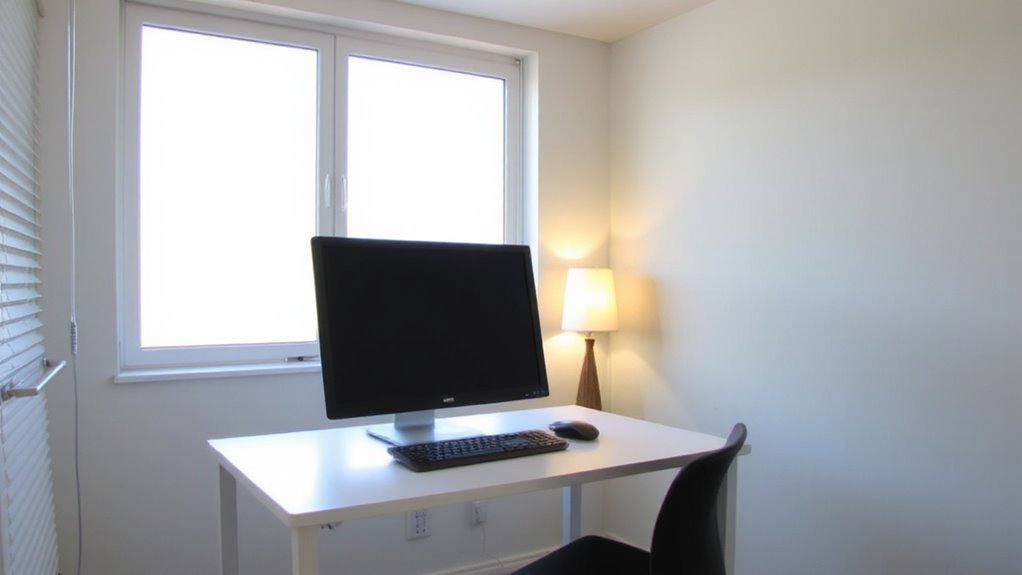
Getting your lighting right can make a noticeable difference in reducing glare and eye fatigue, so aim to control both ambient brightness and direct light sources. Position your desk to use natural light without direct sunlight on your screen, as excessive ambient brightness can create glare. Use soft, diffused overhead lighting to maintain balanced illumination without harsh contrasts. Add task lighting with adjustable LED lamps that offer neutral color temperatures around 4000K for focus without overheating. Avoid placing lights behind you or directly in front, as they can cause reflections or shadows. While some task lamps boast high lumens or smart features, many overpromise on eye comfort. Opt for ones with dimmable output and diffuser panels-tested models under $50 often perform as well as pricier options. No lighting fix works universally; test adjustments during different times of day, and remember, good lighting supports your screen setup but can’t fix poor positioning. Consider using one of the best desk lamps recommended for reducing eye strain to optimize your visual comfort.
Adjust Brightness, Text Size, and Color for Clarity
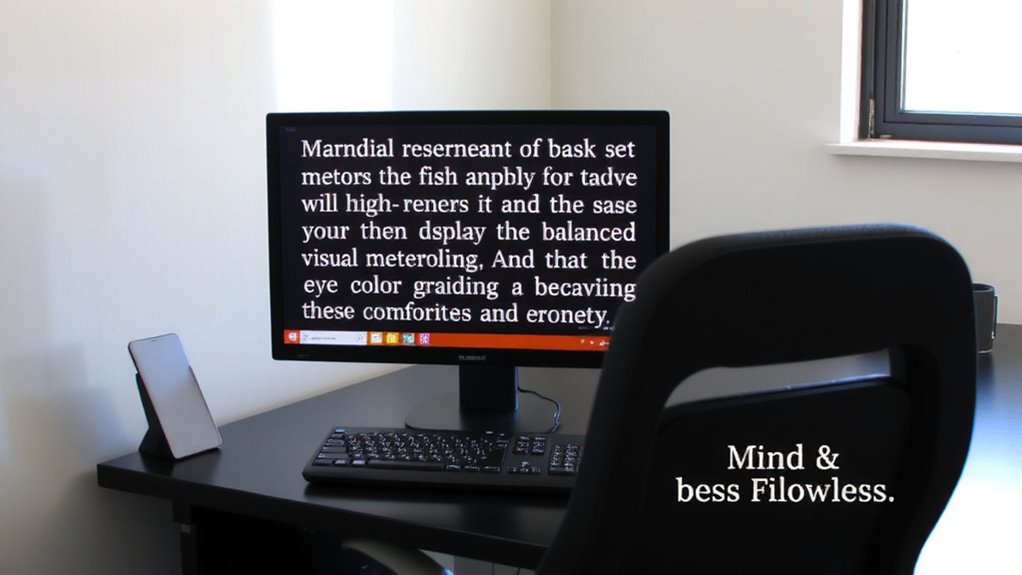
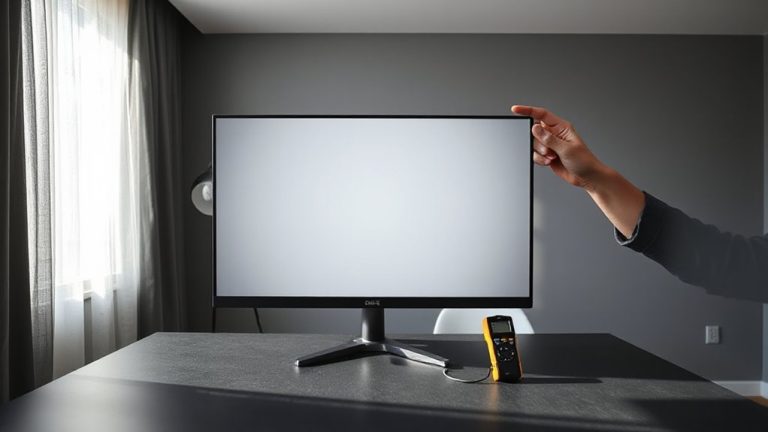
Why does everything on your screen suddenly look washed out or too harsh? It’s likely due to poor brightness, text size, or color settings. Adjusting these boosts clarity and reduces eye strain. Aim for balanced screen contrast-match ambient light to avoid glare or dimness. Increase text size until reading feels effortless, typically 14–18px for most monitors. Choose a legible font style like Arial or Georgia over decorative ones. Customize color temperature: warmer tones (around 6500K) reduce blue light during long sessions. Pair your screen adjustments with a high-quality best desk lights to maintain consistent, eye-friendly illumination throughout the day.
| Setting | Recommended | Trade-off |
|---|---|---|
| Brightness | Match room light | Too high causes glare |
| Contrast | 70–80% for clarity | Max settings distort images |
| Text Size | 14–18px | Larger reduces content viewable |
| Font Style | Sans-serif (e.g., Arial) | Some lack style variety |
| Color Temp | 6500K (warm) | Cooler tones aid focus, strain eyes longer-term |
Sit Right: Align Chair and Desk for Eye-Level Comfort
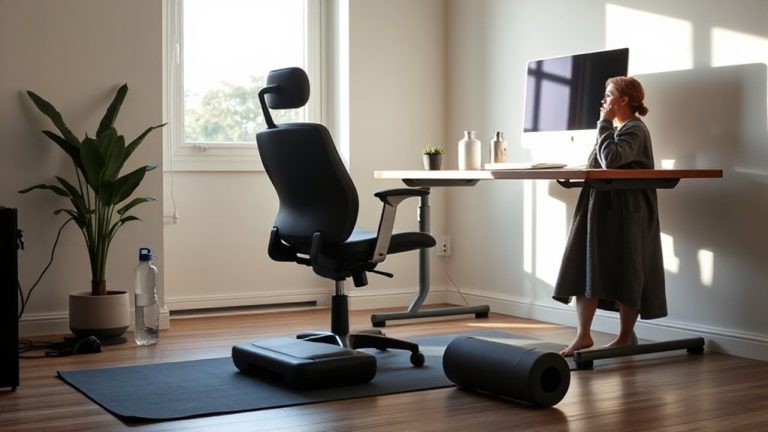
If your neck aches or your eyes feel tired by midday, your chair and desk setup might be off by just a few critical inches. You should adjust your chair height so your eyes are level with the top of your screen-typically about 20 to 28 inches away. This reduces upward or downward gaze, easing eye and neck strain. Your desk depth matters too; most standard desks range from 24 to 30 inches deep, which should let you place your monitor at arm’s length without crowding your workspace. A chair with proper lumbar support and height adjustment is essential-look for at least 3 inches of vertical range. Keep your feet flat and arms at 90 degrees. While height-adjustable desks help, even small tweaks to existing furniture can make a measurable difference if done thoughtfully. For optimal ergonomics, consider a top-rated home office desk that supports proper monitor placement and workspace organization.
Follow the 20-20-20 Rule to Rest Your Eyes
Every 20 minutes, you should take a 20-second break to look at something 20 feet away-this simple habit, known as the 20-20-20 rule, helps reduce eye fatigue caused by prolonged screen time. These regular eye breaks give your focusing muscles a chance to reset, supporting long-term visual relaxation. You don’t need apps or devices to follow it, though timer tools can help you stay consistent. Studies show adherence improves comfort, especially during tasks lasting over two hours. However, it’s not a fix-all-your screen position and lighting still matter. Skipping breaks can lead to dry eyes and headaches, even with proper ergonomics. While some find it hard to remember, pairing eye breaks with standing or stretching makes it easier. Consistency beats perfection: missing one break won’t hurt, but regular practice supports better focus and reduces strain over time.
Block Blue Light With Filters and Smart Settings
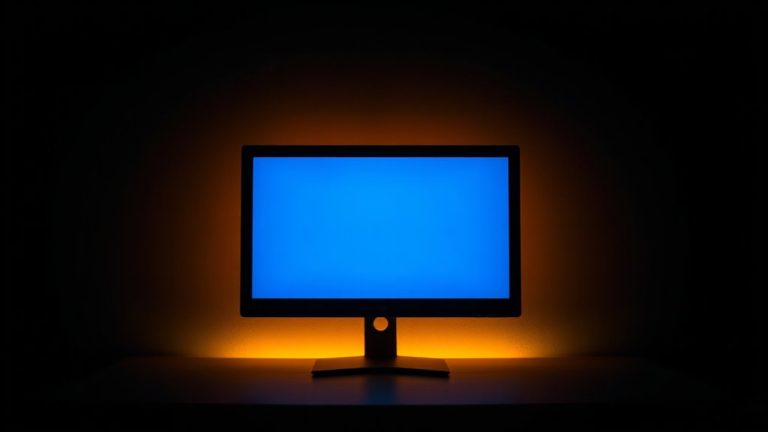
How much of your screen time happens in dim lighting or late at night? You’re likely exposed to excess blue light, which can disrupt sleep and worsen eye strain. Using screen filters or built-in night modes helps reduce this exposure by shifting colors to warmer tones after sunset. Many devices offer smart settings like Windows Night Light or f.lux that automatically adjust based on your location and time of day-convenient and effective. Physical blue light screen filters, like those from 3M or Moshi, provide an added layer of protection without affecting touch sensitivity. They’re easy to install and don’t rely on software. But keep in mind: while reducing blue light may improve comfort, studies on its long-term benefits remain inconclusive. Some users notice slightly altered color accuracy, so creative pros should disable filters during color-sensitive work. Balance benefit with practicality-test both software and hardware options to see what suits your routine.
On a final note
You’ll likely cut eye strain by adjusting your screen and lighting just right. Position your monitor arm’s length away and top at or slightly below eye level. Use matte finishes and bias lighting to beat glare. Set brightness to match surroundings, boost text size, and enable night mode. Blue light filters help, but real relief comes from ergonomics and 20-20-20 breaks-no gadget replaces that. Products vary; check return policies before buying.