How to Arrange Monitors for a Music Producer With DAW and Lyrics on Separate Screens
Use two matched 24-inch 2560×1440 IPS monitors on a 48+ inch desk to run your DAW on one screen and lyrics on the other-this setup cuts down on switching windows and improves vocal timing. Position both at eye level, spaced evenly, to reduce neck strain. Calibrate brightness and color to avoid visual fatigue, especially in dim studios. A matte-finish panel helps reduce glare from studio lights, and wired connections prevent lag when scrolling lyrics in time with playback. You’ll want reliable cable management and VESA arms for clean adjustments, and the right alignment means you’ll see exactly how small changes impact your workflow across sessions.
Notable Insights
- Position the primary monitor for the DAW interface and mixer, and the secondary for lyrics to separate workflow functions.
- Match both monitors in size and resolution, ideally 24” with 2560×1440 or higher, to reduce visual strain.
- Extend the desktop across both screens to keep DAW tracks and plugins visible while displaying scrolling lyrics on the second.
- Use a teleprompter app on the secondary screen with large, adjustable text synced to tempo for accurate vocal timing.
- Calibrate both monitors for consistent brightness and color to maintain focus and reduce eye fatigue during long sessions.
Why Use Two Screens? DAW Vs. Lyrics
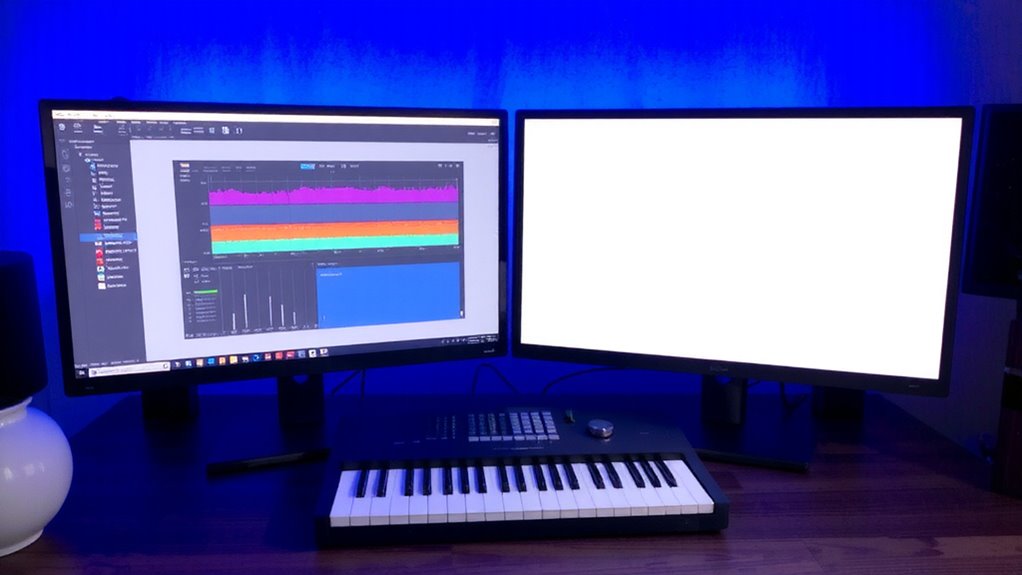
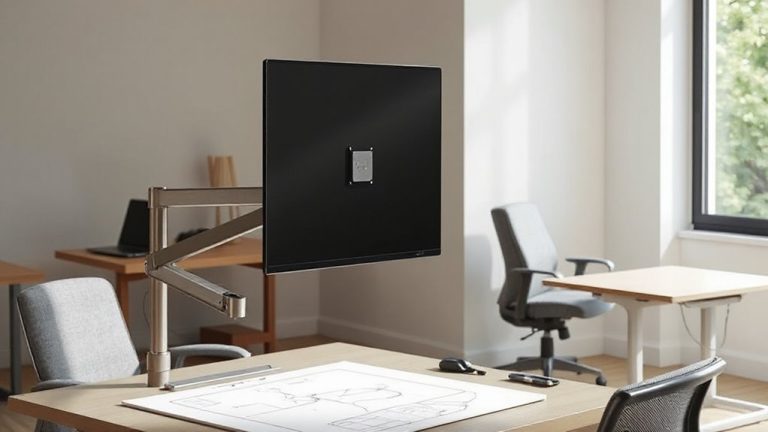
Why limit yourself to one screen when you’re juggling tracks, plugins, and lyrics all at once? Splitting DAW and lyrics across two monitors boosts screen real estate and workflow efficiency markedly. You keep your session visible on one screen-plugins, meters, and mixer-while the other displays full lyrics or a notepad, reducing tab-switching and mental load. That extra space cuts clutter, helping you focus during long sessions. Most producers using dual monitors report faster tracking and smoother edits. But it’s not magic-poor positioning can cause neck strain. You’ll need sufficient desk depth-ideally 48+ inches-and matching monitor sizes (24” is standard) for consistent visuals. Mounts with adjustable arms improve alignment. Remember, more screens don’t fix disorganization. Calibration matters: mismatched brightness or color can mislead critical decisions. It’s a serious upgrade-if set up right. For even greater flexibility, consider a 3-monitor setup to expand your workflow across dedicated spaces for DAW, lyrics, and communication or reference tools.
Pick Monitors That Match Your DAW Layout
You’re already splitting your workflow across two screens to keep your DAW clear and lyrics visible, so now it’s time to match your monitor choices to how your DAW actually lays out its interface. Prioritize screen resolution and monitor calibration for accurate waveforms and mixer visibility. A mismatched panel type or low resolution can distort fine details in automation lanes or plugin GUIs. Consider incorporating a lumbar support cushion to maintain proper posture during long mixing sessions.
| Feature | Recommended | Avoid |
|---|---|---|
| Screen Resolution | 2560×1440 or higher | 1920×1080 for DAW |
| Panel Type | IPS | TN |
| Calibration | Factory-calibrated, 100% sRGB | No calibration data |
IPS panels offer wider viewing angles and better color accuracy, essential for monitor calibration. High screen resolution guarantees more tracks fit vertically. Just remember: higher resolution demands more GPU power and may scale poorly in older DAWs without proper OS settings.
Span Your DAW Across Two Screens
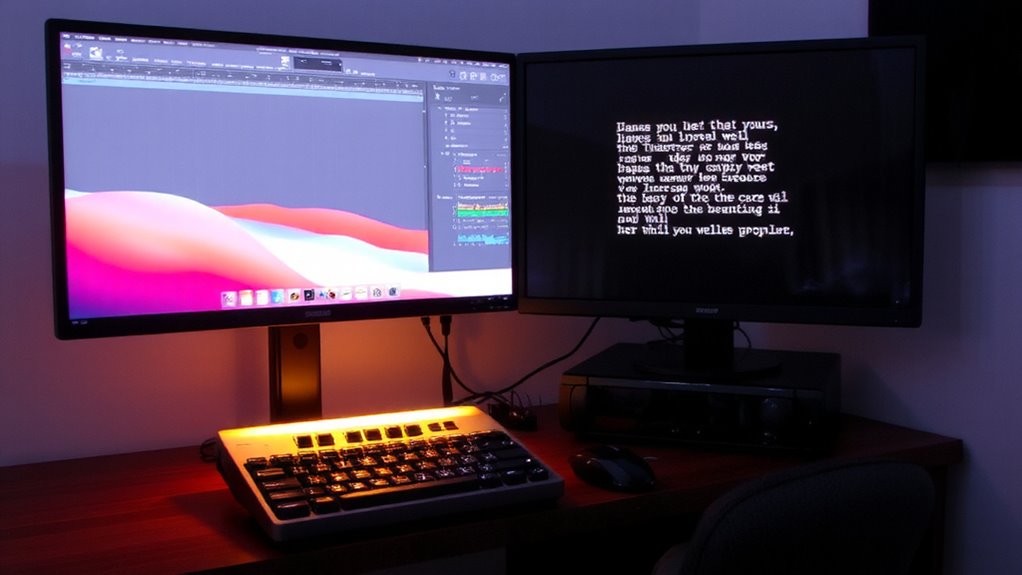
How do you stretch your DAW across two screens without sacrificing workflow or performance? You extend your desktop and set one screen for your mixer and plugins, the other for tracks and editing. Match both monitors for size and resolution to reduce eye strain and guarantee smooth panning across displays. Screen calibration is essential-color and brightness differences disrupt focus, especially in dim studio lighting. Use hardware calibration tools like the X-Rite i1Display for consistency. Secure all connections with reliable HDMI or DisplayPort cables, and invest in solid cable management to avoid clutter and signal interference. Tidy routing protects ports and improves airflow. Note: performance dips may occur if your GPU isn’t rated for dual 4K output. Always check GPU specs-integrated graphics often struggle. Dual monitors boost space, but only if your system and setup can keep up. For immersive multi-display setups, consider monitor choices tailored for triple screen sim racing to ensure seamless bezel alignment and color uniformity.
Show Lyrics And Vocal Timing On Screen Two
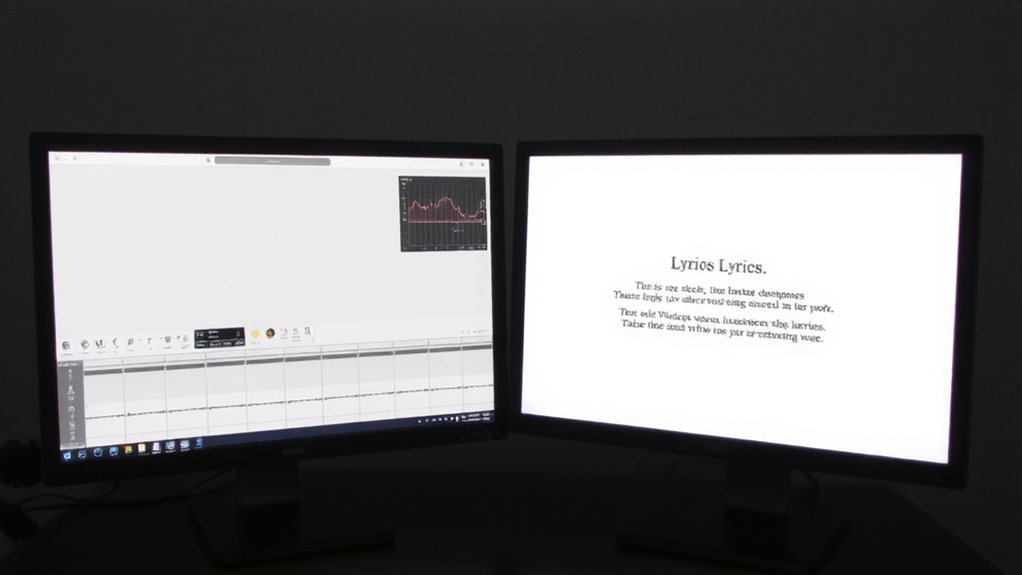
While your primary screen handles tracks and editing, dedicating the second monitor to lyrics and vocal timing can streamline vocal production-just don’t treat this as a universal fix. You’ll get tighter vocal alignment when lyrics are front and center, reducing glances away from your mic. Use a teleprompter app or DAW plugin to display scrolling lyrics synced to tempo-this improves lyrics sync, especially during fast vocal takes. Keep font size large enough to read from your singing position, and adjust scroll speed so words match your timing. A matte screen helps cut glare if you’re recording under lights. Just mind the lag-some apps delay the text slightly, throwing off your rhythm. Test playback to confirm timing accuracy and tweak settings as needed. This setup works best when you’re tracking vocals yourself. If you’re engineering for others, they might find the second screen distracting. Plan your layout accordingly.
Keep Lyrics Visible While Mixing
Keeping lyrics visible during mixing isn’t just helpful-it’s a practical move that sharpens focus on vocal delivery and timing nuances. You’ll catch missed beats or slurred words faster when lyrics stay in your line of sight, especially on a secondary monitor dedicated to text. This setup supports accurate lyric synchronization, letting you align vocal phrasing with instrumental hits in real time. Use vocal annotation tools in your DAW or a simple text editor to mark breaths, emphasis, or tricky sections directly beside the lyrics. Just make certain font size is legible from your mixing position-16pt at minimum on a 24-inch 1080p screen works for most. Avoid clutter; only show essential lines. Wireless interference or monitor lag can break focus, so test HDMI or DisplayPort connections thoroughly. Dual-monitor arms with VESA compatibility help position screens ergonomically, but make certain your GPU supports the resolution and refresh rate you need.
On a final note
You’ll gain efficiency using two monitors: keep your DAW on the main screen and lyrics with vocal timing on the second. This setup boosts tracking accuracy and keeps your workflow smooth. Use identical monitors for consistent color and response, like two 27-inch IPS panels. Mount them at eye level, side by side. But beware: extra screens increase eye strain and demand precise cable management. Test for lag-especially with audio playback-and confirm driver stability across your OS and DAW.