Using a Remote Camera Control App to Adjust Framing Without Touching Equipment
You can adjust your camera’s framing remotely using apps like CamRanger or DSRLocker on iOS or Android, provided your Canon, Sony, or Nikon model is supported. Connect via Wi-Fi for flexibility or USB-C for reliability, though range and signal interference-especially on 2.4 GHz-may affect performance. Real-time preview, tap-to-focus, and exposure controls let you fine-tune composition precisely. For best results, test the setup beforehand and guarantee firmware is current, since lag or disconnections can disrupt timing. Strong compatibility and a stable link make touch-free framing realistic, but success varies by device and environment-follow these guidelines to optimize your control.
Notable Insights
- Use a remote camera control app to view live footage on your phone for precise framing without physical adjustments.
- Enable digital zoom in the app to inspect focus and composition details while controlling the camera remotely.
- Position the camera in hard-to-reach angles, then adjust framing via your smartphone screen with real-time preview.
- Maintain stable Wi-Fi or USB-C connection to ensure seamless live view and avoid lag during framing adjustments.
- Utilize focus peaking and grid overlays in the app to enhance framing accuracy and visual alignment remotely.
Choose the Best Remote Camera Control Apps
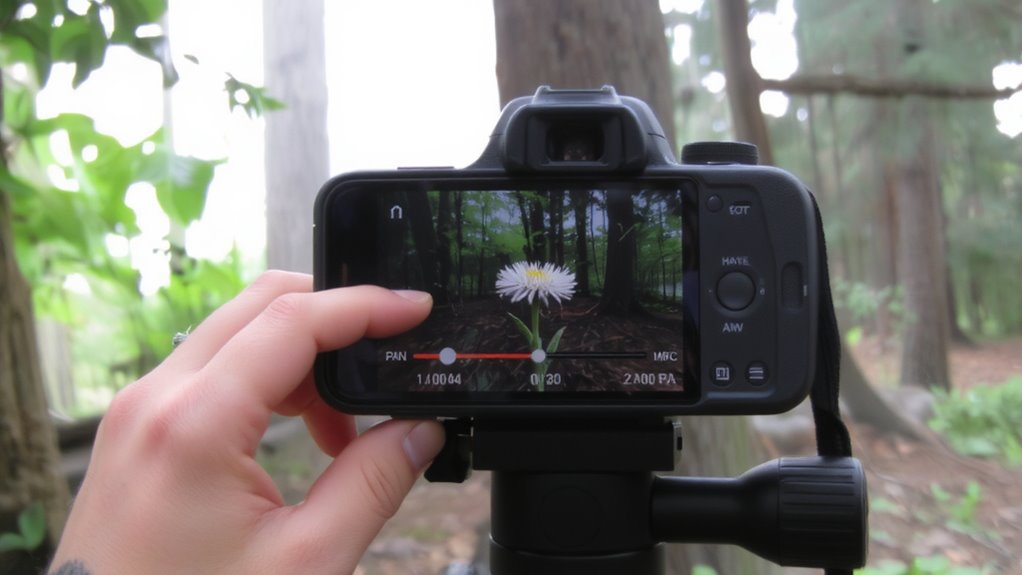
Wondering which remote camera control apps actually deliver a reliable experience without overcomplicating your setup? You’ll want ones with solid app compatibility and an intuitive user interface. Apps like CamRanger and DSRLocker work smoothly with iOS and Android, supporting brands like Canon, Sony, and Nikon-just confirm your model is on their compatibility list. The best options give you real-time preview, focus peaking, and exposure controls without lag. A clean, responsive user interface makes adjusting settings fast, even during live shoots. But don’t assume all features work equally well-some limit 4K streaming on older devices. Most offer free trials, so test before committing. Reliable performance matters more than flashy tools, especially if you’re using the app in varied lighting or angles. Check firmware requirements and update your camera too-compatibility issues often stem from outdated software.
Set Up Your Camera for Remote Access
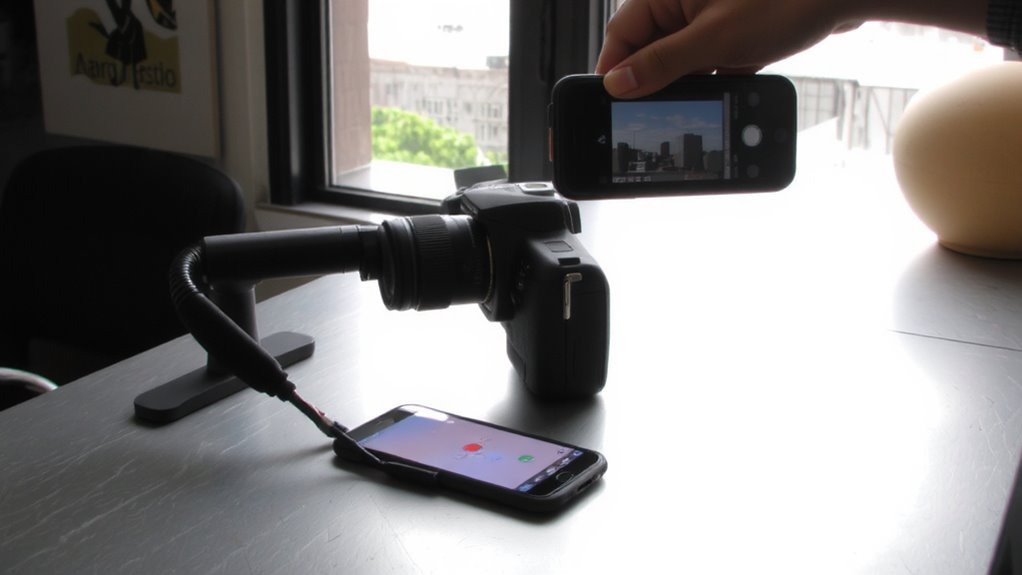
Getting your camera ready for remote access starts with a solid connection-Wi-Fi or USB, depending on your model and app. Reliable network stability guarantees smooth live view and quick command response. For consistent results, place your camera within close range of the router if using Wi-Fi, or use a high-quality USB cable for wired control. Camera placement matters-mount it securely on a tripod or stable surface where your app can maintain a clear link.
| Method | Best For | Key Limitation |
|---|---|---|
| Wi-Fi | Wireless freedom | Network stability varies |
| USB-C | Speed & reliability | Limited range |
| Bluetooth | Initial pairing | Not for live view |
Avoid overcrowded networks, and test connections before critical shoots. Wired setups often win for reliability, though they restrict camera placement flexibility. Always check manufacturer support docs for compatibility.
Control Focus & Exposure From Your Phone
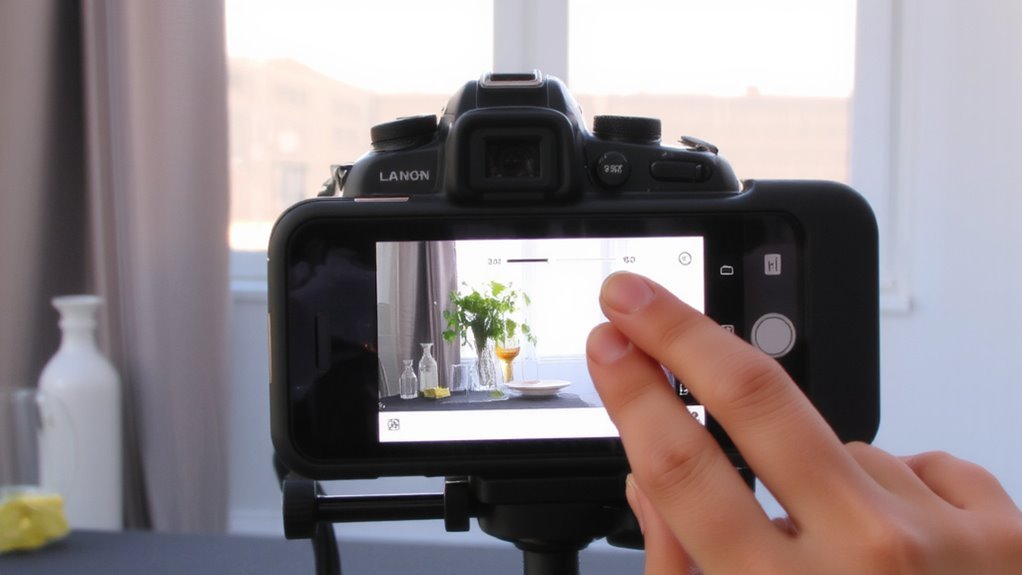
You’ll get precise control over focus and exposure using your phone, letting you adjust settings in real time without touching the camera-ideal for minimizing shake during long exposures or tricky angles. Tap to set manual focus on your subject, then fine-tune sharpness with a slider for critical clarity, especially useful in shallow depth-of-field shots. You can also use exposure lock to maintain consistent brightness, even if the scene changes-perfect for time-lapses or interviews where lighting fluctuates. Most apps display a live histogram, helping you avoid blown-out highlights or crushed shadows. Just remember, focus accuracy depends on screen resolution and connection stability, so zoom in digitally on your phone to confirm detail before shooting. While Wi-Fi tethering works well within 30 feet, walls or interference can cause lag. Always test your setup beforehand, especially in low light, where both focus and exposure adjustments become more sensitive.
Shoot Creatively With Remote Camera Control
How would your shooting flexibility improve if you could trigger the shutter from across the room? With remote camera control, you gain freedom to explore creative angles without disturbing your setup. Place your camera in tight spots or at unusual heights-like ground level or overhead-and shoot from a distance using your phone. This control enhances timing precision, letting you capture fast-moving subjects or fleeting expressions the instant they happen. You can also shoot self-portraits or group shots without rushing back to the camera. Just keep in mind, success depends on stable Wi-Fi or Bluetooth, and slight lag may affect split-second shots. While apps work reliably with supported models like Sony Alpha or Canon EOS, older cameras may lack full functionality. There’s no warranty on app performance, and results vary by environment. Still, for dynamic shots, the trade-off is often worth it.
Fix Common Remote Connection Issues
A solid remote connection makes all the difference when you’re trying to capture the perfect shot from across the room, but even the most reliable apps can run into hiccups. Wi-Fi interference from routers, microwaves, or nearby devices often disrupts your signal, so position your camera and phone within close range, avoiding thick walls. You’ll get better results on a 5 GHz network if your gear supports it, though it has shorter range than 2.4 GHz. Check app compatibility-older phone models or outdated OS versions sometimes fail to sync, even with the right camera firmware. Restart the app or reconnect the Wi-Fi if controls lag or disconnect. While most apps recover quickly, persistent issues may mean your setup isn’t fully supported. Always test the connection before filming to avoid surprises.
How Remote Camera Control Works
While the technology might seem complex at first, remote camera control fundamentally relies on a direct wireless link or network connection between your smartphone and camera, allowing you to adjust settings, trigger the shutter, and view a live feed in real time. You’ll need compatible gear-most modern mirrorless and DSLR cameras support Wi-Fi or Bluetooth pairing via manufacturer apps. The connection is generally reliable, but signal interference from walls or other wireless devices can delay commands or disconnect the feed. Keep both devices within 30 feet for best results. You’re also trading some battery life-streaming video and maintaining a link increase battery drainage on both the camera and phone, sometimes cutting runtime by up to 40%. Use AC power when possible or carry spares. While it’s a powerful tool for framing without touch, plan for these limits during long sessions.
On a final note
You’ll get sharp, stable shots using a remote camera app, especially with a tripod-mounted phone or DSLR. Apps like Canon Camera Connect or FocusStack work reliably over Wi-Fi, though signal lag can delay shutter response by up to two seconds. Pair with a powered USB cable for uninterrupted power during long sessions. Just know battery drain and app crashes happen-always test gear before critical use.