How to Set up a Standing Desk for Use With a Wall-Mounted Display
Mount your monitor on a sturdy, adjustable wall arm that supports its VESA pattern and weight-ideally one with gas springs and cold-rolled steel for smooth, reliable motion. Set your standing desk so elbows stay at 90 degrees, then align the screen’s top at eye level to reduce neck strain. Keep cables tidy with raceways and position lighting to cut glare. Use a height-adjustable keyboard tray if needed. Just make sure you anchor into studs, not drywall. You’ll want to get the details right for long-term comfort and flexibility.
Notable Insights
- Choose a sturdy, adjustable wall mount compatible with your monitor’s VESA pattern and weight.
- Mount the display so the top is at or slightly below eye level to reduce neck strain.
- Set desk height so elbows rest at 90 degrees with forearms parallel to the floor.
- Position keyboard and mouse at the same height to keep wrists straight and shoulders relaxed.
- Use cable management and proper lighting to minimize clutter and screen glare.
Choose the Right Wall Mount for Your Monitor
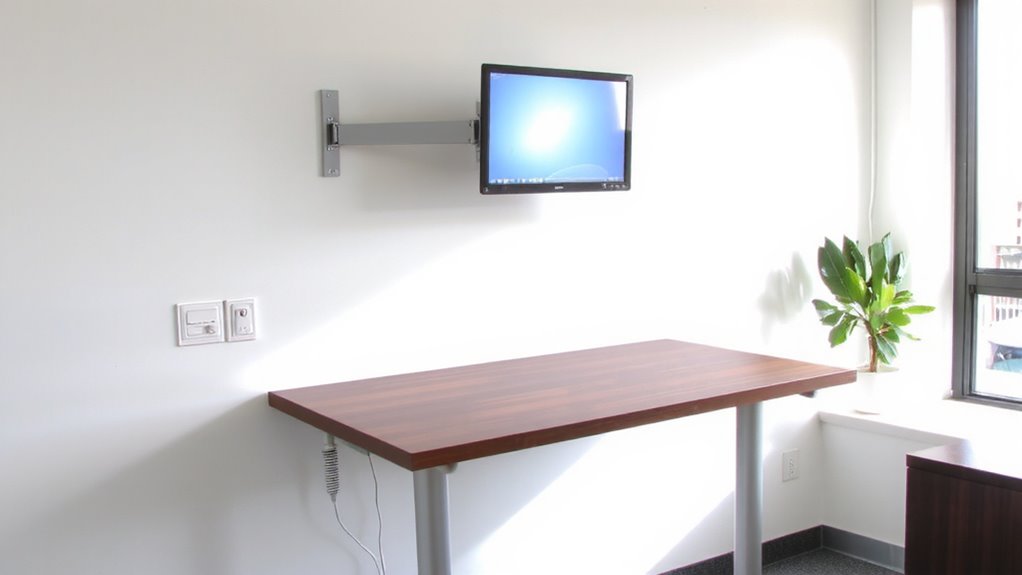
A solid wall mount makes all the difference in a standing desk setup, and you’ll want one that’s both sturdy and adjustable. Look for models with adjustable arms that support smooth height and tilt changes, so you can reposition your screen without strain. If you use a dual monitor setup, confirm the mount specifies dual monitor compatibility and supports the combined weight-typically 17–22 lbs per arm. Choose VESA-standard mounts (75×75 or 100×100 mm) to guarantee fit with most screens. Cold-rolled steel arms offer durability, while gas-spring mechanisms allow easy adjustments. Avoid cheaper plastic joints-they wear quickly under daily use. Mounts from reputable brands often include lifetime warranties and pass rigorous stress tests. But remember: a heavy-duty mount requires anchoring into wall studs, not just drywall anchors, for safety.
Set Your Standing Desk to the Ideal Height
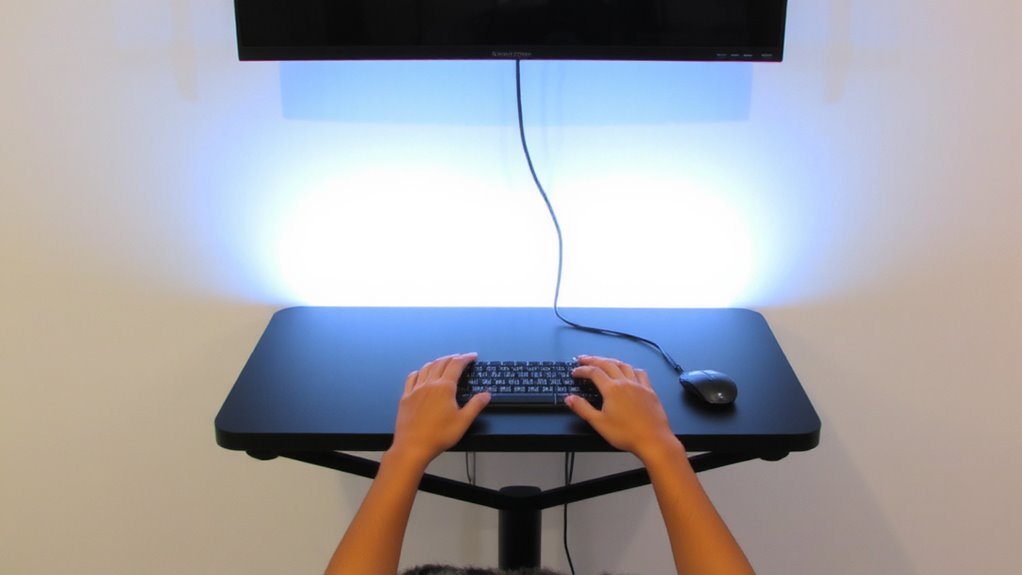
You’ve picked a strong, adjustable wall mount-now it’s time to align your standing desk height so your posture stays neutral and comfortable during long work sessions. Set the desk so your elbows rest at 90 degrees when typing, with forearms parallel to the floor. This supports good standing posture and reduces shoulder strain. Most people find their ideal height between 38 and 46 inches, depending on height and stool use. Guarantee enough desk clearance-around 29 to 30 inches-from the floor to allow leg movement without bumping into base supports. Test multiple heights over a day; small changes make a real difference in comfort. Adjustability matters, especially if sharing the space. Don’t lock the height too soon-fine-tune after a few work sessions. The right setting balances ergonomics and flexibility, without overpromising instant relief. For optimal long-term comfort, consider pairing your setup with one of the best standing desks for your workspace.
Mount the Display at Eye Level
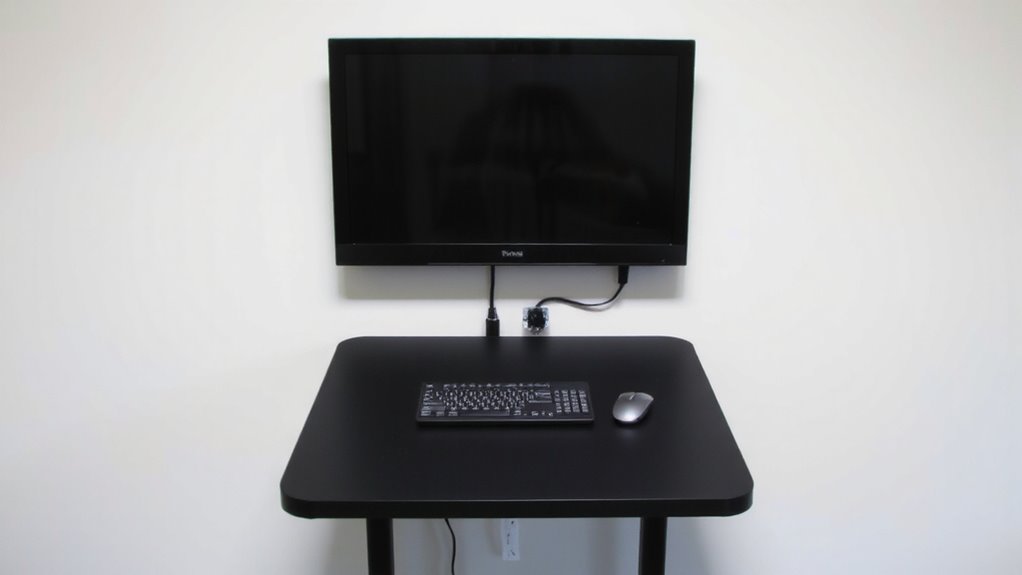
While getting the desk height right lays the foundation, mounting your display at eye level is what truly prevents neck strain during long workdays-position the top of the screen at or slightly below your natural eye line, about 17 to 19 inches from your face when standing. This guarantees proper ergonomic alignment, keeping your head neutral and reducing spinal pressure. You’ll gain better visual comfort, minimizing glare and eye fatigue over time. Use a tilting or articulated wall mount to fine-tune the angle, especially if your viewing distance varies. Not all monitors tilt enough, so check specs for at least -15° of forward tilt. Ceiling height and wall stud placement may limit ideal positioning-measure before mounting. Adjustable arms offer more flexibility but can be pricier and require secure anchoring. Getting it right matters, but perfection isn’t always possible in smaller spaces or uneven walls. For customizable setups, consider best monitor mounts that support height, tilt, and depth adjustments.
Position Keyboard and Mouse to Avoid Strain
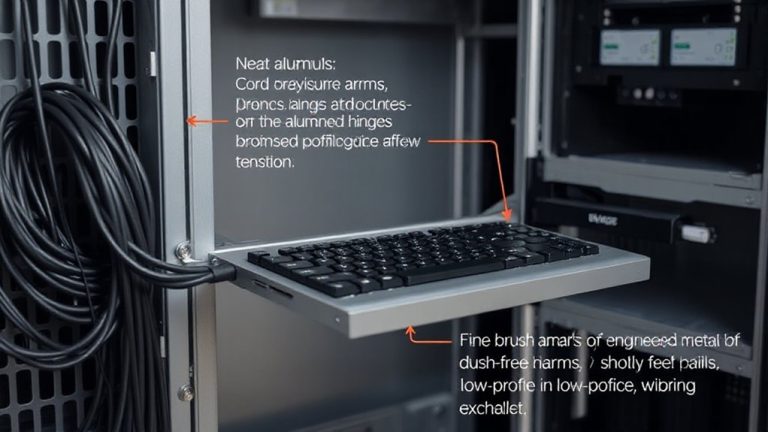
Ergonomics hinges on more than just screen height-your keyboard and mouse placement plays a critical role in preventing wrist, shoulder, and forearm strain. You need proper wrist alignment and neutral arm posture to avoid discomfort during long work sessions. Position your keyboard so your elbows stay close to your body and bent at 90 degrees, with wrists straight and not bent up, down, or to the side. Your mouse should sit at the same height and within easy reach-no stretching. Consider using a height-adjustable keyboard tray if your desk doesn’t allow proper arm posture. Poor alignment over time can lead to repetitive strain, even with premium gear. These adjustments matter more than expensive accessories. While wall-mounted displays save space, they can complicate desk layout-plan your setup carefully to maintain comfort without sacrificing efficiency. For added convenience and cable management, consider integrating Top Desk Accessories Picks into your workspace design.
Route Cables for a Clean Look
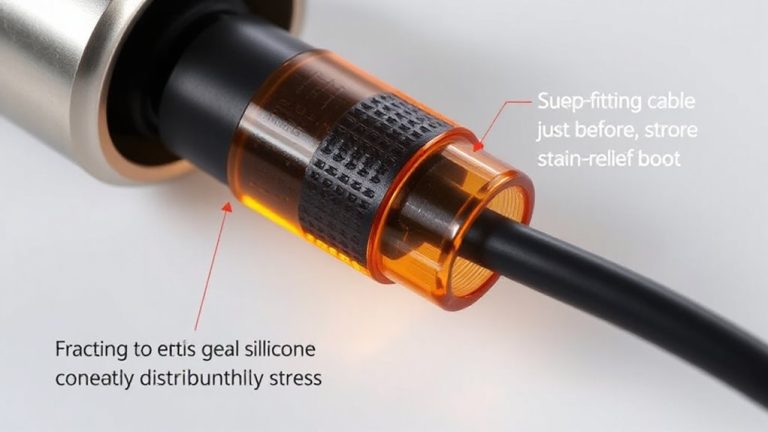
Since wall-mounted displays free up desk space, you’ll still need to manage their cables neatly or risk creating visual clutter and tangling hazards. Good cord management isn’t just about looks-it improves safety and ease of use. Use adhesive cable clips to secure power, HDMI, and USB cables along the wall or desk edge. Run them vertically from outlets to your monitor’s input panel for a clean line. Here’s a quick guide:
| Method | Best For | Notes |
|---|---|---|
| Cable Clips | Short wall runs | Low-cost, easy to reposition |
| Raceways | Multiple desks | Sturdy but visible |
| Cord Covers | Permanent setups | Sleek finish, harder to modify |
Avoid over-tightening clips to prevent damage. Cord management works best when planned early-adding it later often means drilling or re-routing.
Cut Glare With Proper Lighting
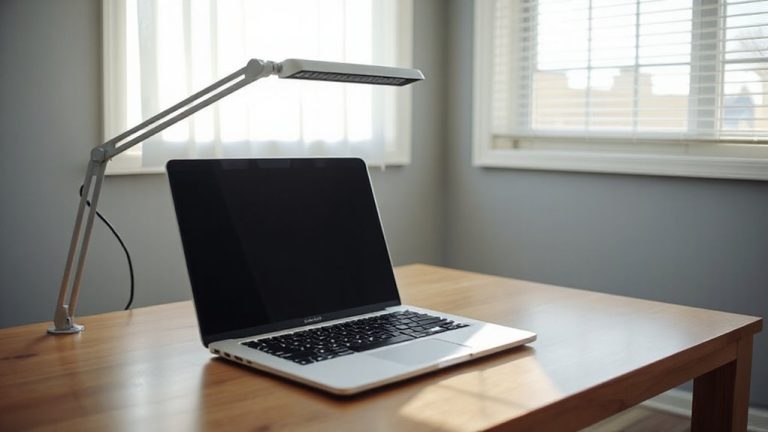
You’ll cut down glare markedly by positioning your wall-mounted display opposite neutral-colored walls and using indirect lighting, as bright surfaces facing the screen reflect light and wash out details. Proper room lighting is key-avoid overhead fluorescents or direct sunlight, which create harsh reflections even on matte screens. Instead, use adjustable LED task lights with diffusers to maintain consistent ambient light without hotspots. Pair this setup with anti glare filters applied directly to the display; they reduce reflected glare by up to 70% in real-world testing but may slightly reduce color accuracy or screen clarity. Most reputable filters come with scratch-resistant coatings and 2-year warranties, balancing durability and performance. While they help, anti glare filters aren’t a substitute for smart lighting design. You’ll get the best results by combining thoughtful room lighting with strategic display placement-neutral walls, indirect sources, and minimal direct light paths to the screen.
Switch Between Sitting and Standing Smoothly
While alternating between sitting and standing can boost focus and reduce lower back strain over time, doing it effectively means investing in a desk that adjusts smoothly and supports a stable shift. A motorized sit-stand base with dual motors guarantees an ergonomic change, moving your setup-especially a wall-mounted display-without wobbling or delay. Look for models with a lift capacity of at least 150 pounds and a rise speed of about 1.5 inches per second to maintain seamless posture throughout the day. Test the desk’s stability at full height; any noticeable shake can disrupt your workflow. Most quality brands offer an 8-year warranty, but check real-world reviews for noise and reliability. Balance convenience with setup limits-guarantee floor clearance and easy cable access. While the change feels effortless over time, poor workstation alignment afterward can still cause strain, so recheck monitor height and keyboard position after every adjustment.
On a final note
You’ll get the best results with an adjustable wall mount and a standing desk set so the display’s center hits at eye level-around 42 to 46 inches high for most people. Pair it with an external keyboard and mouse on the desk surface to keep wrists neutral. Cable clips and grommets keep wires tidy, while indirect lighting cuts screen glare. But frequent posture switches mean checking mount stability and desk motor warranties-especially under heavier displays. Some mounts wobble slightly; tested rigs show sturdier arms handle 20–25 lb monitors without sag.