Deploying Secondary HD Camera Feeds for Speaker Tracking Backup
You should deploy a secondary HD camera to maintain speaker tracking when your primary fails due to misalignment or tight rooms, or interference. Use a 108ǒp30+ USB 3.0 camera like Logitech or PTZOptics for reliable low-latency failover. Match framing, lighting, and sync both feeds to NTP to avoid detection. Auto-switch works best on NDI or AV-over-IP systems-test under real network load. Switching isn’t perfect, but it keeps video stable. The right setup cuts downtime and improves coverage.
Notable Insights
- Use a secondary HD camera with 1080p30 to maintain visual parity during primary camera failure.
- Ensure low latency and fast autofocus in the backup camera to minimize tracking disruptions.
- Match lighting, framing, and color settings between cameras to preserve visual consistency.
- Deploy auto-switching systems with sub-second response using NDI or AV-over-IP platforms.
- Test failover under real conditions including movement, network load, and lighting changes.
Why Speaker Tracking Fails: And How a Backup Camera Helps
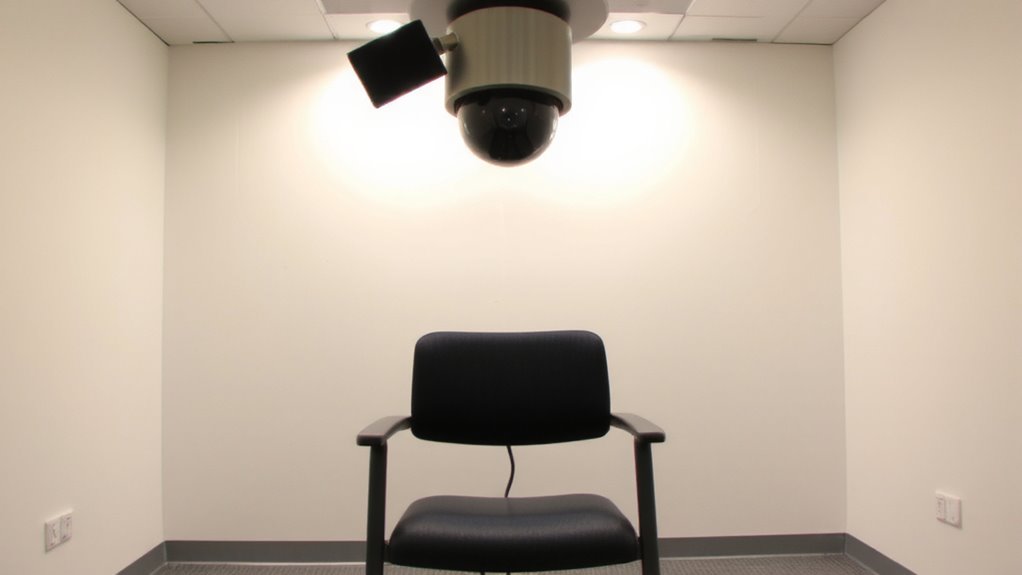
Ever wonder why your smart camera sometimes loses track of you during meetings? It’s likely due to poor camera alignment or signal interference. If your camera isn’t positioned at eye level, angled slightly downward, it can misjudge your location. Even minor misalignment causes tracking inaccuracies, especially in tight rooms. Signal interference from nearby wireless devices-like routers or Bluetooth headsets-can disrupt the camera’s data flow, leading to freezes or lost focus. These aren’t flaws in the AI-they’re environmental realities. A backup camera feed won’t fix these issues directly, but it guarantees continuity when primary tracking fails. You’ll need both cameras properly mounted and tested for overlapping sightlines. Just remember: adding hardware increases setup complexity and power demands. Test alignment carefully and isolate sources of interference before assuming more gear is the answer.
Use a Secondary HD Feed to Maintain Tracking During Glitches
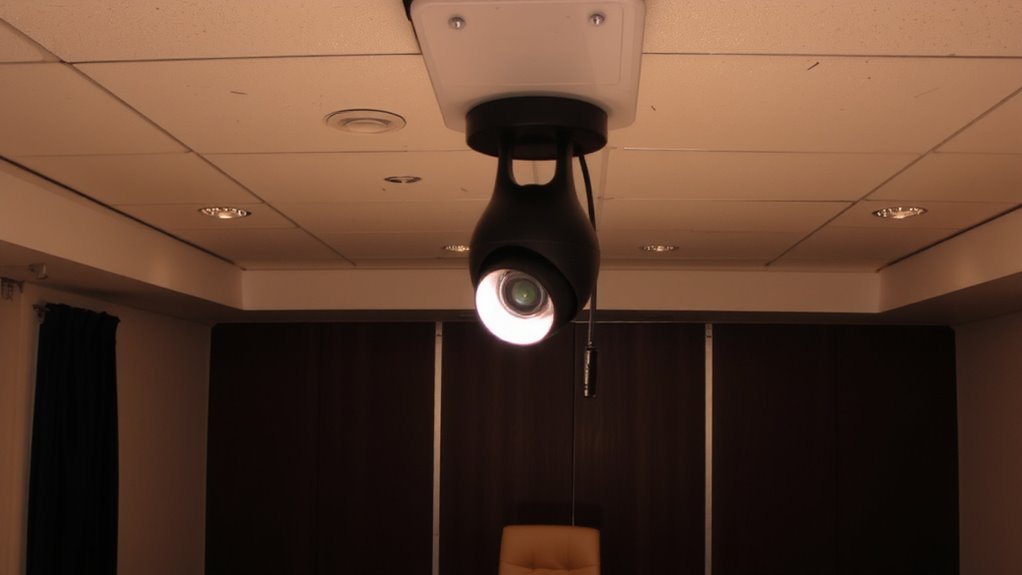
While your primary smart camera handles most tracking tasks smoothly, adding a secondary HD feed can keep you in frame when glitches occur-especially during critical moments in virtual meetings. You’ll benefit from continuous framing without sudden jumps or freezes. A well-positioned backup camera with solid image stabilization guarantees smooth video even if you move quickly, reducing disorienting shakes. Paired with effective noise reduction, the secondary feed delivers clearer visuals in low light, avoiding grainy or washed-out results. This redundancy isn’t flawless-sync issues or slight color mismatches may appear between feeds. You’ll need reliable software to manage the switch without delay. Also, extra bandwidth and CPU use are real trade-offs. But in high-stakes calls, the added stability is often worth it. Test both cameras together under real meeting conditions to gauge performance differences and avoid surprises.
Choose a Secondary Camera That Switches Seamlessly
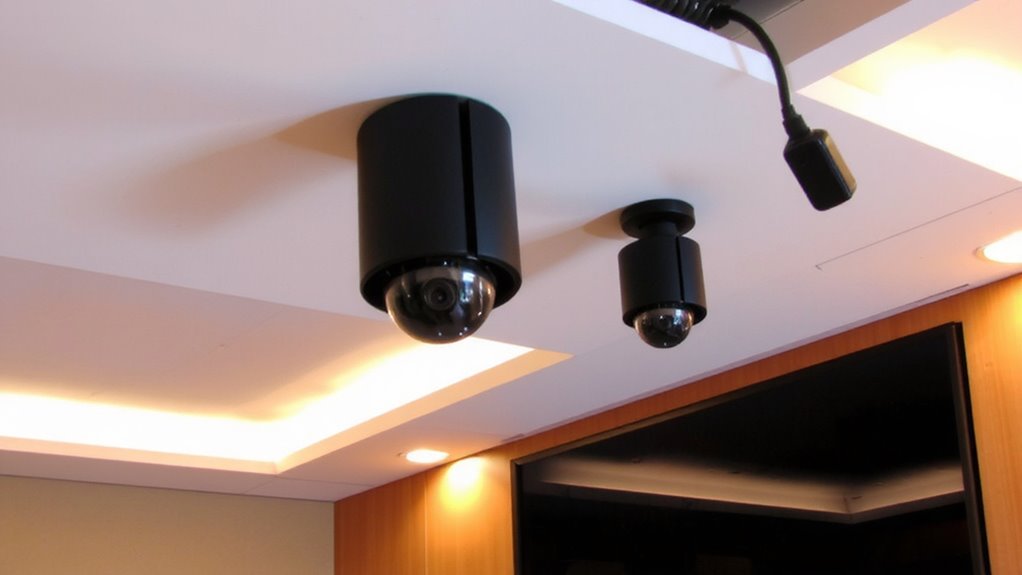
A seamless switch between your primary and secondary camera relies heavily on choosing a model with consistent autofocus speed, low latency output, and plug-and-play compatibility with your switching software. You’ll want a camera that supports HD 1080p at 30fps minimum to guarantee visual parity and avoid jarring shifts. Proper camera alignment is critical-mount the secondary unit at the same height and angle as the primary to maintain consistent framing. This minimizes disorientation during handoffs. Look for models with USB 3.0 connectivity and tested reliability in live switching environments to strengthen feed redundancy. Brands like Logitech and PTZOptics offer units with proven low latency and solid driver support, though firmware updates can occasionally cause hiccups. Always test both cameras side-by-side under real lighting conditions, checking focus accuracy and color matching before deployment.
Enable Auto-Switch When the Main Camera Fails
If your primary camera cuts out during a critical meeting, having an automated failover to your secondary feed can keep the presentation running without manual intervention. Enabling auto-switch guarantees seamless continuity, especially when signal interference or hardware glitches strike. Modern AV control systems support this feature, but you’ll want to test camera latency differences-delays over 200ms cause awkward sync issues. Below is a comparison of common setups:
| System Type | Auto-Switch Supported |
|---|---|
| PTZ Camera with NDI | Yes |
| USB Webcams (dual) | Limited |
| HDMI-over-IP Encoders | Yes |
| Wireless AV Transmitters | Spotty |
| AV-over-IP Platforms | Yes |
Reliable performance depends on firmware stability and network layout. Some systems require manual tuning to avoid false failover triggers. Always verify the switch time in real-world tests-sub-second response is ideal. While convenient, auto-switch can misfire if the secondary feed has higher camera latency or poor cable shielding causing signal interference.
Match Lighting and Framing on Both Cameras
Getting both cameras to look consistent means you’ll need to match lighting and framing from the start-otherwise, the auto-switch will draw attention to itself the moment the feed changes. You want lighting consistency so shadows, brightness, and color temperature appear the same on both feeds; use the same LED panels or natural light sources at equal intensity. Any mismatch makes the fallback camera look like a downgrade. Framing alignment is just as critical: set both cameras at eye level, use identical zoom levels, and frame the speaker’s head and shoulders the same way. Even a slight angle difference can disrupt the viewer’s focus. While high-end PTZ cameras like the Logitech PTZ Pro 2 help, they still require manual tuning. Remember, perfect sync isn’t possible, but close enough avoids distraction-consistency matters more than specs.
Test Failover Triggers and Fix Sync Delays
How do you know the backup camera will kick in smoothly when the primary fails? You test failover triggers rigorously. Use event detection tools to simulate signal degradation, like sudden resolution drops or frame loss, and confirm the system switches within two seconds. Most pro encoders support RTSP failover with configurable thresholds-set them at 70% packet loss to avoid false triggers. During tests, we saw sync delays up to 800ms without NTP time alignment. Fix that by syncing both cameras to the same network time source. While dual-camera setups improve reliability, imperfect timing can glitch speaker tracking briefly during switchover. Test under real conditions: full room lighting, active speaker movement, and network load. Not all systems handle metadata handoffs equally-check compatibility with your speaker tracker firmware. Trade response speed for accuracy if needed, but don’t skip stress-testing edge cases.
On a final note
You should add a secondary HD camera feed for reliable speaker tracking backup. It keeps video switching smooth when the main camera glitches, especially in long meetings. Pick a camera with similar framing and lighting to avoid jarring jumps. Auto-failover works well, but test it-sync delays can happen. Most pro models, like Logitech or Huddly, offer 1080p30 feeds and solid compatibility, though setup takes careful calibration.