How to Position a Laptop Stand to Elevate Screen Height Without a Full Desk
Use stacked hardcover books or a foldable laptop stand to elevate your screen 5–6 inches, aligning the top with your eye level even without a full desk. Pick a lightweight, collapsible stand under two pounds if space is tight, but note: most lack height adjustability. Place it on a firm base to prevent tipping, especially on soft surfaces. Always pair with an external keyboard to maintain proper wrist alignment. For best results, check stability regularly and adjust positioning as needed-your posture will respond well, though small compromises may add up over time.
Notable Insights
- Elevate your laptop using stacked hardcover books or a sturdy tray to achieve a 5–6 inch height for proper screen alignment.
- Use a foldable, lightweight laptop stand with nonslip feet to ensure stability on uneven or soft surfaces like beds or couches.
- Position the stand on a firm base such as a board or tray to prevent sinking and maintain screen elevation on soft furniture.
- Align the top of the laptop screen with your eye level to maintain a neutral neck posture and reduce strain.
- Pair the elevated laptop with an external keyboard and mouse to maintain comfortable hand and wrist positioning while working.
Use What You Have to Elevate Your Laptop
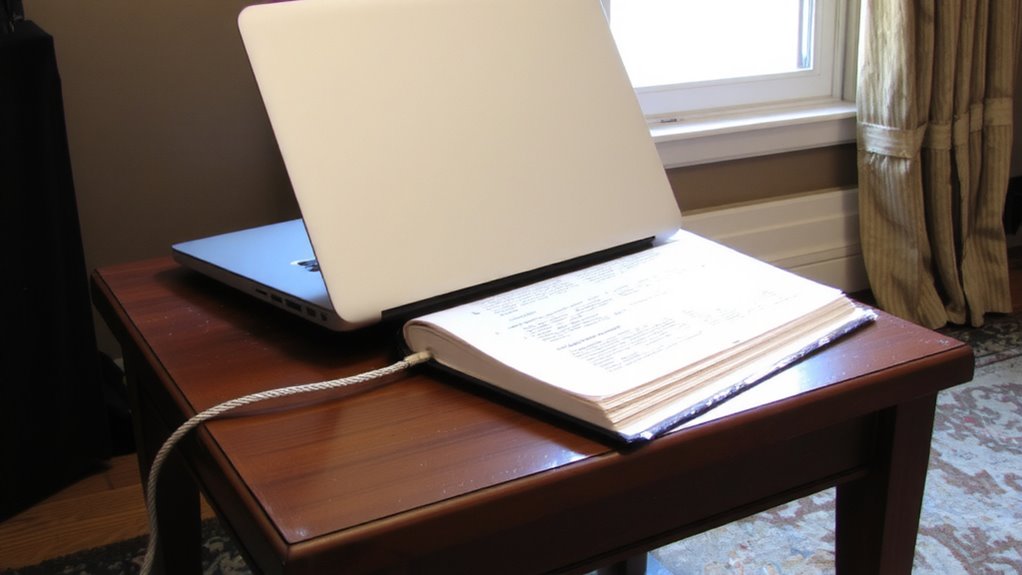
Sometimes, simplicity beats spending. You don’t need a fancy riser to elevate your laptop-just stack books or use trays you already own. A sturdy stack of textbooks or hardbacks can lift your screen to eye level, reducing neck strain. Aim for a height of 5–6 inches, which aligns the top of the screen with your gaze. Use a non-slip tray on top to keep your laptop from sliding, especially on smooth surfaces. While this DIY solution is cost-effective, it lacks adjustability and stability compared to dedicated stands. Books can shift, and trays might wobble under weight. Avoid soft-covered books-they compress and tilt. Also, make certain the base is wide enough to prevent tipping. It’s not a long-term fix, but for short-term setups or tight budgets, it works. Just monitor for shifting during use.
Pick a Compact Stand for Small Spaces
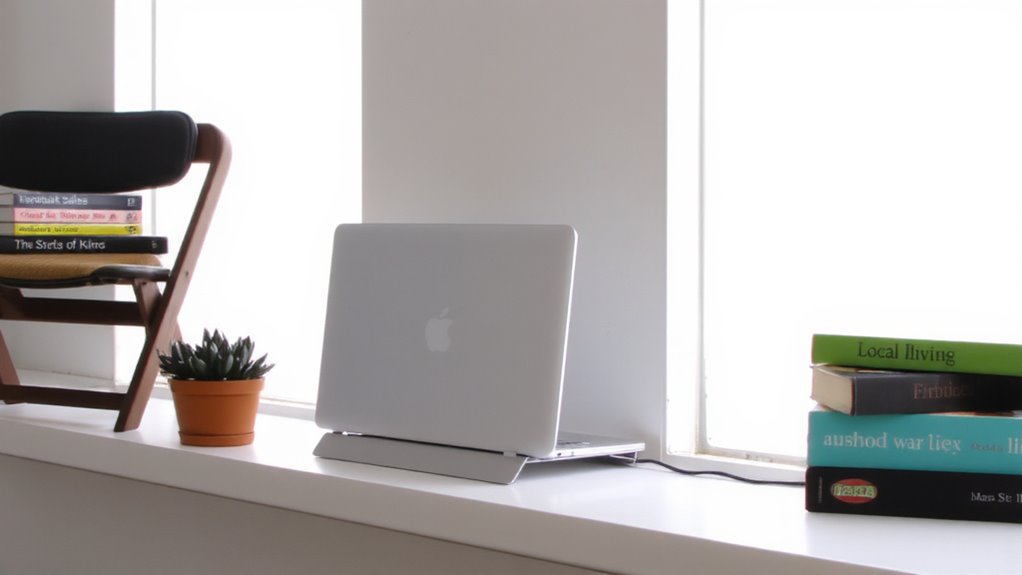
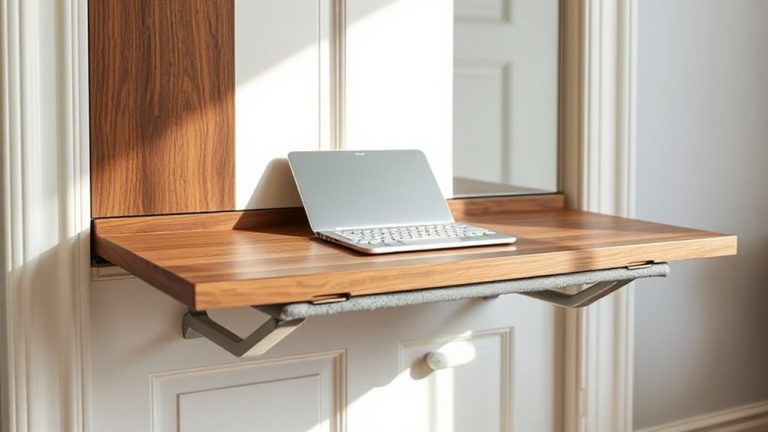
A compact stand is your best bet when desk space is limited, letting you elevate your laptop without crowding your setup. Look for a foldable design-it collapses flat for storage and fits in tight spots when not in use. Many models weigh under two pounds and open in seconds, making them ideal for shared tables or small apartments. Some compact stands support wall mounting, freeing desk space entirely and offering height flexibility. Wall-mounted options work well in dorms or kitchens where surfaces are short-term. Just verify your wall can handle the load, and use proper anchors. While compact stands lack the adjustability of larger models, their space-saving perks outweigh the trade-offs for most. Always check weight limits-most support up to 15-inch laptops. Sturdiness varies; read warranty terms, as better ones offer at least one-year coverage.
Set Your Screen at Eye Level for Better Posture
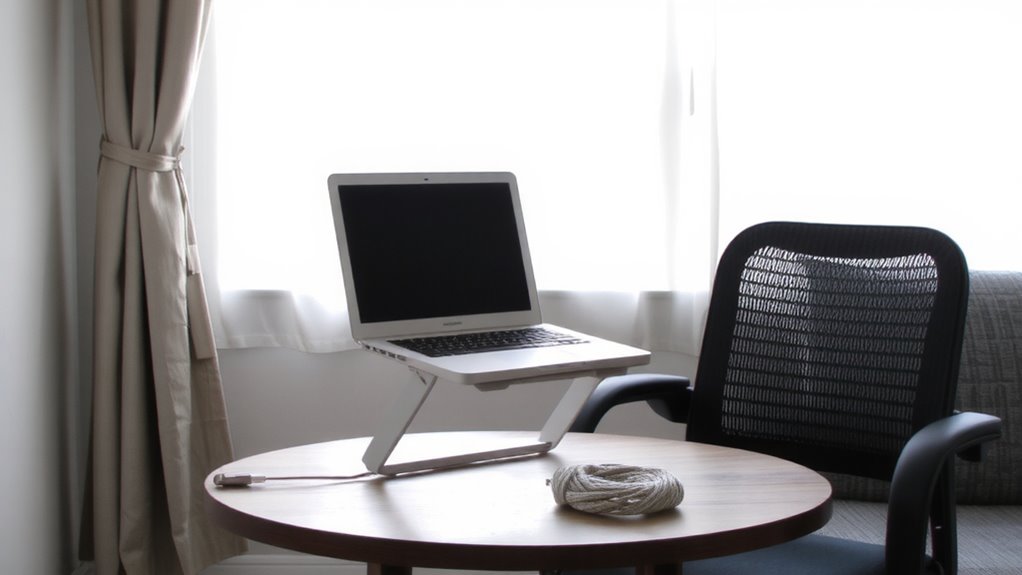
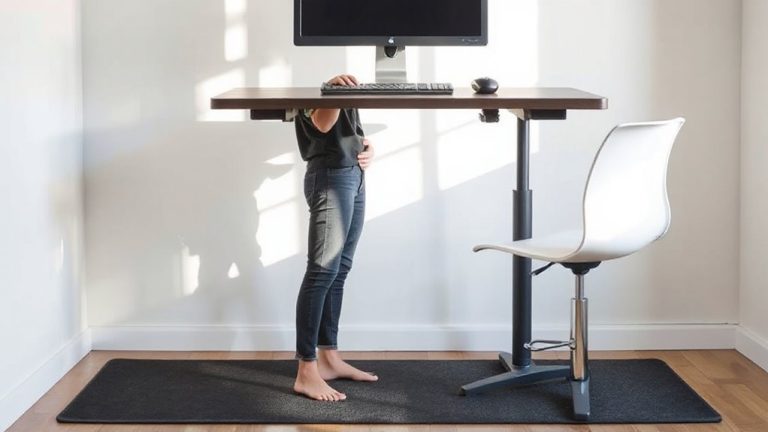
Positioning your screen at eye level is one of the most effective ways to maintain good posture and reduce neck strain during long work sessions. You should align the top of your screen with your horizontal line of sight, promoting proper ergonomic alignment. This setup keeps your neck neutral, minimizing tension and discomfort. Most people benefit from raising their laptop 6 to 12 inches using a stand, especially when working from a couch or dining chair. While this improves posture, it can expose limitations in compact stands-some lack height adjustability or tilt options. Also, without an external keyboard, your typing position might suffer even if your screen is well-placed. Always pair screen elevation with a separate keyboard to maintain full ergonomic alignment and avoid new wrist or shoulder issues. Results vary by body size and seating, so adjust carefully. For a more adaptable solution, consider a top standing desk converter that offers both height range and tilt flexibility.
Keep Your Laptop Steady on Soft Surfaces
When working from a couch or bed, using a laptop stand alone won’t keep your device stable-soft surfaces compress under weight, so even a well-built stand can wobble or sink without a solid base. For better surface stability, place a firm board or tray underneath the stand; this simple addition spreads pressure evenly and prevents sinking. Look for stands with rubberized feet or nonslip pads-they provide grip enhancement and reduce shifting during typing. Some models include adjustable legs with tips designed for varied terrains, which help on uneven ground. While these features improve balance, they’re not foolproof on thick blankets or plush couches. Always test stability before relying on it long-term. A lightweight, rigid platform paired with grip enhancement tech offers a practical fix, but remember: no stand can fully compensate for an unstable foundation. Prioritize flat, firm layers beneath your setup for best results.
Pair With an External Keyboard for Comfort
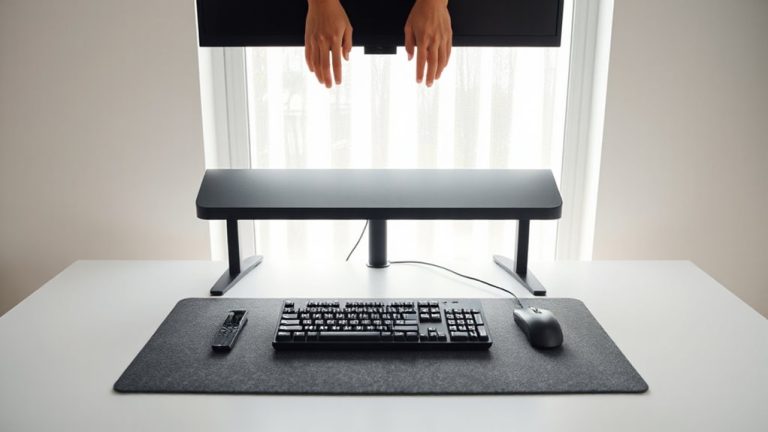
You’ll get the most ergonomic benefit from your laptop stand by pairing it with an external keyboard, since propping up the screen alone only solves part of the posture puzzle. Without a separate keyboard, you’ll have to reach up or hunch forward, disrupting ergonomic alignment and straining your shoulders. An external keyboard lets you position your hands at desk height, promoting natural wrist support and reducing fatigue during long sessions.
| Feature | Benefit |
|---|---|
| Wireless design | Reduces clutter, offers flexible placement |
| Tilt-adjustable legs | Customize angle for better wrist support |
| Full key spacing | Improves typing accuracy vs. compact models |
| Low-profile keys | Encourages shallow keystrokes, less finger strain |
Position the keyboard centered with your body, about 5–10 cm from the edge. While this setup improves comfort, it does require more space and initial adjustment. Not all keyboards deliver equal support-look for ones with negative tilt options to maintain neutral wrist posture.
On a final note
You should elevate your laptop to eye level-about 15 to 20 inches above your desk-to reduce neck strain. A compact stand works well, even without a full desk, but make sure it has rubber grips to stay stable on soft surfaces. Pair it with an external keyboard to maintain proper typing posture. Not all stands collapse neatly, so check dimensions if space is tight. Avoid wobbly models; real-world tests show metal ones last longer but cost more.