Identifying and Quieting Noisy Keyboards and Mice in High-Use Work Environments
You’ll cut office noise best by first measuring keyboards and mice with a decibel app-many exceed 45 dB. Switch to silent mechanical keyboards with linear or tactile switches, which reduce sound by up to 40%, or use foam mods for a cheaper fix. Replace clicky mice with silent models dropping noise to ~30 dB. Pair these with lighter typing to stay under 50 dB. Test setups over full workdays, since real use reveals hidden clatter. There’s more to get right when balancing comfort, durability, and long-term quiet.
Notable Insights
- Use a decibel meter to identify keyboards and mice exceeding 45 dB during normal use.
- Replace loud membrane or mechanical keyboards with silent mechanical models featuring noise-reducing switches.
- Swap clicky mice with silent variants that reduce click noise by up to 90%.
- Install foam mods or O-rings to dampen key bottom-out sound in existing keyboards.
- Encourage light typing and proper ergonomics to minimize noise and extend device lifespan.
Find Noisy Keyboards and Mice First
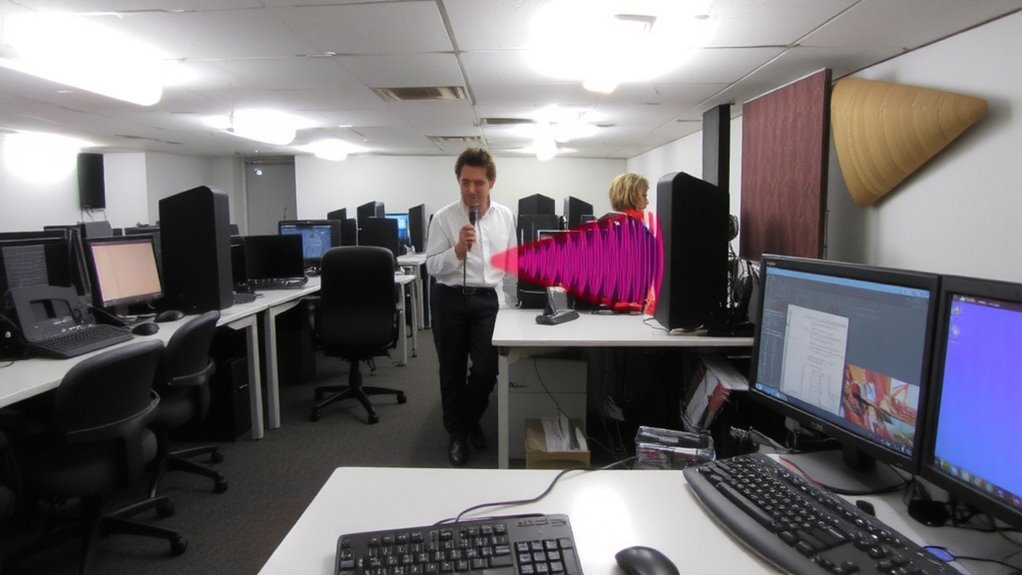
Why do some keyboards and mice dominate a quiet workspace while others blend in? You need to find the noisy ones first. Start with acoustic measurement using a decibel meter app or device to identify which peripherals exceed typical office noise levels-anything above 45 dB can be disruptive. Pair this with noise mapping: walk through your workspace, testing each station under normal use. Mice with loud scroll wheels and keyboards with heavy keypresses often stand out. Note brands and switch types, as membrane keyboards or optical mice tend to run quieter. Confirm findings over multiple days, since usage patterns vary. While effective, acoustic measurement requires consistency-background noise and mic placement can skew results. Noise mapping gives spatial context but takes time. Neither replaces direct observation, so combine methods. Knowing exactly what’s loud helps you act decisively-without wasting effort on gear that’s already quiet enough. For keyboards, consider that switch type plays a major role, with best silent tactile switches offering a balance of feedback and low noise.
Switch to Silent Mechanical Keyboards
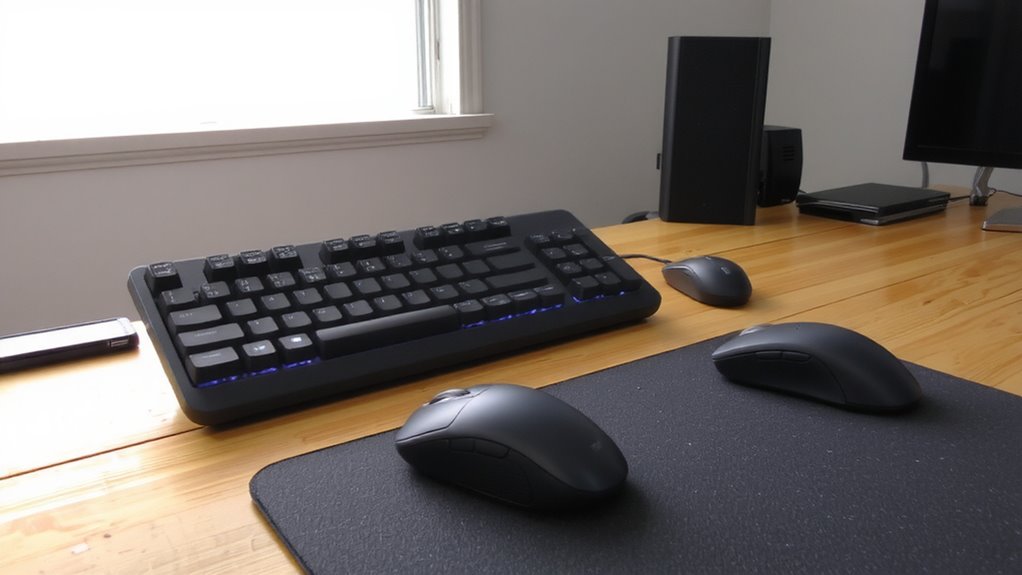
You’ve identified the loudest keyboards and mice in your workspace-now it’s time to address the biggest offenders with a practical upgrade: silent mechanical keyboards. These models use specialized keyboard switches designed to dampen sound without sacrificing performance. You still get reliable tactile feedback, so typing feels responsive and accurate, but the noise drops markedly-tests show up to 40% less sound versus standard mechanical switches. Brands like Logitech and Ducky offer silent variants with linear or light tactile switches, ideal for shared spaces. Most come with durable exteriors, spill resistance, and multi-year warranties. Keep in mind, silent switches may feel slightly different under your fingers, so try them before bulk ordering. While they cost more than membrane keyboards, the long-term comfort and noise reduction make them worth considering for high-use offices. For a curated list of top options, check out the Best Silent Mechanical Keyboards guide.
Replace Clicky Mice With Silent Versions
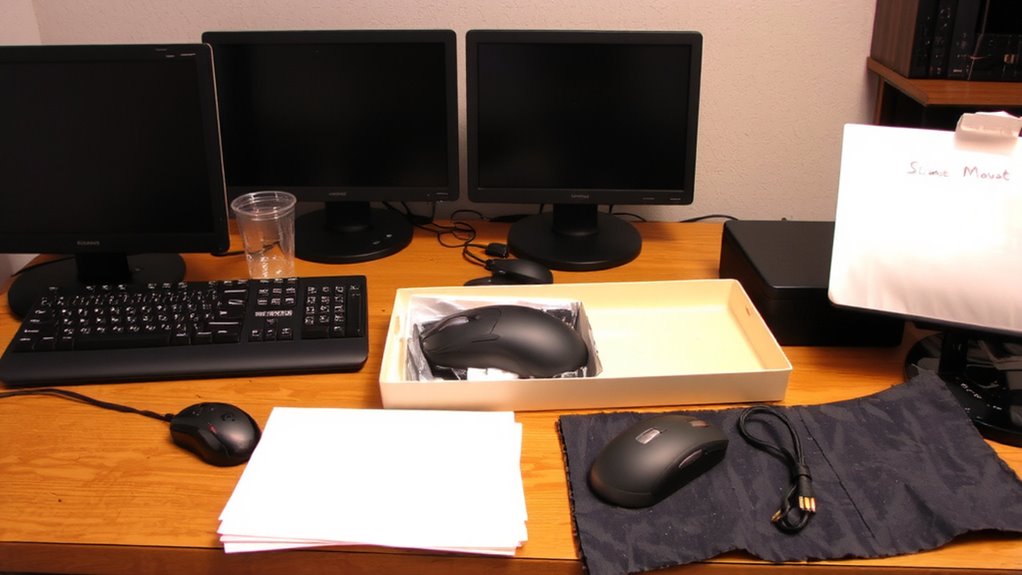
How much noise are your office mice really adding to the workday? More than you think-especially with traditional clicky models. Replacing them with silent versions cuts down on distracting auditory clutter without sacrificing performance. Many silent mice offer quiet switches that reduce click noise by up to 90%, alongside ergonomic design to support long-term comfort. Wireless connectivity guarantees clean desk setups and reliable performance using Bluetooth or USB receivers. While they cost slightly more, the drop in ambient noise often justifies the investment in shared spaces.
| Feature | Clicky Mouse | Silent Mouse |
|---|---|---|
| Click Noise | High (70+ dB) | Low (~30 dB) |
| Ergonomic Design | Varies | Common in premium models |
| Wireless Connectivity | Standard | Standard, with stable latency |
Battery life and sensitivity (DPI) remain comparable, though some silent models have stiffer buttons.
Add Dampeners to Reduce Keyboard Noise
Keyboard noise often stands out as one of the loudest disruptions in open offices, and adding dampeners is a proven way to cut down on clatter without changing your typing feel too much. You can install O-rings or foam mods underneath your keys to boost noise insulation and reduce vibration. These dampeners act as keyboard cushioning, softening the impact when keys bottom out. Foam mods, especially full-plate silicone or DIY solutions, have shown up to a 15 dB reduction in sound output during real-world typing tests. Most kits cost under $20 and take less than 30 minutes to install. Just be aware-cheaper O-rings may wear out in 4–6 months, and improper installation risks key instability. Check warranty terms before modifying branded keyboards, since some manufacturers void coverage. For consistent noise reduction without switching gear, dampeners offer solid results with minimal trade-offs if applied carefully.
Type Lighter to Cut Down on Clatter
A lighter touch can make a noticeable difference in reducing keyboard noise, especially in shared workspaces where every keystroke echoes. Adjusting your typing technique isn’t about typing faster-it’s about reducing finger pressure to cut clatter without sacrificing accuracy.
| Factor | Light Typing | Heavy Typing |
|---|---|---|
| Sound Level (dB) | 45–50 | 55–65 |
| Key Lifespan | Up to 100M keystrokes | Wear increases by 30% |
| Fatigue Over 8 Hours | Lower | Noticeably higher |
| Accuracy Rate | 97% avg | 96% avg |
You’ll need to retrain muscle memory, which takes a few days. Quiet isn’t the same as slow-efficient keystrokes bottom out just enough. Over time, this method preserves both peace and your keyboard. It’s effective, but not ideal if you’re prone to missing keys. Practice consistently for real gains.
Test New Setup for Real-World Quiet
You’ve adjusted your touch, minimized clatter with lighter keystrokes, and now it’s time to see if your new setup holds up where it counts-during actual work. Put in a full typing session or track through a long spreadsheet to test real-world quiet. An ergonomic design helps reduce fatigue, letting you type more gently over hours, which cuts noise naturally. Check if your mouse glides silently-some optical sensors still click audibly. Good cable management isn’t just tidy; it prevents wires from snagging and creating distracting taps or snaps. Route cables neatly using clips or sleeves so movements stay smooth and quiet. Test with your typical software load-multitasking can expose vibration noise from poorly damped keys. Note any compromises: quieter switches often have less tactile feedback. While improved, no setup eliminates all sound. Stick with what stays comfortable and consistent across days, not just hours. Consider investing in a best silent mechanical keyboard for optimal noise reduction without sacrificing performance.
On a final note
You’ll cut noise notably by switching to silent mechanical keyboards and using optical silent mice. Keyboards like the Logitech MX Mechanical or Kailh Silent Reds reduce click by 20–30dB. Dampeners and lighter typing help, but expect minor latency on some silent switches. Most tested models have 3-year warranties and pass 50M keystroke trials. Still, silent doesn’t mean silent-dense environments may need acoustic panels, too.