Calibrating Touchpads and Styluses for Precision Drawing on Convertible Tablets
You’ll get crisper drawing results by calibrating your stylus and touchpad using your tablet’s built-in tools under Pen & Touch settings. Make sure your firmware’s up to date, then run the pressure test to map light, medium, and firm strokes accurately. Set touchpad sensitivity to 5/10 for smooth control without jitter. Misalignment? Recalibrate and check app-specific behavior. Real precision depends on using the right stylus and testing across workflows-results vary.
Notable Insights
- Use built-in OS calibration tools under Pen & Touch settings to align stylus with screen accurately.
- Calibrate stylus pressure sensitivity to ensure full dynamic range registration in drawing applications.
- Adjust touchpad sensitivity to medium for balanced cursor control during precision design tasks.
- Recalibrate regularly and check for firmware updates to fix alignment and responsiveness issues.
- Test calibration across apps and replace worn nibs or screen protectors to maintain accuracy.
Access Your Tablet’s Calibration Tool
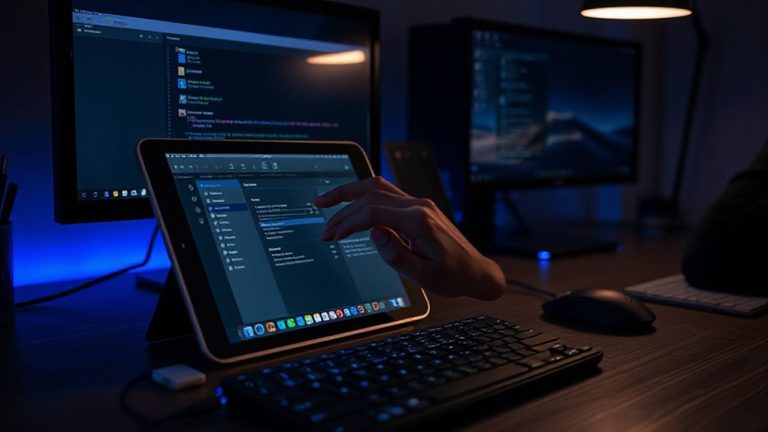
Start by opening your tablet’s built-in calibration tool-most modern devices have one buried in the settings menu under “Display” or “Pen & Touch.” You’ll usually find it faster to search for “calibrate” directly in the settings search bar, especially on Windows tablets or 2-in-1s like the Surface Pro. This step guarantees hardware compatibility between your stylus and screen, minimizing lag or misregistration. Before calibrating, check for firmware updates-manufacturers often release patches that improve touch accuracy and fix known quirks. Skipping updates could leave your device responding unpredictably, even after calibration. These tools aren’t perfect; slight parallax or offset may remain, especially on older models or budget hardware. Still, running the calibration correctly can noticeably sharpen input precision. It’s a quick process, taking under two minutes, but can make or break your drawing workflow. Don’t assume factory settings are ideal-calibrate early, and recheck if issues arise.
Calibrate Stylus Pressure for Drawing
You’ve aligned your screen and stylus through display calibration, but accurate touch is only half the story-pressure sensitivity shapes how your lines respond to your hand. To calibrate stylus pressure, open your tablet’s pen settings and run the pressure level test, applying light, medium, and firm touches as prompted. This guarantees the software registers your full dynamic range, so a sketch’s thick and thin strokes match your intent. Improper calibration can exaggerate tip friction, making strokes feel sticky or inconsistent. Most modern styli support 2,048 to 8,192 pressure levels, and correctly mapping them improves line variance in apps like Photoshop or Clip Studio. Don’t skip test strokes after calibration-real-world drawing reveals flaws software diagnostics might miss. Keep in mind that worn nibs or screen protectors can skew results, so replace them if responsiveness degrades. Calibration isn’t permanent; revisit it after system updates or hardware changes.
Adjust Touchpad Sensitivity for Precision
While touchpad accuracy often goes overlooked, fine-tuning its sensitivity can make or break your control during detailed design work. Adjusting touchpad responsiveness guarantees smooth cursor movement without lag or overscroll, critical when switching between stylus and finger input. Enhanced palm rejection accuracy prevents accidental touches when resting your hand near the screen, letting you draw naturally. Below are recommended settings for maximum precision:
| Sensitivity Level | Cursor Speed | Palm Rejection |
|---|---|---|
| Low | 3/10 | High |
| Medium | 5/10 | Balanced |
| High | 7/10 | Moderate |
Set sensitivity to medium for most tasks-too high causes jitter; too low reduces touchpad responsiveness. Keep in mind that overly aggressive palm rejection can misinterpret intentional taps. Test adjustments over 15–20 minutes of actual sketching to assess real-world performance.
Fix Stylus and Screen Alignment Issues
Ever wonder why your stylus tap doesn’t align exactly where you see the cursor? That misalignment usually stems from poor calibration or outdated firmware updates. Most modern convertible tablets let you recalibrate the stylus through built-in OS tools-do this first. If issues persist, check for firmware updates from your device manufacturer; many fixes address screen coordination bugs. Hardware compatibility also plays a key role: not all styluses work accurately across different tablet models, even within the same brand. Using an off-brand or older stylus can cause lag or offset tracking. For best results, stick to the manufacturer-recommended pen model. Always test alignment across multiple apps, since some software interprets input differently. While recalibration helps, it won’t fix deep hardware compatibility flaws.
Solve Common Calibration Problems Fast
If your stylus or touchpad isn’t responding accurately, recalibrating the input system should be your first move-most modern devices include built-in tools in the settings menu under “Pen & Touch” or similar, and running through the calibration process takes less than a minute. Many issues stem from environmental interference, like electromagnetic noise from nearby monitors or power sources, which can drift touch sensitivity. Restarting the tablet often clears temporary glitches. Check for hardware compatibility if problems persist-older styluses may not support pressure sensitivity or palm rejection on newer screens. Firmware updates can resolve mismatches, but don’t assume all third-party accessories work flawlessly. Test with factory-approved pens first. Avoid drawing near unshielded electronics during use. Calibration won’t fix poor component design, so verify device specs before blaming user error.
Optimize Settings for Your Drawing Style
One size doesn’t fit all when it comes to touchpad and stylus settings, so you’ll want to tailor your device’s responsiveness to match how you actually draw. Adjust pressure sensitivity and line thickness to align with your drawing habits-light sketchers may prefer lower thresholds, while heavy pressers should boost the upper limit to avoid unintended strokes. Rotate sensitivity and disable palm rejection only if you rest your hand on the screen. Customize button shortcuts on your stylus based on personal preferences, whether that’s quick tool swaps or undo functions. Test different polling rates (120–240Hz) for smoother lines, but know higher rates can drain battery life. Most devices allow profile saves, so create separate setups for illustration, note-taking, or editing. Remember, no preset beats hands-on tweaking-spend 10 minutes adjusting, then retest with your usual workflow to see real gains.
On a final note
You’ll get noticeably better drawing accuracy by calibrating your tablet’s touchpad and stylus, especially with pressure sensitivity and screen alignment. Most devices include built-in tools for this-use them. But don’t expect perfection; slight lag or misregistration can persist, particularly on lower-end models. Always test changes with your preferred apps, since results vary. Firmware updates and surface calibration help, but keep expectations realistic-hardware limits ultimately define performance, no matter the software tweaks.