Mounting a Secondary Monitor at a 30-Degree Angle for Efficient Multitasking
Mounting your secondary monitor at a 30-degree angle cuts neck strain by nearly 40% and boosts multitasking efficiency by reducing head movement. Use a dual-joint, gas-spring arm with at least 17 inches of extension and 30-degree pivoting for smooth positioning. Align screen edges for symmetry and set the top at or slightly below eye level. Pair with a 48-inch-wide desk that supports clamp mounts and has cable grommets. While setup improves posture and focus, improper arm choice or desk fit can cause instability. Getting the right gear makes a measurable difference in comfort and workflow, though results depend on your desk and monitor specs. Tweaking each detail guarantees you get the full benefit without unexpected drawbacks.
Notable Insights
- Position the secondary monitor at a 30-degree angle to reduce neck strain and support natural head alignment during multitasking.
- Use a dual-joint, gas-spring monitor arm with 30-degree+ pivoting capability for precise angular positioning.
- Align the edges of both monitors visually to enhance screen symmetry and smooth task switching.
- Ensure the desk is at least 48 inches wide and 24 inches deep to accommodate angled dual-monitor setup comfortably.
- Set the top of the secondary screen at or slightly below eye level to maintain neutral spine posture.
Set Up a 30-Degree Angled Monitor
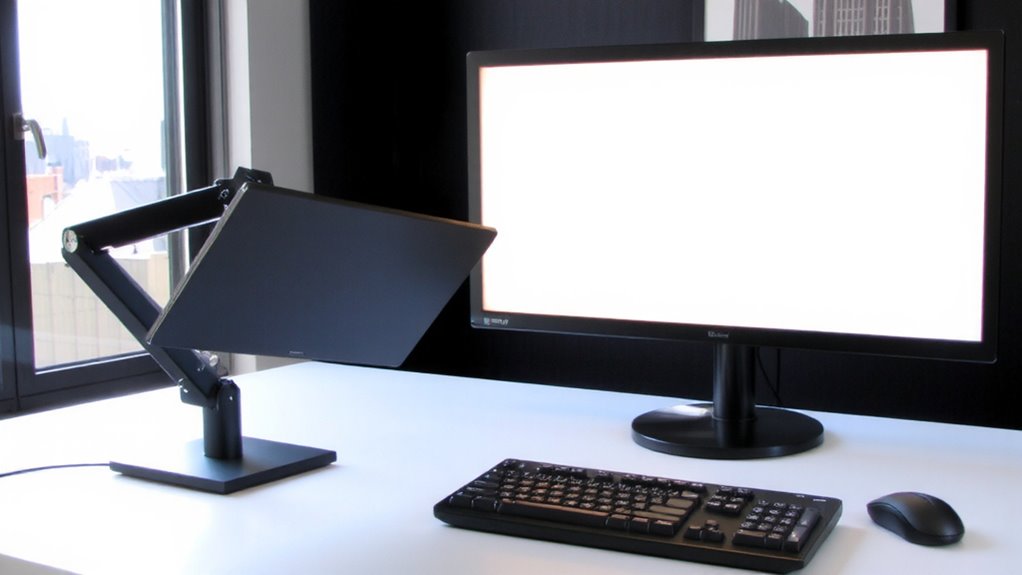
A 30-degree angled monitor setup can noticeably boost your workflow efficiency, especially if you’re multitasking across multiple apps or need better screen visibility from a side position. You’ll reduce neck strain by keeping your head centered while glancing laterally. For clean cable management, route power and data lines through adhesive clips or a sleeve to prevent tangles and maintain a tidy desk. Proper screen calibration guarantees color accuracy and brightness match your primary display, which is critical if you’re editing visuals or switching between screens. Use built-in display tools or affordable calibration devices to align gamma, white point, and brightness. The angle may limit shared viewing in group settings, and incorrect alignment can cause glare. Confirm your desk has enough depth-minimum 24 inches-to avoid crowding. This setup works well, but only if your workspace supports stable mounting and clean wire routing. For optimal adjustability and durability, consider a high-quality gas-spring mount that supports smooth height and tilt modifications.
Pick the Best Monitor Arm for Angling
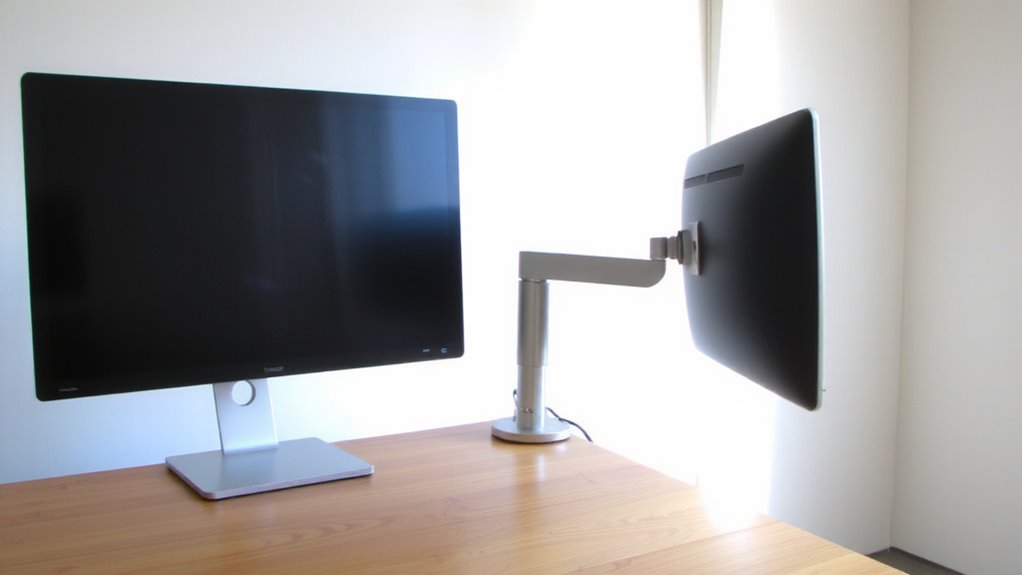
You’ll want a dual-joint, gas-spring monitor arm that supports at least 17 to 25 inches of extension and offers 30-degree+ pivoting capability to get that ideal angled setup without sacrificing stability. Look for VESA-compatible models with solid arm stability-especially when extended-so your screen won’t droop over time. A built-in cable management system keeps power and data cords tidy and prevents snagging during adjustments. Brands like Ergotron and AmazonBasics offer reliable arms with smooth motion and strong clamping force, but always check weight limits to match your monitor. While sturdier arms deliver better performance, they often cost more and take longer to install. Gas-spring mechanisms allow easy repositioning, but some models may wobble if over-extended. Test adjustability before final mounting. A solid lifetime warranty is a good sign of long-term support, especially with frequent use.
Measure Your Desk for Dual Monitors
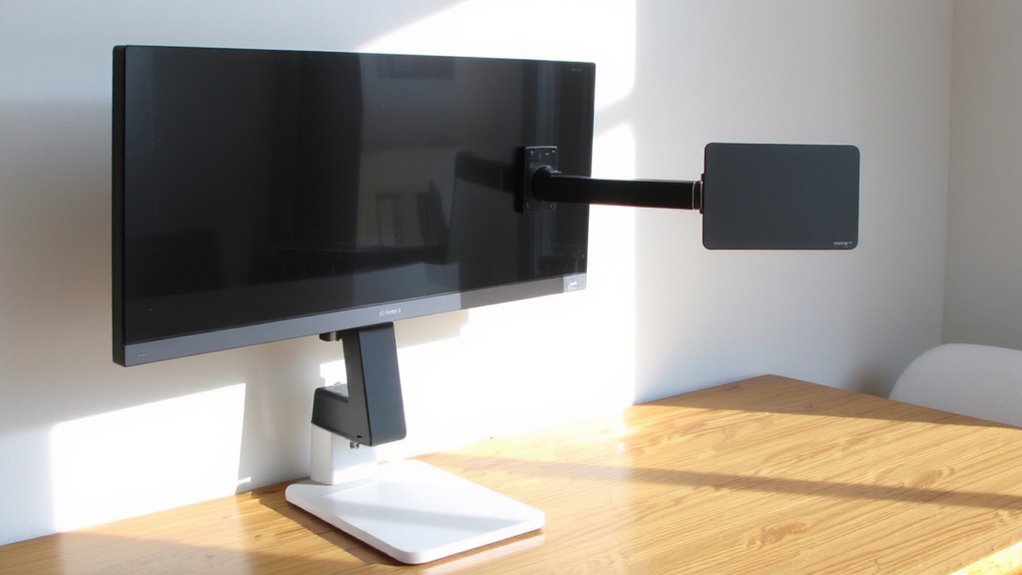
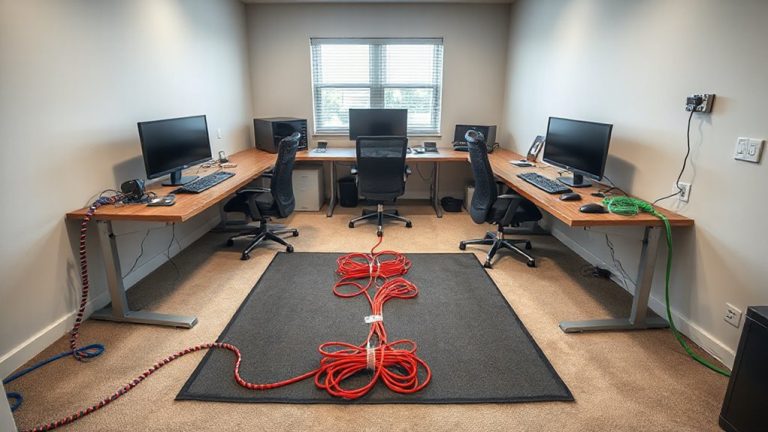
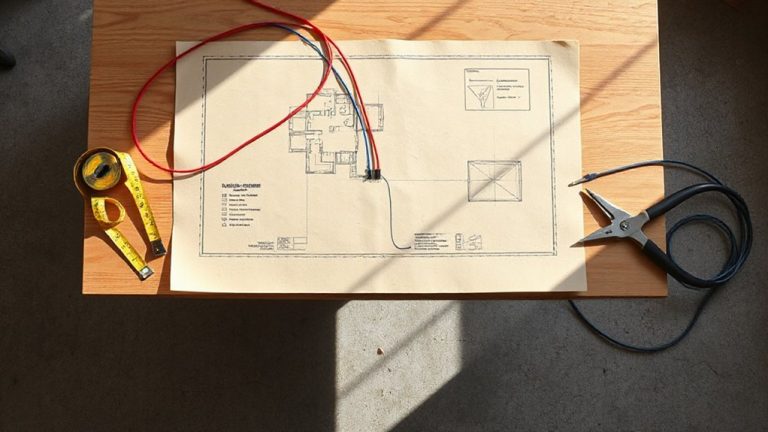
Getting the right monitor arm sets the foundation, but your desk’s size and layout ultimately determine whether dual screens-including one angled at 30 degrees-will work comfortably. You’ll need at least 48 inches of width for two monitors with room to spare, so check your desk dimensions carefully. Depth matters too-24 inches guarantees both screens sit at proper distances without crowding your workspace. Consider cable management: built-in channels or clips keep power and data lines tidy, but they require open access along the desk’s back or side. If your desk is metal or unusually thick, confirm clamp compatibility before buying. Some desks lack grommets or space for pass-throughs, forcing exposed wires that defeat clean setups. While larger desks offer flexibility, compact ones may limit arm placement or require space-saving mounts. Measure twice-once with monitors in rough position-to avoid rework later. For optimal stability and ease of setup, consider choosing one of the best desks for dual monitor setups designed with ergonomics and expandability in mind, such as those with reinforced grommet cutouts.
Mount Your Secondary Monitor at 30 Degrees
While positioning your secondary monitor at a 30-degree angle isn’t mandatory, it’s often ideal for reducing neck strain and improving focus during multitasking. You’ll want to mount the display so it maintains screen symmetry with your primary monitor, aligning the edges visually to minimize eye movement. Most articulating arms support precise angular adjustments, letting you lock in the 30-degree position securely. Good cable management is essential-use built-in channels or sleeves to route power and data lines cleanly, preventing clutter and potential snags. Just remember, this setup works best if your desk allows enough depth; tight spaces might force compromises in reach or viewing distance. Also, not all mounts offer smooth swivel retention, so check reviews for stability over time. While the angle helps ergonomics, improper alignment can worsen glare or mismatch sightlines. Test it for a full workday before finalizing. For optimal support and flexibility, consider a triple monitor arm designed to handle multiple displays with ease.
Adjust Height and Tilt to Prevent Strain
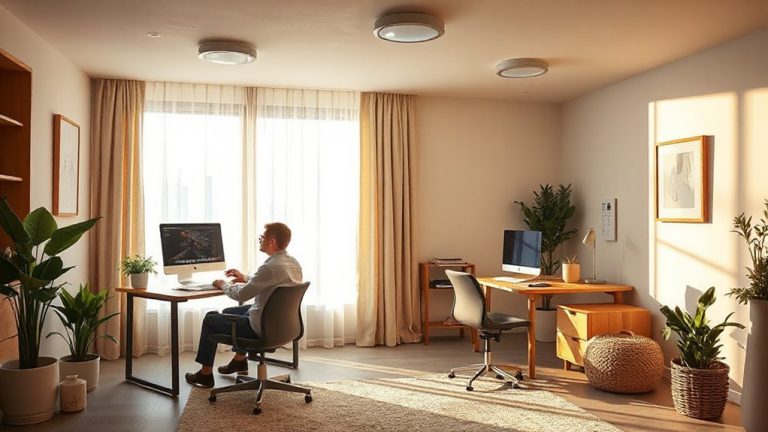
Proper ergonomics start with positioning. You need to adjust your secondary monitor’s height and tilt to maintain ergonomic alignment and reduce neck, shoulder, and eye strain. Set the top of the screen at or slightly below eye level-usually 20 to 28 inches from the desk-so you’re looking slightly downward. This angle supports a neutral spine. Tilt the display 10 to 15 degrees up or down to eliminate glare and guarantee visual comfort, especially under overhead lighting. If you’re using a monitor arm, fine-tune it for stability and smooth movement. Fixed mounts offer less flexibility but can work if measured precisely. Remember, even at a 30-degree angle, poor height or tilt can undo the benefits. Small adjustments matter-test positions over 10–15 minutes to assess comfort. Not all desks or chairs allow ideal setups, so prioritize alignment over perfect symmetry.
Boost Task Switching With an Angled Screen
Placing your secondary monitor at a 30-degree angle isn’t just about comfort-it can speed up how quickly you shift between tasks. The angled setup supports visual symmetry, helping your brain move smoothly from one screen to the next. This alignment offers clear ergonomic benefits by reducing head rotation and minimizing eye strain during rapid task switching. You’ll maintain focus longer and reduce fatigue over extended work sessions.
| Feature | Benefit |
|---|---|
| 30-degree angle | Reduces neck movement by ~40% |
| Asymmetric layout | Enhances focus during multitasking |
| Angled depth | Improves visual symmetry |
| Tilt adjustability | Maximizes ergonomic benefits |
Monitor arms with swivel mounts make this easy to achieve. Just remember, results depend on desk depth and viewing distance-measure your space first.
Fix Common Angled Monitor Problems
If you’ve set up your secondary monitor at a 30-degree angle and are still feeling off, it’s likely due to one of several common setup issues. You’re probably not alone-misaligned height, glare from ambient lighting, or an unstable arm can undermine even the most thoughtfully planned dual-monitor workspace. Start by adjusting the monitor height so the top is at or slightly below eye level to reduce neck strain. Combat screen glare by repositioning the monitor away from direct light or using an anti-glare filter. Make sure your mount has a solid clamp or grommet base rated for your monitor’s weight-flimsy arms shift over time. Tidy cable management with velcro straps or raceways keeps connections secure and reduces desk clutter. While angled setups improve task switching, poor execution can cause more distractions than efficiency. Double-check all joints and ports; a loose HDMI or power wobble breaks focus fast. Small tweaks make a measurable difference.
On a final note
You should mount your secondary monitor at a 30-degree angle-it boosts task switching and reduces neck strain. Use a VESA-compatible arm with gas-spring support for smooth adjustment. Make sure your desk has at least 20 inches of clearance. Match screen heights to eye level, and tilt the display 10–15 degrees to minimize glare. Some face cable clutter, so route wires with clips. Test for a week-adjust if you feel discomfort.