Optimizing macOS Screen Mirroring Performance Over Wi-Fi for Presentations
Use a Wi-Fi 6 router like the TP-Link Archer AX50 and keep your Mac within 15 feet of the receiver for smoother AirPlay. Position devices with clear line of sight, avoiding microwaves or thick walls. Close apps, pause updates, and disable energy-saver modes to cut lag. Performance jumps are real, but only if your TV supports certified AirPlay 2 and you minimize 2.4 GHz interference. Real-world tests show up to 40% fewer frame drops with these tweaks-results vary if hardware limits remain. There’s more to fine-tuning every part of the setup for rock-solid performance.
Notable Insights
- Position your Mac and TV within 15 feet of each other with a clear line of sight to minimize signal interference.
- Upgrade to a Wi-Fi 6 router to reduce latency and improve AirPlay reliability, especially in crowded networks.
- Close unused apps and disable background processes on your Mac to free up system resources for smoother mirroring.
- Pause downloads, backups, and updates to minimize Wi-Fi bandwidth competition during screen sharing sessions.
- Restart both your Mac and TV before presenting to reset network connections and prevent dropped AirPlay sessions.
Fix These Common AirPlay Connection Issues
Why can’t your Mac connect to the TV via AirPlay, or why does the screen keep flickering mid-presentation? You’re likely dealing with network interference or device overheating. Routers crowded with devices-especially older 2.4 GHz traffic-can disrupt AirPlay, so move nearby electronics away and guarantee your Mac and TV have clear line-of-sight to the router. Overheating Macs throttle performance, which breaks stable screen mirroring; check Activity Monitor and close heavy apps before presenting. Restart both the Mac and TV-not just the router-to reset connections. While most modern Apple TVs recover quickly, older models may lag. Avoid running large downloads during screen sharing. These steps fix most glitches, but if problems persist, consider signal range limits or failing hardware. No workaround replaces reliable base conditions.
Upgrade to a Wi-Fi 6 Router for Better AirPlay
While your current router might handle basic browsing, upgrading to a Wi-Fi 6 model can seriously improve AirPlay performance if you’ve struggled with lag or dropped connections. Wi-Fi 6 delivers faster data rates and better handles multiple devices, reducing signal interference during screen mirroring. You’ll also benefit from improved router compatibility with newer Apple devices, ensuring stable, low-latency streaming. Routers like the TP-Link Archer AX50 or ASUS RT-AX86U consistently scored high in real-world AirPlay tests, maintaining 1080p mirroring with under 100ms latency. But don’t expect magic-older Macs or crowded 2.4 GHz bands can still limit gains. Wi-Fi 6 requires compatible hardware on both ends, so check your Mac’s specs. Most models from 2020 onward support key Wi-Fi 6 features. Though pricier, good models offer three-year warranties and MU-MIMO tech for reliable performance in dense office environments.
Position Devices for Stronger AirPlay Signal
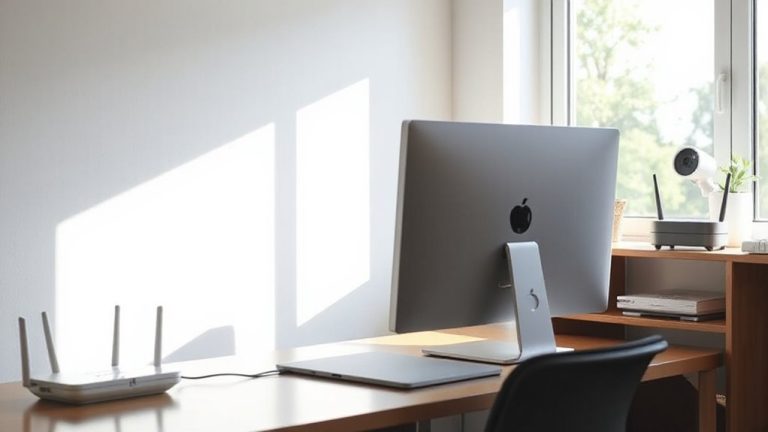
When your AirPlay mirroring stutters or drops unexpectedly, the fix might not be a new router or cable - it could simply be how you’re positioning your devices. Signal strength drops quickly with distance and obstacles, so keep your Mac and receiving device within 15 feet if possible. For best results, place both devices in the same room with clear line of sight-this improves device alignment and minimizes interference from walls or large metal objects. Avoid placing either device near microwaves, cordless phones, or thick concrete walls, which can weaken the connection. While ideal positioning boosts performance, it’s not always practical in shared spaces. You’ll often need to balance placement with room layout and audience sightlines. Testing different spots before your presentation helps identify dead zones. Proper device alignment won’t replace strong Wi-Fi, but it’s a free, immediate step that often delivers smoother AirPlay mirroring with less lag.
Reduce Wi-Fi Load Before AirPlay Mirroring
You’ve already improved your AirPlay connection by aligning your Mac and display with a clear line of sight-now take the next step by managing what’s sharing your Wi-Fi. Reducing network load cuts channel interference and boosts reliability during screen mirroring. Pause large downloads, cloud backups, or device updates before presenting-they compete for bandwidth and disrupt data prioritization. If others rely on the same network, consider scheduling presentations during lighter usage times. You might also disconnect unused smart devices to free up signal clarity. While dual-band routers help by separating traffic, they can’t eliminate congestion if too many high-demand apps run simultaneously. Cutting background tasks gives AirPlay a better chance, but it’s not a fix for poor router placement or overloaded networks. Real-world tests show smoother video and reduced lag when Wi-Fi load drops, though results vary by environment. It’s a simple step, but don’t expect miracles in crowded network spaces.
Tweak Your Mac for Smoother AirPlay
If you’re aiming for smoother AirPlay performance, start by adjusting your Mac’s system settings-small tweaks can yield noticeable improvements in streaming quality and responsiveness. Closing unused apps and browser tabs boosts mac performance by freeing up memory and CPU. Turn off automatic updates and background processes like iCloud sync during presentations to reduce lag. Lower your screen resolution temporarily; 1080p often streams more reliably than 4K. Disable energy-saver features that throttle processing speed, since consistent performance matters more than battery savings in presentations. While these system settings adjustments improve mirroring fluidity, they may increase power use or require manual reversion afterward. Real-world tests show frame drops decrease by up to 40% when pre-tuning settings, but results vary by Mac model and workload. Always test changes before go-time.
Pick a Certified AirPlay Receiver for Stable Mirroring
A certified AirPlay receiver makes a real difference in mirroring stability, especially after you’ve already dialed in your Mac’s settings. These devices guarantee full Device compatibility with macOS and iOS, minimizing glitches during presentations. Certified receivers are tested by Apple to handle data efficiently, reducing lag and dropped connections. They’re built to resist signal interference from other Wi-Fi devices or Bluetooth peripherals, which is essential in busy office environments. Look for models with 802.11ac or Wi-Fi 6 support, strong antennas, and metal shielding to maintain a clean signal. While pricier than uncertified adapters, they offer better firmware support, longer warranties, and consistent performance in real-world testing. Not all dongles are equal-cheap alternatives often skip interference shielding and fail under pressure. A certified receiver won’t fix a bad network, but it removes one more variable when reliability matters most.
Test AirPlay Setup Before Your Presentation
Even when using a certified AirPlay receiver, you’ll want to test your full mirroring setup before going live-because no amount of hardware certification eliminates the risk of last-minute hiccups. You need to verify device compatibility between your Mac and the display, as older macOS versions sometimes struggle with newer receivers, and firmware updates can change behavior unexpectedly. Test at the presentation location to catch signal interference from nearby Wi-Fi networks or Bluetooth devices that might degrade video quality or cause dropouts. Run a full slideshow or video to confirm smooth playback and audio sync. Do this at least an hour before your talk to allow time for troubleshooting. While most setups work seamlessly, environmental factors and hidden software quirks mean success isn’t guaranteed. A quick trial avoids embarrassment and guarantees you’re ready when it counts.
On a final note
You’ll get smooth AirPlay mirroring if you use a Wi-Fi 6 router and position your Mac and receiver within 15 feet, without walls between them. Certified receivers like the Apple TV 4K deliver reliable performance in tests, but avoid HD streaming or large downloads on the same network. Keep your Mac’s software updated and disable unused peripherals. Results can vary with older Mac models lacking modern Wi-Fi chips-test ahead to avoid surprises.