Cable Management for Ultra-Thin Devices: Solutions for USB-C and Thunderbolt Setups
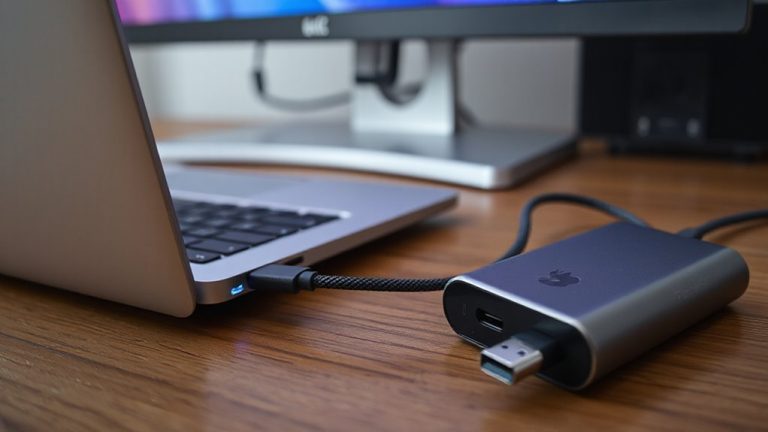
You need slim, right-angle USB-C or Thunderbolt adapters to protect your laptop’s fragile ports and maintain airflow-bulky hubs can block cooling vents and cause overheating. Pair them with magnetic cable organizers for quick disconnects that reduce wear. A Thunderbolt 4 dock delivers up to 40 Gbps, power delivery, and one-cable simplicity, but only if your laptop supports it-otherwise, performance drops. Choose a hub with only the ports you need and verify at least 60W pass-through charging. Look for braided cables, adhesive clips, or Velcro ties to keep things clean and swap gear easily. Premium docks often carry just a 1-year warranty, so check coverage. With the right setup, you’ll minimize clutter and avoid port damage over time-smart choices now lead to smoother upgrades later.
Notable Insights
- Use slim, right-angle adapters to reduce strain on fragile USB-C and Thunderbolt ports in ultra-thin laptops.
- Choose a USB-C hub with essential ports and at least 60W power delivery to match your workflow needs.
- Employ magnetic cable organizers with neodymium magnets for secure, quick-release connections that minimize port wear.
- Invest in a Thunderbolt 4 dock for single-cable connectivity with up to 40 Gbps bandwidth and dual 4K display support.
- Route cables neatly using adhesive clips or Velcro ties to prevent tangling, maintain airflow, and avoid performance throttling.
Why Good Cable Management Matters for Thin Laptops
While it might seem minor, managing cables well becomes critical when you’re using an ultra-thin laptop, since these devices often have fewer ports and less room for bulky adapters. Poor cable setup can block airflow, harming heat dissipation and causing your laptop to throttle performance under load. Tangled or strained cords also risk damaging fragile USB-C or Thunderbolt ports, which aren’t always reinforced for side stress-so port protection matters. Using slim, right-angle adapters helps reduce leverage on the port, while braided cables resist fraying over time. Cable clips or sleeves keep connections organized without adding bulk. Just don’t overtighten zip ties; they can compress insulation and weaken wires. Real-world testing shows that clean routing improves both device longevity and desk efficiency. Though minor setup tweaks take effort, they prevent overheating and physical wear. Balanced management gives you reliability without sacrificing access. Effective solutions include using standing desk cable management kits designed to route wires neatly and keep them secure during height adjustments.
Choose a USB-C Hub That Fits Your Workflow
How do you actually extend the capabilities of your ultra-thin laptop without cluttering your workspace or risking port damage? Choose a USB-C hub that matches your daily tasks-no more, no less. A hub with thoughtful port selection keeps your setup clean and functional. Need extra USB-A devices, an SD card reader, or HDMI out? Prioritize those ports; avoid paying for ones you won’t use. Always perform compatibility testing with your specific laptop model-especially with Thunderbolt laptops, where bandwidth allocation varies. Some hubs work fine with macOS but stutter on Windows, and vice versa. Check manufacturer specs for power delivery ratings-look for at least 60W pass-through if your laptop charges over USB-C. Also, verify warranty length; reputable brands offer 12+ months. A well-matched hub reduces cable strain and boosts productivity without becoming another clutter trap. For trusted options, explore top picks at Best Buy to find models proven for performance and reliability.
Tame Cables With Magnetic Organizers
Cable clutter doesn’t just look messy-it can strain ports and reduce airflow around your ultra-thin laptop over time. Magnetic organizers offer a tidy solution, using strong magnetic alignment to keep USB-C and Thunderbolt cables secured yet ready for quick cable detachment. You’ll appreciate how they hold cables in place during daily use but let go cleanly when tugged, reducing wear on delicate connectors. Most models use neodymium magnets embedded in silicone or rubber housings, lasting thousands of attachment cycles. Just be sure the magnet strength won’t interfere with nearby devices-test near your setup first. While they don’t replace full cable routing systems, they excel at desk-level control. Look for options with adhesive backing rated for at least 12 months on smooth surfaces. Keep in mind, frequent repositioning can degrade hold over time. Use them to anchor chargers, docks, or peripherals-just don’t expect them to manage long cable runs. For a complete setup, consider integrating these with cable hiding options to maintain a clean and functional workspace.
Use a Thunderbolt 4 Dock for One-Cable Simplicity
If you’re looking to cut the clutter without sacrificing high-speed connectivity, a Thunderbolt 4 dock may be your best move for managing multiple devices through a single cable. It delivers full Thunderbolt bandwidth-up to 40 Gbps-so you can run dual 4K displays, transfer files quickly, and connect peripherals without slowdowns. You’ll get one-cable simplicity for data, power, and video, which keeps your ultra-thin laptop workspace clean and efficient. But check Dock compatibility first-not all laptops support Thunderbolt 4, and performance can drop on devices limited to USB4 or USB-C. While setup is generally plug-and-play, some docks may require firmware updates. Real-world tests show reliable performance across Mac and Windows systems, though premium models often back this with only a 1-year warranty. Weigh cost against your need for speed and scalability.
Power Multiple Devices With One Charger
You can cut down on clutter and still keep all your gear charged by using a multi-port USB-C charger designed for high-wattage output. These chargers support power sharing, so your laptop, tablet, and phone can charge simultaneously without slowing each down too much. While daisy chaining works for data and displays via Thunderbolt, power isn’t daisy chained-you’ll need direct connections to the charger. A good 100W charger with dual 65W+ ports lets you fully power two laptops, though smaller devices will get less when charging together.
| Feeling | Because |
|---|---|
| Relieved | Only one wall outlet used |
| Confident | PD 3.1 guarantees fast charging |
| Frustrated | Cables still tangle easily |
| Satisfied | No more dead devices |
| Cautious | Cooling matters under load |
Always check thermal performance-some units throttle when hot.
Build a Clean, Tangle-Free Workspace
A clean, tangle-free workspace isn’t just about looks-it’s a functional upgrade that saves time and reduces stress. You’ll move faster and stay focused when cables aren’t tripping you up. Start with smart cable routing: route USB-C and Thunderbolt cables along the back of your desk using adhesive clips or raceways. Keep lengths tight-too much slack breeds clutter. Desk integration matters, too. Choose desks with built-in grommets or cable trays to channel cords neatly to power strips. Aluminum desks often include these features without sacrificing slim profiles. But don’t assume all solutions fit every setup-measure ports and clearances before buying accessories. Some cable sleeves look sleek but limit airflow or make swaps harder. Real-world testing shows Velcro ties beat zip ties for frequent changes. A clean setup takes planning, but the payoff-reliability and simplicity-is worth it.
On a final note
A clean setup with your ultra-thin laptop is totally doable-but only if you pick the right gear. Use a Thunderbolt 4 dock for one-cable charging and dual 4K displays, but check your laptop’s power delivery limits. Magnetic cable organizers help, though they might not hold thicker cables. USB-C hubs save space, yet cheap ones can overheat. Always check warranty length and real-world thermal testing before buying.