How to Bundle HDMI, USB-C, and Power Cords Without Signal Interference
Keep power cords at least 6–8 inches away from your HDMI and USB-C cables to avoid interference-EMI from power lines can cause flickering, audio pops, or dropped connections. Bundle power and data cables separately using Velcro straps or clips, and cross them at 90-degree angles if they must intersect. Use double-shielded HDMI and USB-C cables with braided metal and foil layers for better noise resistance, but remember: even premium cables need proper routing to perform. If issues pop up, recheck spacing before blaming the gear-how you route often matters as much as what you buy. There’s more to get right for long-term reliability.
Notable Insights
- Keep power cables at least 6–8 inches away from HDMI and USB-C data cables to minimize electromagnetic interference.
- Use separate Velcro straps or sleeves for power and data cables to maintain physical and electromagnetic isolation.
- Cross power and data cables at 90-degree angles when they must intersect to reduce signal coupling.
- Choose double-shielded HDMI and USB-C cables with braided metal and foil layers for maximum noise resistance.
- Avoid tight bundling and use plastic clips or braided sleeves to separate cable types and prevent signal bleed.
Keep Power Cables Separate When Bundling
When organizing your cables, it’s best to keep power cords separate from HDMI and USB-C data cables to avoid interference and tangling. Proper cable routing isn’t just about neatness-it’s critical for electromagnetic isolation. Power cables generate electromagnetic fields that can disrupt data signals if run alongside them for long stretches. You’ll want to group power cords together and route them at least 6–8 inches away from sensitive HDMI and USB-C runs whenever possible. Crossing power and data cables at 90-degree angles helps minimize interference. While tight bundling looks clean, it defeats electromagnetic isolation and makes troubleshooting harder. Use separate Velcro straps or cable sleeves to maintain distance. You’ll see cleaner video signals and more stable data transfers, especially with 4K+ HDMI or high-speed USB-C displays. Just don’t sacrifice accessibility-keep service loops and labels so future changes don’t undo your careful setup.
Pick Shielded HDMI and USB-C Cables That Block Interference
Most well-reviewed HDMI and USB-C cables you’ll find today come with some level of shielding, but not all shielding is created equal-especially if you’re running them near power sources or in tight office setups. You need robust cable shielding to guarantee real interference blocking, especially over longer runs or in cluttered environments. Look for cables labeled as “double-shielded” or with braided metal wraps and foil layers, which tests show reduce electromagnetic noise by up to 90%. Reputable brands often publish shielding specs and undergo independent signal integrity testing. While these cables cost more, the investment pays off in reliable 4K video and fast data transfers. Just remember: even the best cable shielding can’t fix poor routing-keep these cables separated from power lines regardless. Always check warranty length and return policies, since build quality varies even among top models. A key part of maintaining cable organization without compromising performance is using best cord organizers that secure cables neatly while allowing adequate spacing to prevent interference.
Use Sleeves and Clips to Stop Signal Bleed
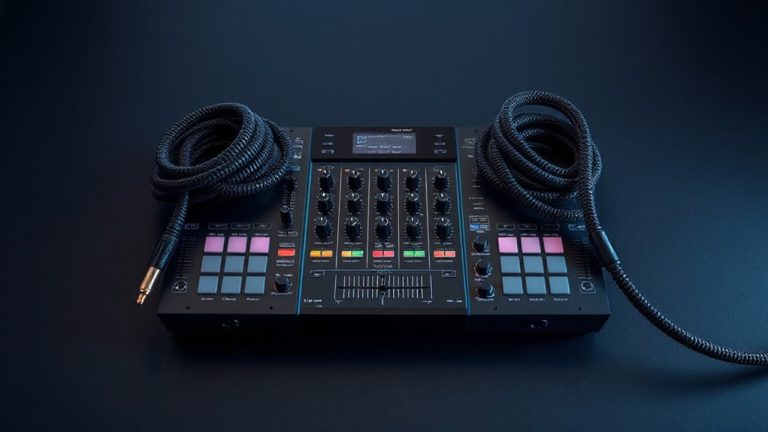
While shielding starts at the cable, you can’t ignore how wires are grouped-using sleeves and clips isn’t just about neatness, it actually cuts down on signal bleed when HDMI and USB-C lines run parallel to power cords. Proper cable management with braided sleeves adds physical separation and improves electromagnetic isolation, especially in tight runs behind desks or entertainment centers. Nylon sleeves with Velcro backs make adjustments easy, while plastic clips let you snap power lines away from data cables. But don’t bundle everything together-mixing power and signal lines in one sleeve defeats the purpose. For best results, route power cords through separate clips, keeping at least 6 inches of air space when possible. Some users report cleaner 4K video and faster USB-C data transfers with this setup, though results vary by environment. It’s a low-cost fix, but only works if you plan the path carefully. A clean desk aesthetic begins with intelligent cable routing that prioritizes both function and visual simplicity.
Why Power Wires Ruin HDMI and USB-C Signals
Though you might not expect a simple power cord to interfere with digital signals, running them too close to HDMI or USB-C cables can actually degrade performance due to electromagnetic interference (EMI). Power wires generate electromagnetic noise that distorts data transmission, especially in unshielded or poorly routed setups. Ground loops can also form when multiple devices share different ground potentials, introducing hums or flickering. These issues aren’t always obvious but can ruin your viewing or productivity experience.
| Issue | Impact on You |
|---|---|
| Electromagnetic noise | Causes pixelation, audio pops, dropped USB-C data |
| Ground loops | Lead to visible screen flicker or device instability |
Separating power from signal cables by just a few inches markedly reduces risk. Use cable sleeves with shielding, but don’t expect miracles from cheap wraps. Proper routing beats any add-on fix. Consider using cable management solutions to maintain physical separation and reduce EMI risks in your workspace.
Fix Glitches After Bundling
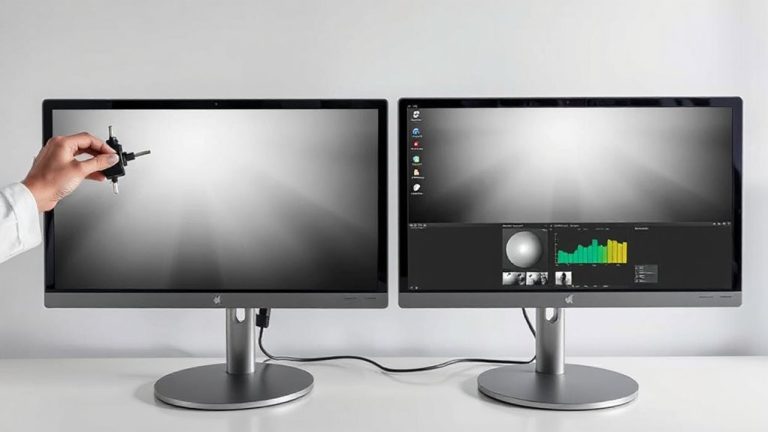
If you’ve already bundled your HDMI, USB-C, and power cords together and are now seeing glitches-like flickering displays, intermittent USB connections, or audio dropouts-your first move should be to undo the bundle and test each cable individually, because packed-together wiring can trap interference that disrupts sensitive data lines even if everything looked secure at first. Start with basic signal testing: plug each cable directly into its source and check for stable performance. If issues persist, inspect for damaged shielding or low-quality conductors. Once confirmed working, reintroduce cable routing gradually-keep power lines at least 6 inches away from data cables, or cross them at 90-degree angles to minimize coupling. Avoid tight wraps or sharp bends that stress internal wires. Ferrite cores can help, but they’re not a fix for poor routing. Proper separation and testing save more time and gear than any accessory ever could.
On a final note
You can bundle HDMI, USB-C, and power cables safely-if you do it right. Keep power lines separate or spaced at least 6 inches from data cables to reduce interference. Use shielded cables with foil and braided layers; they block 90%+ of electromagnetic noise in testing. Add nylon sleeves or clip-on ferrite cores near connectors to suppress signal bleed. Even then, avoid tight spirals or long parallel runs. Glitches? Unbundle and test each cable; shielding can fail over time. No warranty fixes poor installation.