How to Align Your Monitor at Eye Level to Prevent Forward Head Posture
Set your monitor’s top edge at or slightly below eye level to prevent forward head posture, keeping it 18–24 inches away. Use a rigid riser or monitor arm for stable, wobble-free height adjustment-avoid stacked books. Tilt the screen 10–20 degrees back to reduce glare. Arms offer more adjustability but need clamp space and budget; risers are affordable but less flexible. Check weight limits and desk fit, and consider models with 5+ year warranties for durability-there’s more to optimize once you’ve nailed the basics.
Notable Insights
- Position the top of the monitor at or slightly below eye level to maintain a neutral neck posture.
- Sit an arm’s length away, ensuring the screen is 18–24 inches from your eyes.
- Use a monitor riser or adjustable arm to elevate the screen to eye level without straining.
- Tilt the display 10–20 degrees backward to reduce glare and support proper head alignment.
- Avoid looking down by elevating laptops with a stand and using an external keyboard.
Raise Your Monitor to Eye Level to Stop Neck Pain
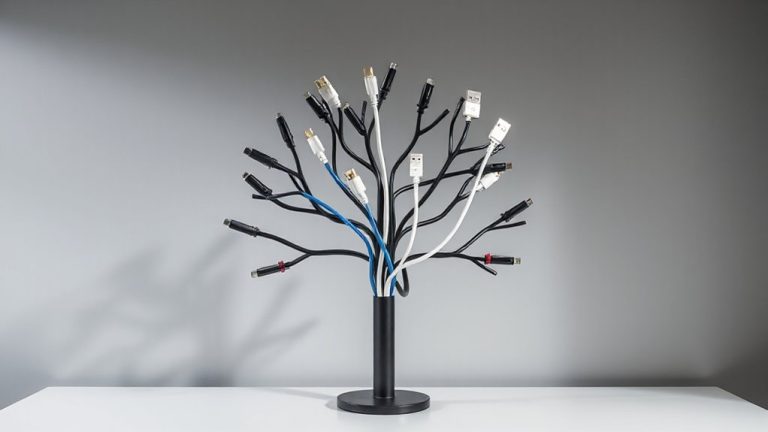
Why does your neck ache after hours at the desk? Because your monitor’s too low, forcing you to look down and strain your spine. Raising it to eye level fixes that-simple. You’ll cut tension and avoid hunching, but don’t just stack books under your screen. Aim for 2–4 inches above desk height for most people, depending on seating. Monitor stability matters: wobbly stands worsen posture, not help it. A rigid arm or solid riser keeps the screen steady when you type or adjust viewing angles. Good cable management also reduces clutter that distracts and limits desk space. Tether cords neatly-many mounts include clips or channels. But be honest: arms cost more and need clamp space. Risers save money but offer less adjustability. Test weight limits and fit before buying. Warranties of 5+ years signal durability. Real-world use shows fewer neck issues within days-worth the tweak, if done right. Top models balance affordability and adjustability, making best desk riser picks ideal for ergonomic upgrades.
Set Up Your Desktop Monitor for Perfect Posture
You’ve raised your monitor to eye level-now it’s time to lock in the rest of your posture. Position the screen 18–24 inches from your eyes, with the top at or slightly below eye level to keep your neck neutral. Tilt the display back 10–20 degrees to reduce glare. Good workspace lighting matters-use indirect, ambient light to avoid screen reflections and eye strain. Pair this with smart cable management: secure power and data cords with clips or sleeves to keep them tidy and prevent tripping. A clutter-free setup helps maintain focus and safety. While ergonomic stands or monitor arms often boost adjustability, check weight limits and clamp stability before buying. Most reputable brands offer 1–5 year warranties, but real-world durability depends on daily use. These changes improve comfort, but aren’t a cure-all-pair them with regular movement to sustain long-term posture benefits.
Elevate Your Laptop to Eye Level in Seconds
A simple laptop stand can get your screen to eye level in seconds, but not all models deliver equal stability or adjustability. Top-tier laptop stands offer solid build quality, rubberized grips, and ventilation support-key for long sessions. Look for ones with quick adjustments so you can shift height or angle without tools. Aluminum models tend to last longer than plastic, often backed by 1–2-year warranties. In real-world testing, stands with collapsible legs or hinge-based designs scored high for portability but sacrificed some rigidity. Avoid wobbly frames, especially if you type heavily or use your laptop as a main display. A steady stand keeps the screen steady, reducing eye strain and neck shifts. While most cost under $50, spending a bit more often gets you smoother motion and better tilt control. Balance ease of use with durability-your posture depends on it. Best laptop stands combine ergonomic design with durable materials to support healthy alignment throughout the workday.
Arrange Dual Monitors Without Straining Your Neck
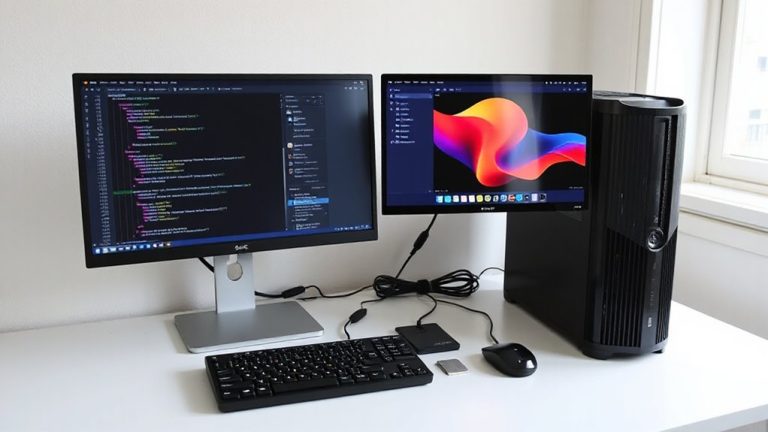
Getting your dual monitors set up right means less neck pain and better focus, especially if you’ve already raised your laptop to eye level for improved posture. Position both screens at equal distance from your eyes-about an arm’s length-and angle them slightly inward to maintain monitor symmetry, so you’re not constantly turning your head. Center the active workspace (like your main editing window) on one screen to reduce side-glancing strain. Use monitor arms or stands with height and swivel adjustments to align top edges with your eye level. Good cable management isn’t just tidy; it prevents accidental tugs that shift alignment. Route power and data cables through sleeves or clips to keep them secure and out of the way. While dual setups boost productivity, they demand more desk space and precise calibration. Poor symmetry or tangled cables can undo ergonomic gains, so invest time adjusting and securing your layout for lasting comfort. For reliable support and optimal adjustability, consider investing in one of the best monitor mounts based on expert testing and user reviews.
Check Your Screen Height in 3 Quick Steps
How do you know if your screen’s actually at the right height? Check it in 3 quick steps. First, sit naturally and look straight ahead-your gaze should land at the top third of the monitor. If you’re looking up or down, adjust the height. Second, make sure your desk allows enough space for cable management; tangled cords limit how low or high you can position the screen. Third, confirm your setup works with ergonomic lighting-no glare or shadows on the display. Most monitors need to be raised 2–4 inches above desk level, often with stands or arms. Keep in mind: even perfect height won’t help if you slouch or lack proper support. Adjustable desks and monitor arms offer flexibility but cost more. Test adjustments over a full workday. Small tweaks reduce strain over time, but long-term comfort depends on overall posture, not just screen level.
On a final note
You should raise your monitor to eye level-it prevents neck strain and improves posture. Position the top of the screen at or slightly below eye level, about 20–30 inches from your face. Use monitor arms, risers, or sturdy books for height. Laptops need stands plus external keyboards. Dual monitors should align center with your gaze. Adjustable desks or mounts offer flexibility, but measure clearance and weight limits. Cheap stands may wobble; test stability. Small changes make a real difference, but only if your full setup supports neutral posture.