How to Design an Accessible Video Conferencing Space for Users With Disabilities
Choose Zoom for reliable screen reader support, keyboard navigation, and built-in live captions with 85–95% accuracy, though occasional lag may occur. Enable keyboard shortcuts and test JAWS or VoiceOver compatibility regularly. Turn on noise suppression and adjust mic sensitivity to clarify audio. Position your camera at eye level with soft front lighting between 3000K–4000K to avoid shadows. Use clear speaking order and multiple response modes-there’s more to examine for long-term accessibility.
Notable Insights
- Choose a video conferencing platform with built-in accessibility features like screen reader support, keyboard navigation, and live captions.
- Ensure full keyboard and screen reader compatibility, with clear labels and navigable menus for users with visual or motor impairments.
- Enable live captions and optimize audio with noise suppression and adjustable mic sensitivity for users who are deaf or hard of hearing.
- Position cameras at eye level with soft, front-facing lighting to support lip reading and visibility for users with low vision.
- Establish inclusive meeting practices, such as speaker announcements, muting etiquette, and multi-modal participation options for diverse needs.
Choose an Accessible Video Conferencing Platform
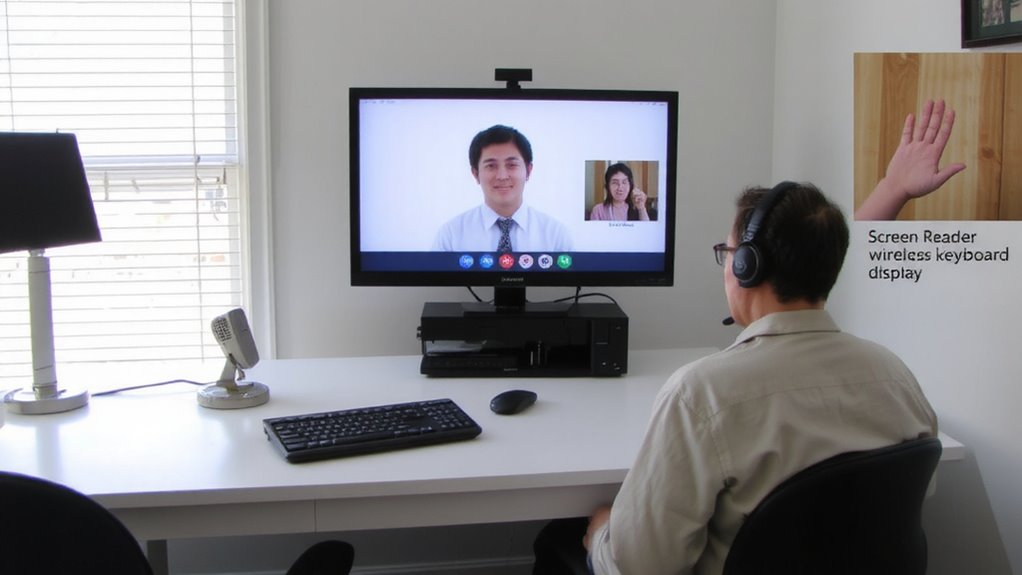
Accessibility starts with your platform choice, and Zoom leads for most users thanks to built-in support for screen readers, keyboard navigation, and closed captioning. You benefit from strong platform compatibility across devices and operating systems, guaranteeing you can join meetings whether you’re on a Windows laptop, iOS tablet, or Android phone. Feature inclusivity is central-live captions, sign language view, and screen reader optimization are available by default, not as extras. These aren’t perfect-auto-captions sometimes lag or misfire-but they work reliably in most tested scenarios. You’ll appreciate Zoom’s consistent interface updates, which maintain accessibility without sudden layout shifts. Still, don’t assume it’s a one-size-fits-all; some users may find Teams or Google Meet more compatible with niche assistive tools. Always verify integration with your specific hardware and software setups before committing. Testing across environments guarantees real-world usability. Your choice impacts everyone-choose with inclusion in mind.
Enable Keyboard and Screen Reader Access
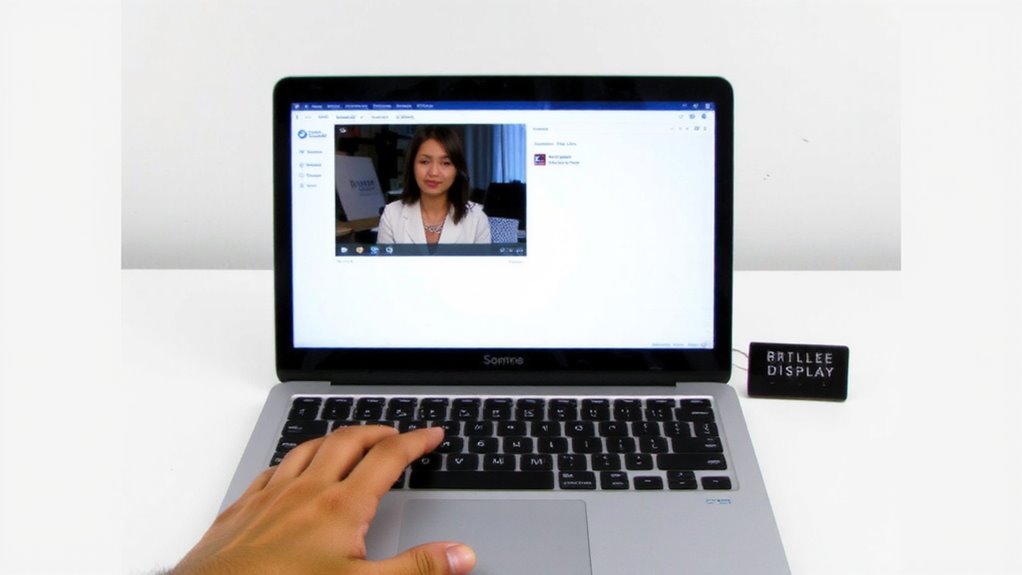
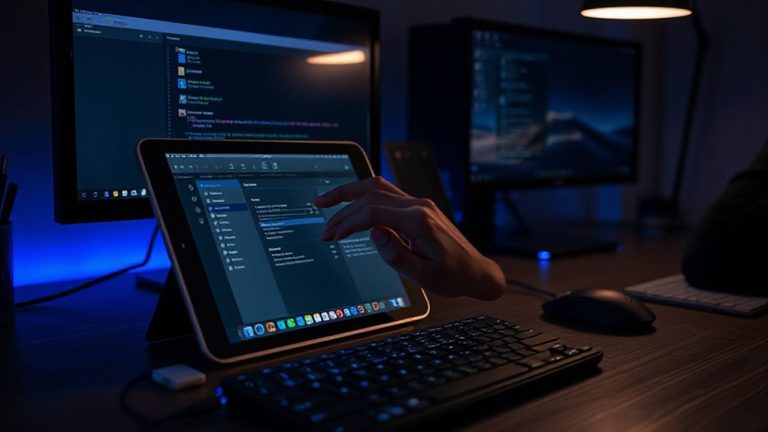
You’ll want to make sure your video conferencing setup works smoothly with keyboard navigation and screen readers, since not everyone uses a mouse or relies on visual cues. Strong keyboard navigation lets users move between buttons, menus, and participants using only the Tab, Enter, and arrow keys-this is essential for people with motor or visual impairments. Screen reader compatibility guarantees tools like JAWS, NVDA, or VoiceOver can accurately read interface elements, such as who’s speaking or when a chat message arrives. Most major platforms support these features, but implementation varies-always test with actual screen readers to confirm labels, shortcuts, and focus indicators are clear and consistent. Some apps may skip labeling icons or trap focus in menus, making navigation frustrating. Don’t assume all updates preserve accessibility. Regular testing with real-world workflows guarantees reliability across devices and operating systems.
Turn On Live Captions and Optimize Audio
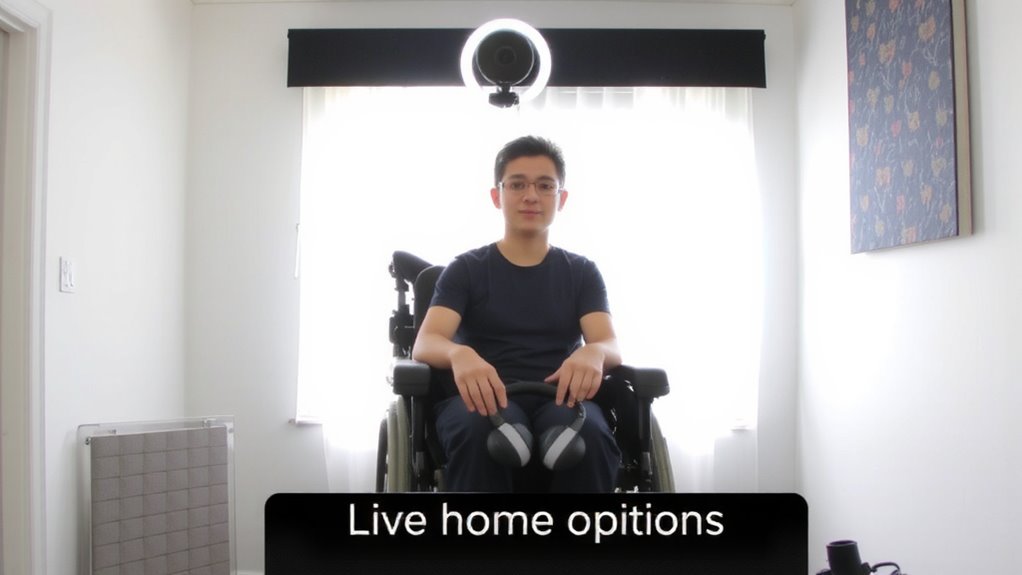
Getting clear audio and accurate live captions can make or break the meeting experience, especially when you’re relying on speech-to-text support or joining from a noisy environment. Turning on live captions gives everyone real time transcription, improving comprehension and inclusion. Audio clarity is just as important-background noise or muffled speech can wreck both understanding and caption accuracy. For those using external hardware, consider that a high-quality best webcam can significantly enhance both video and audio input, especially models with built-in microphones and noise suppression.
| Feature | Why It Matters |
|---|---|
| Built-in live captions | Guarantees real time transcription without third-party apps |
| Noise suppression | Boosts audio clarity by reducing keyboard taps or room echo |
| Mic sensitivity | Captures your voice clearly without distortion |
| Caption accuracy rate | Top platforms hit 85–95% accuracy in testing |
| Custom caption size | Helps users with low vision follow easily |
Use a headset with a noise-canceling mic for better results, but test first-some hardware causes echo or delays.
Set Up Inclusive Camera Angles and Lighting
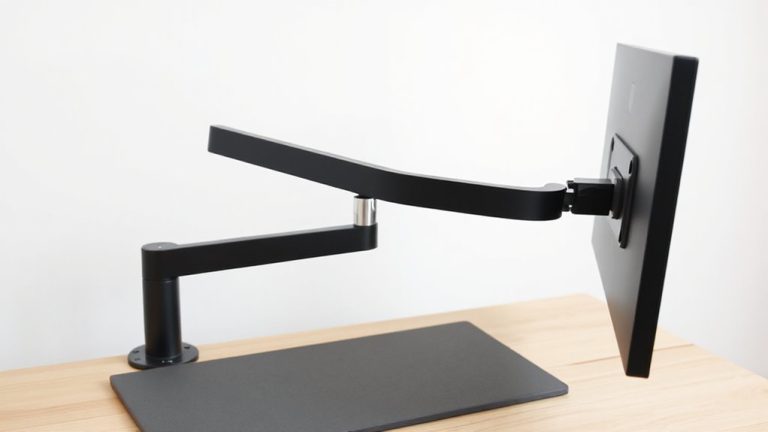
A well-placed camera and balanced lighting setup can make the difference between feeling present in a meeting or getting lost in the background. Camera placement should align with eye level-use a stack of books or adjustable stand if you don’t have a monitor riser-to create natural eye contact and reduce neck strain. Avoid backlighting; instead, position a soft, diffused light source, like a lamp with a 3000K–4000K bulb, in front of you to guarantee your face is visible. Strong lighting contrast can obscure facial expressions, especially for screen reader users or participants with low vision, so aim for even illumination without harsh shadows. While ring lights boost visibility, they can overexpose on darker skin tones if not angled properly-test your setup under different conditions. Built-in laptop cameras work fine, but external webcams offer better positioning flexibility. Always preview your video before joining to confirm clarity and framing. For higher production quality, consider using a best camera for self-tapes.
Facilitate Accessible Meeting Habits for All
Why do some meetings leave participants feeling included while others create barriers before the agenda even starts? It’s because accessible meeting habits prioritize everyone. You must establish clear meeting etiquette-like muting when not speaking and using name tags-to reduce auditory clutter and confusion. Always announce who’s speaking, especially for screen reader users or those relying on captions. Encourage participant engagement by pausing after questions and allowing multiple response methods, such as chat or voice. Designate a facilitator to monitor equity in turn-taking. Avoid back-to-back meetings without breaks; fatigue impacts focus, especially for neurodivergent users. These habits don’t require special gear or home office upgrades-just consistent practice. While no setup is perfect, structured etiquette and intentional engagement improve access for all, whether using basic webcams or high-end conference systems. Small changes, consistently applied, make the biggest difference.
On a final note
You’ll likely host smoother, more inclusive meetings by picking platforms like Zoom or Teams that support keyboard navigation and screen readers. Turn on live captions and test mics beforehand to catch audio gaps. Position lights in front of you, not behind, for clearer video. These steps help, but no setup is perfect-accessibility needs vary, so always ask participants what works best. Test features early and adjust as needed.