Positioning Laptop Docks So They Don’t Force Awkward Wrist Extensions
Place your laptop dock within 12 inches of your dominant hand so you can plug in without overreaching or twisting your wrist. Align ports straight-on to avoid strain, and pick docks with front or vertical ports for easier access. Set up your keyboard and mouse first to maintain neutral wrists, then position the dock around them. Use a compact front-facing hub if needed, but avoid daisy-chaining. Test the setup by plugging in five times to confirm smooth access-small tweaks now save long-term discomfort. Better positioning means less wear on joints, and there’s more to get right for lasting comfort.
Notable Insights
- Align the dock’s ports with your laptop’s ports to prevent wrist bending during connection.
- Position the dock within 12 inches of your dominant hand for easy, strain-free access.
- Choose docks with front- or vertical-facing ports to minimize hand twisting and overreaching.
- Set up keyboard and mouse first to maintain neutral wrist posture before placing the dock.
- Use a front-facing USB hub if dock ports are hard to reach, ensuring effortless plug-in access.
Stop Twisting Your Wrists to Plug In
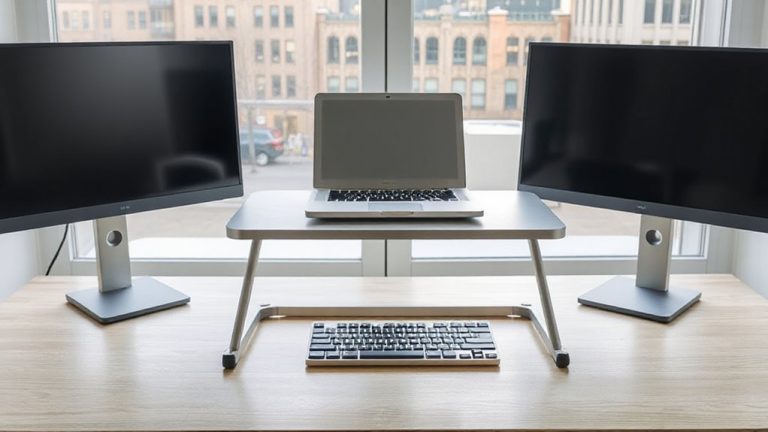
Why keep twisting your wrist every time you plug in your laptop? You don’t have to. Proper port alignment between your dock and laptop cuts strain instantly. If the ports don’t line up, you’re forcing awkward angles that wear on your wrist over time. Position the dock so the connectors meet straight-on-no bending, no pressure. Good cable management helps too. Tension from a poorly routed power or data cable can pull the plug at an angle, worsening misalignment. Use adjustable arms or dock mounts that let you fine-tune position. Some docks allow vertical or horizontal orientation changes, giving you flexibility. But be honest about your desk depth-some setups simply don’t leave enough room. Test placements with your actual setup. Even small adjustments, like raising the laptop with a stand, can improve alignment. It’s not about one perfect product-it’s about fit.
Place Your Laptop Dock Within Thumb’s Reach
You’ll save yourself more strain than you realize by placing your laptop dock within thumb’s reach-ideally no more than 12 inches from your dominant hand when seated normally. This small adjustment supports better ergonomic design by reducing shoulder protraction and wrist deviation during frequent connections. Thumb accessibility means you can plug in without leaning forward or twisting-key for avoiding repetitive strain over time. Position the dock beside your keyboard or just behind your monitor edge, depending on your desk layout. Avoid placing it behind towers or under monitors where you’ll need to stretch or look away. While central placements look tidy, they often compromise access. A slightly offset but reachable position usually works better in real-world setups. There’s no universal sweet spot, so test placements while seated properly. Adjust based on how easily you can plug in without repositioning your arm. Consider pairing your setup with one of the top ergonomic laptop stands for optimal alignment and comfort.
Pick a Dock With Front or Vertical Ports
A well-designed dock with front- or vertical-facing ports makes plugging in daily far easier on your wrists and posture. You’ll avoid twisting your hand or overreaching, which reduces strain during frequent connections. Front-facing ports boost port accessibility, letting you plug in devices without moving your laptop or struggling behind it. Vertical ports, especially on the side or top, save desk space and simplify cable management since cords can run upward or forward neatly. Look for docks with labeled, spaced-out ports to prevent USB-A and USB-C confusion. Keep in mind, though: too many front ports may clutter your workspace. Some models sacrifice port variety for layout-always check which ports you actually use. Durable builds and included cable ties help long-term cable management. While stylish designs exist, prioritize function-test the reach and angle of ports in real use before committing.
Set Up Keyboard and Mouse First: Then Dock
Once you’ve chosen a dock with accessible ports, setting up your keyboard and mouse first-before connecting the laptop to the dock-helps you maintain a neutral wrist posture and reduces long-term strain. Position your input devices where your elbows rest at 90 degrees, ensuring ideal ergonomic alignment. Only then should you place the dock nearby, routing cables neatly to support clean cable management. This order prevents you from awkwardly shifting your peripherals to accommodate the dock. While docking last may require slightly longer cables, the trade-off is better wrist positioning and workspace flow. Secure cables under a desk tray or use clips to minimize tension and clutter. Avoid tight bends in USB or power cords-they can fail over time. This method won’t fix a poor desk layout, but when done right, it enhances comfort during long work sessions. Pairing this setup with an adjustable laptop stand can further optimize screen height and reduce neck strain.
Add a Front-Facing Hub If Ports Are Too Far
Why struggle with awkward reaches every time you plug in a USB drive or connect headphones? If your laptop dock tucks ports out of easy reach, add a front-facing USB hub to improve port accessibility. Positioning the hub near your keyboard lets you plug and unplug devices without overextending your wrists. Look for a hub with at least four USB-A and one USB-C port for flexibility, and choose a compact model that won’t clutter your desk. A hub with a short, detachable cable helps with cable management and reduces strain on the connection point. Note: avoid daisy-chaining hubs, as this can reduce data transfer speeds and cause connectivity issues. While a front hub improves convenience, it adds another device to power and manage-so pick one with a reliable build and a 12-month warranty. Tested models from Anker and Sabrent show consistent performance, but results vary with laptop make and OS.
Arrange Your Desk to Keep Wrists Neutral
Keeping your wrists in a neutral position starts with how you set up your desk, not just the gear you choose. Position your laptop dock within easy reach-ideally just beside or in front of your laptop-so you don’t have to stretch or twist your wrists when plugging in. Use a docking station with front- or side-facing ports to reduce strain. Good cable management keeps cords organized and out of the way, minimizing clutter that can force awkward hand angles. Pair this with ergonomic lighting that reduces glare on screens and improves visibility without creating hotspots. Avoid placing lights where they reflect off your monitor and cause you to adjust posture. A clean desk layout supports neutral wrists, but only if cables are secured and devices are aligned with your natural reach. Over-organizing can backfire if it limits flexibility, so balance order with adaptability. For optimal results, consider using best cable management techniques to maintain both functionality and visual clarity on your desk.
Tweak Until Plugging In Feels Effortless
You’ll usually find that the real test of a well-arranged dock setup comes when you actually plug in your devices every day-when the process should feel smooth and automatic, not stiff or frustrating. To get there, fine-tune your dock’s position so cable length lets you connect without stretching or tugging. If the cord’s too short, you’ll strain your wrist pulling forward; too long, and clutter builds, making access harder. Match the dock’s port alignment exactly to your laptop’s ports-offsets force awkward angles that add up over time. A slight twist during docking might seem minor, but repeated daily, it increases fatigue. Test the fit by plugging in five times in a row-repeatable ease means you’ve nailed it. Remember, even the best dock won’t fix poor placement, so prioritize position over specs.
On a final note
You should position your laptop dock within thumb’s reach to avoid wrist strain, ideally using a model with front- or vertical-facing ports. This setup supports neutral wrist posture during daily use. While vertical docks save space, they may limit port access. Test fit with your laptop first-clearances vary. A front-mounted USB hub can help if the dock sits too far back. Adjust height and angle until plugging in feels smooth, not forced.