Visual Ergonomics 101: How Proper Monitor Setup Can Minimize Eye Strain During Long Hours of Screen Time at Home
Sit 20–30 inches from your monitor, about arm’s length, to balance screen clarity and eye comfort. Position the top of the screen at or slightly below eye level to keep your neck neutral and reduce strain. Tilt the display back 10–20 degrees to minimize glare from overhead lights. Adjust brightness to match room lighting-around 100–150 cd/m²-and use 14–18pt text for easy viewing. Enable blue light filters and take regular visual breaks using the 20-20-20 rule. While monitor arms or risers can help achieve ideal positioning, not all desks offer enough height flexibility-making setup adjustments essential for long-term comfort. Small tweaks often bring noticeable improvements, especially when tailored to your space. You’ll find even better results once you fine-tune lighting and viewing angles.
Notable Insights
- Position your monitor 20–30 inches away, about arm’s length, to balance visibility and visual comfort.
- Set the top of the screen at or slightly below eye level to maintain a neutral neck posture.
- Tilt the monitor 10–20 degrees backward to reduce glare from overhead lights or windows.
- Adjust brightness to 100–150 cd/m² and use 14–18pt text size for optimal readability.
- Follow the 20-20-20 rule and use blue light filters to reduce eye strain during prolonged use.
Sit 20–30 Inches From Your Monitor
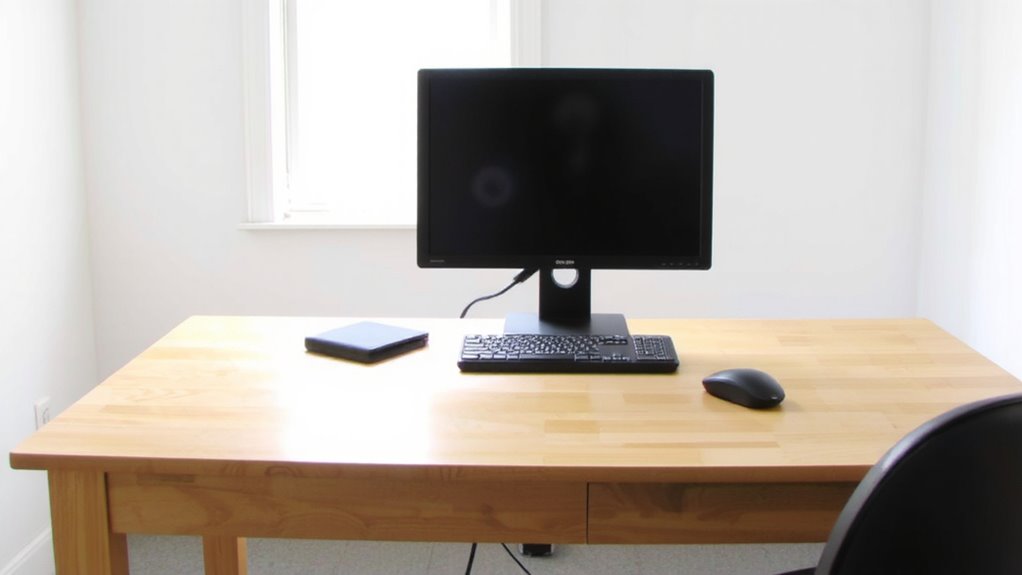
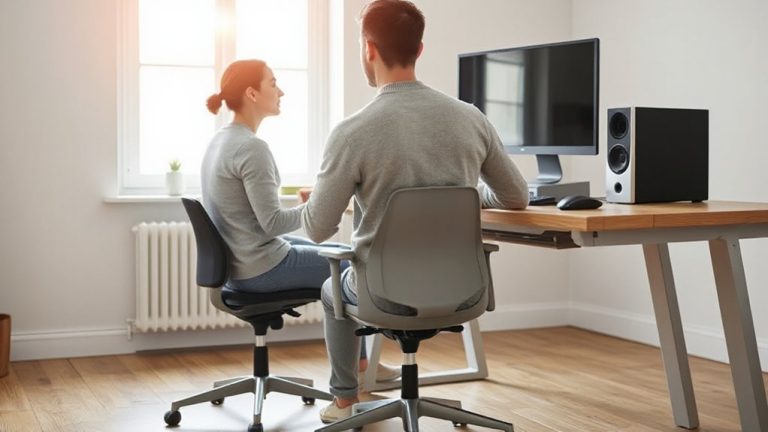
Start by positioning your monitor about an arm’s length away-roughly 20 to 30 inches from your eyes-for a viewing distance that balances screen visibility with visual comfort. This monitor distance helps reduce eye strain and keeps text and images sharp without forcing you to squint or lean forward. While 20–30 inches works for most people, your exact sweet spot depends on screen size and resolution-larger or higher-res displays can be viewed comfortably at the farther end. Pair this distance with a slight upward viewing angle, about 10–20 degrees above eye level, to maintain neck alignment. Don’t assume built-in monitor stands are ideal; they often lack fine adjustability. Mechanical arms or risers can help, but verify stability and range before buying. Results vary based on prescription lenses, room lighting, and personal comfort-test adjustments over full workdays to gauge real impact. For optimal adjustability and long-term comfort, consider upgrading to a best monitor mount that supports smooth height, tilt, and swivel movements.
Position the Top of Screen at Eye Level
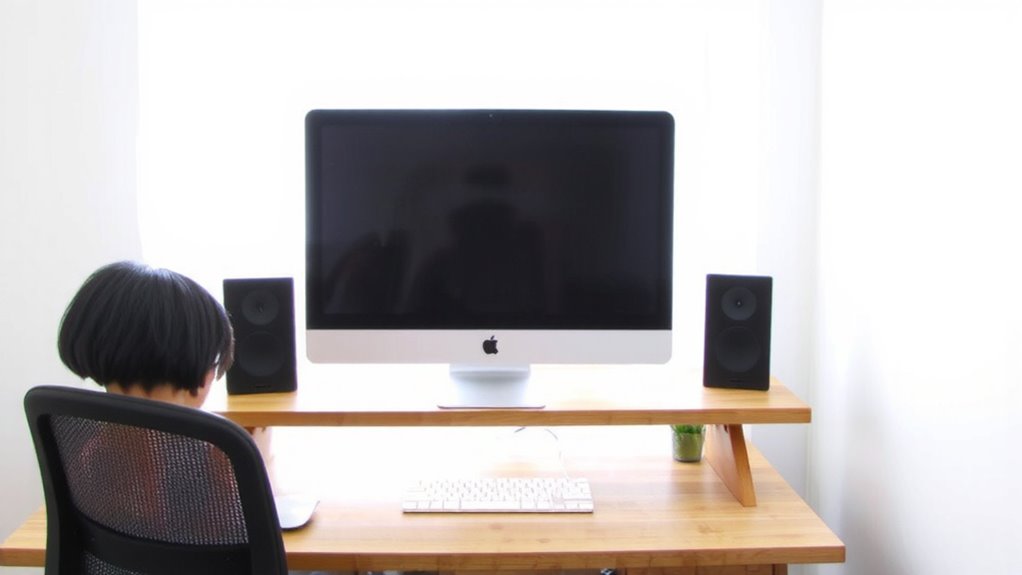
Most people should position the top of their screen at or just below eye level to maintain a neutral neck posture and reduce strain during long work sessions. Proper screen height keeps your viewing angle slightly downward, about 10–20 degrees, which aligns your eyes with the upper third of the display. This angle reduces both neck flexion and eye fatigue, especially during back-to-back video calls or extended writing tasks. If your monitor sits too low, you’ll crane your neck forward, increasing discomfort over time. Adjustable stands, monitor arms, or simple risers can help achieve ideal screen height. However, fixed-height desks or seated workstations may limit options, so consider ergonomics trade-offs with available space and budget. While built-in laptop stands or external risers help, stacking unstable items like books risks tipping and long-term inconsistency. For most users, a deliberate, stable setup beats makeshift fixes. A best desk risers choice can provide both stability and adjustability for long-term comfort.
Tilt the Monitor Slightly Backward to Reduce Glare
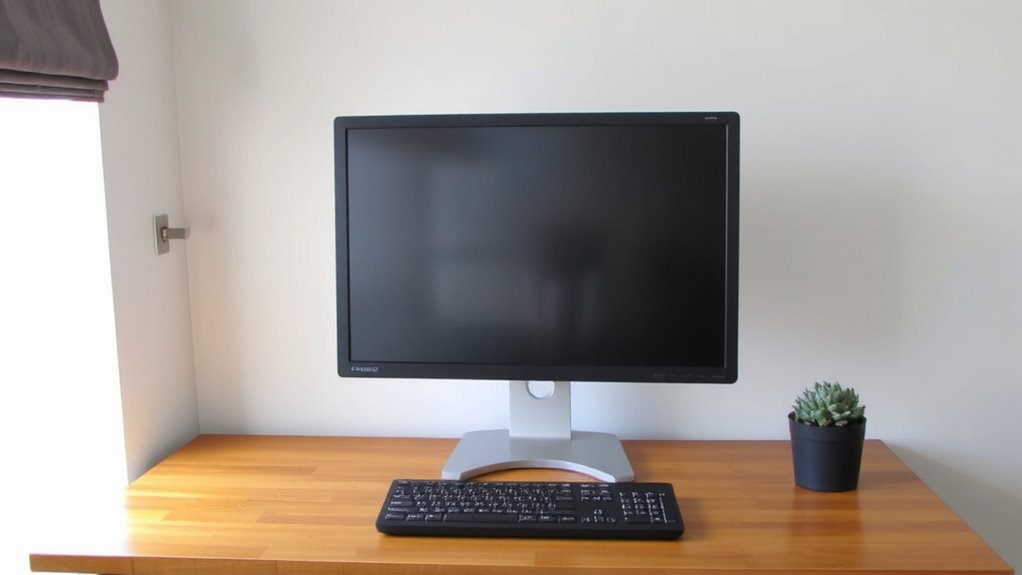
If you want to minimize screen glare and eye strain, tilting your monitor slightly backward-between 10 and 20 degrees-can make a meaningful difference, especially under overhead lighting or near windows. This tilt angle helps direct reflections away from your eyes, improving glare reduction and visual clarity. A slight backward tilt aligns the screen more perpendicularly with your line of sight, reducing the surface area exposed to ceiling lights or sunlight. Most monitors with adjustable stands allow this positioning, but check range limits before buying. Avoid over-tilting, as angles beyond 20 degrees may distort the image or shorten viewing comfort. Fixed stands often limit adjustment, so verify specs if glare reduction is a priority. While minor, this change works best when combined with proper screen height and ambient light control. It’s not a fix-all, but with the right tilt angle, you’ll see measurable gains in visual comfort during long sessions.
Adjust Brightness and Text Size to Soothe Your Eyes
Though you might be tempted to leave your monitor at factory brightness, dialing it down to match ambient light levels-around 100–150 cd/m² in typical office lighting-cuts eye strain and improves visual comfort over time. Pair this with a readable text size, usually 14–18pt for most apps, and you’ll see clearer focus without squinting. Optimizing font contrast and color temperature (aim for 5500–6500K) reduces glare and boosts clarity.
| Setting | Recommended |
|---|---|
| Brightness | 100–150 cd/m² |
| Color Temperature | 5500–6500K |
| Text Size | 14–18pt |
| Font Contrast | High (black on white or gray) |
Too dim hurts readability; too bright causes fatigue. Adjust incrementally based on your space and comfort.
Use Blue Light Filters and Take Regular Screen Breaks
A blue light filter can reduce eye fatigue during long work sessions, especially when paired with disciplined screen breaks. Blue light, emitted by screens, may disrupt circadian rhythms and contribute to eye strain over time. Using built-in settings like Night Light (Windows) or Night Shift (macOS) reduces this emission, softening display tones after sunset. While not a cure-all, many users report improved evening comfort. Still, don’t rely solely on filters-schedule screen breaks every 20 minutes (try the 20-20-20 rule: look 20 feet away for 20 seconds). These breaks relieve focusing fatigue and help maintain visual clarity. Some third-party blue light apps offer more customization than OS defaults, but they can occasionally cause color distortion. Filters work best alongside proper brightness and viewing distance. Results vary, so test settings over a week to assess real benefits without overadjusting your workflow.
On a final note
You’ll reduce eye strain considerably with the right monitor setup, but it’s not a cure-all. Sit 20–30 inches away, align the screen’s top at eye level, and tilt it 10–20 degrees back to cut glare. Adjust brightness to match ambient light and increase text size for clarity. Use built-in blue light filters and take 20-second breaks every 20 minutes. These fixes work, but lighting and screen quality vary-no gear replaces good habits.