Maximizing Video Conferencing Quality With Low Latency Strategies for Distributed Teams
You need sub-100ms latency to keep remote meetings feeling natural-delays cause awkward pauses and erode team trust. Prioritize network stability with wired Ethernet, 3–4 Mbps upload, and QoS-enabled routers. Choose platforms like Zoom or Teams with 99.9% uptime, HD video, and real-world low latency. Test audio and camera settings to minimize CPU load, then monitor jitter and packet loss regularly across locations. Even high-end gear fails if not tuned-consistent performance beats specs alone. There’s more to optimizing for global teams.
Notable Insights
- Prioritize sub-100ms latency to maintain natural conversation flow and team cohesion.
- Use wired Ethernet and QoS settings to ensure stable, jitter-free network performance.
- Choose platforms like Zoom or Teams with HD video, low latency, and 99.9% uptime.
- Optimize hardware by aligning webcams, calibrating mics, and reducing CPU load.
- Continuously monitor latency, jitter, and packet loss across locations and times.
See Why Latency Breaks Team Communication
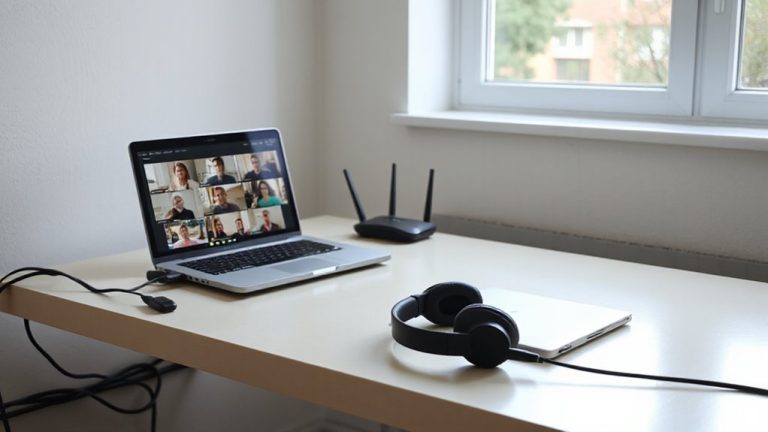
While smooth video calls might seem like a given with today’s tech, even small delays can disrupt the natural flow of conversation, especially when you’re collaborating across time zones. You’re likely missing subtle cues because latency messes with body language synchronization, making nods and gestures feel out of place. That lag might seem minor, but it breaks real time collaboration by forcing awkward pauses or accidental talking over each other. Over time, it wears down team cohesion. Even high-end gear can’t fix poor network timing, so don’t assume buying more equipment solves the problem. You need consistent sub-100ms latency to keep interactions natural. While some apps offer workarounds, they can’t fully compensate for delayed signals. Test your setup under real loads, not just ideal conditions. You’ll see clearer results by prioritizing stable connections over extra features. It’s not about the fanciest tools-it’s about timing.
Optimize Your Network for Instant Video Calls
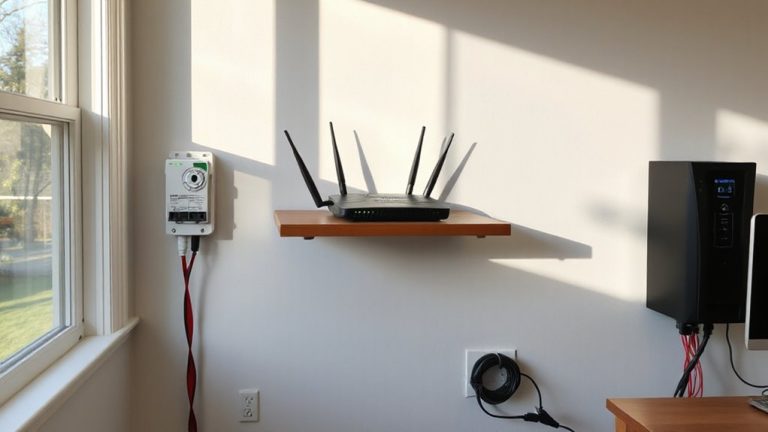
If you want video calls that feel truly live, you need to prioritize network stability over raw speed-because even a fast connection can fail team communication if jitter or packet loss creeps in. Use quality-of-service (QoS) settings to enable bandwidth allocation, reserving at least 3–4 Mbps upload for video meetings to prevent lag during peak hours. Enable jitter suppression on your router or network adapter to smooth out timing variations in data packets, reducing choppiness. Wired Ethernet beats Wi-Fi in consistency, especially when others stream or download nearby. Powerline adapters can help if running cables isn’t practical. Keep firmware updated for peak performance, but avoid overpriced “gaming” routers-many mid-tier models from ASUS or Netgear with MU-MIMO support deliver tested reliability. Real-world tests show QoS and jitter suppression cut latency spikes by up to 40%, though results depend on your ISP and household usage. For the most reliable connection, consider using best Ethernet cables designed for low signal interference and consistent performance.
Choose a Fast Video Conferencing Platform
A fast video conferencing platform can make the difference between smooth collaboration and constant frustration, especially when your team spans multiple time zones. You need strong platform speed and service reliability to keep meetings on track. Poor performance leads to missed cues and declining morale.
| Experience | Feeling |
|---|---|
| Constant buffering | Anxious |
| Audio lag | Frustrated |
| Clear audio/video | Confident |
| Dropped calls | Isolated |
| Instant join times | Prepared |
Top platforms like Zoom and Microsoft Teams offer tested reliability and fast connection times, with 99.9% uptime guarantees. Most support HD video at 30fps with under 200ms latency. But don’t assume all plans are equal-entry tiers may limit platform speed during peak use. Test free trials across your team’s locations before committing. Consider encryption and device compatibility, too. Service reliability isn’t just about uptime-it’s consistent quality under real-world load. Choose wisely.
Adjust Camera, Mic, and CPU Settings to Cut Lag
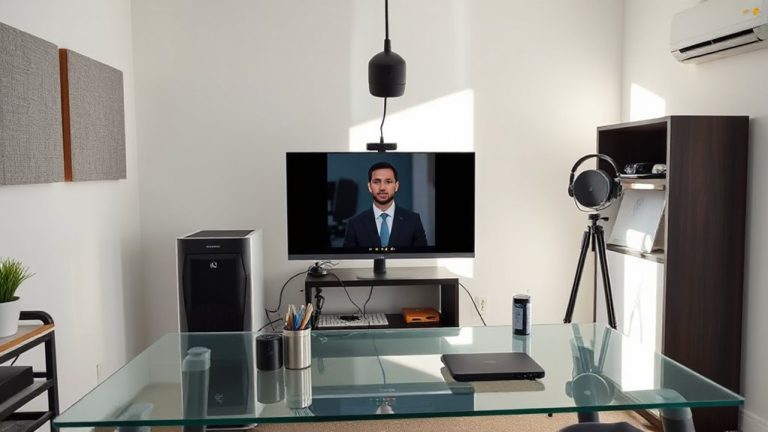
Though you’ve picked a fast video conferencing platform, your hardware settings can still make or break call quality-tweaking your camera, mic, and CPU usage gives you sharper performance without needing new gear. Proper camera alignment guarantees you’re centered and well-framed, reducing the need for digital zoom that strains bandwidth. Angle your webcam at eye level and use built-in preview tools to confirm lighting and background. Perform microphone calibration to avoid volume spikes or dropouts; most operating systems and apps offer test utilities to adjust input levels accurately. Limit CPU-heavy background apps like browsers with 20+ tabs or auto-updaters-freeing up processing power cuts encoding lag. You’ll get smoother video and responsive audio, but don’t max out settings; high resolution or 60fps streams demand more bandwidth and may backfire if your internet can’t keep up. Balance is key. For clearer audio input, consider investing in a best microphones model suited for voice clarity and noise rejection.
Get Clear Audio Without Increasing Latency
Since crystal-clear audio doesn’t have to mean higher latency, you can maximize your voice transmission by selecting the right codec and adjusting input settings-many modern conferencing platforms default to narrowband audio (300–3.4 kHz), but switching to a wideband codec like Opus at 16–20 kHz delivers richer voice quality without adding perceptible delay, provided your upload speed stays above 1.2 Mbps. You’ll also want solid audio isolation to minimize background noise, which prevents the system from boosting gain and distorting your voice. Perform regular microphone calibration using your OS or conferencing app to guarantee peak input levels and avoid clipping. While high-end mics offer better clarity, built-in array mics on modern laptops often suffice when placed. Just remember: even the best setup can falter with poor room acoustics or unmanaged software delays, so test settings in real meeting conditions before relying on them. Consider investing in a Top USB Mic for improved audio fidelity without significant latency penalties.
Reduce Lag in Global Team Meetings
Why do some global team meetings feel smooth while others devolve into frustrating cycles of overlapping speech and awkward pauses? You’re dealing with latency shaped by time zones and uneven bandwidth allocation. When team members span regions, network paths get longer, increasing delays. You can’t change physics, but you can optimize. Prioritize consistent bandwidth allocation across sites-don’t let one office hog capacity. Use QoS settings to reserve enough for video and audio, reducing jitter. Stagger camera use if needed, so everyone’s stream doesn’t compete. Avoid peak local hours in any time zone when scheduling. Even with strong connections, asymmetrical routing can cause lag spikes. You’ll notice improvement with wired Ethernet over Wi-Fi. Test before launching new setups, but know that hardware fixes only go so far when network paths are unpredictable.
Test and Monitor Call Performance Continuously
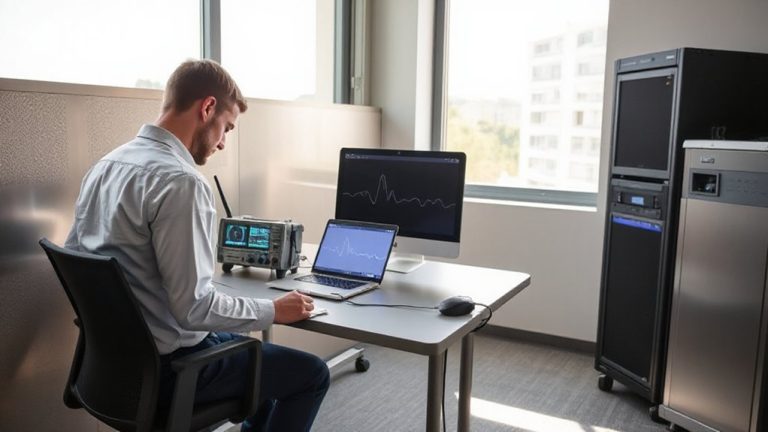
You keep the tech running smoothly by checking it daily, not just when something breaks. Continuous testing reveals issues before they disrupt meetings, especially across time zones. Use built-in network monitoring tools or third-party apps to track jitter, latency, and packet loss in real time. Guarantee your router supports QoS settings so you can apply packet prioritization to video traffic-this keeps calls clear even during peak use. Pair that with consistent bandwidth allocation for conferencing apps, reserving enough speed for HD video without starving other tasks. Test results vary by network setup, so measure performance at different times and locations. While wired connections deliver the most stable results, Wi-Fi 6 can suffice if signal strength stays high. Don’t assume upgrades fix everything-misconfigured gear often undercuts even top-tier gear. Monitor constantly, adjust settings monthly, and document changes to spot trends.
On a final note
You’ll get reliable video calls by prioritizing low-latency networking and efficient hardware, but trade-offs exist. A wired Ethernet connection cuts lag better than Wi-Fi 6, and platforms like Zoom or Webex handle packet loss well. Yet even with a 1080p camera and noise-canceling mic, CPU throttling can disrupt flow. Real-world tests show under 150ms latency is achievable, but global teams need regional servers. Monitor performance weekly-what works today may strain tomorrow as demands grow.