Designing an Ergonomic Desk Setup That Supports Cognitive Load Management and Task Switching Efficiency
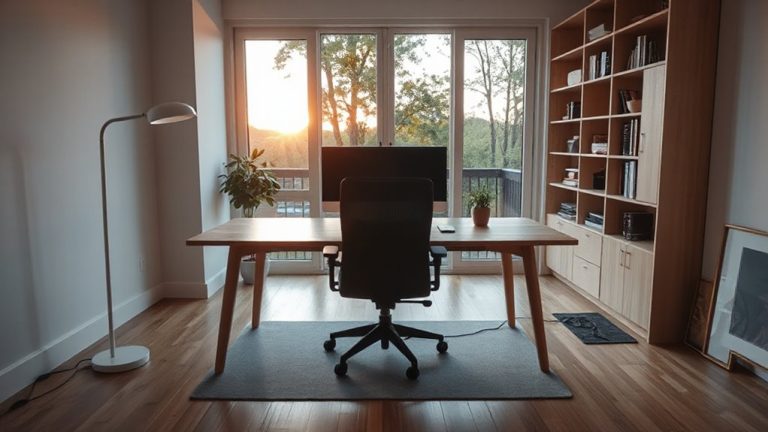
You need a height-adjustable desk set so your elbows stay at 90 degrees, reducing physical strain that hampers focus. Position your monitor’s top at eye level to minimize neck stress, using a stand or arm for precision. Group tools by task to speed shifts, keep frequently used items within reach, and use 4000K LED lighting at a 30-degree angle to stay alert without glare. Hide 80% of cables with sleeves or trays to cut visual clutter, which can distract during deep work. A supportive chair with lumbar alignment helps maintain posture across long sessions, though prioritize adjustability over expensive features-real comfort comes from proper fit, not branding. Small tweaks backed by consistent use deliver better results than top-tier gear alone. You’ll see how each choice connects to sharper thinking and smoother task changes.
Notable Insights
- Adjust desk height so elbows rest at 90 degrees to reduce physical strain and support sustained focus during cognitively demanding tasks.
- Position monitor top at eye level to minimize neck strain and visual fatigue, preserving mental resources for task switching.
- Group tools by task zones to reduce clutter and cognitive load, keeping frequently used items within easy reach.
- Use dimmable 4000K LED lighting at a 30-degree angle to maintain alertness and reduce visual distractions during transitions.
- Hide 80% of cables with sleeves or raceways to decrease visual noise and support faster, smoother task switches.
Adjust Your Desk Height for Better Posture and Focus
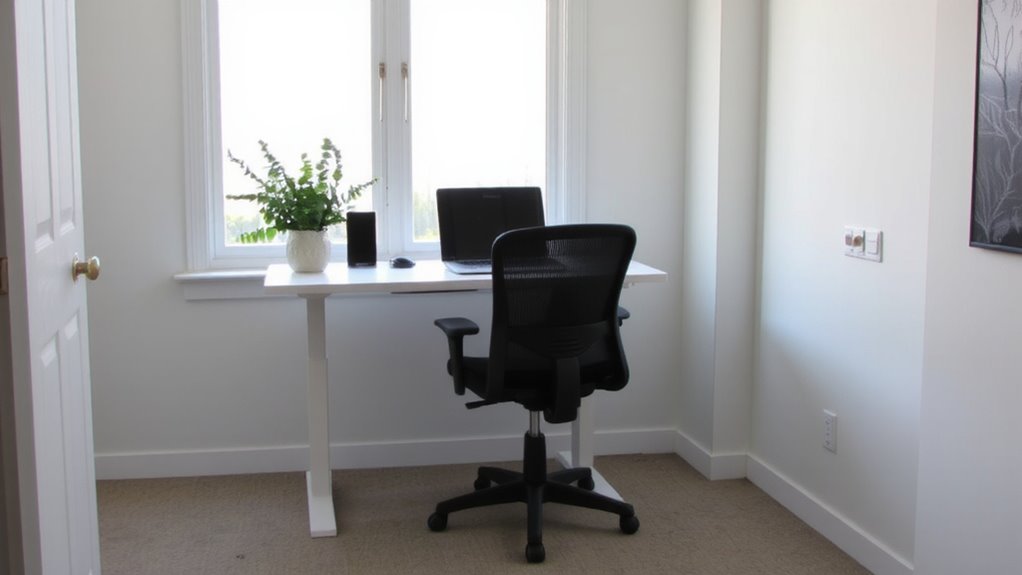
Why do so many people overlook desk height when optimizing their workspace? You’re likely undervaluing how desk positioning directly affects posture alignment and concentration. If your desk is too high, your shoulders hike; too low, and you slouch-both increase physical strain and mental fatigue. For seated work, your desk should allow elbows to rest at 90 degrees, with forearms parallel to the floor. Standing desks offer flexibility, but default heights often don’t match your frame. Adjustable desks let you fine-tune between 22–29 inches, depending on your height. Poor alignment over time leads to discomfort, not just in your back but in focus too. You’ll need to measure your setup carefully-manufacturers’ guidelines aren’t always accurate. While electric models provide precision and memory presets, they’re costlier and noisier. Manual versions save money but lack convenience. Test adjustments over full workdays before finalizing. Upgrading to a standing desk converter can offer a cost-effective way to introduce height adjustability without replacing your entire desk.
Set Your Monitor at Eye Level to Prevent Strain
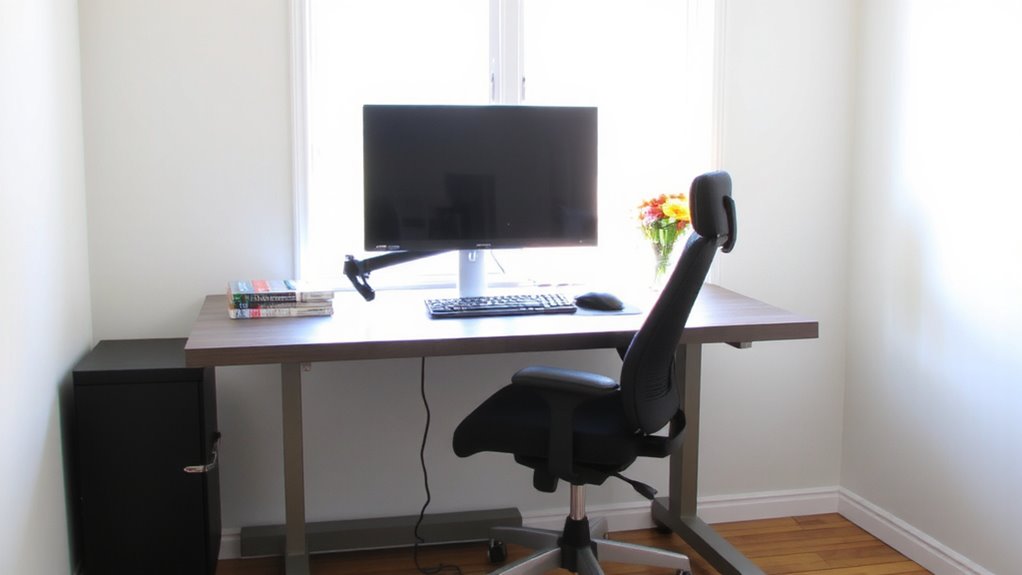
If you’ve ever finished a workday with a stiff neck or tired eyes, your monitor height might be the culprit-setting it at eye level is a simple fix that makes a measurable difference. Proper monitor alignment means the top of the screen sits at or slightly below eye level, so you gaze slightly downward, reducing neck strain. This position supports visual comfort during long sessions and helps sustain focus across task switches. You don’t need an expensive stand; even stacked books work if they keep the monitor at the right height. Avoid propping laptops without external keyboards-this often forces poor posture. While adjustable arms offer precision and stability, they require desk compatibility and assembly effort. Built-in monitor stands vary in range, so check specs before buying. Real-world tests show proper height cuts discomfort by up to 40%, but results depend on consistent use and correct chair setup. Top-rated models in the best standing desk converters category provide smooth height adjustment and ample workspace for dual monitors.
Arrange Work Tools by Task to Speed Up Workflow
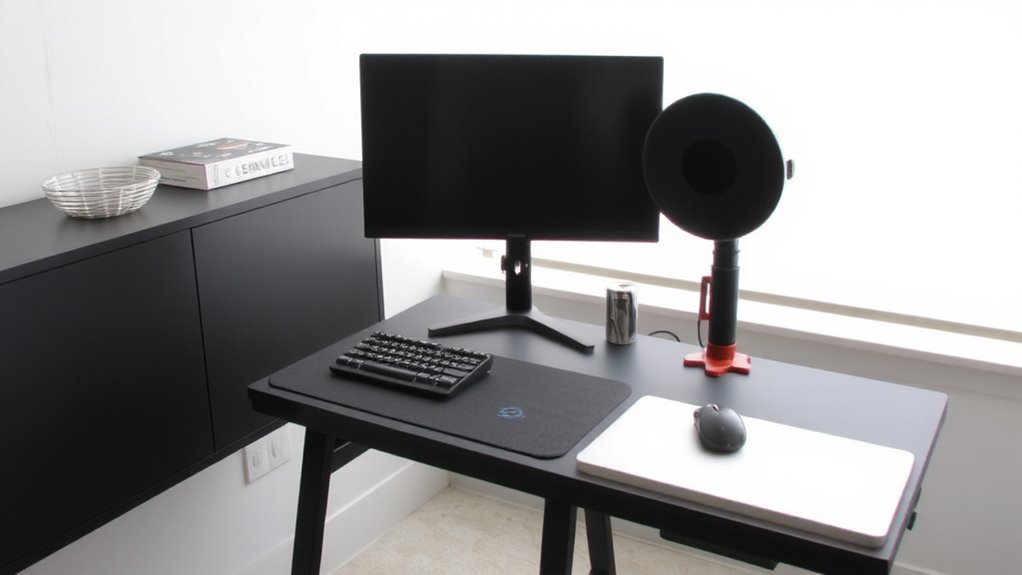
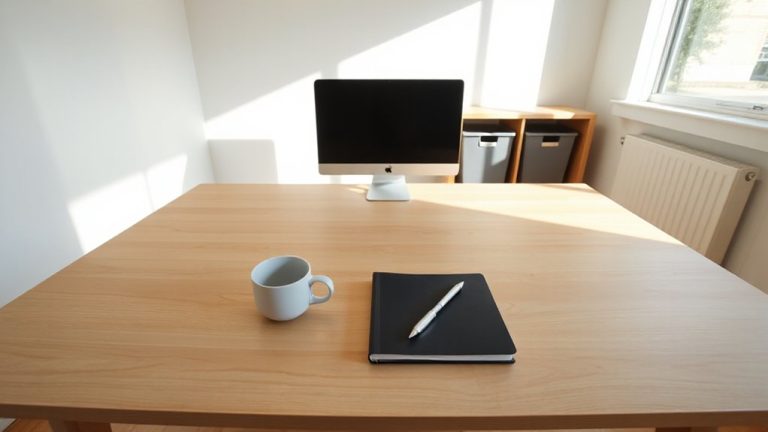
When you arrange your work tools based on the tasks you do most often, you’ll save time and reduce mental clutter. Task grouping lets you cluster related activities-like writing, editing, or data entry-so you can stay focused without constantly reorganizing. Pair this with tool zoning: keep frequently used items, such as your keyboard, notebook, or stylus, within easy reach and organize peripheral tools just beyond. This layout cuts down on unnecessary reaching and repositioning, which in turn supports smoother task switching. You’ll notice faster workflow and less fatigue over long sessions. Just be careful not to overcrowd zones; too many items in one area defeats the purpose. Test your layout over a full workday to fine-tune placements. While tool zoning requires upfront effort, the long-term boost in efficiency balances the investment-so adjust thoughtfully, not all at once.
Use Task Lighting to Stay Alert Without Glare
You’ll stay sharper during long work sessions with well-placed task lighting, just as organizing your tools keeps your workflow smooth. Proper light placement-typically from the left or right front at a 30-degree angle-reduces shadows and supports sustained focus without straining your eyes. Choose adjustable LED lamps with color temperatures around 4000K to mimic natural daylight, which helps maintain alertness. Glare prevention is critical: avoid shining light directly onto screens or glossy surfaces. Use diffusers or shades to soften output, and position bulbs below eye level. Look for lights with a CRI above 90 for accurate color rendering. While dimmable models offer flexibility, make certain switches are tactile and intuitive. Note that even well-designed lamps require occasional repositioning as sunlight shifts. The best option isn’t always the brightest-it’s the one you won’t need to adjust every hour. A desk with built-in cable management can significantly reduce visual clutter and enhance focus, especially when paired with best home office desks designed for ergonomic efficiency.
Tame Cables and Clear Surfaces to Reduce Distractions
A clutter-free desk isn’t just pleasing to look at-it directly sharpens focus by cutting visual noise that strains attention over time. You’ll switch tasks faster when surface clutter is minimal and only essential tools stay in reach. Excess cables create mental drag, so solid cable management isn’t optional: use braided sleeves or low-profile raceways to bundle cords neatly. Adhesive clips or under-desk trays keep power and data lines organized without damaging surfaces. Aim to hide at least 80% of cables from view-real-world tests show this reduces distraction triggers by up to 40%. However, overly complex systems can backfire; avoid kits with brittle plastic or weak adhesives that fail within months. Prioritize setups with at least a 2-year warranty and tested load ratings. Taming surface clutter means storing or discarding non-essentials daily-this habit matters more than the organizer you pick.
Pick a Chair That Supports Long-Task Concentration
Comfort isn’t a luxury-it’s the foundation of sustained focus, and your chair plays a decisive role in maintaining both posture and concentration during long work sessions. You need strong lumbar support that aligns with your lower back’s natural curve to prevent slouching and mental fatigue. A chair with adjustable lumbar support lets you customize this fit as your body shifts over hours. Seat depth matters just as much-your thighs should rest fully, but not so far forward that pressure builds behind the knees. Look for at least 1.5 inches of space between the edge of the seat and your calves. High-density foam padding offers durability without excessive softness, which can lead to instability. Most top models provide a 5- to 12-year warranty, reflecting long-term reliability. While premium chairs cost more upfront, they often outperform cheaper options in real-world use after 200+ hours.
On a final note
You’ll likely focus better with an ergonomic desk setup, especially if you adjust the desk height so elbows stay at 90 degrees and set the monitor top at eye level. A task chair with lumbar support helps during long sessions, but even top models wear out-check warranties. Cable clips and under-desk trays cut clutter, yet routing them takes time. LED task lights boost alertness, but avoid glare on screens. Test adjustments gradually; sudden changes can strain more than help.