How to Set Up a Dual-Monitor Configuration for a Home-Based Accountant
You can set up a dual-monitor system if your PC has two video outputs like HDMI or DisplayPort-most modern machines do. Pick two 24-inch Full HD IPS monitors for sharp text and wide viewing angles, positioning them at eye level and an arm’s length away to avoid strain. Use monitor arms for flexibility and connect both displays, then extend your desktop in Windows or Mac display settings. Run spreadsheets on one screen, email on the other, and match brightness and resolution to reduce eye fatigue-there’s more to fine-tuning your setup for long-term comfort and efficiency.
Notable Insights
- Ensure your PC has two video outputs like HDMI or DisplayPort to support dual monitors.
- Choose two 24-inch Full HD IPS monitors for sharp text, accurate colors, and comfortable viewing.
- Position both monitors at eye level, an arm’s length away, and angled slightly inward for ergonomics.
- Use Windows or Mac display settings to extend the desktop and align the monitor layout correctly.
- Place spreadsheets on the primary screen and email on the secondary to streamline accounting tasks.
See If Your PC Supports Dual Monitors
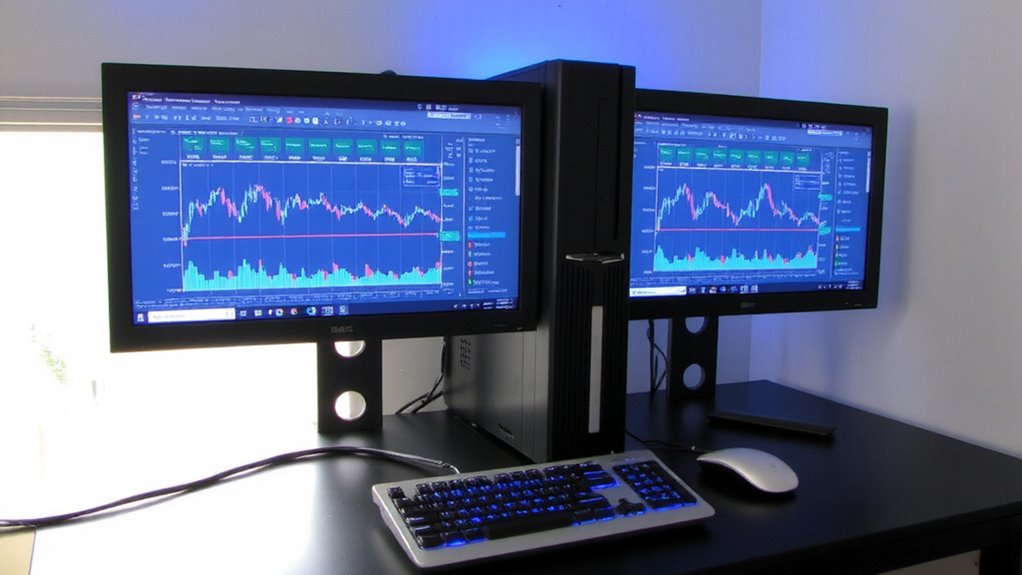
Wondering if your current PC can handle a second monitor? Most modern PCs can, but it depends on your graphics card. Check if yours has at least two outputs-HDMI, DisplayPort, or DVI-because you’ll need one for each monitor. Older integrated graphics might support dual displays, but you could face limitations in performance or max resolution. Your graphics card also determines the refresh rate each monitor can achieve; mismatched refresh rates may cause screen tearing or lag. For smooth multitasking, aim for a dedicated GPU that supports 60Hz or higher on both screens. While many budget office PCs manage basic dual-monitor setups, pushing high resolutions or fast refresh rates demands more power. Always verify port compatibility and driver support-older systems might need updates. There’s no universal fix, so test your setup before upgrading. A well-organized workspace enhances efficiency, so consider using best monitor stands to achieve optimal screen height and alignment.
Pick Monitors for Accounting: Size, Clarity, Placement
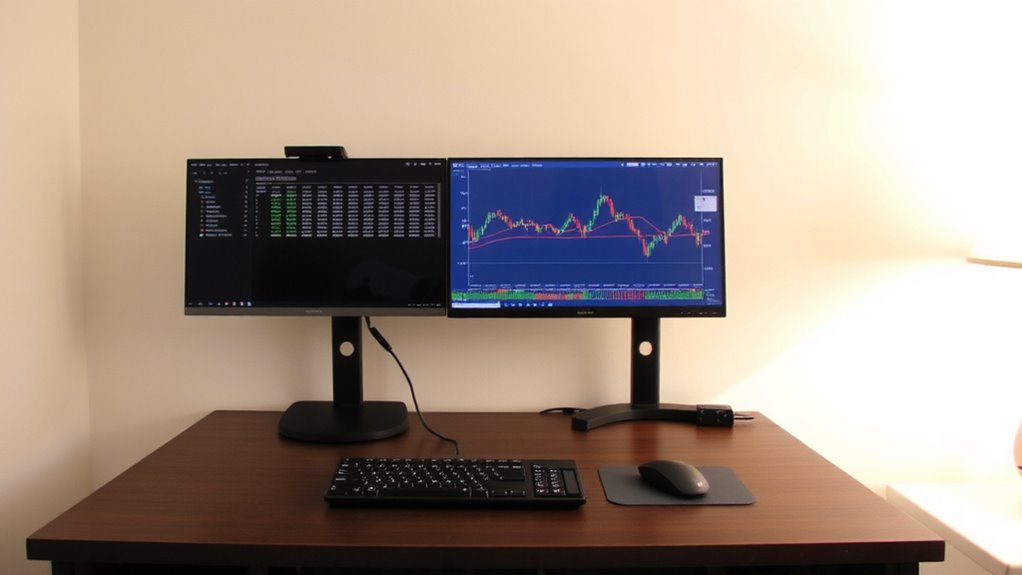
A 24-inch monitor with Full HD (1920×1080) resolution is the sweet spot for most accounting tasks, balancing screen space, text clarity, and desk footprint. You’ll want sharp text for long spreadsheet sessions, so stick with IPS panels for accurate colors and wide viewing angles. Screen brightness should hit at least 250 nits to stay clear in varied lighting, especially near windows. Avoid oversized displays-larger than 27 inches may strain your neck during prolonged use. Place both monitors side by side at eye level, but save fine-tuning for setup. Built-in cable management features help reduce clutter, making your workspace cleaner and easier to maintain. Don’t overlook VESA compatibility-it gives you mounting flexibility later. While higher resolutions like 1440p exist, they’re overkill for accounting software and can complicate scaling. Stick with reliable specs, not trends, for lasting comfort and true productivity. For top-performing options, consider one of the best 24-inch monitors based on expert testing and user feedback.
Connect and Position for Comfort
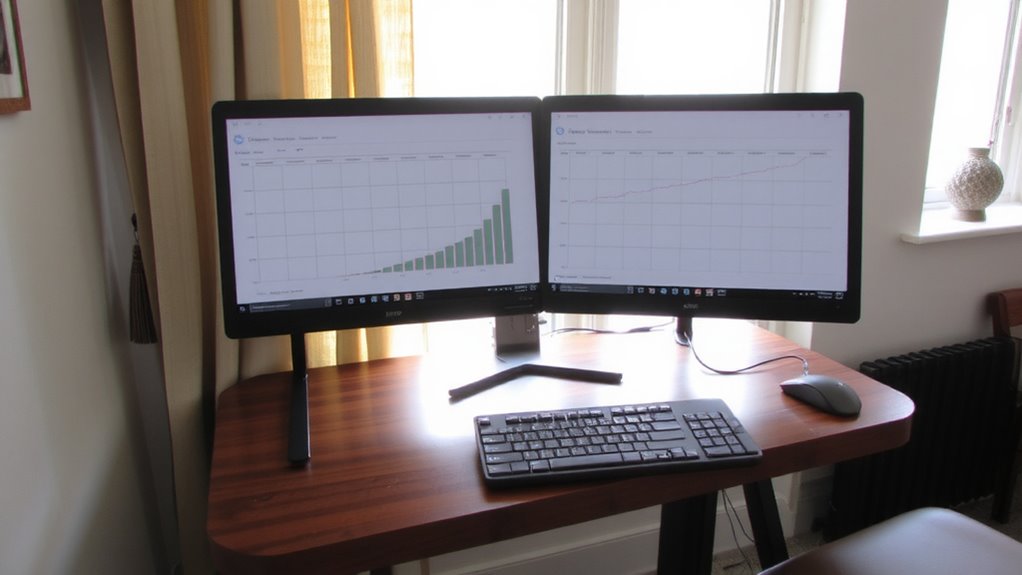
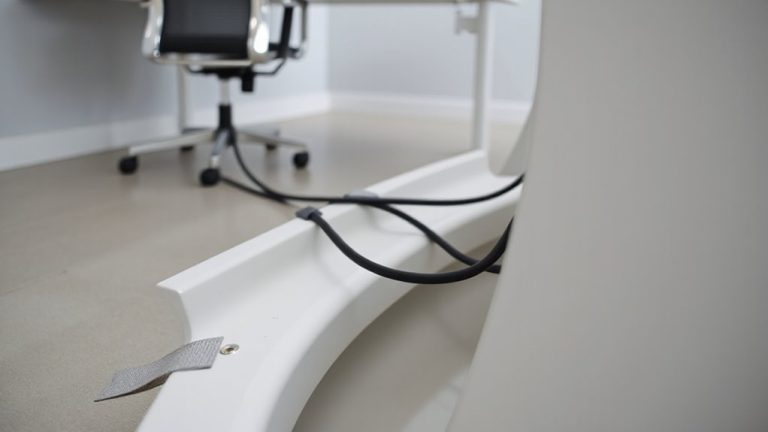
How do you set up dual monitors so they feel natural, not like a tech obstacle course? Position both screens at eye level, about an arm’s length away, and angle them slightly inward to reduce neck strain. Keep your lighting setup glare-free-avoid placing monitors opposite windows or bright lights. Use monitor arms or risers for height adjustment, ensuring a comfortable viewing angle throughout the day. Good cable management is key: use clips or sleeves to bundle cords neatly, reducing clutter and tripping hazards. Poor wire control can undo even the best ergonomic layout. While adjustable stands add cost, they pay off in long-term comfort. Just don’t over-tighten mounts-stripped screws are a common frustration. A clean, smart setup supports focus, but remember: perfect positioning varies by desk size and seating. Test adjustments over a full workday before finalizing. For optimal flexibility and space-saving benefits, consider investing in best monitor mounts that support smooth adjustability and sturdy dual-monitor configurations.
Set Up Dual Display on Windows or Mac
Once you’ve got your monitors physically positioned, getting them working together smoothly depends on a quick but careful software setup that varies slightly between Windows and Mac. On Windows, go to Settings > System > Display to detect both screens and choose how they’re arranged-extending is typical. Adjust resolution and orientation so text looks sharp. On Mac, open System Settings > Displays, then drag screen icons to match real-world placement. Enable “Mirror Displays” only if needed. Both systems let you manage cable management neatly through arrangement menus and desk routing. Don’t skip color calibration-use built-in tools or a hardware calibrator to align brightness and tone across screens, which reduces eye strain during long sessions. While setup is mostly intuitive, misaligned displays or poor calibration can undermine comfort. Take five extra minutes to fine-tune; your eyes and workflow will benefit.
Run Spreadsheets and Email Side by Side
While managing financial data and client correspondence, running spreadsheets and email side by side on a dual-monitor setup greatly boosts efficiency-if you position them wisely. Place your spreadsheet on the primary screen for quick formula access and your email client on the secondary to monitor incoming requests without disrupting focus. Align both monitors at eye level and use ergonomic lighting to reduce glare and eye strain during long sessions. Proper cable management keeps power and HDMI or DisplayPort cables organized, minimizing clutter and tripping hazards. A clean setup also makes troubleshooting faster. Be sure both monitors have matching resolution and brightness to avoid visual fatigue. While this layout improves workflow, it requires desk space and discipline to maintain. Overloading screens can backfire, so keep only essential apps open. Test positioning during actual work hours to fine-tune angles and comfort.
On a final note
You’ll likely boost productivity by setting up dual monitors, especially for side-by-side spreadsheet and email work. Position them at eye level, angled slightly inward, to reduce neck strain. Use HDMI or DisplayPort cables for reliable connections, and verify your GPU supports the second display. While larger screens improve visibility, oversizing can cause glare or desk crowding. Choose IPS panels for viewing clarity but expect higher cost. Test configurations before final setup.