Optimizing Dual-Monitor Layout for a Home Office With Limited Wall Space
For a compact home office, use two 24- to 27-inch monitors on a desk at least 55 inches wide, leaving 2 inches of clearance on each side for airflow and adjustments. Mount them at eye level with adjustable arms to reduce neck strain, tilting screens 10–15 degrees inward for best viewing. Desk-mounted arms save space and support up to 17 lbs each, but check your desk’s thickness (0.6–3.2 inches) for secure clamping. Match resolution and brightness settings to minimize eye strain. While slim bezels help, tight wall clearance can still cause overhang-position carefully. Most quality arms come with a 3-year warranty, offering reliable support. You’ll find precise setup steps and model comparisons next.
Notable Insights
- Measure desk depth and width to ensure adequate space for two monitors and peripherals.
- Choose 24- to 27-inch monitors to balance screen real estate and space efficiency.
- Position monitor tops at eye level using risers or arms to reduce neck strain.
- Angle screens inward 10–15 degrees for comfortable viewing and minimal head movement.
- Use dual-monitor arms with cable management to save desk space and improve ergonomics.
Measure Your Desk and Wall for Dual-Monitor Fit
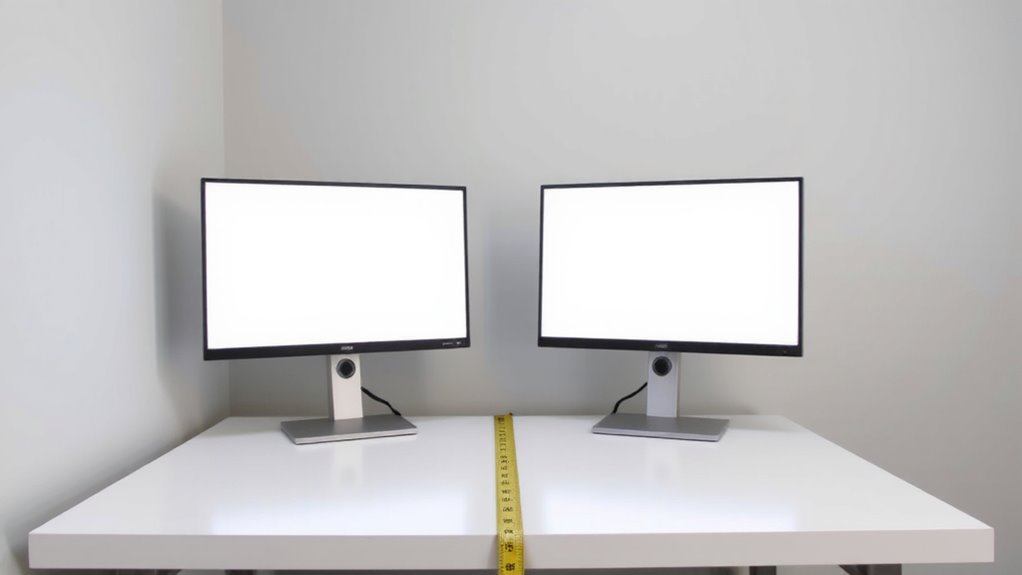
Space is the starting point-knowing your desk and wall dimensions isn’t just helpful, it’s non-negotiable. You need enough room for two monitors without cramping your workspace or blocking outlets, light switches, or wall clearance. Start by measuring your desk dimensions front to back and side to side, noting usable depth after accounting for your keyboard and mouse. Then check wall measurements behind the desk-this dictates how far monitors can sit from the wall and whether cables can route cleanly. If wall space is tight, even slim-bezel displays might overhang. Mounting brackets or articulating arms can save depth but require solid wall anchors and precise placement. Always leave at least 2 inches on each side for airflow and adjustments. Getting these measurements wrong means poor ergonomics or last-minute returns-neither helps productivity. Measure twice, buy once. A well-chosen desk can make all the difference, so consider checking the best home office desks for top-rated options that fit compact spaces.
Pick the Best Monitor Size for Small Spaces
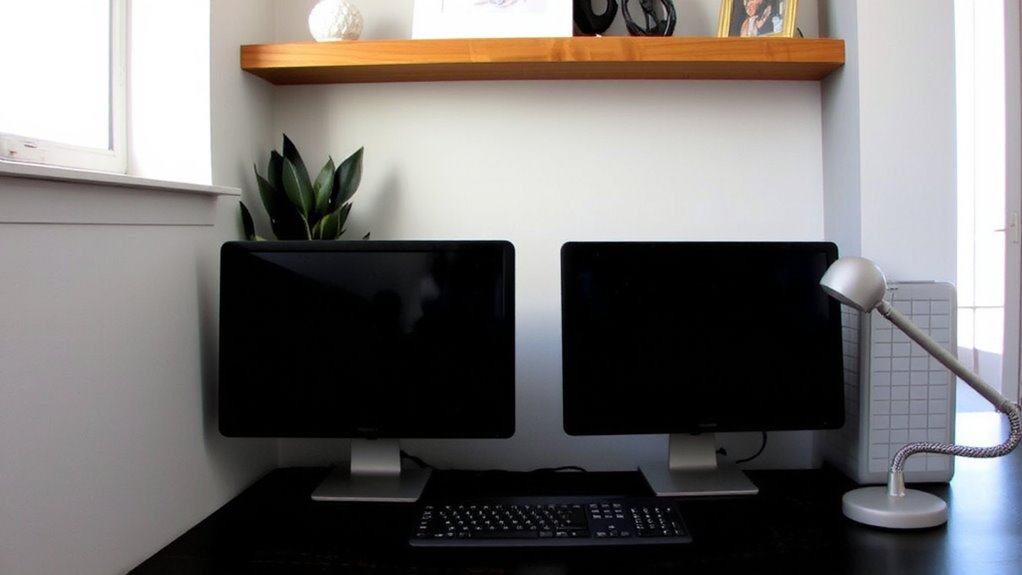
While bigger screens might seem ideal, you’ll likely find that 24- to 27-inch monitors strike the best balance between screen real estate and desk space in a compact setup. Choosing identical models promotes monitor symmetry, which enhances visual balance and reduces eye strain during long work sessions. Matching sizes and bezel widths create a seamless shift between screens, improving multitasking without cluttering your limited area. However, avoid exceeding 27 inches unless your desk is at least 55 inches wide-larger displays can feel cramped and limit peripheral placement. Also, consider ultra-thin bezels and uniform stand designs to maximize usable space. Smaller than 24 inches sacrifices too much productivity, especially for coding or spreadsheets. Stick to Full HD or QHD resolution for sharp text without scaling issues. Test the fit with your keyboard and mouse layout-comfort matters as much as screen size. For optimal performance in this size range, consider one of the top 24-inch monitors based on expert reviews and user feedback.
Mount Screens at Eye Level for Comfort
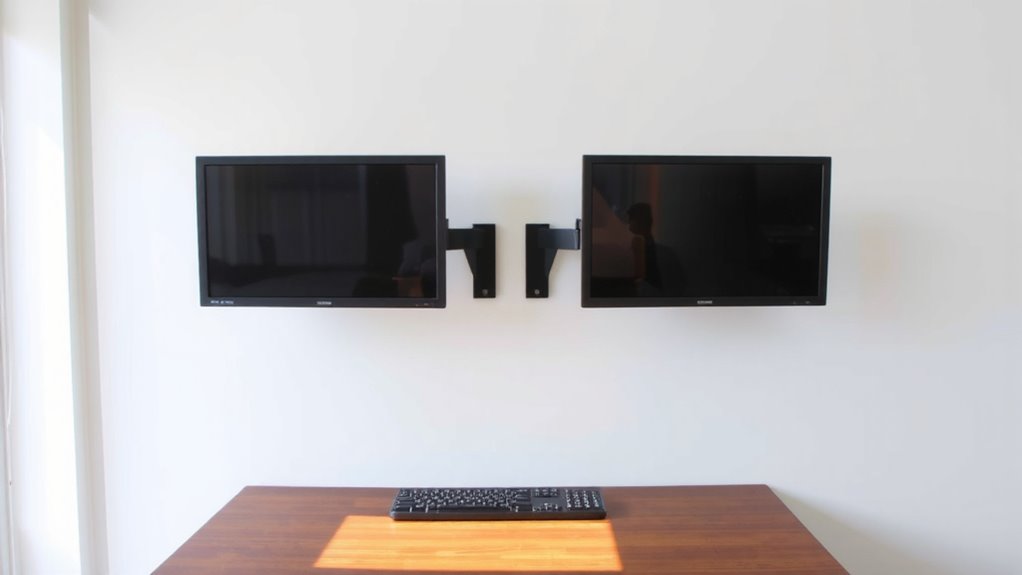
You’ve picked the right monitor沉重 for your compact workspace, so now it’s time to focus on positioning-getting your screens at eye level can make a real difference in comfort over long workdays. Proper ergonomic positioning helps prevent neck and shoulder fatigue, especially when you’re seated for hours. The top of the screen should align with your natural eye height when sitting, supporting ideal visual alignment. This reduces upward or downward gaze, which strains muscles over time. Mounting arms or risers can help achieve this, especially on shorter desks. Be mindful that lowering a high desk isn’t always feasible-adjustable mounts offer more flexibility. While fixed stands work for some, they often limit fine-tuning. Real-world testing shows users report better comfort within a week of adjusting height. Still, double-check alignment after setup-small tweaks make a noticeable difference. A popular and effective solution is using a monitor riser to elevate your display without sacrificing desk space.
Angle Your Monitors to Reduce Neck Strain
Tilting your monitors inward slightly-about 10 to 15 degrees toward you-can go a long way in cutting down neck strain, especially when you’re switching focus between screens all day. Proper monitor alignment keeps both screens within your natural field of vision, reducing the need to swing your head side to side. This setup boosts viewing comfort and helps maintain good posture over long work sessions. You’ll want both bezels facing you evenly so depth perception stays consistent. If the angle’s too steep, though, you might introduce glare or image distortion on some panels. On ultra-wide or curved displays, moderation is key-excessive angling can warp edges. Test the sweet spot by moving your head slightly; if you’re still seeing clearly on both screens without leaning, you’ve got it right. It’s a small tweak, but one backed by ergonomics research.
Use Desk-Mounted Arms to Free Up Space
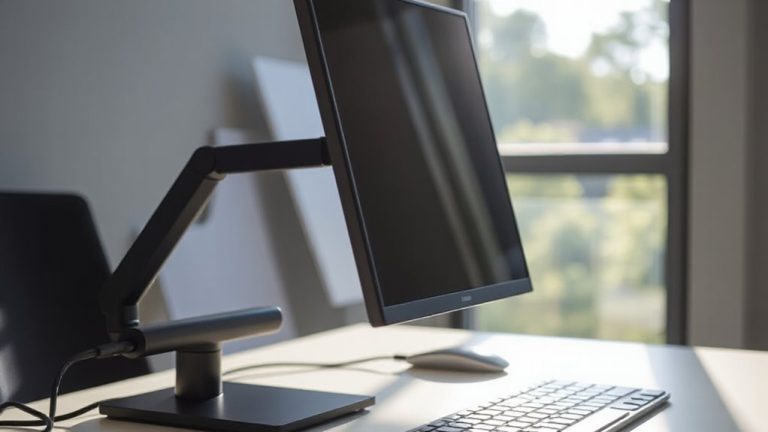
A desk-mounted monitor arm can transform your small home office by lifting your screens off the surface and reclaiming valuable workspace-ideal when every inch counts. These arms deliver both space efficiency and ergonomic flexibility, letting you adjust height, tilt, and depth for better posture and comfort. Most dual-arm models support monitors 17–27 inches and up to 17 lbs each, with gas-spring mechanisms ensuring smooth movement. Be sure your desk has a compatible thickness (typically 0.6–3.2 inches) and solid lip for clamping.
| Feature | Benefit | Trade-off |
|---|---|---|
| Space efficiency | Frees desk surface | Requires stable desk attachment |
| Ergonomic flexibility | Reduces strain | Setup needs minor assembly |
| Cable management | Built-in routing | Limited space for thick bundles |
Always check weight limits and warranty-3-year coverage is standard.
Keep Cables Neat in Tight Setups
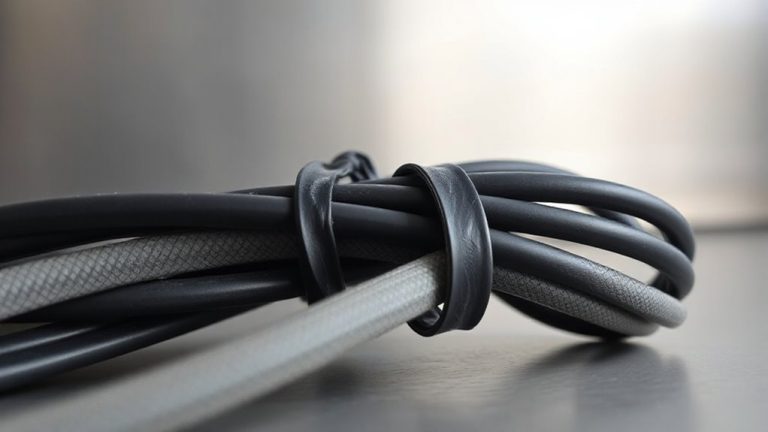
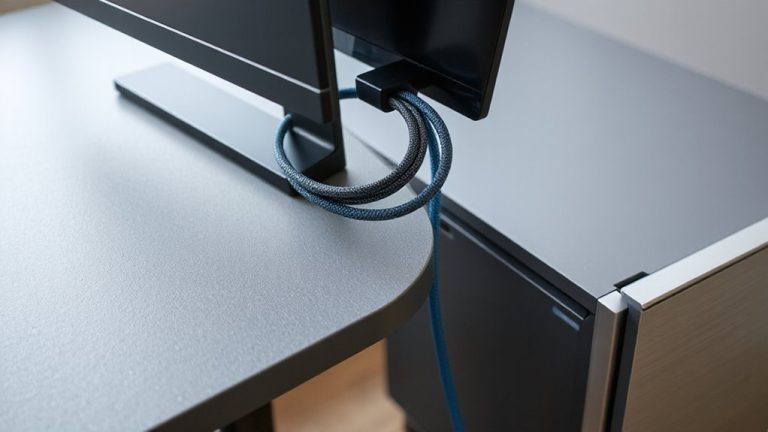
Neat cable management’s biggest win in tight dual-monitor setups is preserving usable desk space while reducing visual clutter-though it demands careful planning to avoid constraining future upgrades. You’ll want to secure power and data cables with cable clips along the desk’s underside or monitor arms, grouping them neatly to prevent snags. Adhesive-backed clips are easy to install but may fail over time on porous surfaces. For a cleaner look, use cord covers that snap around bundled cables, especially along exposed edges. While cord covers streamline appearance, they can limit access during quick changes and may not suit thick cables. Don’t bundle power and signal cables too tightly-interference is rare but possible. Make certain slack is managed: too little strains connections; too much creates new clutter. Plan for device swaps by leaving service loops or using modular connectors. Test fit before permanent mounting.
Match Display Settings Across Both Monitors
Once your cables are out of the way, you’ll want both monitors showing content the same way-otherwise, moving your mouse between screens can feel jarring and break your focus. Matching display settings guarantees a seamless workflow, especially when editing images or comparing documents. Start with color calibration so whites look consistent and photos don’t shift tone mid-drag. Most monitors have built-in presets, but for accuracy, use a calibration tool like the SpyderX-results typically improve color temperature alignment by 30–40%. Then, adjust brightness synchronization manually or via software so both screens emit similar light levels, reducing eye strain. Keep in mind: panels from different brands or model years may never match perfectly due to LCD panel aging and manufacturing variances, so don’t expect lab-grade uniformity. Still, even basic tweaks considerably improve visual harmony.
On a final note
You’ll get the most from your dual-monitor setup by using adjustable desk-mounted arms, which save space and let you position screens at eye level. Stick to 24-inch monitors for smaller desks, and angle them slightly inward to ease neck strain. Keep cables tidy with clips or sleeves. Just remember-tight layouts mean less room for peripherals, and not all arms handle heavy monitors, so check weight limits before buying.