Using a Monitor With USB-C Power Delivery to Reduce Cable Clutter
You can cut cable clutter by using a USB-C monitor with Power Delivery-it powers, charges, and transfers data to your laptop over one cable. For this to work, your laptop and monitor must support USB 3.2 Gen 1 or higher, DisplayPort Alt Mode, and at least 60W PD. It’s a clean setup that simplifies docking, but bandwidth and charging speed depend on your devices’ specs. There’s more to keep in mind if your peripherals rely on stable power or full-speed data transfer.
Notable Insights
- A USB-C monitor with Power Delivery powers your laptop and transfers data and video through one cable.
- This single-cable solution eliminates multiple power adapters and video cables, reducing desktop clutter.
- Look for USB-C monitors supporting at least 60W Power Delivery and DisplayPort Alt Mode for full functionality.
- Compatible laptops and monitors enable plug-and-play setup with no drivers, simplifying daily docking.
- Built-in USB hubs on monitors let you connect peripherals while maintaining a clean, organized workspace.
Cut Cable Clutter With USB-C Power Delivery
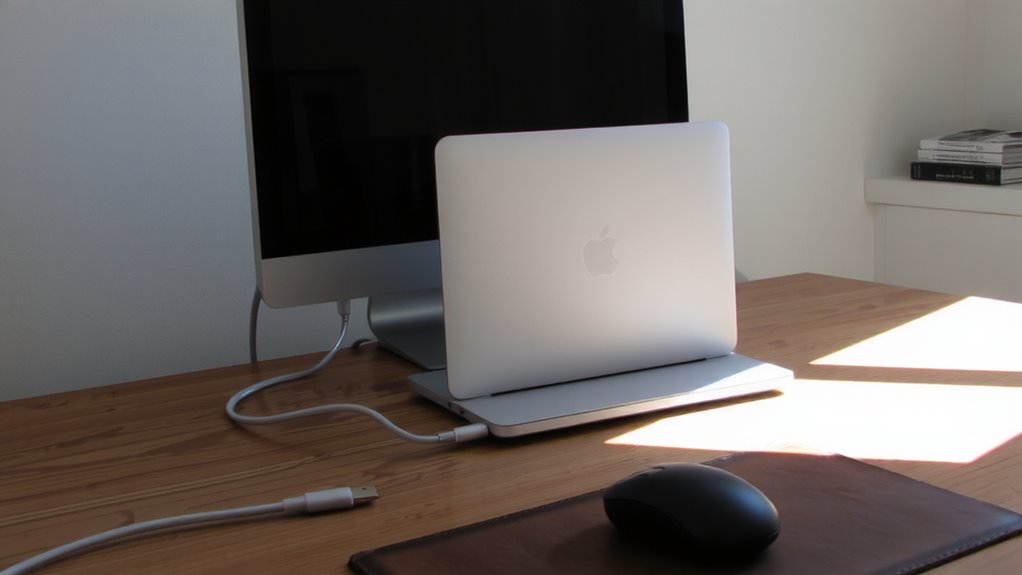
One fewer cable on your desk makes a noticeable difference, and USB-C power delivery helps you get there by letting your monitor charge your laptop while handling video and data. This simplifies cable management, reducing tangles and improving airflow around your workspace. You gain better power efficiency, too-fewer adapters mean less energy loss. A single USB-C connection can deliver up to 100W of power, enough to run most laptops while syncing files and driving 4K displays. That said, check your laptop’s USB-C spec: not all support charging and video out simultaneously. Also, longer cables may reduce power delivery performance. Monitors like the Dell UltraSharp U2723QE or LG 27UN880-B back this feature with solid build quality and three-year warranties. Real-world testing confirms stable operation, though docking performance varies by laptop model. It’s a smart upgrade if your gear supports it.
Simplify Your Desk With USB-C One-Cable Setup
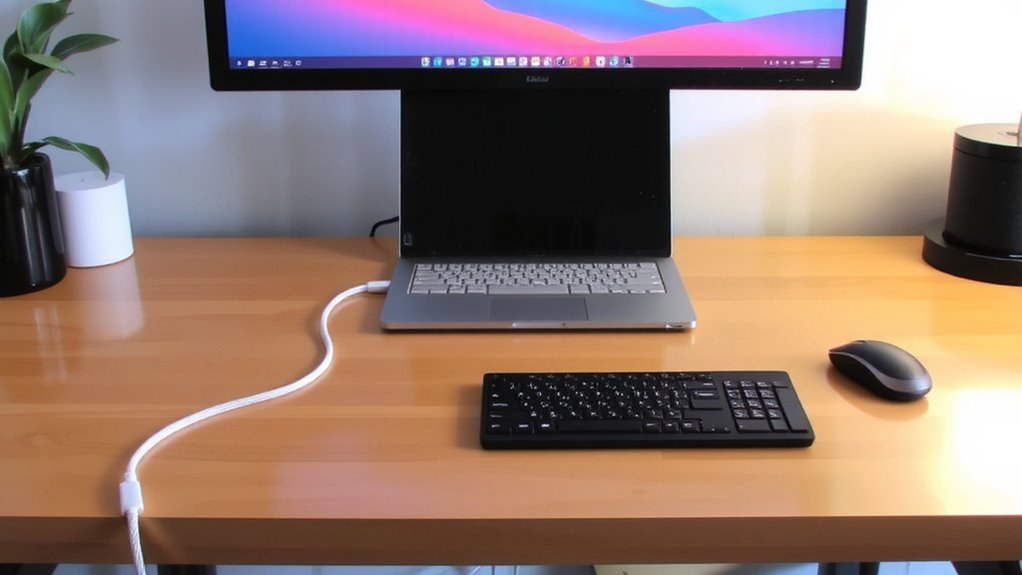
While you can still juggle multiple cables, switching to a USB-C one-cable setup truly simplifies your desk-if your devices support it. You’ll get power, video, and data through a single connection, slashing cable management headaches and improving your ergonomic design by reducing tangles and clutter. A clean workspace isn’t just pleasing-it cuts distractions and boosts focus. Just one cable means fewer points of failure and easier docking when you step away. Most monitors with USB-C Power Delivery supply at least 60W, enough for many laptops, though high-performance models may need more. Be sure your laptop charges fully under load. Adapter docks can fill gaps, but they defeat the simplicity. Real-world testing shows users save up to five minutes daily reconnecting gear. Still, confirm your devices support DisplayPort Alt Mode and adequate power delivery-not all USB-C ports are equal.
Match Your Laptop’s USB-C Specs to the Right Monitor
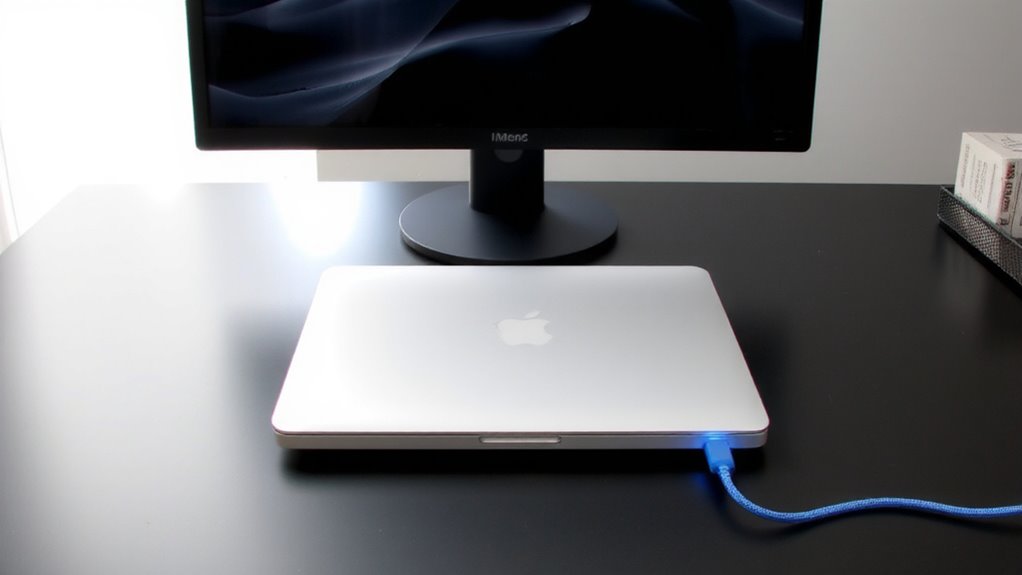
You’ll get the full benefit of a USB-C one-cable setup only when your laptop and monitor match on key technical specs. USB C compatibility isn’t guaranteed just because ports look the same-check for shared standards like USB 3.2 or DisplayPort Alt Mode. Power negotiation also matters: your monitor must supply enough wattage to charge your laptop while running the display. A mismatch here means slow charging or no power at all. When selecting an adapter as a fallback option, consider a USB-C to HDMI adapter that supports both video output and power delivery to maintain a clutter-free setup.
| Feature | Minimum Recommended |
|---|---|
| USB-C Version | USB 3.2 Gen 1 |
| Video Support | DisplayPort Alt Mode |
| Power Delivery | 60W |
| Bandwidth | 5 Gbps |
| Power Negotiation | Explicit contract support |
Verify specs carefully-older laptops may not support full power negotiation, and budget monitors often fall short on bandwidth.
Connect MacBook or Windows Laptop in Seconds
Getting your MacBook or Windows laptop set up with a USB-C monitor can take under 30 seconds when both devices support the right standards. It’s truly plug and play-just connect one cable, and you get an instant display with video, data, and power. This simplicity works best when your laptop and monitor both support DisplayPort Alt Mode and USB Power Delivery over USB-C. You’ll see the screen light up immediately, with no drivers or setup needed. Most modern MacBooks and business-class Windows laptops handle this seamlessly. But confirm your model’s port supports video input, not just charging. Some budget monitors claim USB-C compatibility but limit power delivery or refresh rates, so check specs carefully. While the experience is fast and clean, it won’t work reliably if either device falls short on standards.
Keep Everything Connected Over USB-C
A single USB-C cable can handle your display, power, and peripherals all at once-if your monitor supports USB-C with full functionality. You’ll love the USB-C versatility: one connection powers your laptop, delivers video, and links to accessories like keyboards and external drives. Thanks to strong peripheral compatibility, most modern USB-A and USB-C devices plug directly into the monitor’s built-in hub, streamlining your desk. Just remember, bandwidth is shared, so don’t expect peak speeds from multiple high-data devices at once. Also, not all monitors offer full Power Delivery-some only supply 60W, which may slow charge larger laptops. Check specs carefully. In testing, models like the Dell UltraSharp U2723QE maintained stable 4K output while daisy-chaining peripherals. For clutter-free setups with minimal trade-offs, it’s a smart move-just confirm your gear matches the monitor’s capabilities. For reliable performance, consider pairing your setup with one of the top USB-C chargers.
On a final note
You’re better off using a USB-C monitor with power delivery if your laptop supports at least 65W charging and DisplayPort Alt Mode. It cuts cable clutter fast-just one cord handles video, data, and power. But confirm your laptop’s USB-C specs first; some MacBooks and PCs limit charging speed over certain hubs. Also, check the monitor’s warranty, usually 3 years, and test actual screen performance in your workspace. It works great, but only when matched correctly.